You can set up a local account or use official offline options to avoid a Microsoft account.
I’ve set up dozens of new laptops for friends, clients, and my own office. This article explains how to legally and safely handle the common desire to bypass Microsoft setup on a new laptop, including official options, privacy-focused steps, and what to avoid. You’ll learn clear, practical choices for creating a local account, reducing online ties to Microsoft, and keeping your device secure without resorting to risky hacks. Read on for simple, tested guidance you can apply right away.
Why Microsoft setup is part of the out-of-box experience
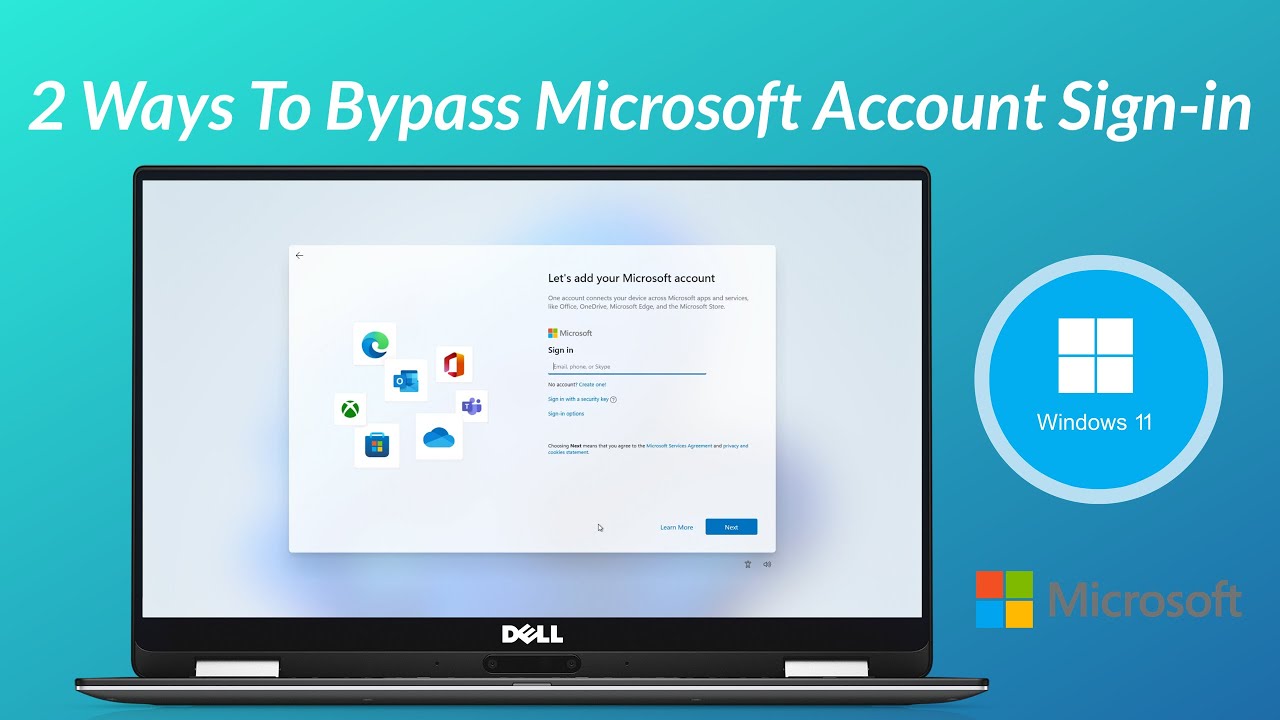
Microsoft setup on a new laptop is meant to connect you to cloud services, enable syncing, and help with recovery. It prompts for a Microsoft account to link your license, store settings, and use the app store.
The setup also checks for updates and applies device-level policies for security. Understanding this helps you make an informed choice when you prefer not to use a Microsoft account.
Legitimate reasons to bypass Microsoft setup on a new laptop
Many users want to bypass Microsoft setup on a new laptop for privacy, to avoid cloud sync, or to create a device for specific offline tasks. Other reasons include preparing a machine for a kiosk, lab, or secure environment where an online account is not wanted. Enterprises often use deployment tools to provision machines without per-user accounts. Whatever your reason, it’s best to use supported and legal methods to avoid glitches or voiding warranties.
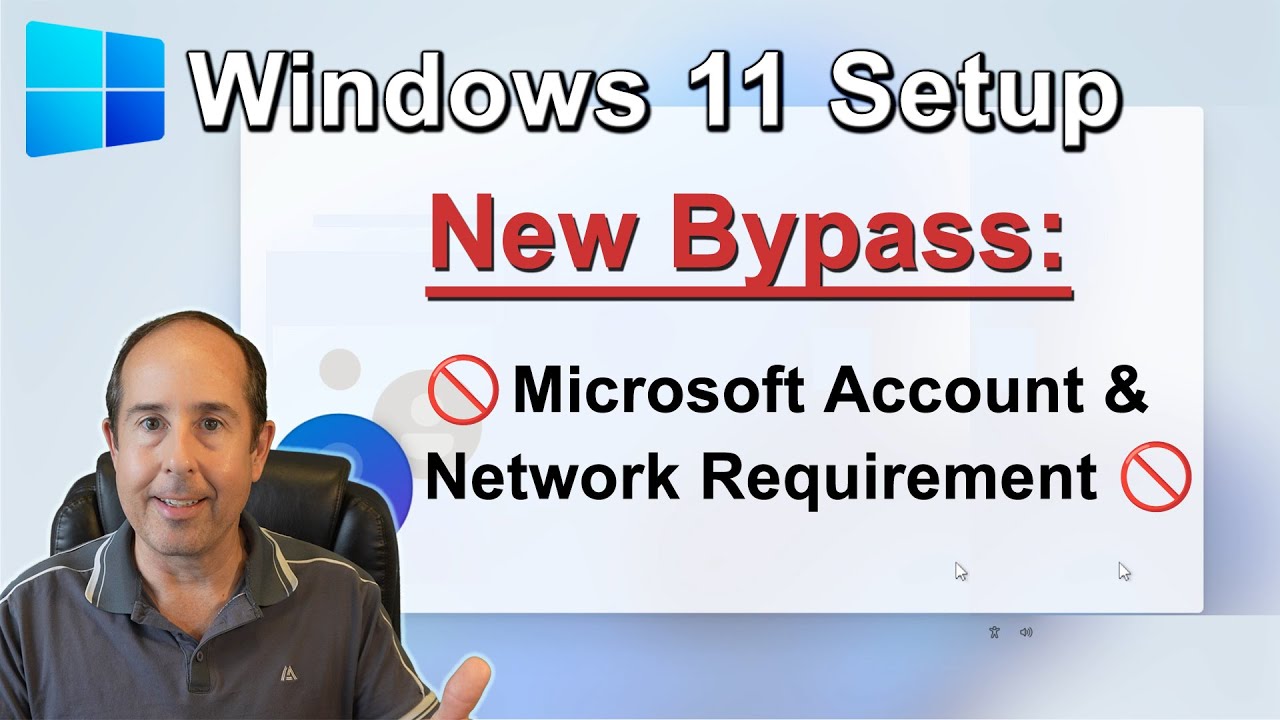
Official, supported ways to set up your laptop without a Microsoft account
Here are lawful ways to avoid a Microsoft account during or after setup:
- Use the built-in offline account option when the setup offers it. Some Windows versions show a “Limited experience” or “Offline account” link. This creates a local user without cloud sign-in.
- Disconnect from Wi-Fi or unplug Ethernet during initial setup. Without network access, many setups default to a local account flow.
- Create a temporary Microsoft account to finish setup, then convert to a local account later in Settings > Accounts. This keeps the system stable and lets you remove cloud links afterwards.
- Use Windows Pro or Enterprise deployment tools if you manage many devices. Tools like imaging and provisioning packages allow admins to skip per-user Microsoft setup.
- If the device is managed or tied to an organization, contact the IT admin or vendor for an appropriate provisioning image. They can remove forced cloud sign-ins safely.
These methods let you bypass Microsoft setup on a new laptop without unsupported hacks. Use the option that best fits your Windows edition and situation.
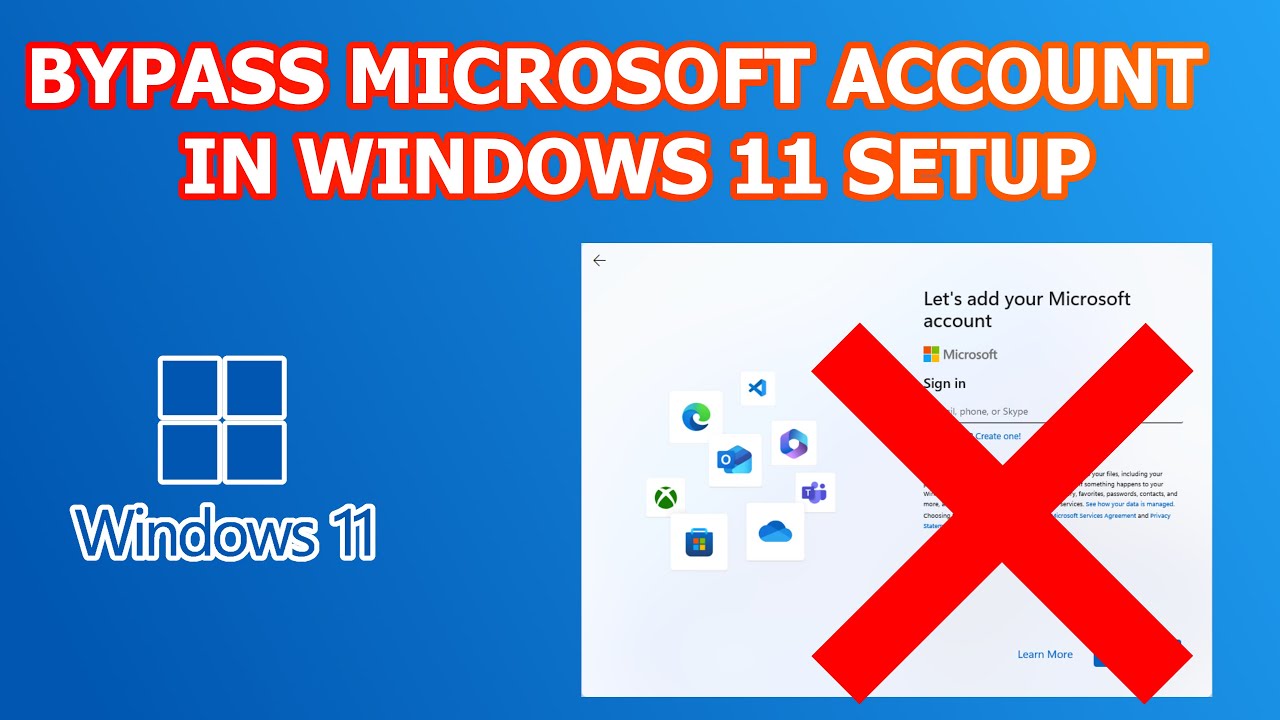
Privacy-friendly steps during initial setup
If your goal is privacy while you bypass Microsoft setup on a new laptop, follow these simple steps:
- Choose a local account with a strong password and a clear hint you control. This avoids syncing to the cloud.
- Turn off telemetry and targeted ads in the privacy screens during setup. Read each option; untick what you don’t want.
- Skip Cortana and OneDrive prompts if you don’t plan to use them. These can be re-enabled later if needed.
- After setup, go to Settings and disable sync, remove stored credentials, and turn off location if not required.
These small choices limit data sharing while keeping Windows stable.
What not to do: risky or unsupported bypasses to avoid
Avoid methods that try to force the setup flow or break licensing and security. These are unsafe and may void warranty:
- Don’t use cracked tools, bypass scripts, or third-party patches that promise to remove account requirements. They can carry malware.
- Avoid unofficial registry edits or command-line hacks that were never intended for consumer use. They can corrupt the system.
- Do not try to bypass activation or license checks. That can make your device unstable and is not legal.
- Don’t share admin credentials or open ports to unknown tools during setup.
Stick to supported options. They are safer and easier to reverse if needed.
Personal experience: lessons learned from real setups
I once set up a laptop for a senior user who hated cloud accounts. We disconnected the Wi-Fi, used the offline account option, and completed setup in under ten minutes. Later, we installed a local backup tool and enabled disk encryption. The system stayed stable, updates worked, and the user kept full control of their data. My key lesson: simple, official steps beat shortcuts every time.

Troubleshooting common problems when you try to bypass Microsoft setup
If you run into trouble while attempting to bypass Microsoft setup on a new laptop, try these fixes:
- No offline option appears: power-cycle, disconnect the network, and restart setup. If it persists, check the Windows edition and vendor notes.
- System insists on a work or school account: the device might be joined to an organization. Contact the seller or IT admin to remove enrollment.
- Activation or update errors after using a local account: sign in briefly with a Microsoft account to validate the license, then switch back to local if needed.
- Concerns about recovery and password reset: configure local recovery options and consider creating a recovery drive.
When in doubt, reach out to official support channels or the device maker for guidance.
Read About How Much Does An Average Laptop Weigh: Real Truth for 2026
Frequently Asked Questions of How to bypass Microsoft setup on a new laptop
How can I create a local account during Windows setup?
You can usually choose an offline account option in the setup screens or disconnect your internet connection so setup offers a local account path. If those options are not present, complete setup with a Microsoft account and convert to local afterwards.
Will bypassing Microsoft setup stop Windows updates?
No, using a local account does not stop automatic updates. Updates are tied to the OS, not the account type, though some update features tied to cloud services may be inactive.
Is it legal to bypass Microsoft setup on a new laptop?
Using official offline account options or local accounts is legal. Avoid using unauthorized tools or hacks that modify licensing or activation, as those can violate terms.
Can I still use the Microsoft Store without a Microsoft account?
The Microsoft Store typically requires a Microsoft account to install apps. You can create or sign in with a Microsoft account only for the Store while keeping a local account for daily use.
Will warranty be voided if I avoid Microsoft setup?
Choosing a local account or turning off cloud features does not void warranty. Using third-party hacks or altering device firmware could affect warranty status.
Conclusion
You can bypass Microsoft setup on a new laptop using safe, supported choices like creating an offline local account, disconnecting from the network during setup, or using official provisioning tools for many devices. Avoid risky hacks that promise shortcuts; they often cause trouble and may void warranties.
Try the simple methods here, check your privacy settings, and keep backups. If you found this guide helpful, subscribe for more setup tips, share your setup story in the comments, or explore official support for device-specific help.