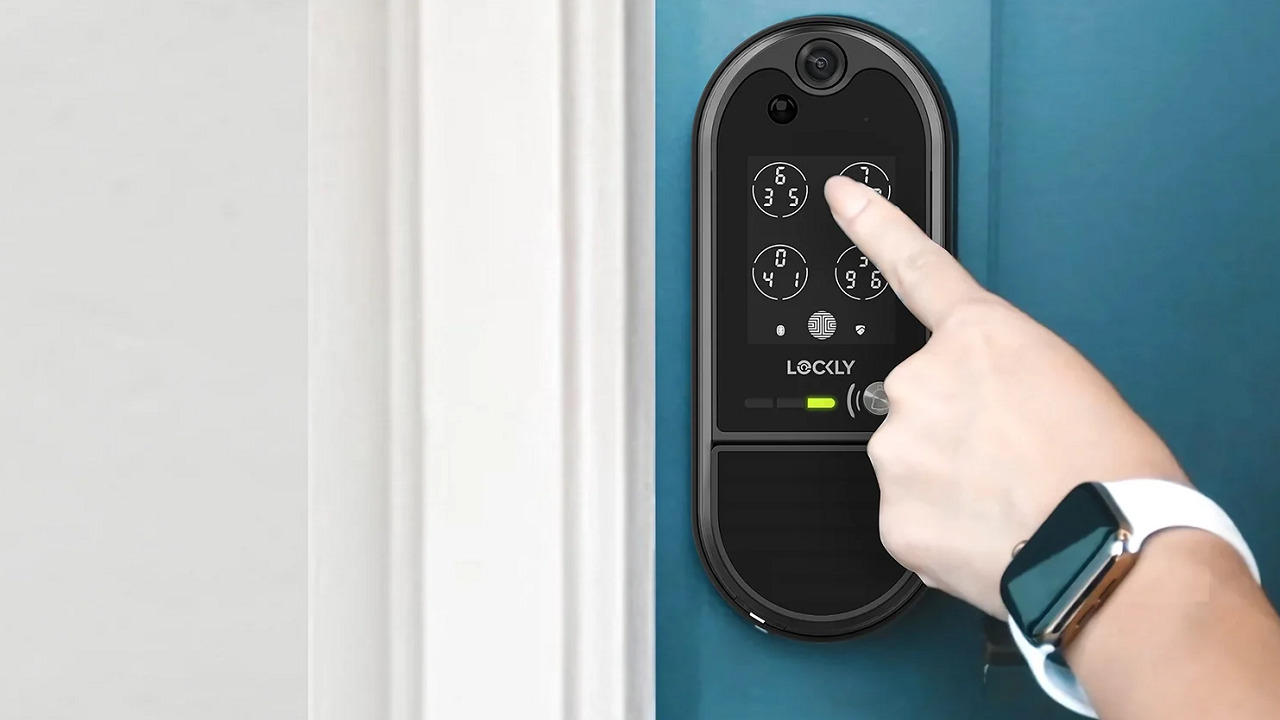
To use a Lockly smart lock, install the Lockly app, pair the lock with your phone, create access methods such as PIN codes or fingerprints, and use the keypad, fingerprint sensor, app, or physical key depending on your model.
For homeowners across the United States, Lockly smart locks provide a way to manage door access without relying only on traditional keys. Whether you have a Lockly Secure Pro, Vision series, or another compatible model, daily operation generally involves setting up digital access methods, connecting the lock to the Lockly app, and learning the available entry options.
This guide explains how to use a Lockly smart lock from initial setup through everyday use. The steps can vary slightly by model, firmware version, and included accessories, so always confirm details with the user manual supplied with your specific Lockly device.
Source: Bing
What You Need Before Using a Lockly Smart Lock
Before using a Lockly smart lock, prepare the required hardware, account information, and access details. Most setup problems happen because the lock is installed incorrectly, batteries are not properly inserted, or the app connection process is skipped.
Check your specific Lockly model because available features differ. Some models support Wi-Fi connectivity, remote access, video monitoring, or advanced fingerprint functions, while basic models may offer fewer options.
Source: Bing
Lockly mobile app
Install the official Lockly app on a compatible smartphone and create an account before beginning setup.
Fresh batteries
Install the recommended batteries and confirm that the lock has enough power before pairing.
Stable installation
Make sure the lock is mounted correctly and the deadbolt moves smoothly before configuring electronic features.
Understanding Lockly Access Methods
Lockly smart locks commonly provide multiple ways to unlock a door. The exact options depend on the model, but users may have access to PIN entry, fingerprint recognition, smartphone control, and a backup physical key.
PIN code entry
Users enter a programmed numerical code on the touchscreen keypad to unlock the door.
Fingerprint access
Compatible models allow registered fingerprints to unlock the door without entering a code.
How to Set Up a Lockly Smart Lock Step by Step
Setting up a Lockly smart lock usually involves installing the hardware, downloading the app, creating an account, pairing the lock, and adding users. Follow the instructions for your exact model because menu names and features can differ.
A successful setup is confirmed when the lock responds correctly to the app, keypad commands, and any registered fingerprint or access codes.
Source: Bing
Install the Lockly app
Download the app, create an account, and sign in before connecting the lock.
Add the lock
Use the app setup process to detect and connect your Lockly device.
Create users
Add owner, family, guest, or temporary access credentials as needed.
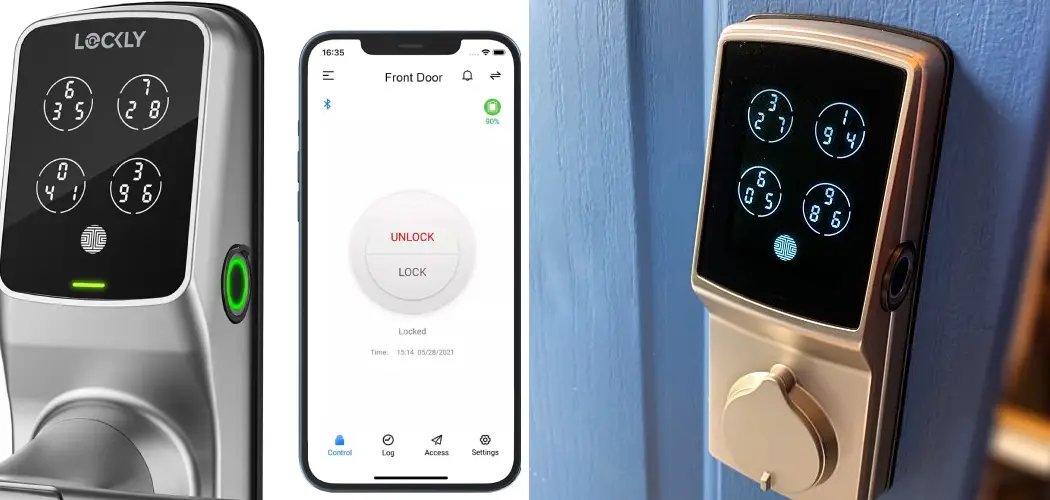
How to Pair Lockly With Your Smartphone
Open the Lockly app and follow the device pairing instructions shown for your model. Keep the phone close to the lock during setup and ensure Bluetooth is enabled if required.
If the lock cannot be found, check battery power, restart the app, and confirm that the lock is not already connected to another account.
Successful pairing signs
The app recognizes the lock, displays device information, and allows access settings to be changed.
How to Unlock and Lock a Lockly Smart Lock
After setup is complete, using a Lockly smart lock is usually straightforward. Choose the access method that fits your situation, such as entering a PIN, scanning a fingerprint, or unlocking through the smartphone app.
Always confirm that the door is fully closed before locking. A smart lock can secure the deadbolt, but it cannot correct a door that is misaligned or physically blocked.
Source: Bing
Using the keypad
Wake the touchscreen, enter your authorized PIN, and follow the model-specific unlocking process.
Using fingerprint access
Place a registered fingerprint on the sensor until the lock verifies the user.
Using the app
Open the Lockly app and use available controls to lock or unlock compatible models.
How to Add or Remove Access Codes
Access codes should be created through the Lockly app or the lock’s programming options depending on the model. Remove unused codes to reduce unnecessary access permissions.
For rental properties or guest access, use temporary codes when supported instead of sharing a permanent owner code.
Best practice
Create separate codes for different users instead of sharing one PIN.
Common Lockly Smart Lock Problems and Solutions
Most Lockly smart lock problems are related to power, connectivity, installation alignment, or incorrect user settings. Check the simplest causes first before performing advanced troubleshooting.
Avoid forcing the lock mechanism if it feels stuck because physical resistance may indicate a door alignment issue rather than an electronic problem.
Source: Bing
Lock does not respond
Replace batteries, check battery installation, and restart the setup process if needed.
App connection fails
Confirm Bluetooth or Wi-Fi requirements, update the app, and retry pairing.
Fingerprint fails
Clean the sensor and register fingerprints again if recognition becomes unreliable.
When to Contact Lockly Support
Contact Lockly support when troubleshooting does not resolve repeated failures, especially if the lock has hardware damage, internal errors, or persistent connectivity problems.
Prepare information
Have your lock model, app version, error messages, and troubleshooting steps available.
Tips for Maintaining a Lockly Smart Lock
Regular maintenance helps keep a Lockly smart lock reliable over time. Battery checks, software updates, and occasional cleaning can prevent many common issues.
Smart locks are electronic devices, so protecting them from moisture beyond their rated limits and avoiding physical damage is important.
Source: Bing
Monitor battery level
Replace batteries before they are completely depleted to avoid being locked out.
Update software
Install available app or firmware updates when recommended by Lockly.
Keep sensors clean
Clean fingerprint sensors and touchscreens according to manufacturer guidance.
Frequently Asked Questions
Q
How do I unlock my Lockly smart lock without the app?
Depending on the model, you can usually unlock a Lockly smart lock using a PIN code, fingerprint, or physical key. Available methods depend on the specific device.
Q
Why is my Lockly smart lock not connecting to my phone?
Connection problems are commonly caused by Bluetooth settings, weak batteries, app issues, or an existing account connection. Check these areas before resetting the lock.
Q
Can multiple people use one Lockly smart lock?
Yes, compatible Lockly models allow multiple users through separate access codes, fingerprints, or app permissions.
Q
How often should I change Lockly smart lock batteries?
Battery life depends on the model, usage frequency, and battery type. Check the app or lock notifications when available and replace batteries when power becomes low.
Q
Can I still use a Lockly smart lock if Wi-Fi stops working?
Many Lockly models can still work with local access methods such as PIN codes or fingerprints. Remote features may require a working connection.
✦ Wrapping Up
Conclusion
Using a Lockly smart lock involves setting up the device correctly, creating secure access methods, and choosing the unlocking option that works best for your household. The exact features depend on your Lockly model, so always follow the instructions provided for your device.
Regular maintenance, careful user management, and basic troubleshooting knowledge can help your smart lock remain dependable for everyday use.
💡 Key Takeaway
Start by installing the Lockly app, pairing your lock, creating secure user access, and testing each unlocking method before relying on it daily.
Kimberly ensures every piece of content is clear, helpful, and user-friendly. She focuses on creating guides that are easy to read while maintaining accuracy and trust.
Learn how wireless CarPlay works, how it connects your iPhone to your car, setup steps, compatibility requirements, limitations, and troubleshooting tips.