The best mouse settings for gaming usually start with a consistent DPI between 400 and 1600, a comfortable in-game sensitivity, disabled mouse acceleration, and a polling rate supported by your hardware.
For gamers in the United States playing competitive PC titles, mouse settings can directly affect aiming precision, reaction consistency, and overall comfort. A properly configured gaming mouse helps your movements translate predictably on screen, whether you are playing first-person shooters, strategy games, or action titles.
The right configuration depends on your game genre, mouse sensor, display resolution, desk space, and personal control style. Instead of copying professional player settings, use a repeatable setup process that lets you find settings that match your own movement habits.
Source: Bing
What Are Gaming Mouse Settings and Why Do They Matter?
Gaming mouse settings are the software and operating system adjustments that control how your mouse translates physical movement into cursor or camera movement. These settings include DPI, polling rate, sensitivity, acceleration, button assignments, and game-specific options.
A properly configured mouse reduces unpredictable movement and allows your muscle memory to develop. This is especially important in competitive games where small aiming adjustments can determine accuracy.
Source: Bing
DPI
DPI measures how many pixels the cursor moves when the mouse moves one inch. Higher DPI creates faster cursor movement, while lower DPI allows more precise control.
Sensitivity
Sensitivity is usually adjusted inside a game and determines how quickly your character view or pointer responds to mouse movement.
Polling Rate
Polling rate describes how often the mouse reports its position to the computer, measured in Hz. Higher rates can reduce input delay but may require compatible hardware.
How DPI and Sensitivity Work Together
DPI and sensitivity should be adjusted together because changing one affects your overall aiming speed. Many competitive players prefer lower DPI combined with higher in-game sensitivity because it provides controlled movement while keeping adjustments consistent.
Low DPI setup
Often preferred for FPS games because larger physical movements can provide smoother aiming control.
High DPI setup
Can be useful for desktop productivity and players who prefer faster cursor movement with smaller hand motions.
How to Set the Best DPI for Gaming
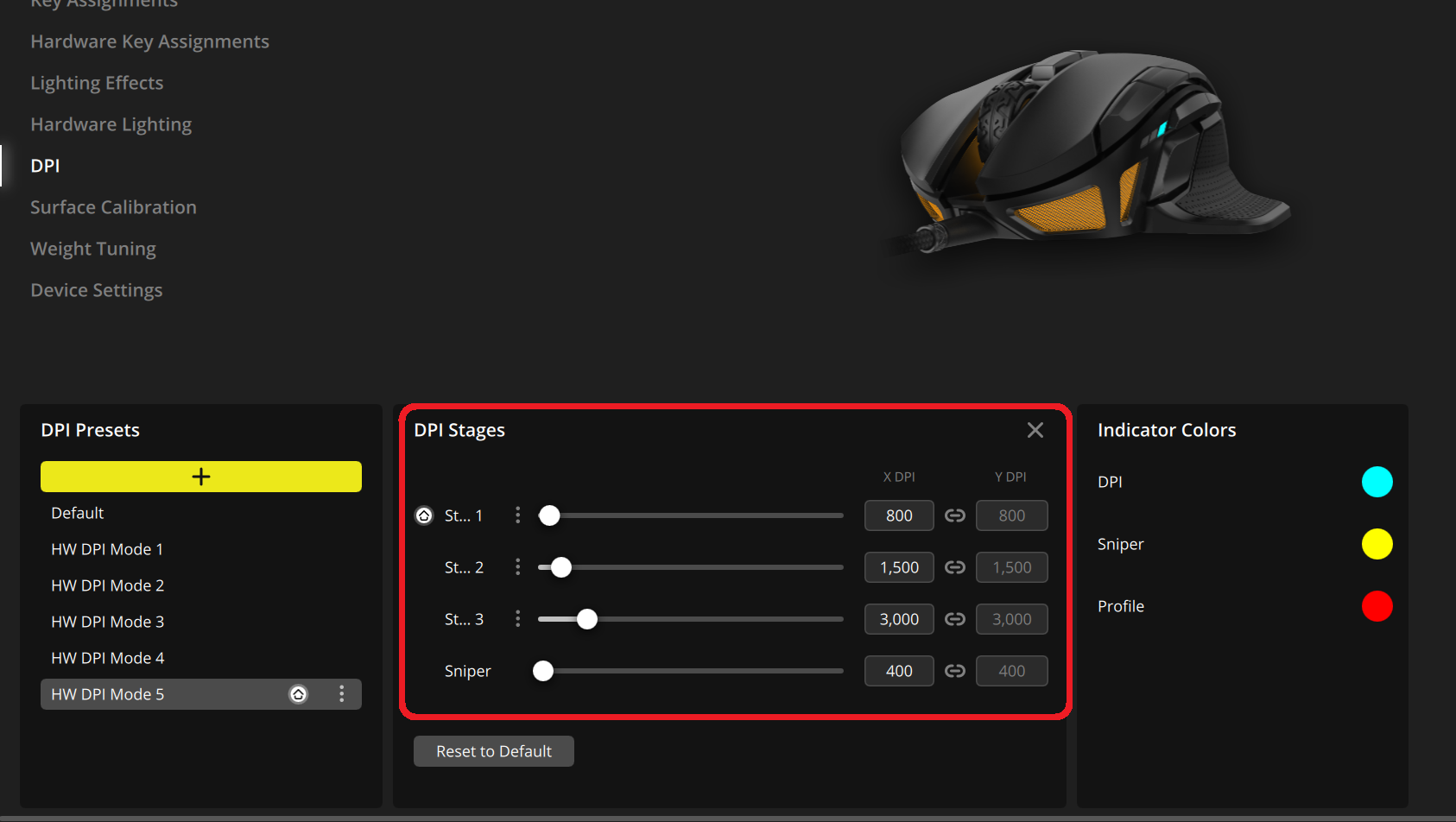
The best DPI setting depends on the game, mouse sensor, and personal preference. There is no universal DPI value that works for every player. A practical approach is to begin with a moderate DPI setting and adjust gradually.
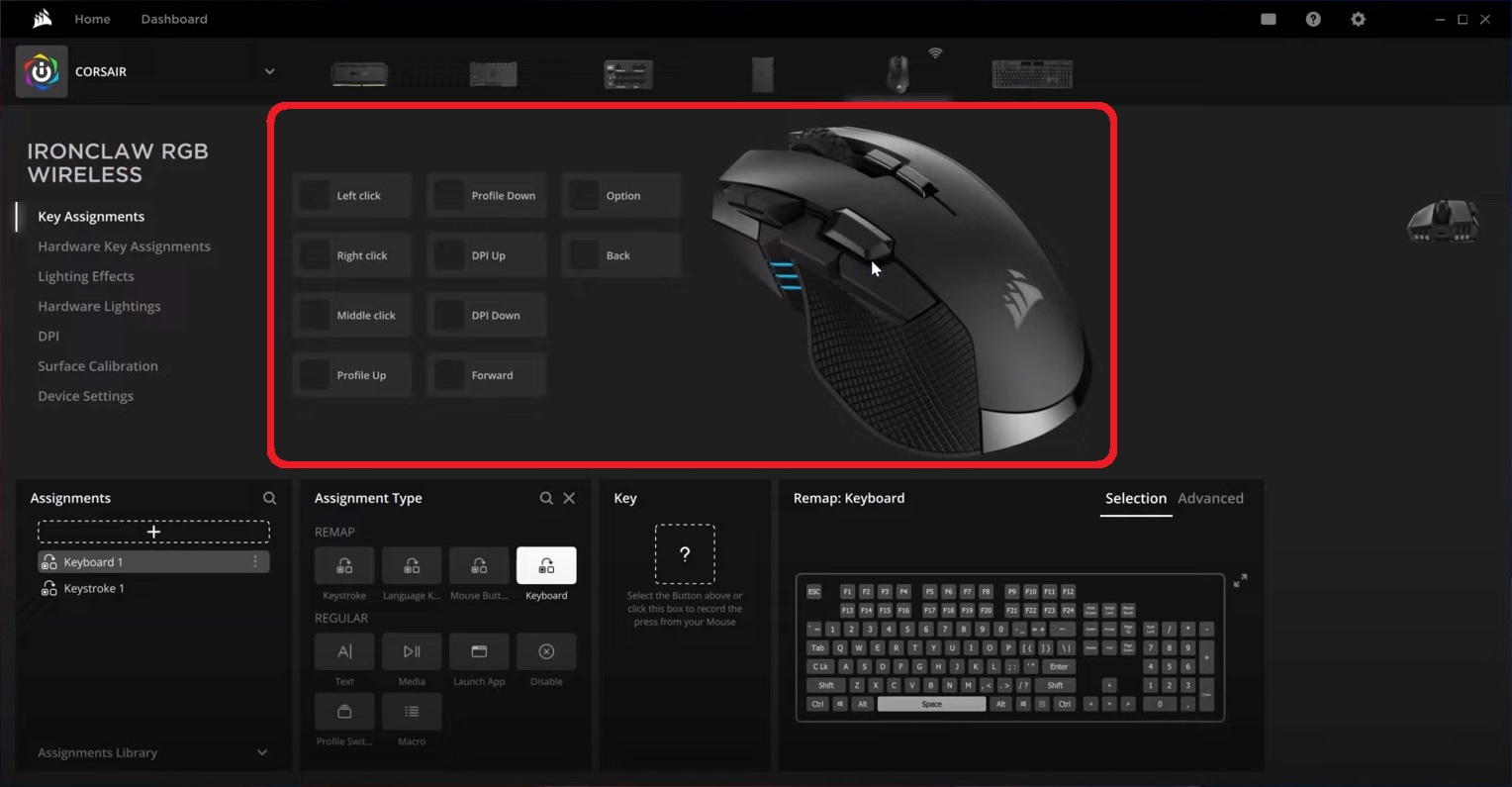
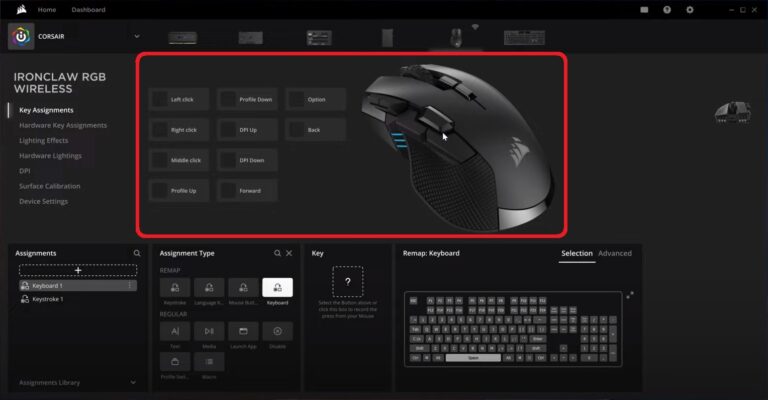
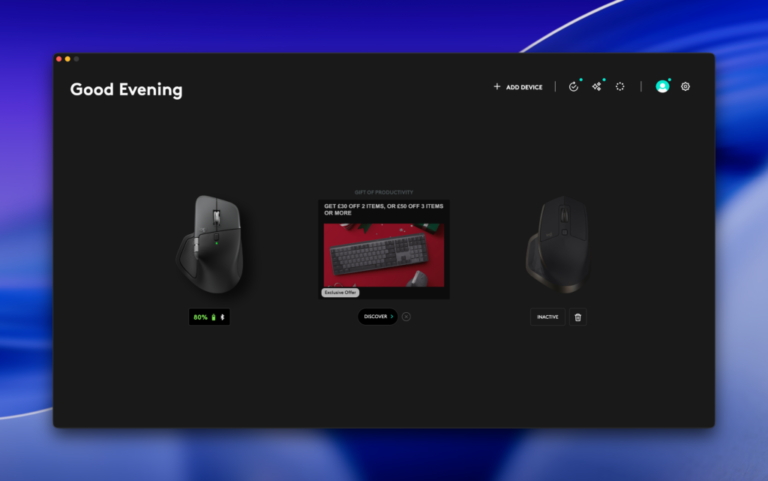
Many gaming mice allow DPI changes through manufacturer software. Examples include Logitech G HUB, Corsair iCUE, and other peripheral applications that support custom profiles.
Source: Bing
FPS games
Many players choose 400 to 1600 DPI because slower cursor movement can improve aiming control.
MOBA and strategy games
Higher DPI settings may help with faster map movement and interface navigation.
General gaming
Choose a setting that allows comfortable movement without requiring excessive hand strain.
Steps to Adjust Mouse DPI
Open your gaming mouse software, select the DPI settings, choose a value, and test it in your preferred game. Make small adjustments rather than changing DPI repeatedly during every session.
Step 1
Open your mouse manufacturer’s configuration software.
Step 2
Select a DPI level and save it to a profile.
Step 3
Test movement accuracy in a game before making further changes.
How to Configure Windows Mouse Settings for Gaming
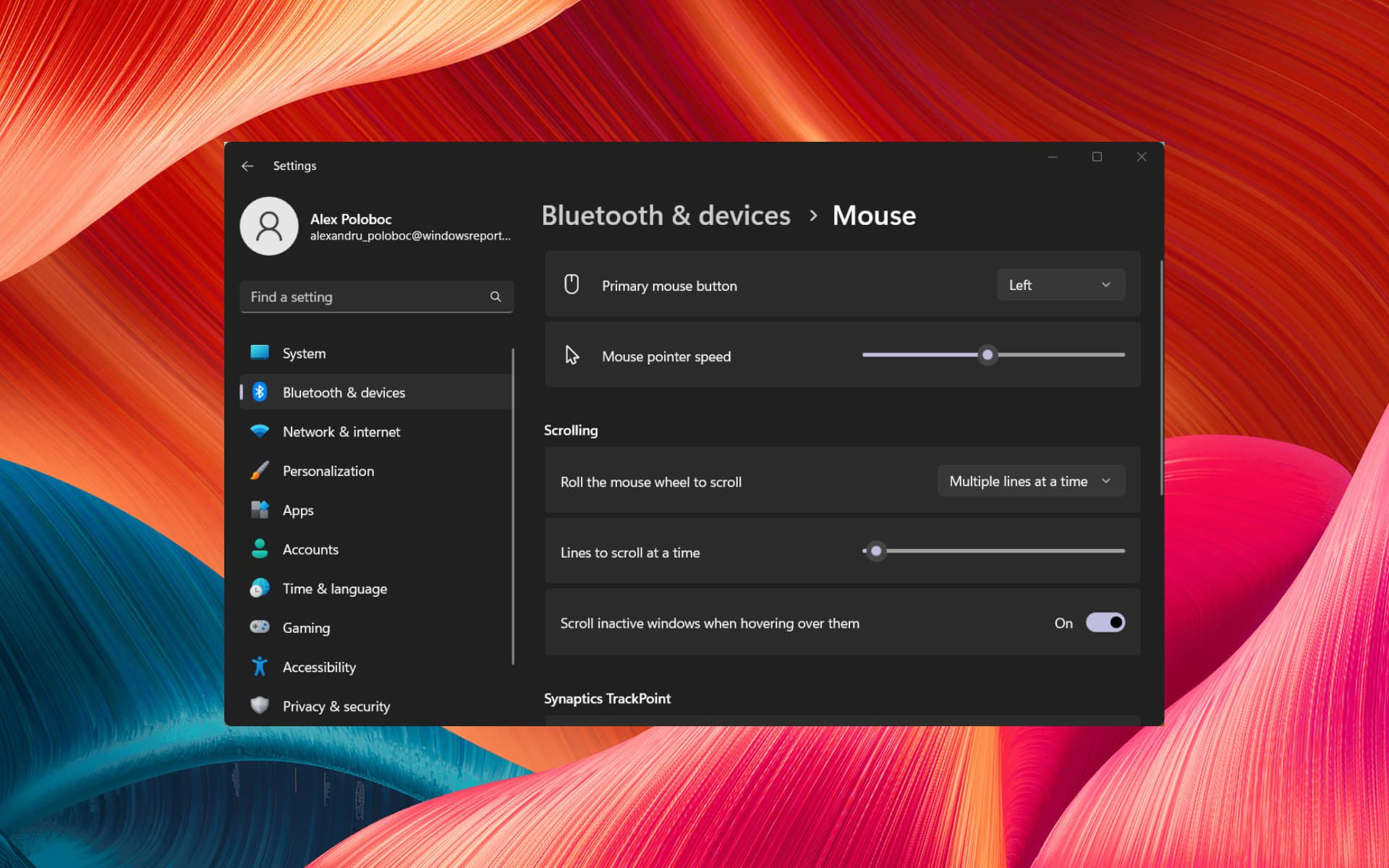
Windows settings can influence mouse behavior before a game applies its own controls. Adjusting these settings helps create a predictable input experience.
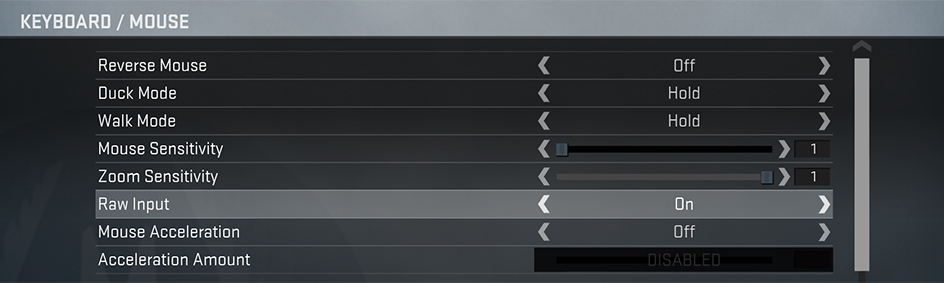
For competitive gaming, many players disable mouse acceleration because it changes cursor distance based on movement speed, making consistent aiming more difficult.
Source: Bing
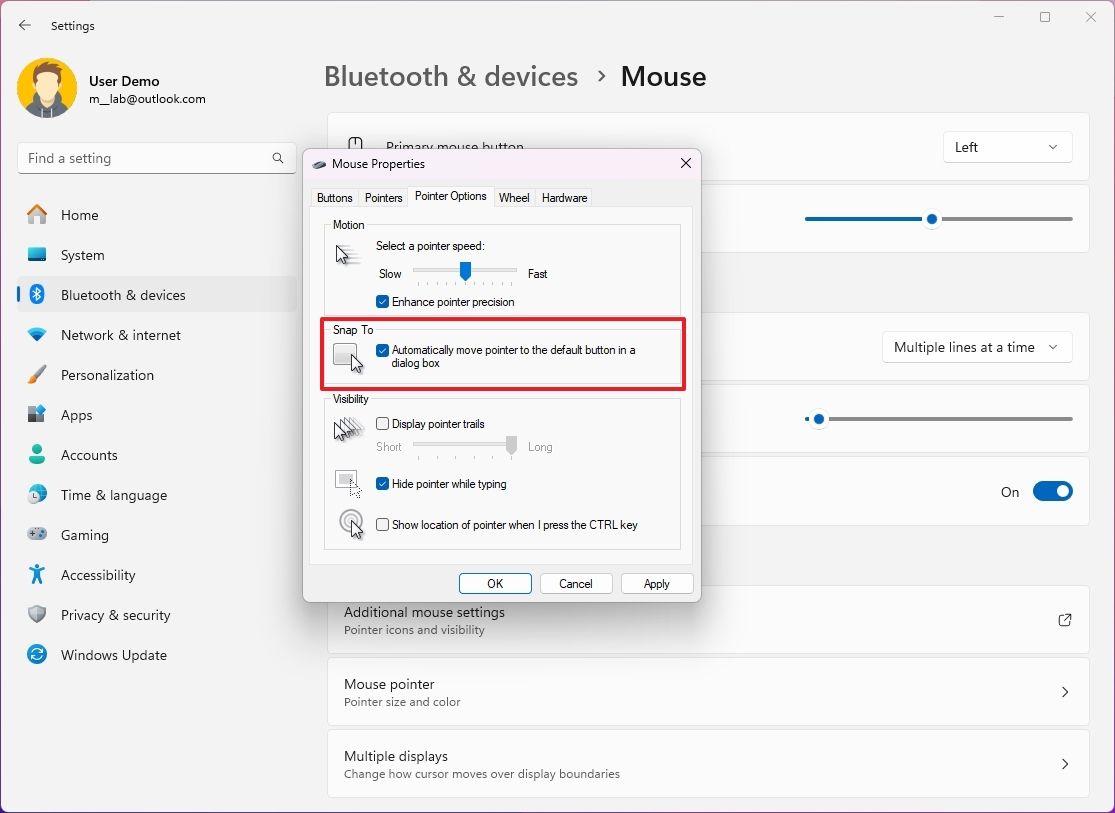
Disable Enhance Pointer Precision
Turning off this Windows feature disables acceleration and creates a more consistent relationship between physical movement and cursor movement.
Use consistent pointer speed
Avoid changing Windows pointer speed frequently because it can affect your familiar movement distance.
Windows Mouse Setup Steps
Open Windows Settings, navigate to mouse options, adjust pointer settings, and verify that acceleration-related options match your preferred gaming configuration.
Check pointer options
Review Windows mouse properties before changing in-game settings.
Test in-game movement
Confirm that your aim feels consistent after adjustments.
How to Choose the Right Polling Rate and Extra Mouse Features
Polling rate determines how frequently a mouse communicates with the computer. Common gaming mouse polling rates include 125 Hz, 500 Hz, 1000 Hz, and higher values on some newer devices.
Higher polling rates may increase responsiveness, but the difference depends on hardware, game support, and system performance. A stable setting is usually more useful than selecting the highest available option.
Source: Bing
Button customization
Assign useful commands or shortcuts to extra buttons when it improves your workflow or gameplay.
Lift-off distance
Some gaming mice allow adjustment of sensor behavior when the mouse is lifted from the surface.
Profiles
Create separate profiles for different games instead of changing settings manually every time.
Avoiding Common Gaming Mouse Setup Mistakes
Many players make frequent changes to DPI and sensitivity, which prevents consistent muscle memory from developing. Make one adjustment at a time and test it over multiple gaming sessions.
Copying professional settings
Professional settings may not match your mouse, monitor size, grip style, or experience level.
Using extreme sensitivity
Very high sensitivity can make precise aiming harder for many players.
How to Troubleshoot Gaming Mouse Problems
When a gaming mouse feels inaccurate, check settings in order from the simplest causes to more advanced configuration issues. Many problems come from incorrect software settings, inconsistent sensitivity, or surface tracking issues.
Source: Bing
Mouse feels too fast
Lower DPI or in-game sensitivity gradually until movements feel controlled.
Mouse feels inconsistent
Disable acceleration, confirm software profiles, and keep settings consistent.
Cursor skips or stutters
Clean the sensor, check the mouse surface, update drivers, and test another USB connection if needed.
Signs Your Settings Are Optimized
A well-configured gaming mouse should feel predictable. You should be able to repeat similar movements, track targets comfortably, and make adjustments without constantly changing settings.
Consistent aim
Your crosshair movement should match your intended hand movement.
Comfortable control
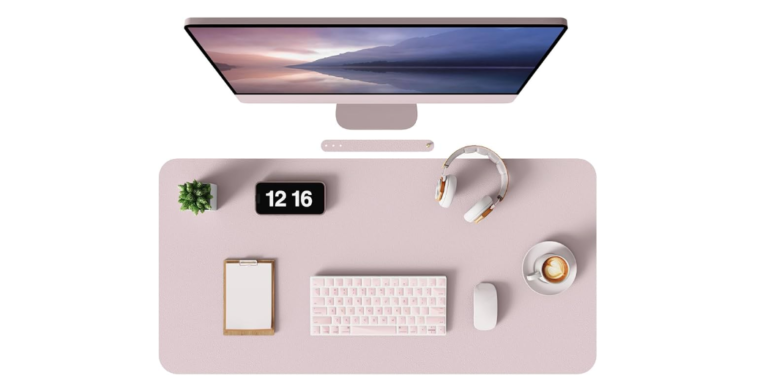
Your settings should work with your available desk space and grip style.
Frequently Asked Questions
Q
What is the best DPI for gaming?
There is no single best DPI for every gamer. Many players use moderate DPI settings between 400 and 1600, but the ideal value depends on the game, sensitivity, and personal comfort.
Q
Should I turn off mouse acceleration for gaming?
Many competitive gamers disable mouse acceleration because it can make movement less predictable. However, casual players may prefer whichever setting feels more comfortable.
Q
Does higher DPI make a gaming mouse better?
Higher DPI does not automatically improve gaming performance. Accuracy depends on the complete setup, including sensor quality, sensitivity, and player control.
Q
How often should I change my mouse settings?
Change settings only when you identify a specific problem. Frequent adjustments can make it harder to build consistent muscle memory.
Q
Why does my gaming mouse feel different between games?
Different games use different sensitivity systems and settings. Creating separate profiles and adjusting each game individually can help maintain consistent control.
✦ Wrapping Up
Conclusion
The best mouse settings for gaming come from creating a consistent setup that matches your hardware, preferred games, and physical comfort. DPI, sensitivity, polling rate, and Windows settings should work together rather than being adjusted separately.
Start with stable settings, make small changes, and test them over time. A predictable mouse configuration allows you to build better control and avoid unnecessary distractions during gameplay.
💡 Key Takeaway
Choose a comfortable DPI, disable unwanted acceleration, adjust sensitivity gradually, and keep your gaming mouse profile consistent.
Kimberly ensures every piece of content is clear, helpful, and user-friendly. She focuses on creating guides that are easy to read while maintaining accuracy and trust.
Learn how a gaming mouse with pinky rest improves grip comfort, who needs one, key features to consider, and how to choose the right ergonomic gaming mouse setup.
Learn how Corsair gaming mouse software works, how to install and configure iCUE, customize buttons, adjust DPI, create profiles, and troubleshoot common issues.