Your Logitech Brio may not work because of a loose USB connection, blocked permissions, outdated drivers, or a software conflict.
When you ask, “why is my Logitech Brio not working,” the cause is often simple but easy to miss. A Brio can fail because Windows or macOS cannot detect it, an app is using the wrong camera, Logitech software needs an update, or the USB port cannot provide enough bandwidth. This guide walks you through each fix in a clear order, so you can restore your webcam without guessing.

Why Is My Logitech Brio Not Working?
The Logitech Brio is a 4K webcam with features such as autofocus, HDR, noise reduction, and Windows Hello support. These features need a stable USB connection, correct system permissions, and compatible video software.
If the camera does not work, look for the exact symptom:
• No light appears on the webcam.
• Your computer does not detect the Brio.
• The camera appears, but the video is black.
• The image freezes or looks very blurry.
• The webcam works in one app but not another.
• The video works, but the microphone does not.
• The Brio shows a “camera in use” error.
The fastest approach is to start with the physical connection. Then check the operating system, app settings, drivers, and Logitech software. This order saves time because a software reset cannot fix a disconnected camera.

Check the Logitech Brio’s Physical Connection
A loose or unsuitable USB connection is one of the most common reasons why is my Logitech Brio not working becomes a frustrating question. The Brio needs a reliable USB connection for video, audio, and high-resolution features.
Try these steps:
-
Unplug the Brio from your computer.
-
Wait about 10 seconds.
-
Plug it directly into a different USB port.
-
Avoid USB hubs, docking stations, and monitor ports during testing.
-
Check that the cable is fully inserted into the camera and computer.
-
Restart the computer with the webcam connected.
The Brio may work at a lower resolution through a weaker connection, but 4K video can require more USB bandwidth. A direct USB 3.0 or newer port is usually the best choice.
If you use a USB extension cable, remove it for now. Long or low-quality cables can cause unstable video, random disconnects, or a camera that never appears in the system.
Test the USB port
Connect another device to the same port. If that device also fails, the port may be damaged or disabled. You can also test the Brio on another computer to learn whether the issue follows the camera or stays with your original computer.
This simple test works like changing a lightbulb to check whether the problem is the bulb or the socket. It quickly separates hardware problems from software problems.

Restart the Computer and Camera Apps
A temporary camera lock can explain why is my Logitech Brio not working after a video call or browser session. Apps such as Zoom, Microsoft Teams, Google Meet, Discord, and Skype may continue holding the camera even after their windows are closed.
Close every app that may use the webcam. Then restart your computer.
On Windows, open Task Manager by pressing Ctrl, Shift, and Esc. Look for video call apps, browser processes, or camera tools that are still running. End only apps you recognize.
On macOS, quit the app normally. If it does not close, use Force Quit from the Apple menu. Then reconnect the Brio and open only one camera app for testing.
You can also test the webcam with the built-in camera app:
• Windows: Open the Camera app.
• macOS: Open FaceTime or Photo Booth.
If the Brio works in the built-in app, the camera is likely fine. The problem may be inside the third-party app or browser.
Check Camera Permissions in Windows
Windows may detect the Brio but block apps from using it. This is a common reason why is my Logitech Brio not working in Zoom, Teams, or a web browser.
To check permissions in Windows 11:
-
Open Settings.
-
Select Privacy & security.
-
Choose Camera.
-
Turn on Camera access.
-
Turn on Let apps access your camera.
-
Turn on Let desktop apps access your camera.
Desktop apps include browsers and many video conferencing programs. If this last setting is off, the webcam may work in the Camera app but fail in Zoom or Google Meet.
Also check your microphone permissions:
-
Open Settings.
-
Select Privacy & security.
-
Choose Microphone.
-
Allow access for your video app.
Close and reopen the affected app after changing permissions. Some programs check camera access only when they start.

Check Camera Permissions on macOS
macOS protects camera access more strictly than older versions of the operating system. If your Logitech Brio works in FaceTime but not in another app, permission settings are a strong possibility.
Follow these steps:
-
Open System Settings.
-
Select Privacy & Security.
-
Choose Camera.
-
Turn on access for your video app or browser.
-
Select Microphone and allow access if you need Brio audio.
-
Quit and reopen the app.
Your Mac may ask you to enter an administrator password. This is normal. The change may not apply until you fully close the app.
If the app still cannot see the camera, restart the Mac after changing permission settings. A restart can refresh the camera service and clear a stuck connection.
Select the Correct Camera in Your App
Sometimes the Brio is working, but the app is using a built-in laptop camera instead. This can make it seem like why is my Logitech Brio not working when the real issue is the selected device.
Open the video settings inside your app and look for a camera menu. Select an option such as:
• Logitech BRIO
• BRIO
• External USB camera
Avoid selecting a virtual camera unless you know you need one. Virtual camera tools can redirect the video feed or create conflicts.
In Zoom, open Settings, select Video, and choose the Brio. In Microsoft Teams, open Settings, choose Devices, and select the Brio under Camera. In Google Meet, open the meeting settings and choose the Brio from the camera list.
Check the preview window before joining a call. This small habit prevents many awkward “Can you see me?” moments.
Update Logitech Brio Software and Firmware
Outdated software can cause connection problems, image errors, and missing controls. If you are wondering why is my Logitech Brio not working after an operating system update, check Logitech’s current software first.
Logitech provides tools such as Logi Tune and G HUB for supported devices. The exact features can vary by operating system and Brio model. Use the official Logitech support page to identify the correct application for your device.
Update these items when available:
• Logitech webcam software
• Brio firmware
• USB and chipset drivers
• Windows or macOS
Before a firmware update, connect the Brio directly to the computer. Do not unplug the camera during the update. A lost connection during firmware installation can create more serious problems.
Software updates can improve compatibility, but they are not magic fixes. If the camera does not appear at all, check the USB connection and system detection before focusing on firmware.
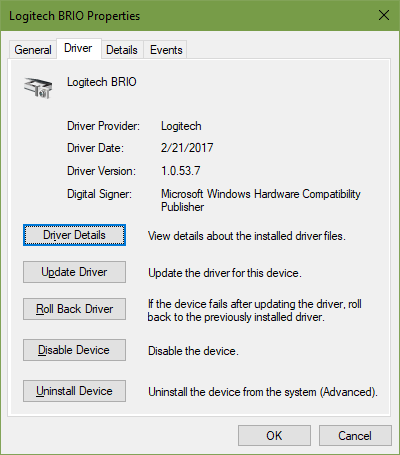
Fix Logitech Brio Problems in Windows Device Manager
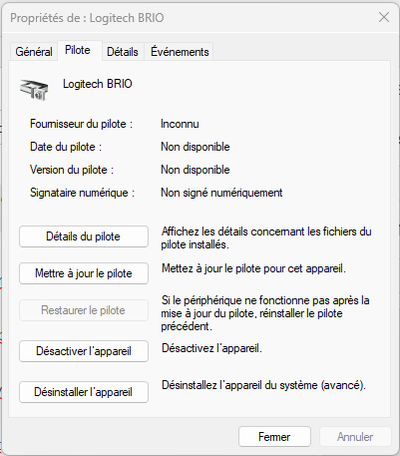
Device Manager can show whether Windows recognizes the webcam. It can also reveal a disabled device or a driver problem.
Try this process:
-
Right-click the Start button.
-
Select Device Manager.
-
Expand Cameras or Imaging devices.
-
Find Logitech BRIO.
-
Right-click it and select Enable device if that option appears.
-
Select Update driver.
-
Restart the computer.
If the Brio has a warning icon, Windows may have found a driver or hardware problem. You can also remove the device:
-
Right-click Logitech BRIO.
-
Select Uninstall device.
-
Restart the computer.
Windows should detect the webcam again after startup. Do not remove random USB or system devices. Only remove the entry clearly linked to the Brio.
Also check Universal Serial Bus controllers. A USB controller error can affect webcams and other devices at the same time.

Stop Other Programs From Using the Webcam
The Brio may appear unavailable because another application has exclusive access. This can happen after a meeting app crashes or a browser tab remains active.
Close programs that may use video:
• Zoom
• Microsoft Teams
• Skype
• Discord
• Google Chrome
• Microsoft Edge
• OBS Studio
• Logitech software
• Windows Camera
Browser tabs are easy to overlook. Close meeting tabs, social media pages, and web apps that request camera access. Then reopen only the app you want to test.
On Windows, the camera privacy page may show recent camera activity. On macOS, a green indicator near the menu bar shows when an app is using the camera. These signs can help identify the app holding the device.
Fix a Black, Frozen, or Blurry Logitech Brio Image
A black screen does not always mean the camera is broken. It may result from a closed privacy shutter, poor lighting, a blocked lens, or a video setting the app cannot handle.
Try the following:
• Open the Brio’s privacy shutter if your model or mount has one.
• Clean the lens with a soft microfiber cloth.
• Move away from bright light behind you.
• Add light in front of your face.
• Lower the resolution from 4K to 1080p.
• Turn off HDR for testing.
• Disable background effects.
• Close and reopen the camera app.
4K video uses more processing power and USB bandwidth than 1080p video. If the image freezes at 4K, test 1080p first. A stable 1080p image is more useful than a high-resolution stream that keeps stopping.
Autofocus can also hunt in dim rooms or when objects move near the lens. Improve the light and place your face at a normal speaking distance.
Fix Logitech Brio Microphone Problems
If video works but audio does not, the camera connection may be fine. The app may simply be using your laptop microphone, headset, or another input device.
Open the audio settings in your app and select:
• Logitech BRIO microphone
• BRIO microphone
• USB microphone
Check the input volume and speak while watching the level meter. If the meter does not move, confirm that the app has microphone permission.
On Windows, open Settings, select System, then Sound, and choose the Brio under Input. On macOS, open System Settings, select Sound, and choose the Brio under Input.
Avoid placing the Brio beside a loud fan or speaker. The built-in microphones are useful for calls, but a headset often provides clearer sound in noisy rooms.
Check USB Bandwidth and Power
A USB hub may connect many devices through one controller. If several devices compete for bandwidth, the Brio can freeze, drop frames, or fail to start.
For testing, disconnect other high-bandwidth USB devices such as:
• External drives
• Capture cards
• Other webcams
• USB audio interfaces
• Gaming devices
Then connect the Brio directly to the computer. If it starts working, reconnect devices one at a time to find the conflict.
Laptop power settings can also interrupt USB devices. In Windows, update the system and chipset drivers first. Advanced users can review USB power management settings, but avoid changing them unless the basic steps fail.
If your computer has both USB 2.0 and USB 3.x ports, try the USB 3.x port. Port colors are not always reliable, so check the computer manual when possible.
Test the Logitech Brio on Another Computer
Testing on another computer is one of the strongest troubleshooting steps. It tells you whether the issue is caused by the webcam or the original computer.
Connect the Brio to a second computer and open its built-in camera app. Use a direct USB connection and test at 1080p first.
The results usually point in one direction:
• Works on another computer: The first computer has a software, permission, USB, or driver issue.
• Fails on another computer: The cable, webcam, or hardware may be faulty.
• Works only when the cable is held at an angle: The cable or connector may be damaged.
• Appears and disappears repeatedly: The connection may be unstable, or the camera may have a hardware fault.
The Brio’s removable USB cable is worth checking carefully. If you have a compatible replacement cable, test it. Use a data cable, not a charge-only cable.
When the Logitech Brio May Need Repair or Replacement
If you have tried several ports, two computers, a known-good data cable, and all permission settings, hardware failure becomes more likely. A failed cable, damaged USB connector, or internal camera fault can prevent detection.
Contact Logitech support or the seller if:
• The camera is not detected on any computer.
• The cable connector feels loose.
• The camera repeatedly disconnects.
• The lens or housing is physically damaged.
• The webcam stopped working after liquid exposure.
• Firmware installation failed.
Keep your purchase details and device serial number ready. Describe the tests you completed. Support teams can help more quickly when you explain whether the Brio works on another computer.
Do not open the webcam while it is under warranty. That may create further damage and can affect warranty service.
Common Mistakes to Avoid
Many people lose time by changing several settings at once. Make one change, test the camera, and note the result. This turns a confusing problem into a clear process.
Avoid these mistakes:
• Testing only inside one video app.
• Using a USB hub before testing a direct connection.
• Installing random drivers from unofficial websites.
• Updating firmware while the cable is loose.
• Assuming a black preview means hardware failure.
• Ignoring camera and microphone permissions.
• Selecting the laptop camera by mistake.
• Using a charge-only USB cable.
Official software and operating system updates are safer than third-party driver tools. Security agencies and platform makers regularly warn that untrusted driver downloads can contain unwanted software, so use reputable sources.
A Fast Logitech Brio Troubleshooting Checklist
Use this short checklist when you need a quick fix:
-
Unplug and reconnect the Brio.
-
Try another direct USB port.
-
Remove the USB hub or dock.
-
Restart the computer.
-
Close every app that may use the camera.
-
Check Windows or macOS camera permissions.
-
Select Logitech Brio in the video app.
-
Test the built-in Camera, FaceTime, or Photo Booth app.
-
Lower the video quality to 1080p.
-
Update Logitech software, firmware, and system drivers.
-
Test the Brio on another computer.
-
Contact support if it fails everywhere.
This sequence covers the most likely causes without requiring advanced technical skills.
Frequently Asked Questions About Why Is My Logitech Brio Not Working
Why is my Logitech Brio not working even though it is plugged in?
The USB port, cable, permissions, or driver may be the problem. Connect the Brio directly to another USB 3.x port, restart the computer, and check whether the camera appears in the system’s camera settings.
Why is my Logitech Brio not showing up in Zoom?
Zoom may be using another camera, or it may not have camera permission. Open Zoom’s video settings, select Logitech BRIO, then check camera access in Windows or macOS privacy settings.
Why is my Logitech Brio screen black?
A closed privacy shutter, blocked lens, poor lighting, HDR, or an unsupported video setting can cause a black preview. Test the camera at 1080p in the built-in Camera, FaceTime, or Photo Booth app.
Why is my Logitech Brio blurry?
The lens may be dirty, the room may be too dark, or autofocus may be struggling. Clean the lens, improve front lighting, and place your face at a normal distance from the webcam.
Why is my Logitech Brio microphone not working?
Your app may be using another microphone or may not have microphone permission. Select Logitech BRIO as the input device and check microphone access in your operating system.
Can a USB hub cause my Logitech Brio to stop working?
Yes. A hub or dock can limit USB bandwidth or power, especially during high-resolution video. Test the Brio through a direct computer port before using a hub.
Conclusion
The answer to why is my Logitech Brio not working usually starts with the USB connection, app selection, or privacy permissions. After those checks, update the software, reduce the video resolution, test the microphone, and try another computer.
Work through the fixes one at a time. This method helps you find the real cause instead of changing settings at random. If the Brio fails on multiple computers with different cables and ports, contact Logitech support for repair or replacement help.
Try the checklist today, then share your result or explore more webcam troubleshooting guides for a smoother video call setup.