Your Zoom camera looks grainy because of low light, poor video settings, weak bandwidth, or an aging webcam.
If you are asking, “why is my Zoom camera so grainy,” the answer is usually easy to find. I have seen this issue come from a dark room, a dirty lens, low camera quality, or Zoom choosing a lower video resolution. The good news is that a few simple changes can make your video look much sharper.
Why Is My Zoom Camera So Grainy?
The most common reason is poor lighting. A webcam needs enough light to create a clear image. When the room is dark, the camera raises its digital exposure. This adds visual noise, which appears as tiny dots or a rough, grainy texture.
Your camera may also look grainy because Zoom is using a low-quality video stream. This can happen when your internet connection is slow or unstable. Zoom reduces video quality to keep the meeting running.
Other common causes include:
• A low-resolution built-in webcam
• A dirty or smudged camera lens
• Incorrect Zoom video settings
• Low light behind or beside you
• Outdated camera drivers
• Too many apps using your camera or network
• Digital zoom or heavy image cropping
• A loose or damaged camera connection
The best fix depends on the type of grain you see. If the entire image looks noisy, check the lighting first. If the image is blurry, clean the lens and review your focus. If the image changes quality during a call, test your internet connection.

Low Light Is the Main Cause of Grainy Zoom Video
Webcams are small, so they collect less light than phone or DSLR cameras. In a dark room, the camera must work harder to brighten the picture. This process creates noise, much like a rough layer spread over the image.
Look at your face on the screen. If your face is dark while a window or lamp is behind you, the camera may expose for the bright background. Your face then appears dull, shadowy, and grainy.
Try these lighting changes:
• Face a window during the day, but avoid direct sunlight.
• Place a soft lamp behind your monitor.
• Keep bright lights in front of you, not behind you.
• Use two small lights for a more even look.
• Avoid a single harsh ceiling light.
A ring light can help, but you do not need expensive equipment. A desk lamp with a soft white bulb often makes a major difference. Keep the light slightly above eye level and point it toward your face.
One practical lesson is that adding light often improves video more than buying a new webcam. Before replacing your camera, test it in a bright room. If the grain disappears, your webcam may be working normally.

Your Webcam May Have a Low Resolution
Many built-in laptop cameras record at 720p or less. Some older computers use cameras with small sensors and weak image processing. These cameras can look acceptable in daylight but grainy at night or indoors.
Resolution describes the number of pixels in the image. A 720p camera has fewer pixels than a 1080p camera. More pixels can create a sharper picture, but resolution alone does not guarantee good video. A well-lit 720p camera may look better than a poorly lit 1080p camera.
To check your camera:
-
Open Zoom and click your profile picture.
-
Select Settings.
-
Open the Video tab.
-
Look at the camera preview.
-
Test the same camera in your computer’s built-in camera app.
If the image is grainy in every app, the problem is likely the camera, lens, lighting, or driver. If it looks clear in another app but grainy in Zoom, check Zoom settings and meeting conditions.
An external USB webcam may help if your built-in camera is old. Look for a model with 1080p video, automatic exposure, and good low-light performance. A higher price does not always mean better results, so reviews with real sample footage are useful.
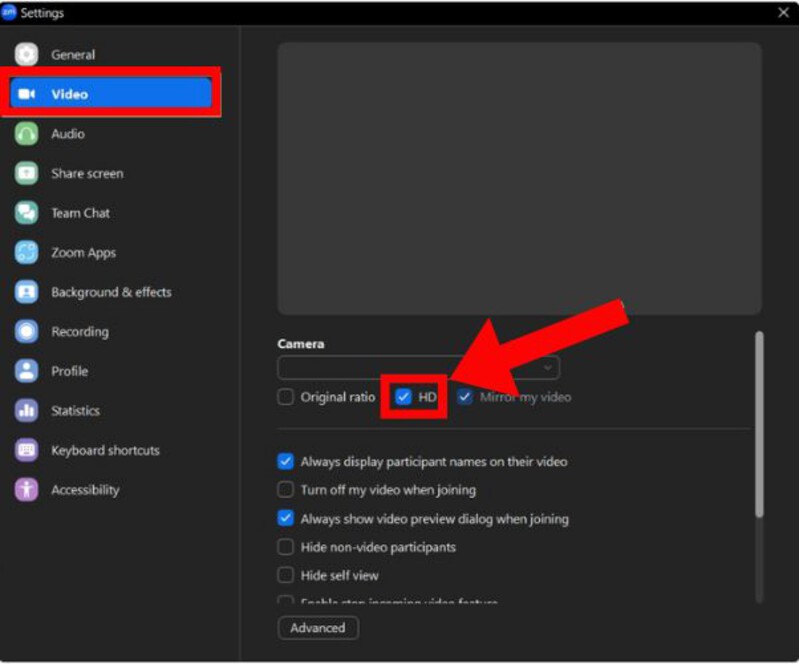
Zoom Settings Can Reduce Video Quality
Zoom may lower video quality to protect call stability. This can happen when your internet connection has low upload speed, high latency, or sudden packet loss. The image may become soft, blocky, or grainy as Zoom compresses the video.
Check these settings:
• Open Zoom and select Settings.
• Choose Video.
• Pick the correct camera from the camera menu.
• Turn on HD if your account and camera support it.
• Check whether low-light adjustment is enabled.
• Review the camera preview before joining a meeting.
The HD option can improve clarity, but it may use more bandwidth. If your connection is weak, enabling HD may not solve the issue. In some cases, stable standard video looks better than HD video that constantly drops quality.
Zoom also offers low-light adjustment. This feature can brighten a dark image, but too much correction may make the video look soft or noisy. Test both automatic and manual options if they are available in your version of Zoom.
Remember that the meeting preview and the video seen by others may differ. Your local preview can look clear while another participant sees a compressed stream because of network conditions.

A Weak Internet Connection Can Make Zoom Look Grainy
Internet problems often cause changing video quality. If the image looks clear at the start and becomes grainy during a call, your connection may be the reason. Zoom needs a steady upload connection to send your camera video to other people.
Several devices can compete for bandwidth:
• Streaming video on a television
• Cloud backups
• Large downloads
• Online games
• Other video calls
• Smart home devices
Run a speed test before an important meeting. There is no single speed that guarantees perfect Zoom video because network stability matters too. A fast connection with packet loss can still cause poor video.
Try these steps:
-
Stop downloads and streaming on your network.
-
Move closer to your Wi-Fi router.
-
Use a wired Ethernet connection when possible.
-
Restart the router if the connection has been unstable.
-
Ask other household members to pause heavy internet use.
-
Close apps that may upload files in the background.
If only one person says your camera looks grainy, their connection may also affect what they receive. Ask another participant how your video looks. This simple test helps show whether the issue is on your side or theirs.

Clean the Lens and Check the Camera Position
A fingerprint, dust mark, or thin layer of oil can make a camera image look hazy. The camera may not appear dirty at a glance, but even a small smudge can scatter light and reduce detail.
Turn off the camera before cleaning it. Use a clean microfiber cloth and wipe the lens gently. Do not use paper towels, rough fabric, or strong cleaning fluid directly on the camera.
Also check the camera position. If your laptop is too close to your face, the image may show more detail in a way that looks harsh or soft. If you use an external webcam, make sure no cover, privacy slider, or screen protector partly blocks the lens.
Avoid digital zoom when possible. Digital zoom enlarges pixels instead of adding real detail. This can make a normal image look rough and grainy.
A simple camera check should include:
• A clean lens
• No privacy cover over the lens
• A steady camera position
• A clear view of your face
• No strong light shining into the lens

Backgrounds and Filters Can Affect Image Quality
Virtual backgrounds and video filters require extra processing. On some computers, Zoom may soften the camera image to separate you from the background. This effect can make your face look less clear.
Turn off virtual backgrounds and filters for a quick test. Open Zoom settings, select Backgrounds & Effects, and choose None. Then compare the preview with your normal setup.
Backgrounds can also make exposure harder. A bright white wall, sunny window, or strong lamp behind you may cause the camera to darken your face. Use a simple, evenly lit background when testing video quality.
If your computer has an older processor, virtual effects may use more system resources. Close other apps and test Zoom again. A busy computer can reduce performance, especially during a long meeting.

Update Zoom, Drivers, and Your Operating System
Outdated software can cause camera errors, poor compatibility, or incorrect video behavior. Zoom, Windows, macOS, and camera drivers all play a role in video performance.
Start with Zoom:
-
Open the Zoom desktop app.
-
Click your profile picture.
-
Select Check for Updates.
-
Install any available update.
Then update your computer through its normal system settings. Windows users can check Windows Update and Device Manager. Mac users can check Software Update and System Information.
Avoid downloading random camera drivers from unknown websites. Use your computer maker’s official support page when a driver update is needed. This reduces the risk of installing unsafe or incorrect software.
After updating, restart the computer. A restart can release the camera from another app and refresh system resources.

How to Fix a Grainy Zoom Camera: A Simple Checklist
Use this checklist in order. It starts with the easiest fixes and moves toward equipment changes.
-
Clean the camera lens with a microfiber cloth.
-
Face a window or place a soft lamp behind your monitor.
-
Remove bright lights from behind your head.
-
Open Zoom settings and select the correct camera.
-
Turn HD on and compare the preview.
-
Turn off filters and virtual backgrounds.
-
Close other video apps, browsers, and file-sync tools.
-
Test your camera in another app.
-
Run an internet speed and stability test.
-
Update Zoom, your operating system, and camera drivers.
-
Restart your computer and router.
-
Try a different USB port if you use an external webcam.
-
Test the webcam on another computer if possible.
If the camera remains grainy in bright light and in several apps, it may have a hardware limit or fault. In that case, an external webcam may be the most practical solution.

When Should You Buy a New Webcam?
Consider a new webcam when your current camera stays grainy after you improve lighting, clean the lens, and test the settings. A replacement is also useful if your camera is limited to a very low resolution or has poor focus.
Look for these features:
• 1080p resolution
• Automatic exposure control
• Good low-light performance
• Autofocus or reliable fixed focus
• A wide enough field of view
• A privacy shutter
• A stable mounting clip
You do not need a professional camera for normal Zoom meetings. A basic 1080p webcam with good front lighting is enough for most work calls, classes, interviews, and family chats.
A phone can also serve as a webcam through supported software. Many newer phones have better sensors than laptop cameras. However, this setup may require a stand, a cable, and extra software, so it is less convenient for quick meetings.
Mistakes That Keep Zoom Video Grainy
People often try to fix a grainy camera by increasing brightness alone. This can make the picture brighter but may also increase noise. Light placement matters more than simply making the image extremely bright.
Another common mistake is placing a window behind you. The camera sees a bright background and tries to balance the exposure. Your face becomes dark, and the camera adds noise to compensate.
Some users also enable every quality setting at once. HD, filters, virtual backgrounds, and heavy effects can place more demand on the computer and internet connection. Test one change at a time so you know what actually helps.
A useful habit is to record a short Zoom test before an important meeting. Look at your face, background, lighting, and sound. This takes less than a minute and can prevent last-minute stress.
Frequently Asked Questions About Why Is My Zoom Camera So Grainy
Why is my Zoom camera so grainy even in a bright room?
The webcam may have a small sensor, low resolution, or a dirty lens. Check the lens, turn off digital zoom, and compare the camera in another app. If it remains grainy, the hardware may be the limit.
Why is my Zoom camera grainy only during meetings?
Zoom may be reducing video quality because of weak upload speed, network congestion, or packet loss. Test the camera preview and ask another person whether they see the same issue.
Does turning on HD fix a grainy Zoom camera?
HD can improve detail when your camera, computer, and internet connection support it. It cannot fix poor lighting, a damaged lens, or a low-quality webcam.
Can a ring light stop my Zoom camera from looking grainy?
A ring light can help by giving your face more even light. Place it slightly above eye level and reduce its brightness if your face looks washed out.
Why does my Zoom camera look blurry after I clean it?
The lens may still have moisture or residue, or the camera may be struggling to focus. Let it dry, clean it with a microfiber cloth, and check whether autofocus works in another camera app.
Is my internet speed causing a grainy Zoom video?
It can be. A weak or unstable upload connection may cause Zoom to compress your video. Pause other uploads, move closer to the router, or use Ethernet to test the connection.
Conclusion
A grainy Zoom camera is usually caused by low light, a weak webcam, poor settings, a dirty lens, or unstable internet. Start with free fixes: improve the light, clean the lens, remove filters, select the right camera, and test your connection.
If the image stays noisy in every app, your webcam may simply be reaching its limit. Try these steps before buying new equipment, then consider a 1080p external webcam if you still need better quality. Test your setup before your next call, and share your own Zoom camera tips or questions in the comments.