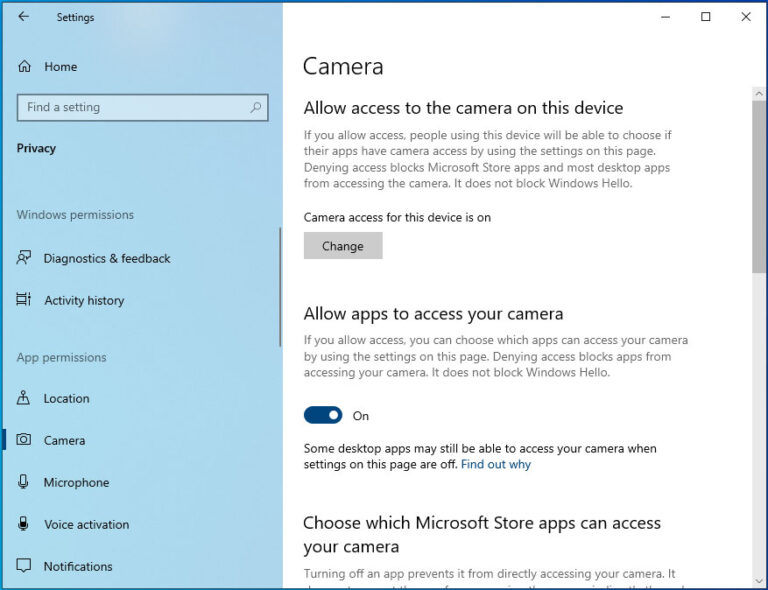
A blurry Zoom camera is usually caused by a dirty lens, weak light, poor focus, or network limits.
If you are asking, “why is my Zoom camera blurry,” you are not alone. A soft, hazy, or pixelated video can come from your webcam, Zoom settings, room light, internet connection, or even the lens cover. This guide explains each cause and gives simple fixes you can try before buying new equipment.
Why is my Zoom camera blurry?
The most common reason your Zoom camera looks blurry is a problem with image quality before the video reaches your meeting. A smudged lens, low light, weak autofocus, or low camera resolution can make your face look soft.
In other cases, the camera is clear in the Zoom preview, but blurry to other people. This often points to low bandwidth, packet loss, or Zoom reducing video quality to keep the call stable.
Here are the main causes:
• Dirty camera lens: Fingerprints and dust create a foggy image.
• Poor lighting: A dark room forces the camera to brighten the image, which adds noise and blur.
• Weak autofocus: The camera may focus on the background instead of your face.
• Low camera quality: Older built-in webcams may capture soft video.
• Zoom video settings: HD video may be turned off, or video enhancements may affect the image.
• Network limits: Zoom may lower video quality when your connection is slow.
• Outdated software: Old camera drivers, Zoom versions, or operating systems can cause camera problems.
• Privacy covers: Some laptop covers partly block the lens.

Check whether the blur comes from your camera or Zoom
Start by checking the camera outside Zoom. On Windows, open the Camera app. On a Mac, open Photo Booth or FaceTime. Look closely at your face, text, and objects in the room.
If the image is blurry in every app, the issue is likely the lens, lighting, camera hardware, or camera driver. If the image is clear in another app but blurry in Zoom, focus on Zoom settings and network conditions.
You can also check the Zoom preview before joining a meeting:
-
Open Zoom.
-
Select your profile picture.
-
Choose Settings.
-
Select Video.
-
Look at the preview image.
-
Move a book or printed page into view.
Small text is useful for testing. If the letters look soft, the camera is not capturing enough detail. If the preview is sharp but the meeting image is blurry, your internet connection may be reducing video quality.

Clean the camera lens
A dirty lens is one of the easiest causes to miss. Laptop webcams collect fingerprints when people open the lid or adjust the screen. A small smudge can spread light and make the whole image look hazy.
Turn off the camera first. Wipe the lens gently with a clean microfiber cloth. Do not use a rough paper towel, tissue, or shirt sleeve, as these can leave fibers or cause tiny scratches.
If you use an external webcam, check for:
• A clear plastic film left on the lens
• Dust around the lens edge
• A privacy shutter that is partly closed
• A loose lens cover
• Condensation after moving the webcam from a cold room
After cleaning, open the Zoom preview again. In my own camera troubleshooting, lens cleaning often fixes what first looks like a software problem. It takes less than a minute and should always be one of your first tests.

Improve your lighting
Webcams need enough light to produce a sharp image. In a dark room, the camera uses a longer exposure and increases digital gain. This can create grain, motion blur, and a soft picture.
Place a light in front of you, not behind you. A window behind your head can turn your face into a dark shape. Face the window or place a lamp near the screen.
Good lighting tips include:
• Keep the light close to eye level.
• Use soft, indirect light.
• Avoid a bright lamp pointed directly at your face.
• Reduce strong light behind you.
• Add a second light if one side of your face is very dark.
• Keep your face separate from a bright wall or window.
A simple desk lamp can help. You do not need expensive studio lights. Even, front-facing light gives most webcams more detail to work with.

Make sure Zoom is using the right camera
Your computer may have more than one camera. It could use a built-in webcam, an external webcam, or a virtual camera from another app. The selected camera may not be the one you expect.
To check it in Zoom:
-
Open Zoom and select Settings.
-
Click Video.
-
Open the camera drop-down menu.
-
Select the correct camera.
-
Watch the preview for a few seconds.
Unplug extra webcams or close apps that may control the camera. Video tools, streaming software, browser tabs, and meeting apps can sometimes compete for camera access.
If the image changes when you move the external webcam, check its position and focus ring. Some webcams have manual focus. Turn the ring slowly until your face and nearby text look clear.

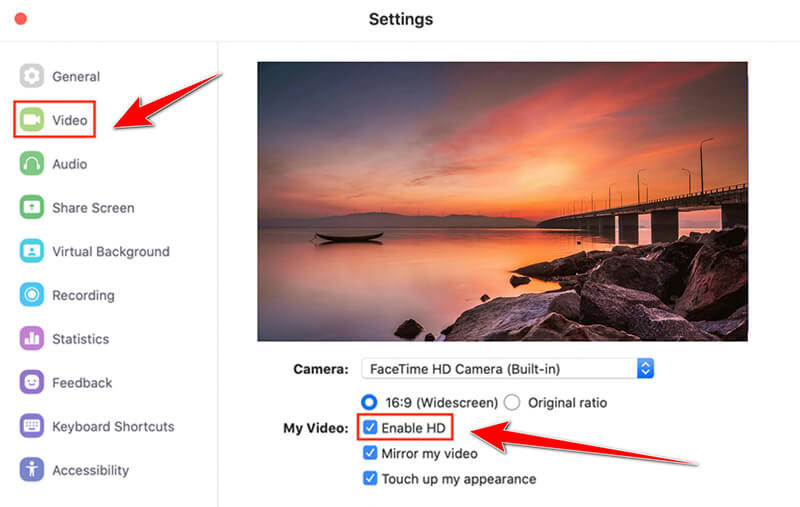
Turn on HD video in Zoom
Zoom can use HD video on supported devices and accounts. HD may improve detail, but it cannot create detail that your camera does not capture. It also uses more processing power and network bandwidth.
To check the setting:
-
Open Zoom Settings.
-
Select Video.
-
Look for the HD option.
-
Turn it on if it is available.
-
Restart Zoom and test the preview.
The exact options can vary by Zoom version, account type, device, and camera model. If HD makes the call unstable, turn it off and test again. A stable standard-quality image is better than an HD image that freezes or becomes pixelated.
Adjust Zoom video settings
Zoom includes settings that can change how your video looks. Some improve the image in low light. Others smooth your appearance or apply effects that may reduce detail.
Open Settings, choose Video, and review the available options. Test each change one at a time so you know which setting helped.
Pay attention to:
• Low-light adjustment: Useful in a dark room, but too much correction can make the image look soft.
• Video filters: Turn them off while testing.
• Studio effects: Disable them if your face looks artificial or unclear.
• Touch up appearance: Reduce or turn off this option if it smooths too much detail.
• Virtual backgrounds: Test without a virtual background, especially on an older computer.
• Video quality controls: Use the normal setting if enhanced video causes lag.
A useful troubleshooting rule is to return settings to their default values. Then test the camera in good light. This creates a clean starting point.

Check your internet connection
Sometimes people ask why is my Zoom camera blurry when the webcam itself looks clear. The answer may be the internet connection. Zoom can lower video quality when it detects limited bandwidth, network congestion, or lost data.
Run a speed test near your router and compare the result with your internet plan. Speed is not the only factor. Wi-Fi interference, high network use, and unstable upload performance can also affect video.
Try these steps:
• Move closer to your Wi-Fi router.
• Use a wired Ethernet connection if possible.
• Pause large downloads and cloud backups.
• Ask others on the network to reduce heavy streaming.
• Close other video calls and online games.
• Restart your router if the connection is unstable.
• Test Zoom on a different network.
If your own preview looks sharp but other people see blur, ask one person how your video looks. This helps separate a local camera problem from a transmission problem. Zoom’s meeting statistics can also show connection issues, such as high latency, jitter, or packet loss.

Update Zoom, your operating system, and camera drivers
Software problems can affect camera focus, resolution, and video processing. An outdated Zoom app may not work well with a newer operating system. A camera driver may also fail after a system update.
Update Zoom from its official app menu. Then install available operating system updates. On Windows, check the camera driver through Device Manager. On a Mac, install the latest compatible macOS update and restart the computer.
After updating:
-
Restart the computer.
-
Open only Zoom.
-
Test the camera preview.
-
Join a test meeting.
-
Check whether the blur remains.
Avoid downloading random driver tools from unknown websites. They can install unwanted software or the wrong driver. Use your computer maker’s support page or the operating system’s built-in update tools.

Restart the camera and close other apps
Another app may be using the webcam. This can cause a black screen, low resolution, flicker, or blurry video. Common examples include Microsoft Teams, Google Meet, Skype, FaceTime, browser tabs, streaming tools, and camera utilities.
Close those apps completely. On Windows, you may need to close them from the taskbar or Task Manager. On a Mac, quit them from the app menu or use Force Quit if an app does not respond.
Then restart Zoom. If that does not help, restart the computer. This simple step clears temporary camera errors and releases hardware access.
In many real-world support cases, a full restart works better than repeatedly changing settings. It is not a glamorous fix, but it is fast and often effective.
Check your camera resolution and hardware
Not all webcams produce the same image. A basic 720p camera may look less detailed than a good 1080p webcam, especially in a large meeting window. Some low-cost cameras also have weak lenses and poor low-light performance.
Check your camera specifications. Look for resolution, frame rate, autofocus, and low-light performance. A higher resolution alone does not guarantee a better picture. Lens quality and lighting matter just as much.
Consider an external webcam if:
• Your built-in webcam stays blurry after cleaning.
• The camera cannot focus on your face.
• Your laptop camera is very old.
• You need clear video for work or teaching.
• You often record presentations or demonstrations.
Place an external webcam at eye level. Keep it stable and about an arm’s length away. A camera that points up from a desk can create an unflattering angle, while one placed too far away may show less detail.
Fix autofocus and camera placement
Autofocus needs a clear subject and enough light. If your background has strong detail, the camera may focus on a plant, shelf, or wall instead of your face.
Place your face near the center of the frame. Sit still for a few seconds while the camera focuses. Remove objects close to the lens that may attract focus.
If your webcam has manual focus, adjust it while viewing the Zoom preview. Turn the focus ring slowly. Stop when your eyes look sharp and text behind you is readable enough to test detail.
Keep the camera clean and level. A tilted camera can make the image feel wrong even when focus is acceptable. Your eyes should sit near the upper third of the frame.
Disable virtual backgrounds and video effects
Virtual backgrounds require your computer to separate your body from the background. This process uses software and can reduce image quality on older computers.
Hair, glasses, low light, and patterned clothing can make separation harder. The result may look fuzzy around your head and shoulders. Video effects can also soften facial details.
Turn off the virtual background and other effects for a test. If your camera becomes clear, the hardware is likely fine. You can then try a simple real background or use a plain wall instead.
A real background is often the best choice for sharp video. It uses less processing power and avoids fuzzy edges.
Fix blurry Zoom video on a phone or tablet
The same basic causes apply to mobile devices. Clean the front camera, remove any screen protector that covers the lens, and use front-facing light.
Check whether the phone is using the correct camera. Tap the screen on your face if the camera app supports focus control. Keep the device steady and avoid digital zoom, which can lower detail.
Also check battery and heat. A phone that is very hot or in low-power mode may reduce performance. Close other apps, connect to a stable Wi-Fi network, and restart the Zoom mobile app.
When your Zoom camera may need repair
A camera may have a hardware fault if it stays blurry in every app after you clean the lens and improve the light. Signs include a cracked lens, visible condensation, constant focus hunting, colored lines, or an image that never becomes sharp.
Test the camera on another computer if you use an external webcam. If it remains blurry there, the webcam may need replacement. If it works on another computer, the problem is more likely software, drivers, or permissions on the first device.
Built-in laptop cameras can be difficult to repair. In that case, an external webcam may be the most practical solution. Check warranty options before opening the laptop or paying for service.
A simple five-minute fix checklist
Use this checklist when you need a fast solution before a meeting:
-
Wipe the camera lens with a microfiber cloth.
-
Remove or open the privacy cover.
-
Face a window or lamp.
-
Open Zoom Settings and check the selected camera.
-
Turn off virtual backgrounds and appearance effects.
-
Test the camera in the preview window.
-
Close other camera apps.
-
Restart Zoom.
-
Move closer to the Wi-Fi router or use Ethernet.
-
Restart the computer if the blur continues.
This process moves from quick, low-risk fixes to deeper checks. It also helps you avoid changing many settings at once.
Mistakes to avoid when fixing a blurry Zoom camera
Do not assume that buying a new webcam will solve every problem. A new camera can still look blurry in poor light, through a dirty lens, or on an unstable network.
Avoid these common mistakes:
• Cleaning the lens with glass cleaner or harsh chemicals.
• Placing a bright window directly behind you.
• Turning on every video effect at once.
• Using digital zoom to make your face larger.
• Blaming the camera when only other meeting participants see blur.
• Downloading untrusted driver software.
• Testing only during a live meeting.
The best test uses the Zoom preview, a well-lit room, a clean lens, and no effects. Change one factor at a time and note the result. This method saves time and shows what actually caused the problem.
Frequently Asked Questions
Why is my Zoom camera blurry but clear in other apps?
Zoom may be using different video settings, effects, or camera resolution than the other app. Check the selected camera, turn off appearance effects, and test HD video if your device and connection support it.
Why is my Zoom camera blurry to others but clear to me?
Your internet connection may be limiting the video sent to other participants. Check Wi-Fi strength, stop heavy downloads, and ask another participant whether the image improves after you switch networks.
Can poor lighting make a Zoom camera blurry?
Yes. Low light can add digital noise and motion blur, which makes the image look soft. Place a gentle light in front of your face and avoid sitting with a bright window behind you.
How do I make my Zoom camera less blurry on a laptop?
Clean the lens, improve front lighting, check the camera selection, and disable virtual backgrounds. Then update Zoom and your camera driver, and restart the laptop.
Does Zoom HD fix a blurry camera?
HD can improve detail when your camera, account, computer, and internet connection support it. It cannot fix a dirty lens, poor focus, weak lighting, or a damaged webcam.
Should I buy an external webcam?
An external webcam can help if your built-in camera is old, damaged, or unable to focus. However, improve lighting and clean the lens first, since those fixes may solve the issue without extra cost.
Conclusion
A blurry Zoom camera usually has a simple cause. Start with the lens, lighting, camera selection, and video effects. Then check your internet connection, updates, drivers, and hardware.
The fastest path is to test one change at a time in the Zoom preview. With a clean lens, soft front light, stable connection, and suitable settings, most people can make their video much clearer. Try the checklist before your next meeting, and share your most useful fix or explore more webcam troubleshooting guides.