A blurry webcam usually comes from a dirty lens, poor light, weak focus, or incorrect camera and video settings.
If you are asking, “why is my webcam blurry,” you are likely dealing with a simple issue that can be fixed in a few minutes. I have tested built-in laptop cameras, USB webcams, and video apps in many common setups, and the same problems appear again and again. This guide explains how to find the cause, sharpen your image, and know when your webcam may need to be replaced.

Why Is My Webcam Blurry?
The most common reason your webcam looks blurry is a dirty lens. Dust, fingerprints, skin oil, and even a thin layer of shipping film can soften the image. A webcam may also look unclear because of low light, poor focus, a weak USB connection, or a low video resolution.
Start with the easiest checks before changing advanced settings. A few simple steps often fix the problem:
- Look at the webcam lens under a bright light.
- Remove any protective plastic film.
- Wipe the lens with a clean microfiber cloth.
- Sit near a soft light source.
- Close other apps that may be using the camera.
- Restart the video app and your computer.
If the picture is still blurry, the cause may be autofocus, software settings, internet compression, or a hardware fault.

Common Causes of a Blurry Webcam
A dirty camera lens
A dirty lens is the fastest answer to why is my webcam blurry. Laptops often collect dust around the screen, while external webcams can pick up fingerprints when they are moved.
Use a dry microfiber cloth to clean the lens. Do not spray glass cleaner or water directly onto the camera. If needed, lightly dampen one corner of the cloth, then wipe the lens gently.
Avoid paper towels, tissues, and rough clothing. They can leave fibers or create tiny scratches over time.
The lens still has protective film
Some new monitors and webcams have a clear film over the lens. This film protects the camera during shipping, but it can make the picture look hazy after setup.
Check the edge of the webcam for a small tab or clear layer. Remove it carefully. If the camera is inside a laptop screen, do not use a sharp tool near the display.
Poor or uneven lighting
A webcam needs enough light to create a sharp image. In a dark room, the camera raises its exposure. This can produce a grainy, soft picture that looks blurry.
Backlighting causes another common problem. If a bright window is behind you, the camera may expose for the window instead of your face. Your face then appears dark and unclear.
For a better image:
- Place a lamp behind the webcam and in front of your face.
- Use soft light rather than a bright lamp pointed directly at your eyes.
- Keep windows in front of you or slightly to one side.
- Avoid strong light directly behind your head.
Good lighting can improve a basic webcam more than expensive software can.
The webcam cannot focus correctly
Some webcams use fixed focus. They are designed to look sharp at a set distance, often about two to six feet. If you sit too close, your face may look soft.
Other webcams use autofocus. Autofocus can struggle when you move often, hold objects near the lens, or sit in a room with low light. The camera may keep shifting between your face and the background.
Try sitting still for a few seconds. Keep your face at a normal distance from the webcam. If your camera software offers a manual focus control, adjust it until your eyes look clear.
Low video resolution
A video app may select a low resolution to save bandwidth. A 360p or 480p stream will look much less detailed than a 720p or 1080p stream.
Open the video settings in your webcam app and choose the highest available resolution. Keep in mind that the camera, app, computer, and internet connection must all support that setting.
A high resolution cannot create detail that the camera does not capture. It may also use more processing power and data.
Internet compression
Sometimes your webcam is clear in the camera preview but blurry during a video call. This often points to internet compression rather than a camera problem.
Video meeting services reduce image quality when your upload speed is weak or unstable. Wi-Fi congestion, other users, cloud backups, and large downloads can all affect the stream.
Test the camera in an offline app, such as the built-in camera program on your computer. If the local preview is sharp, your webcam may be fine. The issue may be the meeting app or network.
A weak USB connection
External webcams need a stable USB connection. A loose cable, damaged port, USB hub, or overloaded adapter can cause video problems.
Try these steps:
- Unplug the webcam.
- Connect it directly to another USB port.
- Avoid using a low-quality USB hub.
- Restart the computer.
- Test the camera in a different app.
If the webcam works well in one port but not another, the port or hub may be the cause.
Outdated or incorrect drivers
A webcam driver helps the operating system communicate with the camera. If the driver is outdated, damaged, or incorrect, the camera may show a poor image or fail to use its full resolution.
Install system updates from your computer manufacturer or operating system. For an external camera, check the manufacturer’s support page for current software.
Use official drivers when possible. Random driver websites may offer unsafe or incorrect files.

How to Fix a Blurry Webcam
1. Clean the webcam lens
Turn off the camera app first. Wipe the lens with a clean microfiber cloth using small, gentle movements.
Check the result in the camera preview. If the image becomes clear, the problem was surface dirt. Make lens cleaning part of your normal desk care, especially if you move the webcam often.
2. Improve the light
Place your main light in front of you. A window, desk lamp, or small LED light can work well.
Do not place a powerful light too close to your face. Harsh light can create glare and deep shadows. A lamp aimed at a wall can create softer light.
3. Set the correct camera
Many computers have more than one camera. A laptop may use its built-in webcam while an external camera sits unused.
Open your video app settings and check the selected camera. Choose the model you want, then view the preview again.
This simple mistake explains why is my webcam blurry for many users. They adjust the wrong camera and see no change.
4. Select a higher resolution
Look for settings such as:
- Video quality
- Camera resolution
- Output size
- HD video
- Frame size
Choose 720p or 1080p if your camera supports it. If the video becomes slow, lower the frame rate or close other demanding programs.
5. Check focus controls
Some webcam apps include focus, exposure, white balance, and sharpness controls. Set focus to auto first. If autofocus keeps hunting, try manual focus.
Do not increase sharpness too much. Excessive sharpening creates halos around hair and facial features. The image may look harsher without becoming truly clearer.
6. Close other camera apps
Only one program may control some webcams well at a time. Video meetings, browser tabs, camera tools, and streaming software can compete for access.
Close programs that use the camera. Then reopen your main app and test the image.
7. Update the system
Install available operating system, webcam, and graphics updates. Updates can fix camera compatibility issues and improve video processing.
Restart after updating. Some changes do not apply until the computer loads the camera driver again.
8. Test the webcam in another app
This step helps separate a camera problem from an app problem.
Test the webcam in:
- The built-in camera app
- A different video meeting service
- A browser-based camera test
- A recording program
If the image is clear in one app but blurry in another, check the blurry app’s resolution, camera, and video quality settings.

Webcam Settings That Can Affect Image Quality
Resolution and frame rate
Resolution controls the amount of image detail. Frame rate controls how smoothly the video moves. Higher settings may improve quality, but they also require more processing power and bandwidth.
For most video calls, 720p is a practical minimum. A 1080p setting can look better when the room is well lit and the connection is stable.
Exposure
Exposure controls how bright the image appears. Automatic exposure can make a dark room look brighter, but it may also add noise and reduce detail.
Improve the light before raising exposure. More light gives the camera cleaner information to work with.
White balance
White balance helps the camera display colors correctly. A poor setting can make your face look blue, orange, or gray. It does not usually cause true blur, but an inaccurate image can appear less clear.
Leave white balance on auto unless you have a strong reason to change it. If you use colored lights, manual adjustment may help.
Digital zoom
Digital zoom enlarges pixels instead of adding real detail. It can make your face look soft and blocky.
Keep digital zoom off when possible. Move the webcam closer or crop the frame in a way that preserves the original image.
Background blur
Background blur and portrait effects use software to separate you from the room. These tools can soften hair, glasses, or the edge of your face when the system struggles to detect you.
Turn off virtual backgrounds and blur effects during testing. First make sure the raw camera image is clear.
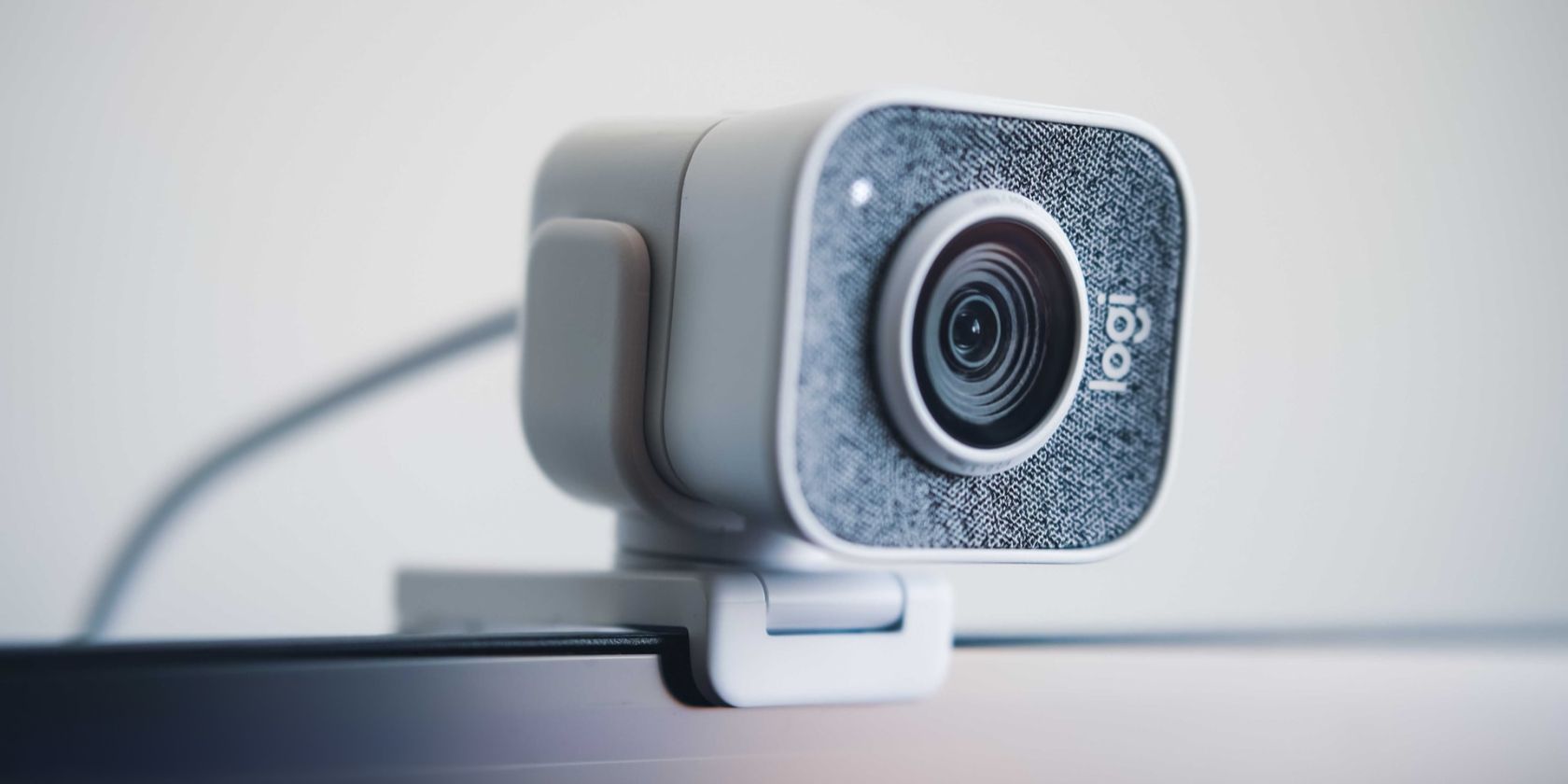
How to Tell Whether the Problem Is Hardware
The answer to why is my webcam blurry may be a damaged lens or aging camera sensor. Hardware problems are more likely when the image stays blurry after cleaning, better lighting, and testing in several apps.
Look for these signs:
- A crack or deep scratch on the lens
- A permanent foggy spot
- One side of the image looks worse than the other
- The image stays blurry at every distance
- The webcam flickers or disconnects
- The camera works poorly on more than one computer
Test an external webcam on another computer if possible. If it remains blurry in good light and with a clean lens, replacement may be more practical than repair.
Built-in laptop webcams can be difficult to replace. An external USB webcam is often a simple upgrade and gives you better control over position, lighting, and focus.

Webcam Troubleshooting by Device
Windows computers
Open the Camera app and check the preview. Then review camera permissions in system privacy settings. Your video app must have permission to access the camera.
Check the camera under Device Manager if the issue continues. Look for driver warnings, then restart after updating or reinstalling the device.
Mac computers
Open a camera app and select the correct camera in the video settings. Check privacy settings to confirm that the app can use the camera.
If the camera is blurry in every app, restart the Mac and test again. For an external webcam, reconnect it directly instead of using a hub.
Chromebooks
Open the built-in camera app and check whether the lens is clean. Review the camera selected by the video service.
ChromeOS updates can improve support for cameras. Install available updates and restart the Chromebook before testing again.
Phones and tablets
Clean the front camera lens and remove any screen protector that covers it. Some protectors have a small opening that becomes dirty or slightly misaligned.
Check whether the blur appears in the camera app or only in a meeting app. If the camera app is sharp, the meeting app may be reducing quality.

Mistakes to Avoid When Fixing a Blurry Webcam
One common mistake is changing every setting at once. If you adjust focus, brightness, resolution, and filters together, you may not know which change helped.
Use a simple test order:
- Clean the lens.
- Improve the light.
- Check the camera distance.
- Test the image in a basic camera app.
- Change resolution and focus.
- Check the internet connection.
- Test another computer or webcam.
Another mistake is blaming the internet too soon. A slow connection can blur a call, but it cannot make the local camera preview blurry. Always compare the local preview with the live call.
I also recommend checking the lens before buying new equipment. In many webcam tests, a quick wipe and a better light solved the issue at no cost.

When Should You Buy a New Webcam?
Consider a new webcam when the current one has a damaged lens, poor focus, low resolution, or weak performance in normal indoor light.
For regular video calls, look for:
- At least 720p resolution
- Autofocus or reliable fixed focus
- Automatic exposure
- A built-in microphone with noise reduction
- A privacy shutter or lens cover
- A stable mount
- Compatibility with your operating system
A new webcam will not solve every image problem. Poor lighting, a weak network, or a dirty lens can still reduce quality. Think of the webcam as one part of a chain. The room, computer, software, and connection all affect the final picture.

Frequently Asked Questions About Why Is My Webcam Blurry
Why is my webcam blurry even after I clean the lens?
The camera may have poor lighting, an incorrect focus setting, or a low video resolution. Test it in another app and place a soft light in front of your face.
Why is my webcam blurry on Zoom but clear in the camera app?
The meeting app may be using low video quality or reducing the stream because of limited bandwidth. Check its HD setting and compare your upload connection with the local camera preview.
How do I make my webcam less blurry on a laptop?
Clean the lens, remove any protective film, improve front lighting, and sit within the camera’s focus range. Then confirm that the correct camera and highest suitable resolution are selected.
Can a bad internet connection make my webcam blurry?
Yes. A weak or unstable upload connection can cause compression, soft detail, and blocky video during calls. If the offline camera preview is clear, your network or meeting service may be responsible.
Does low light cause webcam blur?
Low light often creates noise and soft detail because the camera must use longer exposure and stronger image processing. Adding light in front of you usually improves the picture quickly.
Why is my external webcam blurry on one computer but not another?
The first computer may have a driver issue, USB problem, or different camera settings. Try another USB port, connect the camera directly, and compare both computers using the same app.
Conclusion
A blurry webcam is usually caused by a dirty lens, weak lighting, poor focus, low resolution, software settings, or network compression. Clean the lens first, add light in front of you, test the camera in a basic app, and then adjust resolution and focus.
If the image stays blurry in every app and on more than one computer, the webcam may have a hardware problem. Try these steps in order, and share your results or explore more webcam setup guides to improve your video calls.