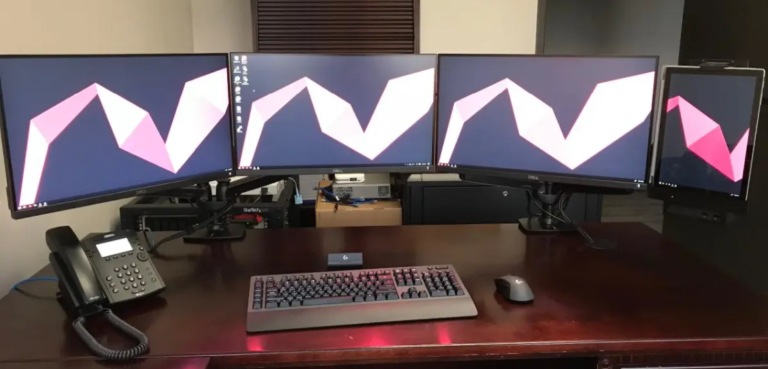
A monitor is important because it displays clear visual information, supports comfort, and helps you work, learn, and play better.
Why is a monitor important? It is the main window between you and your computer. A good monitor can make text easier to read, colors more accurate, work more efficient, and long sessions more comfortable. After comparing different screen sizes, resolutions, refresh rates, and panel types, I have found that the right monitor often improves the whole computing experience more than people expect.
This guide explains why a monitor is important, how it affects your eyes and productivity, and what features matter most for work, gaming, design, and everyday use.
Why Is a Monitor Important?
A monitor shows the visual output created by your computer, laptop, game console, or other device. Without it, you cannot see documents, apps, videos, websites, data, or game worlds.
However, a monitor does more than display an image. Its size, resolution, refresh rate, color quality, brightness, and viewing comfort all affect how you use technology.
Why is a monitor important in daily life? It can help you:
• Read text with less effort
• See more information at once
• Complete tasks faster
• Notice details and errors
• Enjoy smoother video and games
• Work in a more comfortable position
• Present information clearly to others
A weak monitor can feel like looking through a dirty window. A good monitor gives you a clear, stable view of your digital world.

How a Monitor Improves Productivity
A monitor can improve productivity by giving you more screen space and clearer information. This matters when you use spreadsheets, design tools, browsers, email, video calls, or research documents.
For example, a larger display may let you keep a spreadsheet open beside a browser window. You spend less time switching between tabs. That small change can save many minutes during a workday.
Why is a monitor important for office work? It helps you see more content at once and reduces the need to zoom in and out.
A monitor can support productivity in several ways:
• Larger screens show more rows, panels, and windows.
• Higher resolutions make fine text and graphics sharper.
• Multiple monitors can separate tasks by purpose.
• Wide displays work well for timelines and large tables.
• Adjustable stands can improve posture and viewing height.
In my own desk setups, the biggest productivity mistake was using a screen that was too small for the task. I often changed windows instead of focusing on the work. Moving to a larger monitor reduced that friction right away.
Still, more screens do not always mean better results. Too many open windows can create visual clutter. Use one large display or two smaller displays only when they match your work style.
Why Is a Monitor Important for Eye Comfort?
A monitor does not usually cause permanent eye damage by itself, but long screen use can lead to digital eye strain. Common symptoms include dry eyes, tired eyes, blurred vision, headaches, and trouble focusing.
Eye comfort depends on more than screen quality. Viewing distance, room lighting, glare, text size, and break habits also matter.
Why is a monitor important for eye comfort? A well-adjusted monitor can reduce glare, improve text clarity, and help you maintain a natural viewing position.
Use these practical steps:
• Place the screen about an arm’s length away.
• Keep the top of the display near eye level.
• Reduce glare from windows and bright lamps.
• Increase text size instead of leaning toward the screen.
• Adjust brightness so it matches the room.
• Follow the 20-20-20 habit: every 20 minutes, look at something about 20 feet away for 20 seconds.
• Blink often and take short movement breaks.
Health experts commonly recommend breaks and better viewing habits for digital eye strain. If you have ongoing pain, double vision, or severe headaches, speak with an eye care professional. A better monitor may help comfort, but it cannot fix every vision problem.

Monitor Resolution and Image Quality
Resolution describes the number of pixels on a screen. More pixels can create a sharper image, especially on larger displays.
Common monitor resolutions include:
• 1920 × 1080, often called Full HD
• 2560 × 1440, often called Quad HD or 1440p
• 3840 × 2160, often called 4K
Why is a monitor important when resolution is involved? A suitable resolution makes text, photos, charts, and video look clearer and more detailed.
A 24-inch Full HD monitor can be a good choice for basic work. A 27-inch 1440p monitor often offers a sharp and comfortable balance. A 27-inch or larger 4K monitor can provide excellent detail, but your computer must have enough power to drive it smoothly.
Resolution is not the only factor. A very high-resolution screen with poor brightness or weak color quality may still look disappointing. Also, some users need display scaling to make small text easier to read.
Choose resolution based on:
• Screen size
• Viewing distance
• Type of work
• Graphics hardware
• Operating system scaling
• Budget

Why Is a Monitor Important for Gaming?
For gaming, a monitor affects how quickly and clearly you see movement. Refresh rate and response time are especially important.
Refresh rate is measured in hertz, or Hz. It shows how many times the screen can update each second. A 60 Hz monitor refreshes up to 60 times per second, while a 144 Hz monitor can refresh up to 144 times per second.
Why is a monitor important for gaming? A fast monitor can make movement look smoother and controls feel more responsive.
Important gaming features include:
• High refresh rate for smoother motion
• Low response time to reduce visible ghosting
• Adaptive sync to limit screen tearing
• Good contrast for dark scenes
• Low input lag for quick actions
• A resolution that matches your graphics card
A 240 Hz monitor may help competitive players, but it is not necessary for everyone. For casual gaming, a quality 120 Hz or 144 Hz monitor may offer excellent value.
One common mistake is buying a fast monitor without a computer that can produce enough frames per second. If your game runs at 70 frames per second, a 240 Hz screen cannot create extra game detail on its own.

Monitor Benefits for Designers, Photographers, and Video Editors
Creative work depends heavily on accurate visual information. A designer may need to judge color, spacing, contrast, and fine detail. A video editor may need to see shadows, highlights, skin tones, and small changes between frames.
Why is a monitor important for creative work? It helps you make decisions based on a more reliable view of your content.
Look for these features:
• Wide color coverage
• Accurate color reproduction
• Strong contrast
• Uniform brightness across the screen
• Factory calibration or calibration support
• A resolution that shows fine detail
• A matte surface if reflections are distracting
Color accuracy is often described with terms such as sRGB, DCI-P3, and Adobe RGB. These describe color spaces, or the range of colors a display can show. A wide color range is useful, but accuracy still matters. A screen can show many colors and still display them incorrectly.
For professional work, a colorimeter can help calibrate the display. Keep in mind that other people may view your work on different screens. No monitor can guarantee that every viewer sees identical colors.

Why Is a Monitor Important for Students and Remote Workers?
Students and remote workers often spend hours reading, writing, researching, and joining video meetings. A suitable monitor can make these tasks feel less cramped.
A laptop screen is convenient, but it may force you to bend your neck or work with small text. Connecting a larger external monitor can improve the setup while allowing the laptop to remain useful as a second screen.
Why is a monitor important for studying? It can make digital books, notes, research pages, and assignments easier to view together.
A helpful student or home office setup may include:
• A 24-inch or 27-inch display
• A height-adjustable stand
• A webcam placed near eye level
• A comfortable keyboard and mouse
• Enough desk space for proper viewing distance
• A screen with low glare
For video calls, camera placement matters. If the camera sits far below the monitor, your face may appear at an awkward angle. Place the webcam close to the top center of the screen when possible.
Monitor Size and Aspect Ratio
Monitor size is measured diagonally from one corner to the opposite corner. A larger monitor gives you more physical space, but it also needs more desk room.
Common sizes include:
• 22 to 24 inches for compact desks
• 27 inches for general work and gaming
• 32 inches for detailed work and media
• 34 inches or more for ultrawide layouts
Aspect ratio describes the screen’s width compared with its height. A standard monitor often uses a 16:9 ratio. Ultrawide models may use 21:9 or wider formats.
Why is a monitor important when choosing size? The right size can improve comfort without forcing you to move your head too much.
A 32-inch screen placed too close may feel overwhelming. A 24-inch screen may feel ideal on a small desk but limited for complex work. Measure your desk before buying, and check whether the stand fits your space.
Curved monitors can help some users feel more surrounded by a wide image. They are not automatically better, though. Curvature is a personal preference and may matter more on ultrawide screens.

Panel Types: IPS, VA, and OLED
The panel type affects color, contrast, viewing angles, and motion performance.
IPS panels
IPS monitors usually provide strong viewing angles and reliable color. They are popular for office work, photo editing, design, and general use.
VA panels
VA monitors often provide deeper contrast than IPS models. They can be useful for movies and games, especially in darker rooms. Some VA panels may show more motion smearing in dark scenes.
OLED panels
OLED monitors can offer excellent contrast, deep blacks, and very fast response times. They may cost more, and some users worry about image retention or burn-in after displaying static content for long periods.
Why is a monitor important when panel type affects the image? The panel determines how your work, games, and media appear in real conditions.
No panel type wins for every person. Consider your main task, room lighting, budget, and tolerance for trade-offs.
How to Choose the Right Monitor
Choosing a monitor becomes easier when you start with your needs instead of the most impressive specifications.
Use this simple process:
-
Identify your main tasks. Decide whether you work, study, edit media, play games, or do a mix of these activities.
-
Choose a comfortable size. Consider your desk depth and normal viewing distance.
-
Select a practical resolution. Match resolution to screen size and computer performance.
-
Check refresh rate. Choose a higher rate for fast games or smooth motion.
-
Review color needs. Basic office work does not require the same color accuracy as professional design.
-
Look for ergonomic features. Height adjustment, tilt, swivel, and rotation can improve comfort.
-
Check ports. HDMI, DisplayPort, USB-C, and USB hubs may affect how easily you connect devices.
-
Read independent reviews. Look for tests of brightness, color accuracy, response time, and uniformity.
-
Review the warranty. A solid warranty offers useful protection for an expensive display.
Why is a monitor important during a buying decision? It affects your comfort every day, so a balanced choice usually matters more than a flashy specification.
Common Monitor Mistakes to Avoid
Many monitor problems come from poor setup rather than poor hardware. Avoid these common mistakes:
• Buying the highest refresh rate without enough graphics performance
• Choosing a huge screen for a shallow desk
• Ignoring text scaling at high resolutions
• Using maximum brightness in a dark room
• Placing the screen beside a bright window
• Forgetting to adjust the stand
• Assuming every monitor has accurate colors
• Buying a monitor without checking the right ports
• Ignoring dead-pixel and return policies
• Using a low-quality cable for a demanding resolution or refresh rate
In my experience, setup errors are easy to overlook. I once focused on resolution and refresh rate but ignored stand height. The picture looked great, yet my neck felt tired by the end of the day. A few minutes of adjustment solved more than a more expensive model would have.
Frequently Asked Questions About Why Is a Monitor Important
Why is a monitor important for a computer?
A monitor displays the computer’s visual output, including apps, files, websites, and videos. Its quality affects clarity, comfort, productivity, and how accurately you see digital content.
Does a better monitor improve computer performance?
A monitor does not make the processor or graphics card faster. However, features such as a higher refresh rate can make supported games and motion look smoother.
Is a 4K monitor worth buying?
A 4K monitor can be worthwhile for detailed work, large screens, photo editing, and sharp text. It may not be necessary for basic tasks, and your computer must support the chosen resolution well.
What monitor size is best for office work?
A 24-inch monitor works well for many basic office setups, while a 27-inch monitor offers more workspace. The best size depends on your desk depth, viewing distance, and need for multiple windows.
Can a monitor reduce eye strain?
A monitor with clear text, low glare, stable brightness, and comfortable viewing features may reduce discomfort. Good breaks, lighting, text size, and eye care habits remain important.
Is a high refresh rate important for everyone?
A high refresh rate is most useful for gaming, fast video, and smooth scrolling. For email, documents, and simple browsing, a standard refresh rate may be enough.
Should I use one monitor or two?
One large monitor can reduce desk clutter, while two monitors can separate tasks such as research and writing. Choose based on your workflow and available space.
Conclusion
Why is a monitor important? It shapes how clearly, comfortably, and efficiently you use your computer. The right display can improve reading, productivity, gaming, creative work, studying, and remote communication.
Focus on the features that match your needs: screen size, resolution, refresh rate, panel type, color quality, ports, and ergonomic adjustment. Do not chase specifications alone. A well-sized monitor with a good setup can be more useful than an expensive screen that does not fit your space or tasks.
Review your current setup today. Adjust the height and brightness, reduce glare, and compare monitors based on real needs before buying. If you found this guide helpful, explore more display tips and share your own monitor experience in the comments.