A USB-C monitor simplifies your desk by combining video, charging, data, and accessories through one flexible cable.
Why choose a USB-C monitor? It is a smart choice for people who want a cleaner desk, faster connections, and fewer cables. Modern USB-C displays can connect to a laptop, charge it, carry data, and link to other devices at the same time.
After testing and comparing many monitor setups, I have found that USB-C works like a single road into your workspace. The key is knowing what the port supports, because not every USB-C monitor offers the same speed, power, or video features.
What Is a USB-C Monitor?
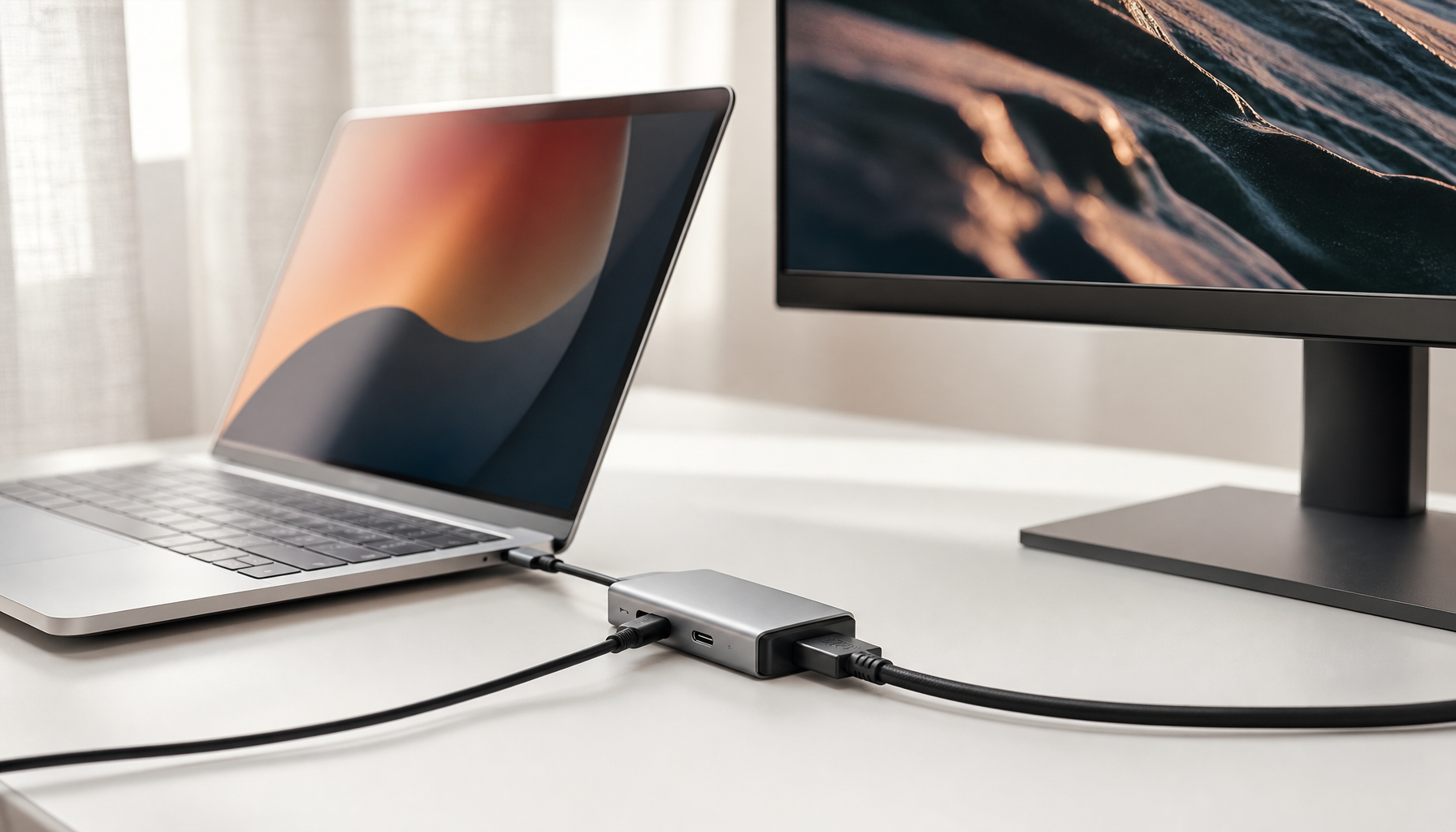
A USB-C monitor is a display with a USB Type-C port that can carry video, audio, data, and power. Depending on the model, it may support DisplayPort Alt Mode, USB Power Delivery, USB hubs, daisy chaining, or all four.
Unlike older USB ports, USB-C has a small, reversible connector. You can plug it in either way, which makes daily use easier. However, the connector shape alone does not tell you what the port can do.
A USB-C monitor may support:
- Video input from a laptop, tablet, or phone
- Laptop charging through USB Power Delivery
- Data transfer for keyboards, mice, storage drives, and webcams
- Ethernet through a built-in network port
- Audio through connected speakers or headphones
- Display daisy chaining on supported models
This difference matters when asking why choose a USB-C monitor. The best model acts as both a screen and a compact docking station.

Why Choose a USB-C Monitor for Your Desk?
The main reason to choose a USB-C monitor is convenience. One cable can replace several connections between your laptop and your desk setup.
With a compatible laptop, you may connect the USB-C cable and immediately gain:
- A larger screen
- Laptop charging
- Access to USB accessories
- Wired internet
- Audio output
- A more organized workspace
This setup is especially useful for remote workers, students, photographers, programmers, and business users. Instead of connecting power, video, Ethernet, and accessories separately, you can often connect one cable and start working.
In practical use, this saves time every morning. It also reduces cable clutter behind the monitor. A tidy desk may seem like a small benefit, but it can make a shared home office feel calmer and easier to manage.
Another reason why choose a USB-C monitor is its flexibility. You can use the same display with a work laptop during the day, a personal laptop at night, and a tablet when traveling.
One Cable for Video, Power, and Data
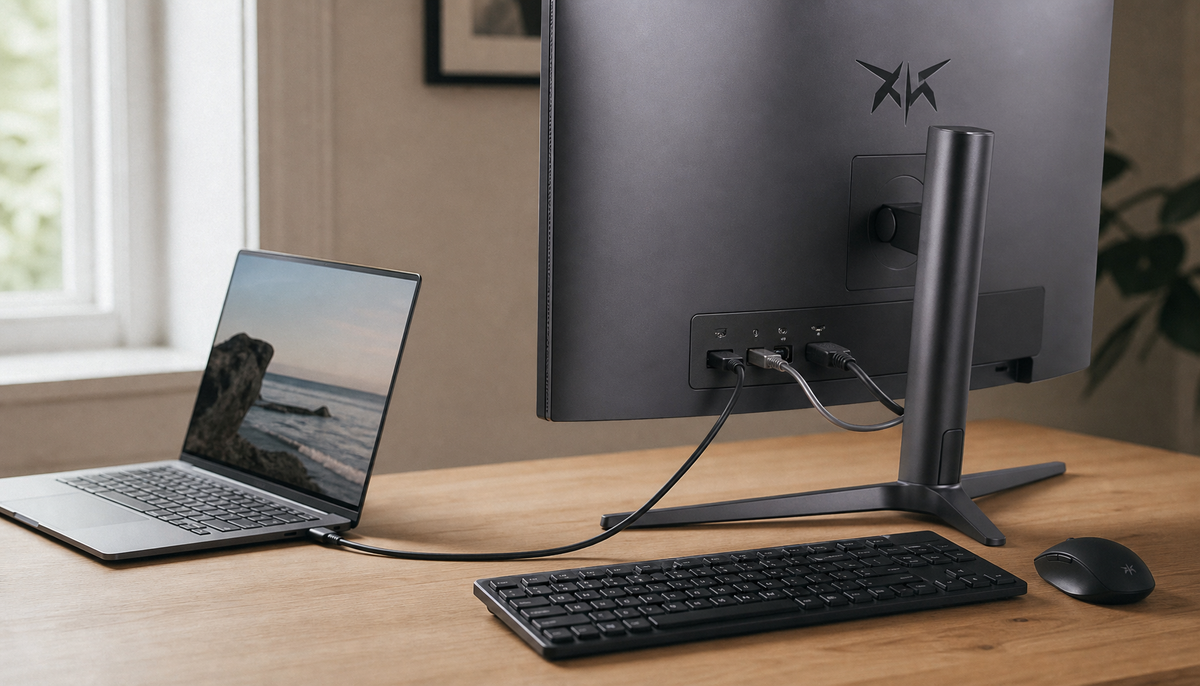
The strongest feature of a USB-C monitor is its ability to carry several types of signals at once. This is possible because USB-C is a connector standard, while the technologies inside the port handle different tasks.
For example, a single USB-C cable may carry:
- DisplayPort video from your laptop to the monitor
- Power from the monitor to your laptop
- Data between your laptop and USB devices
- Network data through the monitor’s Ethernet port
This is often called single-cable connectivity. It makes a USB-C monitor feel more like a docking station built into your display.
Keep in mind that both devices must support the needed features. Your laptop must support video over USB-C, and the monitor must provide enough charging power. A cable must also support the required video and data speeds.
A common mistake is to assume that every USB-C cable works for every task. Some cables support charging only. Others support USB 2.0 data speeds but not high-resolution video. Always check the cable specification before troubleshooting the monitor.
USB-C Monitor Charging: How It Works
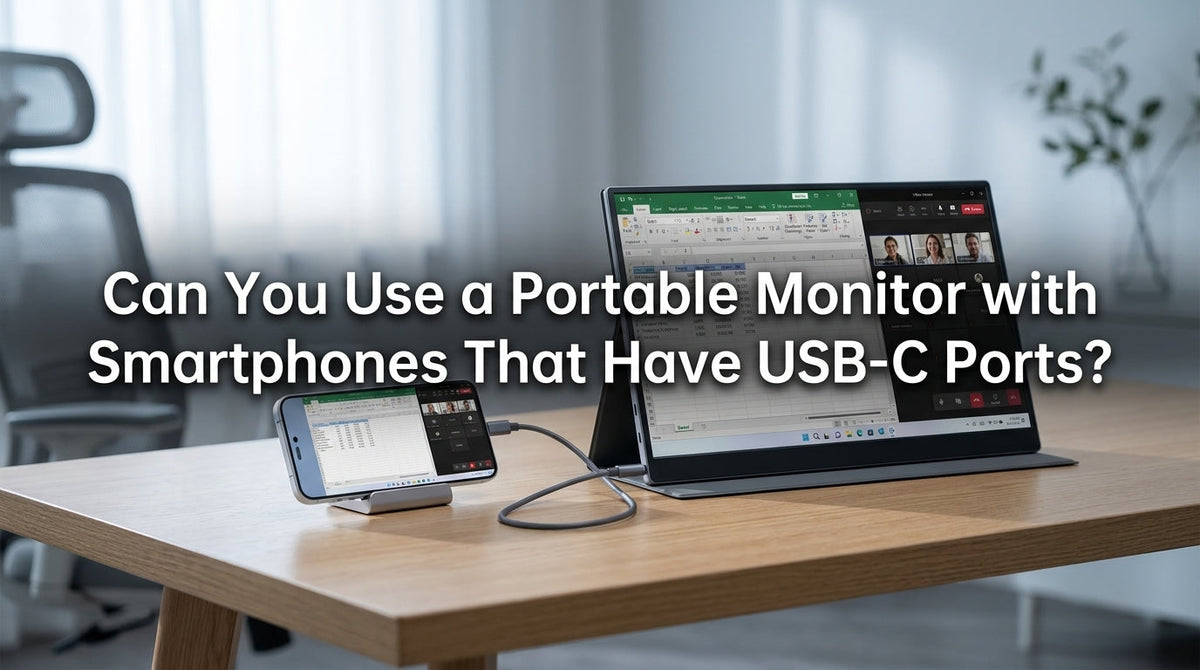
Many USB-C monitors can charge a connected laptop through USB Power Delivery, often called USB PD. The monitor sends power through the same cable used for video and data.
Charging capacity varies widely. Some monitors provide about 45 watts, while premium models may provide 90 watts, 100 watts, or more. A lower-wattage display may work well with a small laptop but may charge a powerful workstation slowly.
Before buying, check your laptop’s charger rating. If your laptop normally uses a 65-watt charger, a monitor that provides 65 watts or more is usually a better match. Gaming laptops and high-performance mobile workstations may need much more power.
USB-C charging also has limits:
- A monitor may provide less power when its USB ports are heavily used
- Some displays advertise peak power rather than continuous power
- Certain laptops require proprietary chargers for full performance
- A monitor may charge slowly while the laptop is under heavy load
A useful lesson from real desk setups is to treat monitor charging as a convenience, not always a complete replacement for the original charger. Check the technical specifications before removing your laptop charger from the bag.
Better Cable Management and a Cleaner Workspace
Why choose a USB-C monitor if your current display already works? Cable management is one of the clearest answers.
A traditional laptop setup may require separate cables for:
- Power
- Video
- USB accessories
- Ethernet
- Audio
- External storage
A USB-C monitor can reduce that group to one main connection. The monitor itself remains connected to power, but your laptop may need only one cable.
This creates a cleaner visual design and makes it easier to move your laptop. When you finish work, unplug one cable and take the computer with you. When you return, connect that same cable and your desk is ready.
A clean setup can also reduce connection mistakes. I have seen users spend several minutes checking which cable belongs to which device. A single-cable design removes much of that confusion.
USB-C Monitors Can Act Like Docking Stations
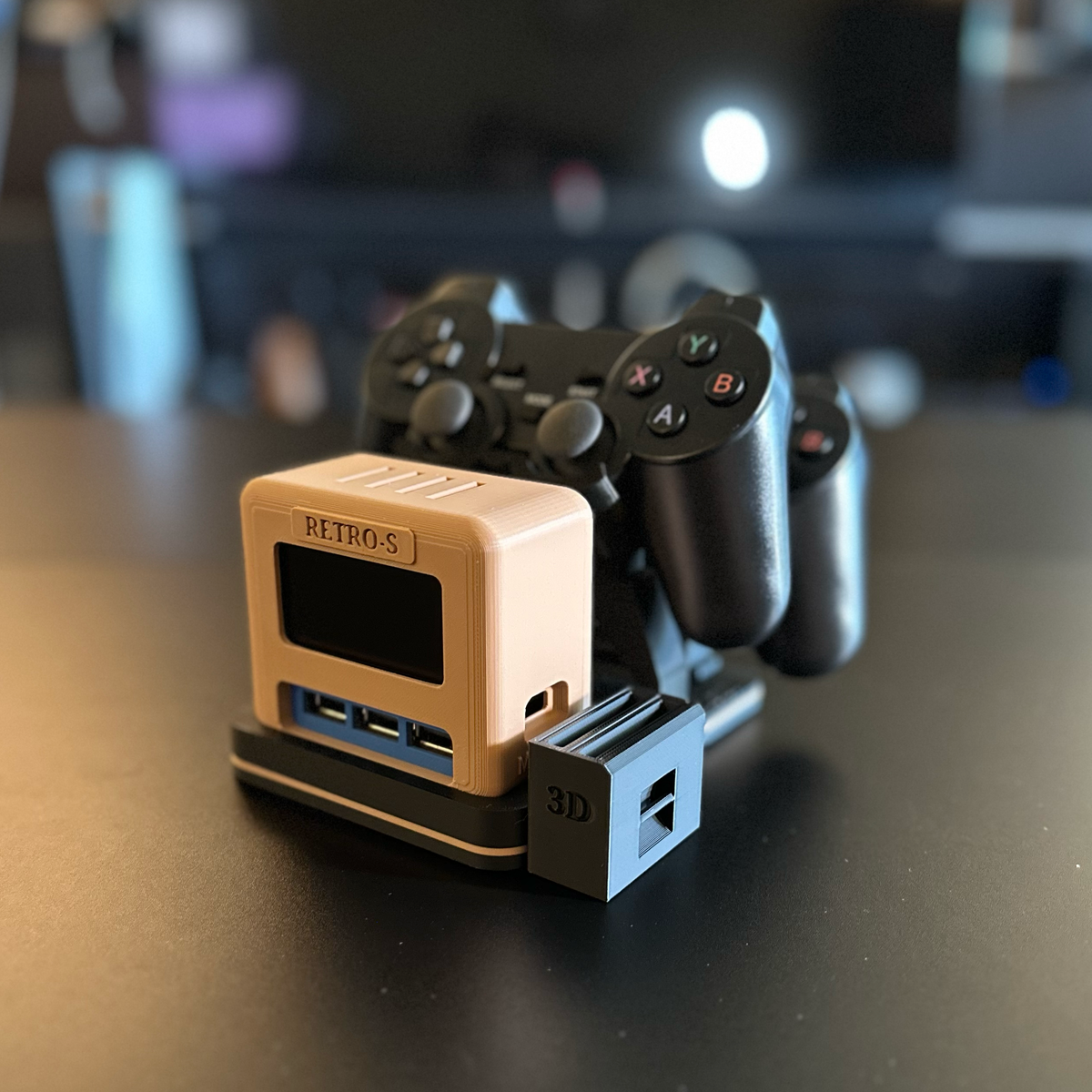
Many USB-C monitors include a built-in USB hub. This feature allows you to connect devices to the monitor instead of connecting everything directly to your laptop.
Common built-in ports include:
- USB-A ports for keyboards, mice, and printers
- USB-C ports for newer accessories
- HDMI or DisplayPort outputs
- An Ethernet port
- A 3.5-millimeter audio jack
- An SD card reader on some professional models
This can save money because you may not need a separate docking station. It can also save space on a small desk.
Still, a built-in hub does not always match a full dock. Some monitors offer slower USB data speeds, fewer ports, or limited support for multiple displays. Read the port table carefully instead of judging the monitor by its USB-C label alone.
For creative work, look for fast USB ports and a reliable card reader. For office work, a basic hub may be enough. The right choice depends on the devices you plan to connect.
Support for High Resolution and High Refresh Rates
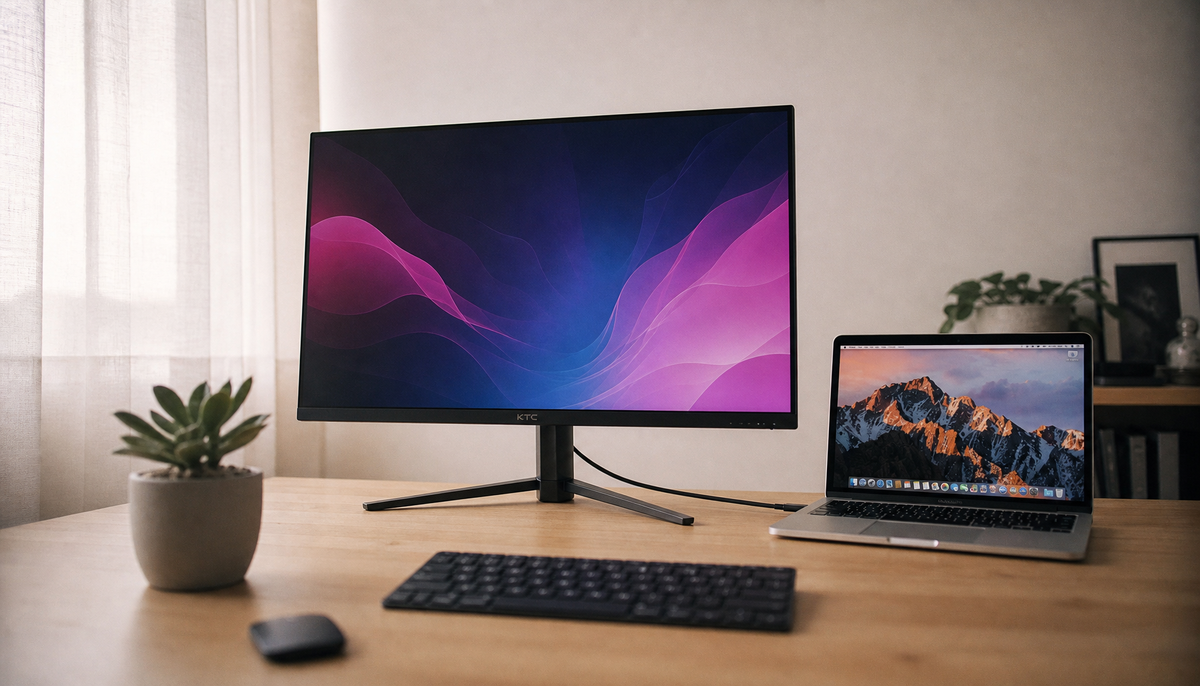
USB-C can carry high-quality video, but performance depends on the monitor, computer, cable, and video standard.
A USB-C monitor may support:
- Full HD at high refresh rates
- 1440p for sharper office and gaming images
- 4K for detailed creative and business work
- 5K or higher on select professional displays
- High refresh rates for smooth motion
DisplayPort Alt Mode is commonly used to send video through USB-C. Some newer connections also use DisplayPort 2.0 or DisplayPort 2.1 features, but support varies by device.
Resolution is not the only factor. A 4K monitor running at 60 Hz may suit office work, while a gaming user may want 144 Hz or more. High resolution and high refresh rate together require more bandwidth.
Check these details before purchase:
- Confirm that your laptop supports video output over USB-C.
- Check the monitor’s maximum resolution and refresh rate through USB-C.
- Confirm the cable supports the required bandwidth.
- Check whether HDR, adaptive sync, or other features work through USB-C.
- Verify that your graphics hardware can drive the selected display mode.
This careful check prevents a common disappointment: buying a high-end monitor and discovering that the laptop only sends a lower refresh rate through its USB-C port.
Who Should Choose a USB-C Monitor?
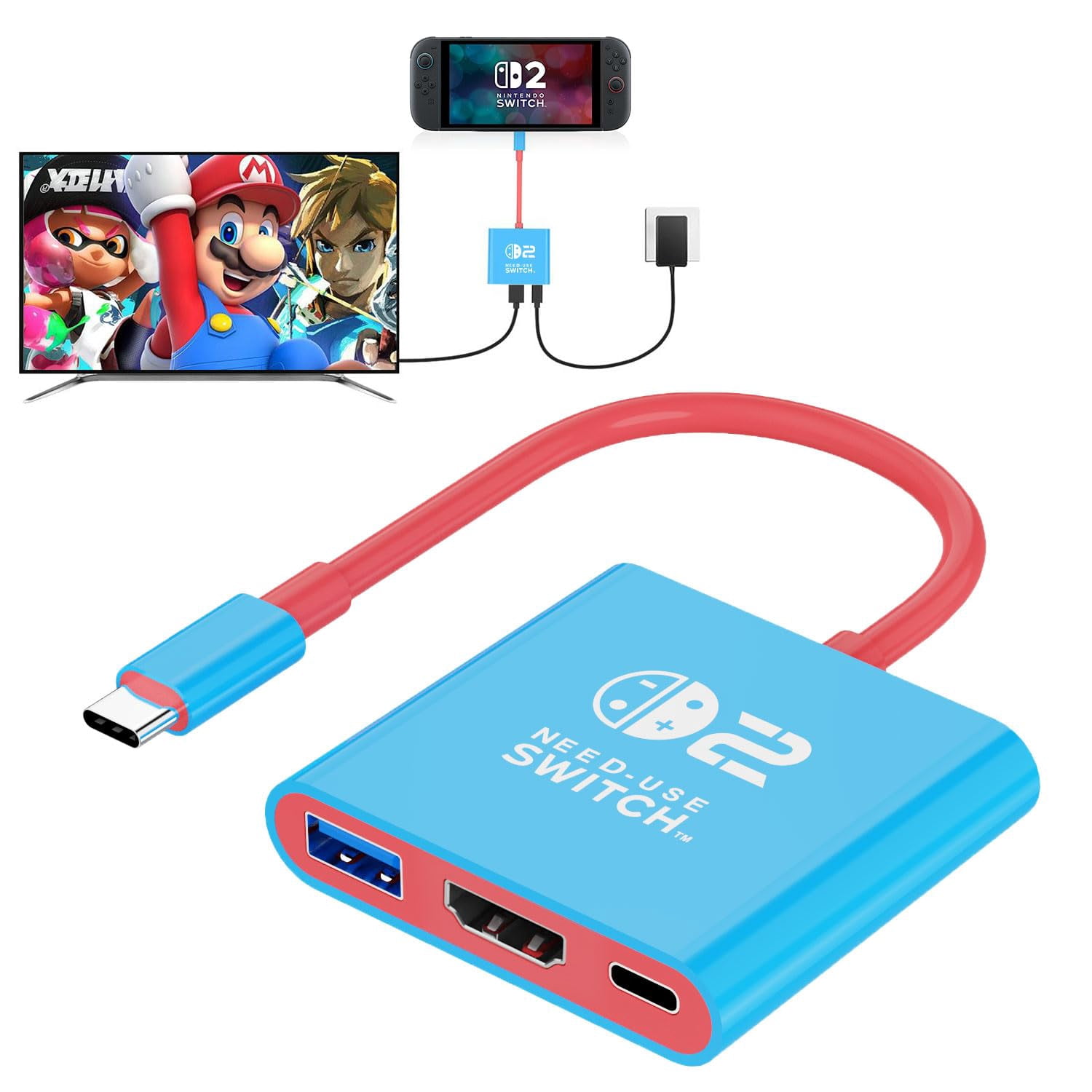
Why choose a USB-C monitor for work or study? It is most useful when your main computer is a modern laptop with USB-C video support.
It may be a strong fit for:
- Remote workers who move between rooms
- Students using a laptop as their main computer
- MacBook and Windows laptop users
- Photographers who need a large, color-accurate screen
- Programmers who want more screen space
- Small business owners who want fewer desk accessories
- Travelers who use one laptop in several locations
It may be less useful if you use only a desktop computer with no USB-C video output. In that case, HDMI or DisplayPort may offer all the connectivity you need.
Gamers should also compare response time, refresh rate, adaptive sync, and input lag. USB-C is convenient, but it does not automatically make a monitor better for gaming.
USB-C Monitor Benefits for Remote Work
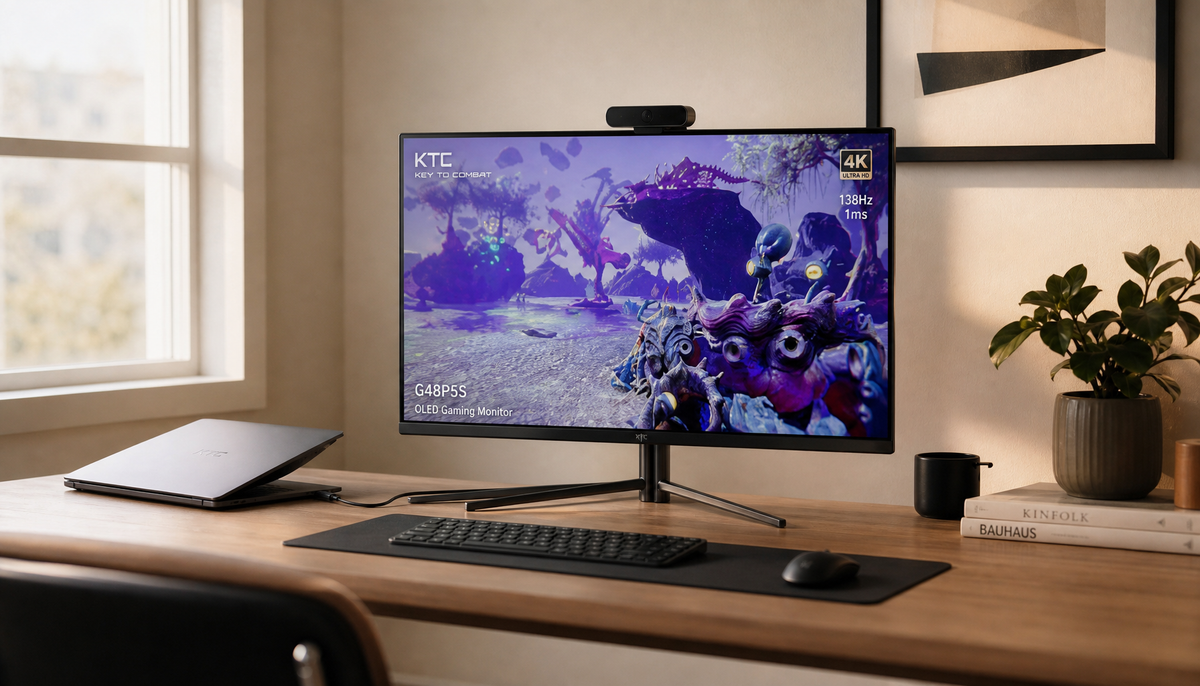
Remote work often involves a laptop, webcam, keyboard, mouse, headset, and network connection. A USB-C monitor can bring these parts together in one place.
A typical setup might include:
- A laptop connected to the monitor by USB-C
- A webcam connected to the monitor’s USB hub
- A keyboard and mouse connected to USB-A ports
- Ethernet connected to the monitor
- Speakers connected to the monitor’s audio output
This layout keeps the laptop free from extra cables. It also makes video calls easier when the webcam stays in a fixed position above the screen.
For people who switch between work and personal laptops, a monitor with a built-in KVM switch may offer even more control. A KVM switch lets one keyboard and mouse work with two computers, though setup and compatibility vary.
A good work monitor should also offer height adjustment, low blue light options, flicker control, and a comfortable viewing size. Connectivity matters, but comfort affects your workday just as much.
USB-C Monitors for Mac and Windows Laptops
USB-C monitors can work well with both Mac and Windows computers. The important issue is not the operating system. It is the port’s actual capability.
Some USB-C ports support charging and data only. Others support charging, data, and video. Look for terms such as:
- DisplayPort Alt Mode
- Thunderbolt compatibility
- USB4
- USB Power Delivery
- Video over USB-C
Mac laptops often work smoothly with USB-C and Thunderbolt displays, but display limits still depend on the model. Windows laptops also vary. A USB-C port on one laptop may support external monitors, while a similar-looking port on another may not.
If you plan to use two monitors, check the laptop’s display output limits. Some computers support two external displays directly. Others need a dock, DisplayLink technology, or a compatible daisy-chain setup.
USB-C Monitor Limitations to Know
Why choose a USB-C monitor after considering its drawbacks? The answer depends on your needs and budget. USB-C monitors are useful, but they are not perfect.
Important limitations include:
- Not every USB-C port supports video
- Charging power may be too low for some laptops
- A monitor may have fewer ports than a dedicated dock
- High-resolution video may require a special cable
- USB hub speeds may be slower than expected
- Some features work only through HDMI or DisplayPort
- Premium USB-C monitors can cost more than basic displays
Daisy chaining is another area that needs careful research. A monitor may include DisplayPort output, but that does not guarantee support for daisy chaining. Your laptop, monitor, operating system, and cables must all support the feature.
There can also be compatibility issues with sleep and wake behavior. A laptop may occasionally fail to reconnect after waking from sleep. Updating the monitor firmware, laptop drivers, and operating system can often help.
These limits do not cancel the benefits. They simply show why reading the full specification sheet is essential.
How to Choose the Right USB-C Monitor
When deciding why choose a USB-C monitor, start with your daily tasks. Do not begin with the screen size or brand alone.
Use this checklist:
-
Check USB-C video support
Confirm that your computer can send video through USB-C. -
Check power delivery
Choose a monitor that provides enough wattage for your laptop. -
Choose the right display size
A 24-inch model suits small desks. A 27-inch or 32-inch display offers more working space. -
Compare resolution
Full HD is affordable. 1440p is a useful middle ground. 4K offers sharper text and images. -
Review refresh rate
Choose 60 Hz for standard office work, or a higher rate for gaming and smooth motion. -
Count the ports
Make sure the monitor has enough USB, video, audio, and network connections. -
Check stand adjustment
Height, tilt, swivel, and pivot adjustment can improve comfort. -
Review color performance
Creative users should check color gamut, factory calibration, and color accuracy data. -
Confirm warranty coverage
A strong warranty can make a more expensive display a safer investment. -
Buy the correct cable
Use a cable rated for your needed power, data speed, and video resolution.
A monitor is a long-term purchase. Spending a little more on the right ports and stand can prevent years of daily frustration.
USB-C Monitor Setup Tips
A smooth setup starts with the right order. First, connect the monitor to power and select the correct input source. Then connect the laptop with a certified USB-C cable.
If the screen stays blank, check these items:
- Try another USB-C port on the laptop
- Confirm that the port supports video
- Select USB-C as the monitor input
- Test a cable that supports video
- Restart the laptop while the monitor is connected
- Update graphics drivers and monitor firmware
- Test the monitor with another compatible device
If the laptop charges slowly, check the monitor’s power output and the cable’s power rating. Disconnecting high-power USB devices may also improve available charging power.
For the best image, open your computer’s display settings and select the monitor’s native resolution. On Windows, you can adjust scaling and refresh rate. On macOS, you can change resolution, arrangement, and mirroring options.
One practical tip is to label spare cables. USB-C cables can look identical while supporting very different features. A small label can save time later.
Is a USB-C Monitor Worth the Extra Cost?
Why choose a USB-C monitor when HDMI displays often cost less? The answer is the value of the complete setup, not just the image.
A less expensive monitor may require a separate dock, laptop charger, USB hub, and extra cables. A USB-C monitor may combine several of these tools into one display.
Compare the total cost of ownership:
- Monitor price
- Docking station price
- Extra charging cable
- Ethernet adapter
- USB hub
- Replacement or upgrade needs
For a simple desktop computer, the extra cost may not be worthwhile. For a laptop-based workspace, the convenience can justify the price.
The best value comes from matching features to your needs. Do not pay for 100 watts of charging, 4K resolution, or a large hub if your laptop and tasks do not require them.
Frequently Asked Questions About Why Choose a USB-C Monitor
Why choose a USB-C monitor instead of an HDMI monitor?
A USB-C monitor can often carry video, power, and data through one cable. HDMI usually carries video and audio but does not normally charge your laptop or connect USB accessories through the same cable.
Can every laptop connect to a USB-C monitor?
No. The laptop’s USB-C port must support video output, usually through DisplayPort Alt Mode, Thunderbolt, or USB4. A USB-C port that supports charging or data only may not display an image.
Does a USB-C monitor charge a laptop?
Many USB-C monitors can charge a laptop through USB Power Delivery. Check the monitor’s wattage and compare it with your laptop’s power needs before relying on it as the main charger.
Is USB-C better than DisplayPort?
Neither is always better. USB-C is more convenient because it can carry video, data, and power, while DisplayPort often offers a direct video connection with strong support for high resolutions and refresh rates.
Do USB-C monitors work with phones and tablets?
Some do, if the phone or tablet supports video output through USB-C. You may also need an adapter, desktop mode support, or enough power for the mobile device.
Can a USB-C monitor support two laptops?
Some models support two computers through multiple inputs, a built-in KVM switch, or picture-by-picture mode. The exact features vary, so check the monitor’s manual and port specifications.
Conclusion
Why choose a USB-C monitor? It can turn a cluttered laptop desk into a simple, flexible workspace with one main connection for video, charging, data, and accessories. It is especially helpful for remote workers, students, creators, and anyone who moves a laptop between locations.
The most important step is checking compatibility. Confirm video support, charging wattage, port speeds, resolution, refresh rate, and cable requirements before buying.
If those features match your setup, a USB-C monitor can save time every day and make your desk feel far more organized. Compare models carefully, choose the features you will use, and share your USB-C monitor setup or questions in the comments.