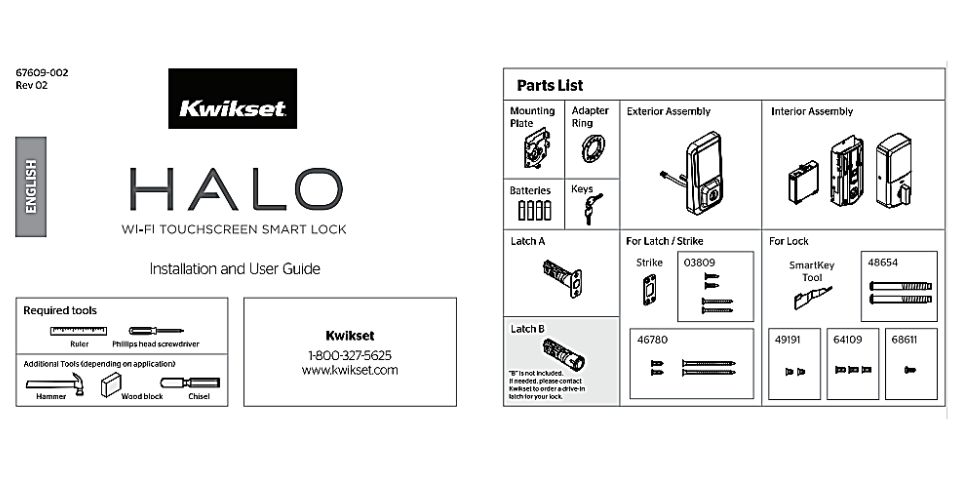
Installing a Kwikset Halo smart lock usually involves removing the existing deadbolt, installing the exterior keypad and interior assembly, inserting batteries, and connecting the lock to the Kwikset app through Wi-Fi setup.
For homeowners in the United States, upgrading a traditional front door deadbolt to a smart lock can improve convenience by allowing keyless entry, remote control, and user code management. The Kwikset Halo smart lock is designed as a retrofit-style replacement for many standard deadbolts, but correct installation depends on door compatibility, proper alignment, and following the manufacturer’s instructions.
This guide explains the Kwikset Halo smart lock installation process in a practical way, including preparation, hardware installation, app configuration, troubleshooting, and safety considerations. Always confirm the exact model instructions because features and installation details may vary between Kwikset Halo versions.
Source: Bing
What You Need Before Installing a Kwikset Halo Smart Lock
Before beginning the Kwikset Halo smart lock installation, prepare the required tools and verify that your door meets the lock’s compatibility requirements. A properly prepared installation reduces the chance of calibration errors or lock movement problems.
Most installations can be completed with basic household tools, but the exact requirements depend on the existing deadbolt and the specific Halo model.
Source: Bing
Tools
Common tools include a Phillips screwdriver, a measuring tape, and the installation hardware included with the lock.
Door requirements
Confirm that the door uses a compatible deadbolt configuration and that the door closes and latches correctly before replacing the lock.
Power preparation
Install fresh batteries after the hardware is mounted and keep the battery compartment accessible during setup.
How to Install a Kwikset Halo Smart Lock Step by Step
The physical installation process replaces the existing deadbolt components with the Kwikset Halo exterior keypad and interior smart lock assembly. Work carefully to avoid damaging wiring connectors or misaligning the locking mechanism.
Source: Bing
Remove the existing deadbolt
Unscrew and remove the current interior and exterior deadbolt parts while keeping the door hardware area clean.
Install the exterior keypad
Place the outside keypad through the door opening and make sure it sits flat against the door surface.
Attach the interior mounting hardware
Secure the mounting plate and connect the interior assembly according to the installation guide.
Install batteries and test movement
Power the lock and verify that the deadbolt extends and retracts smoothly before completing app setup.
Check Door Alignment Before Calibration
The deadbolt should move freely without forcing the door. If the bolt rubs against the strike plate, fix the door alignment issue before calibrating the smart lock.
Successful installation sign
The lock should operate manually without resistance and respond correctly after electronic setup.
How to Connect Kwikset Halo to Wi-Fi and the Kwikset App
After the hardware installation is complete, connect the lock to the Kwikset app to manage user codes, remote access features, and smart lock settings. The app setup process requires following the instructions for your specific Halo model.
Place your phone near the lock during setup and make sure your home Wi-Fi network meets the lock’s requirements.
Source: Bing
Create or sign in to an account
Use the Kwikset app account process provided for your lock model.
Add the lock
Follow the app prompts to detect and configure the installed Halo smart lock.
Create access codes
Set individual user codes only after confirming the lock operates correctly.
Common Kwikset Halo Installation Problems and Fixes
Most Kwikset Halo installation issues are related to mechanical alignment, battery installation, or setup steps rather than defective hardware. Troubleshoot the simplest causes first.
Source: Bing
Lock does not turn smoothly
Check whether the door is aligned correctly and whether the deadbolt moves freely without the smart lock installed.
Lock does not power on
Verify battery placement, battery condition, and electrical contacts inside the battery compartment.
App cannot connect
Confirm Wi-Fi availability, restart setup mode if needed, and follow the model-specific connection instructions.
Keypad does not respond
Check battery power and complete any required reset or calibration process from the manufacturer’s instructions.
Mistakes to Avoid During Kwikset Halo Smart Lock Installation
A smart lock cannot compensate for a door that already has deadbolt alignment problems.
Skipping the manual test
Always test physical locking and unlocking before depending on app-controlled access.
Using weak batteries
Low battery power can interrupt setup and daily operation.
Frequently Asked Questions
Q
How long does Kwikset Halo smart lock installation take?
Installation time varies depending on the existing deadbolt and the installer’s experience. Many standard replacements can be completed within a short home DIY project when the door is already compatible.
Q
Do I need a locksmith to install a Kwikset Halo smart lock?
Many homeowners can complete the installation themselves using the included instructions. A locksmith may be helpful if the door, frame, or existing lock requires adjustment.
Q
Why is my Kwikset Halo lock not locking automatically?
Check battery power, door alignment, lock settings, and calibration. The deadbolt must move freely for automatic locking features to work properly.
Q
Can I install a Kwikset Halo smart lock on any door?
No. Compatibility depends on factors such as the existing deadbolt style, door thickness, and installation requirements of the specific Halo model.
Q
What should I do after installing my Kwikset Halo lock?
Test manual operation, connect the lock to the app, create access codes, and verify that all users can operate the lock correctly.
✦ Wrapping Up
Conclusion
A Kwikset Halo smart lock installation involves two main stages: correctly mounting the hardware and completing the digital setup. Careful preparation, proper door alignment, and testing after installation are the most important steps for reliable operation.
If installation problems continue after basic troubleshooting, consult the official Kwikset documentation or consider professional assistance for door hardware issues that are outside the smart lock installation process.
💡 Key Takeaway
Before using your Kwikset Halo smart lock daily, confirm that the deadbolt moves smoothly, the app connection works, and every access method has been tested.
Kimberly ensures every piece of content is clear, helpful, and user-friendly. She focuses on creating guides that are easy to read while maintaining accuracy and trust.
Learn how a smart lock without WiFi works, what features it offers, its benefits and limitations, and how to choose the right keyless door lock for your home.
Learn what the tire pressure monitor service required message means, why it appears, common causes, troubleshooting steps, repair options, and when professional service is needed.