Use your iPhone like a pro voice recorder in minutes with Voice Memos or an external mic.
I’ve used iPhones for years to record interviews, meetings, lectures, and quick ideas. This guide explains how to use iPhone as a voice recorder with clear steps, real tips, and fixes I learned the hard way. Read on to learn simple setup steps, how to get studio-like sound, and the best ways to edit, share, and protect your recordings.
Why use your iPhone as a voice recorder
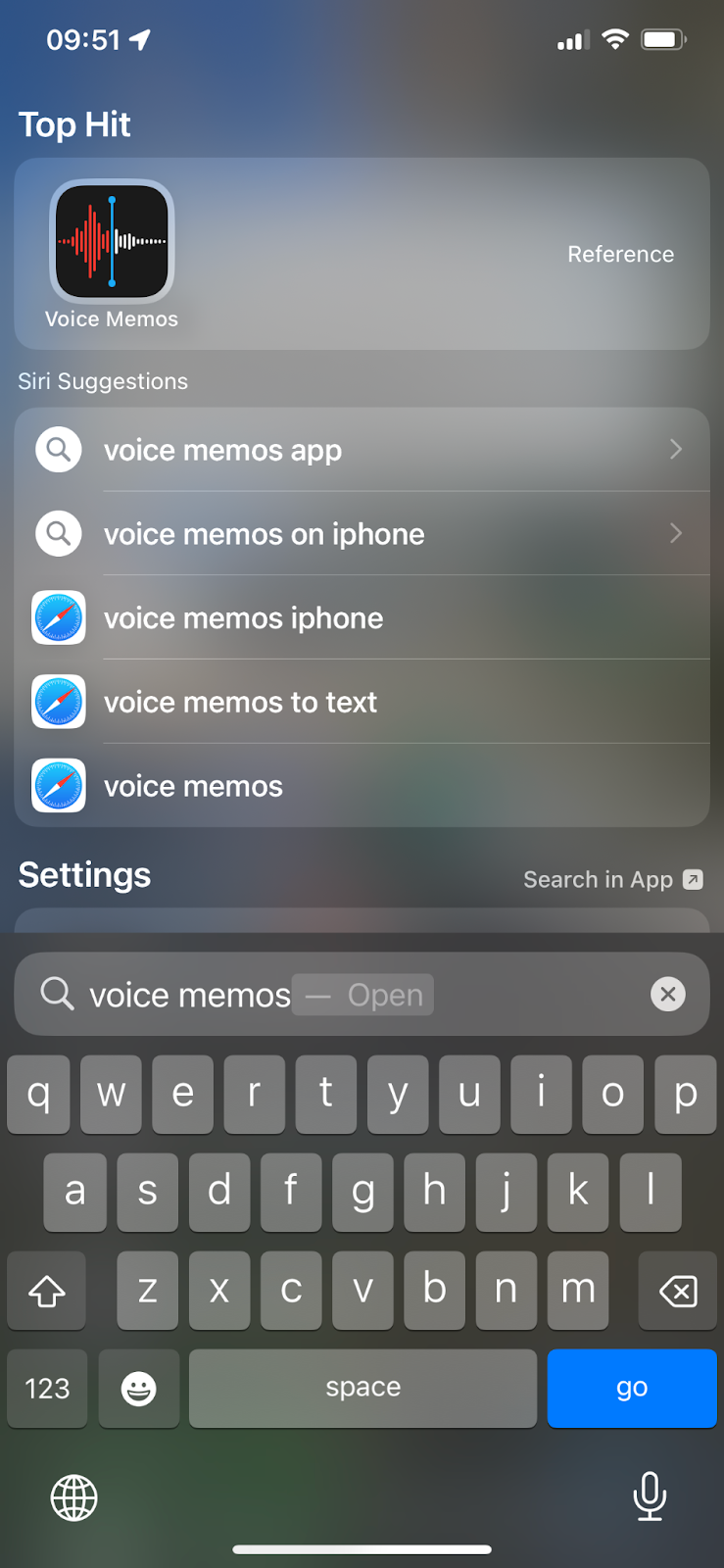
Your iPhone is always with you. It has a good built-in microphone and simple recording apps. That means you can record high-quality audio without extra gear. Using your iPhone as a voice recorder saves time and money for students, journalists, podcasters, and hobbyists.
Built-in Voice Memos app: step-by-step
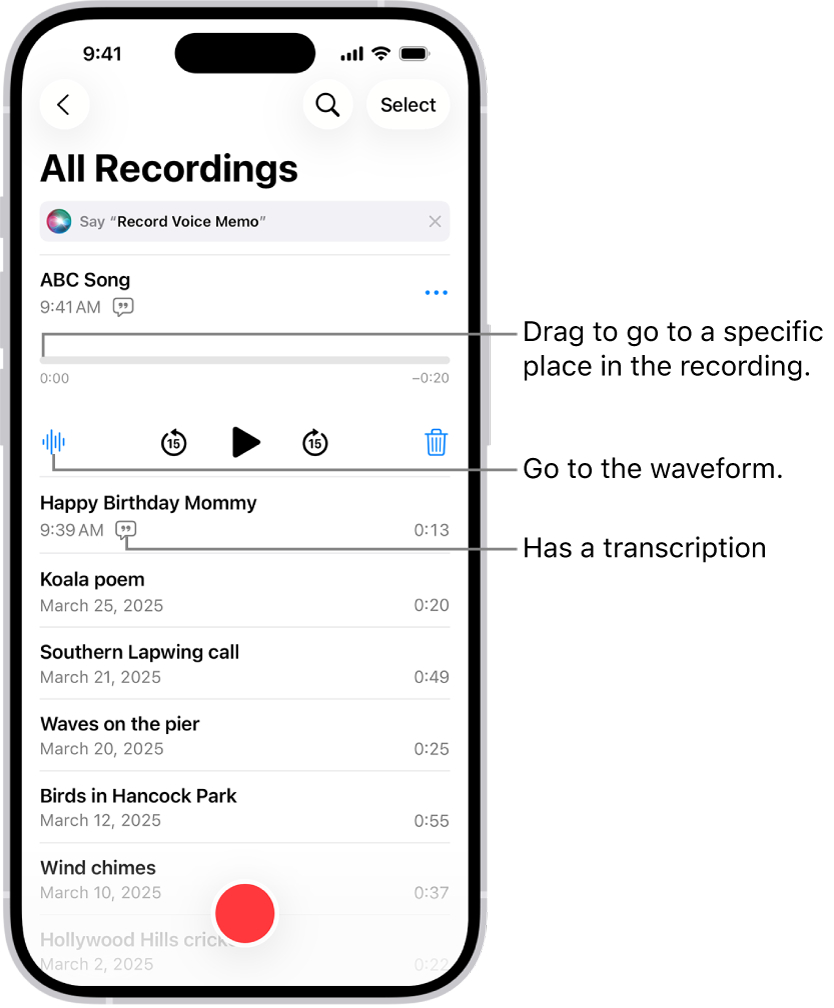
Voice Memos is the simplest way to record on iPhone. Follow these steps.
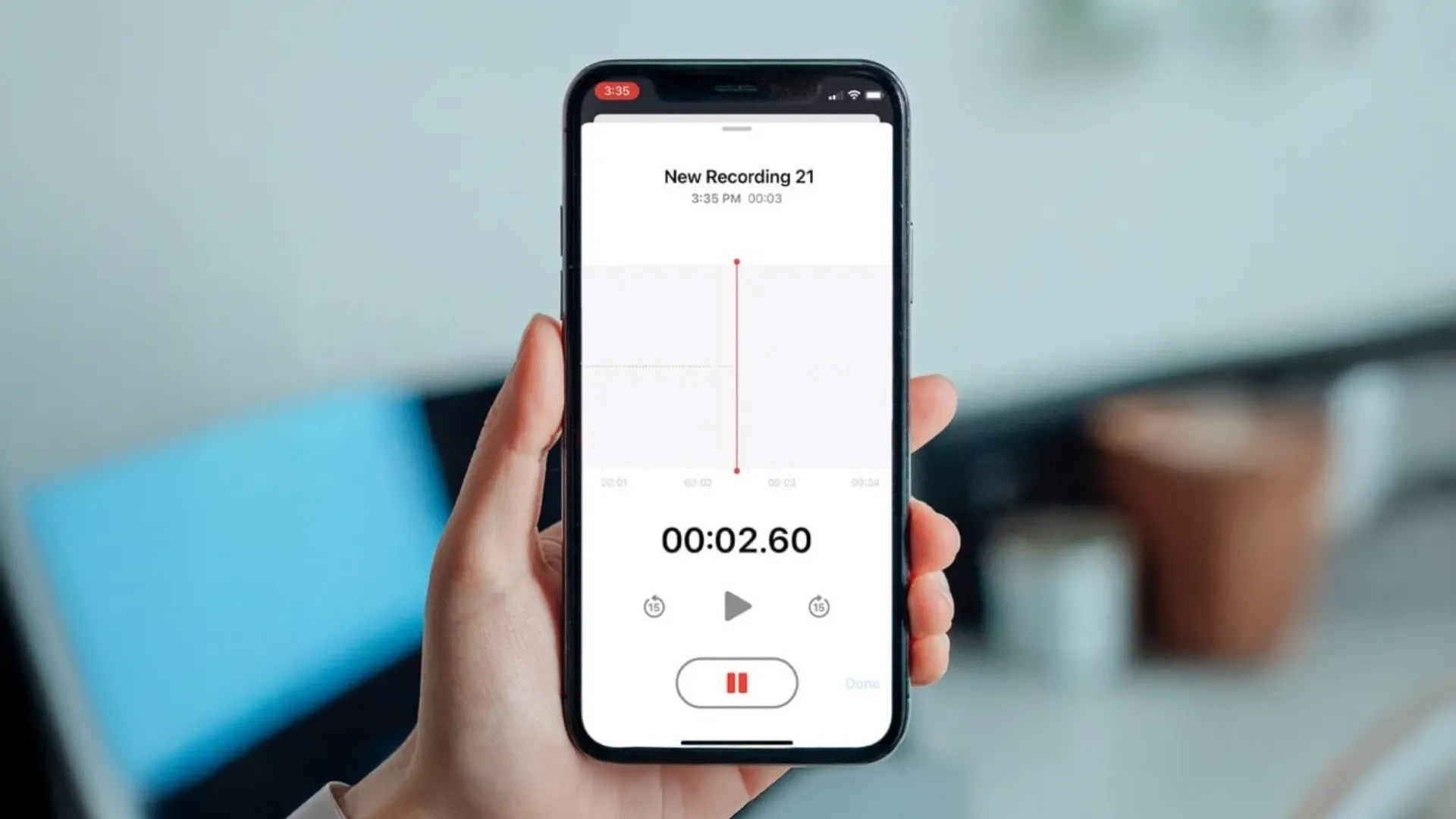
- Open Voice Memos. Tap the red record button to start.
- Hold the iPhone with the microphone facing the sound source. Speak clearly.
- Tap the red button again to stop. The file saves automatically.
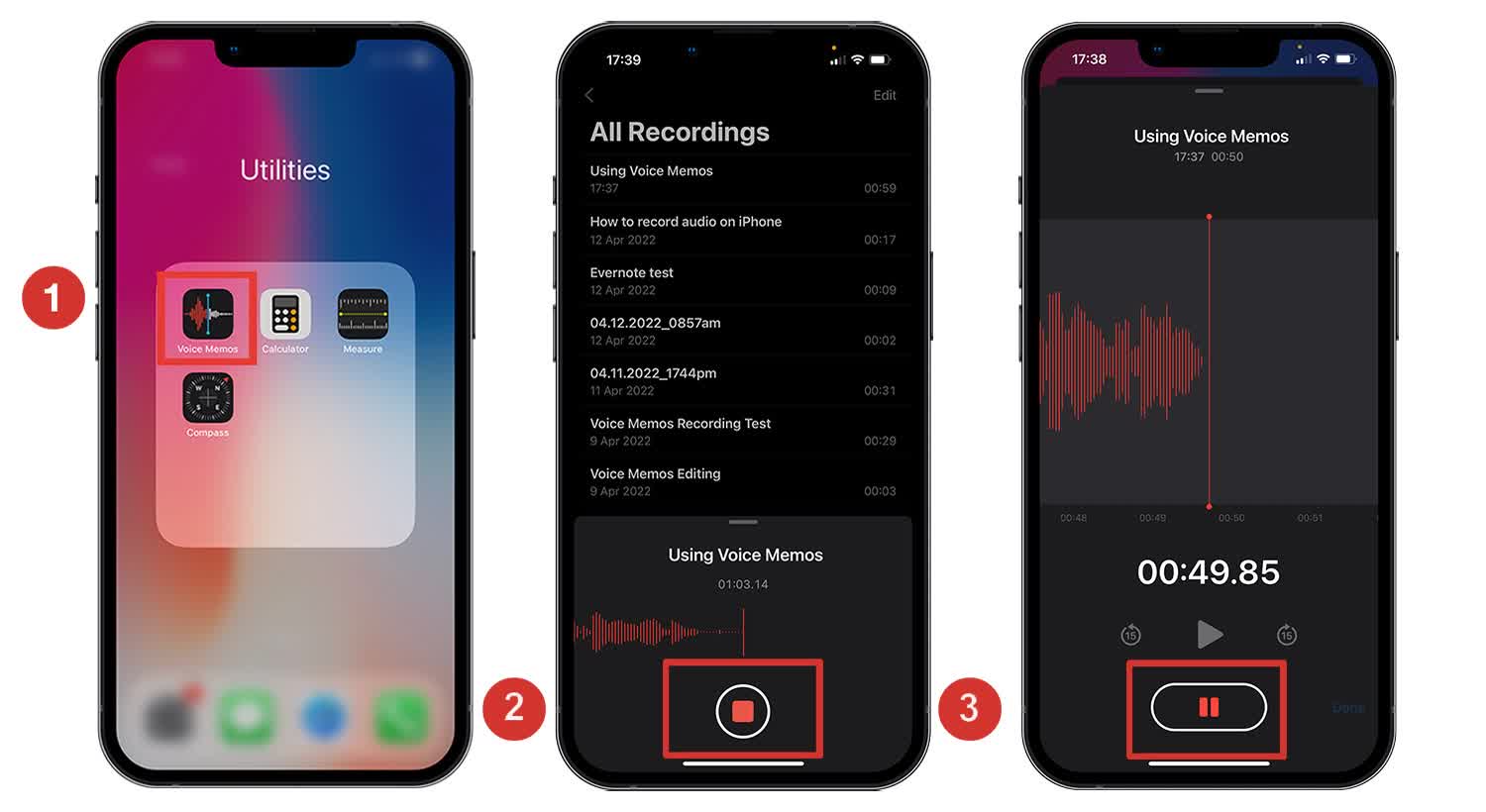
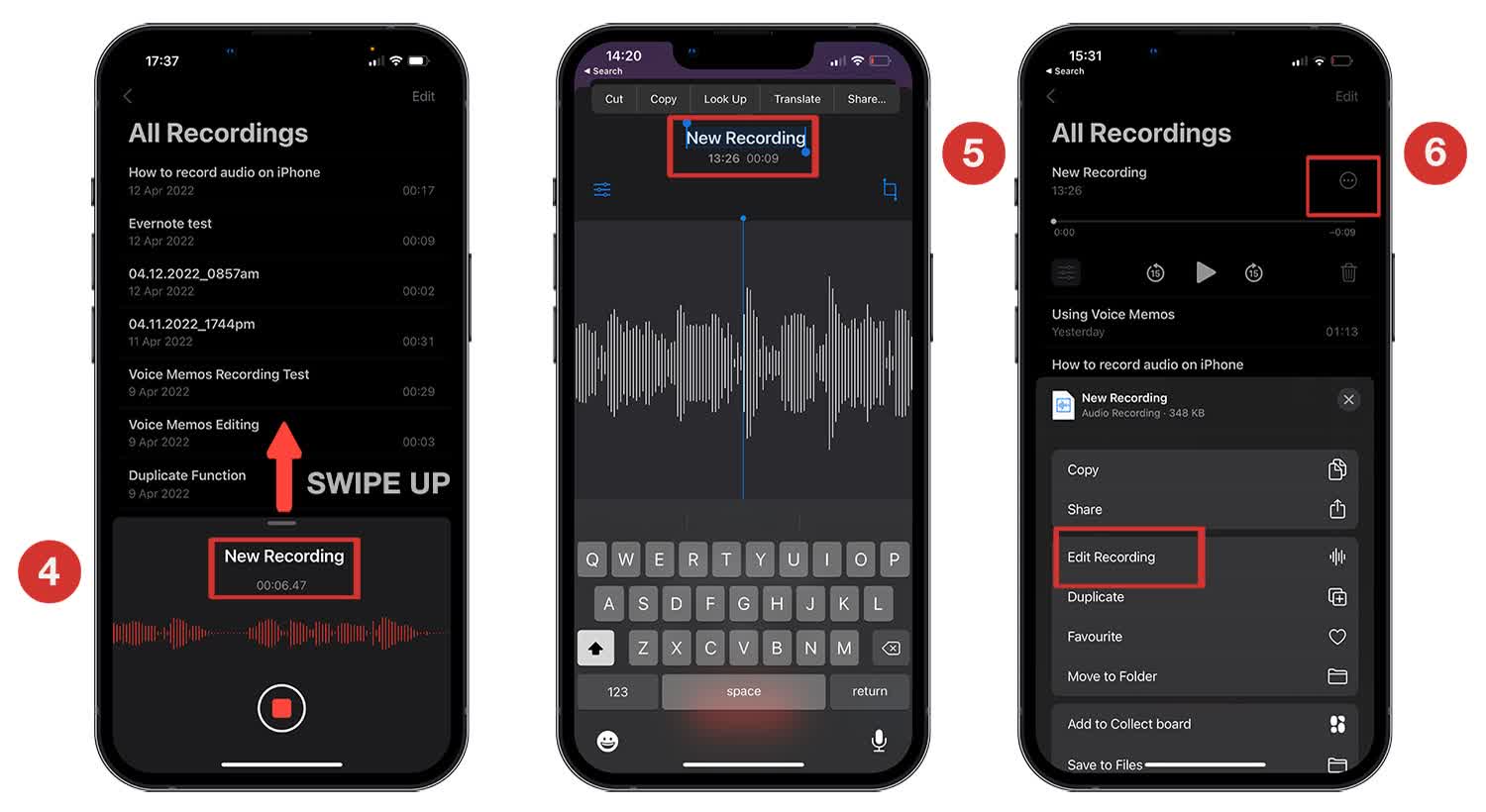
- Rename the memo by tapping the title and typing a new name.
- Trim or replace parts by tapping the three dots and choosing Edit Recording.
Tips for settings and quality
- Turn on Airplane Mode for fewer interruptions during important recordings.
- Use Do Not Disturb to stop notifications from breaking focus.
- Update iOS to get the latest app improvements and bug fixes.
Tips for clearer recordings
Small changes yield big gains in sound quality when you use iPhone as a voice recorder.
- Position the mic close to the speaker. Closer equals less background noise.
- Face the mic directly toward the sound source. Aim for a 6–12 inch distance for voice.
- Record in a quiet, soft-surfaced room. Carpets and curtains cut echoes.
- Reduce wind noise. Shield the mic with your hand or move indoors.
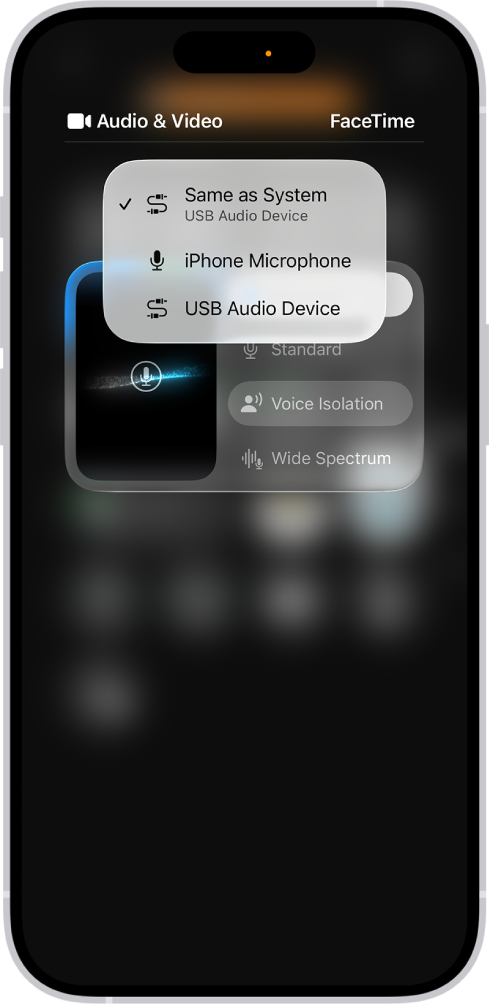
- Use an external microphone for interviews or music. Lightning or USB-C mics often sound much better.
- Monitor levels if your app supports it. Avoid clipping by lowering the input level.
Using third-party apps for advanced recording
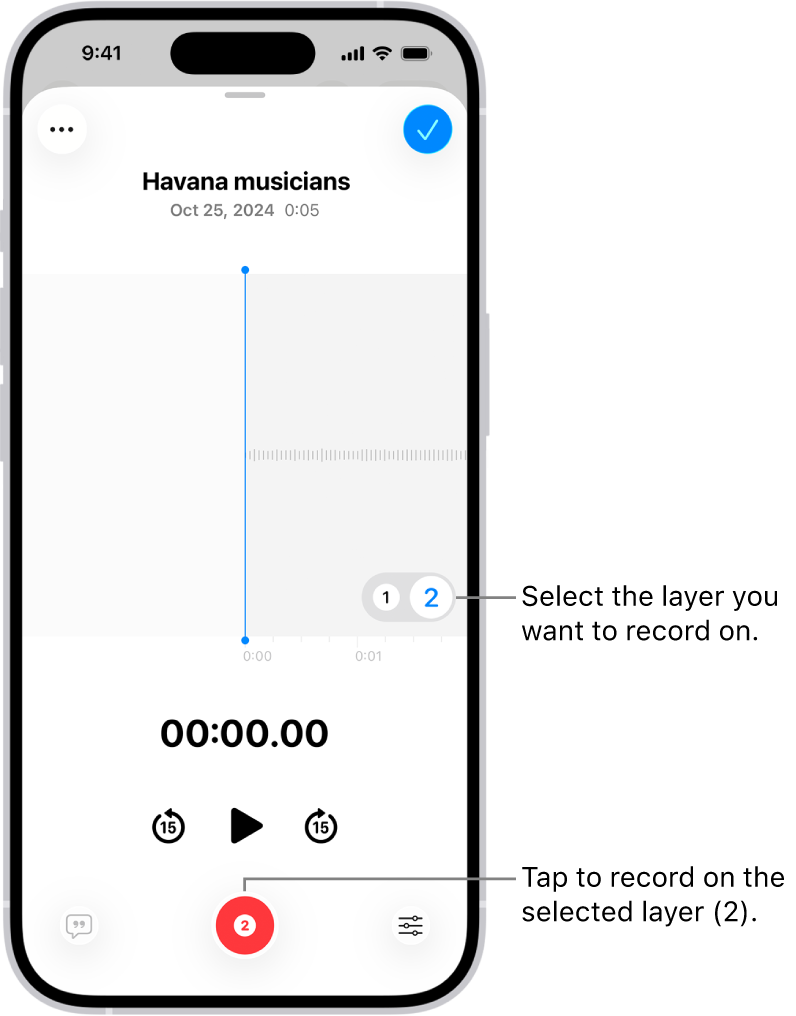
Third-party apps add features beyond Voice Memos. These apps help when you need multi-track recording, better file formats, or noise reduction.
- Look for apps with WAV or FLAC export for lossless audio.
- Choose apps that support external mics and real-time monitoring.
- Use apps with built-in editing tools if you want to cut and mix on the phone.
- Pick one with cloud export for backup and team sharing.
When to use a third-party app
- You need multi-track recording for interviews or music.
- You want higher bitrate or different file formats.
- You need built-in noise reduction or automatic transcription.
Editing, exporting, and sharing recordings
Edit and share quickly after you record on your iPhone. Keep file size and format in mind.
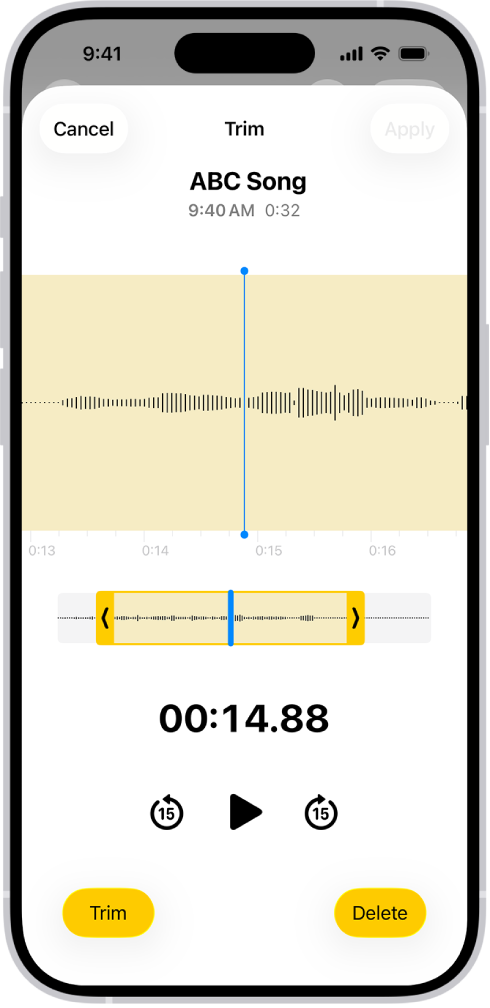
- Trim a clip in Voice Memos using Edit Recording and the trim handles.
- Duplicate a memo before major edits so you keep the original.
- Export via Share to AirDrop, Messages, Mail, or save to Files and cloud storage.
- Convert to MP3 or WAV using an app or desktop tool if needed for editing on a computer.
- Back up important recordings to iCloud, Google Drive, or another cloud service.
File tips
- Use WAV or FLAC for best quality when archiving.
- Use MP3 for smaller files when sending by email or chat.

Troubleshooting common problems
Quick solutions when recording fails or sounds bad.
- No sound recorded: Check microphone permissions in Settings and reboot the app.
- Low volume: Move closer to the mic or enable increase volume options if available.
- App crashes: Update iOS and the app. Restart the phone if crashes persist.
- Large files: Record in shorter segments or use compressed formats for sharing.
- Missing recordings: Look in Recently Deleted inside Voice Memos before restoring from backup.
Privacy, consent, and legal considerations
Recording with your iPhone is easy, but you must be mindful of laws and privacy.
- Ask for consent before recording conversations when required by law or courtesy.
- Check local rules about one-party vs. two-party consent.
- Store recordings securely in encrypted cloud storage when possible.
- Delete recordings you no longer need to reduce privacy risks.
Personal experience and pro tips
I once lost a long lecture by not enabling iCloud backup. Now I name recordings the moment I stop them. I also learned to use an external lavalier mic for interviews; it made voices clearer and editing easier. My top practical tips:
- Label files right away. It saves time later.
- Record a short test clip before important sessions.
- Keep a small clip-on mic in your bag for interviews.
- Use folders or tags in cloud storage to keep things organized.
Frequently Asked Questions of how to use iphone as a voice recorder
How do I start recording on my iPhone?
Open Voice Memos and tap the red record button. Tap the same button to stop and save the file automatically.
Can I use an external microphone with my iPhone?
Yes. Lightning or USB-C microphones work with newer iPhones. Use the mic for better clarity and plug-and-play convenience.
How do I edit a recorded file on iPhone?
Open the memo, tap the three dots, and choose Edit Recording. Use trim and replace tools for quick edits.
Can I record phone calls with my iPhone?
Recording calls may be restricted by law and iOS. Use third-party services or apps and always get consent from all parties where required.
Where are my recordings stored and how do I back them up?
Voice Memos save locally and sync with iCloud if enabled. Share or upload files to cloud storage for extra backup and long-term safety.
Why does my recording sound echoey or thin?
Echoes come from reflective rooms. Move to a softer space and place the mic closer to the source to improve warmth and clarity.
How do I share a recording with someone?
Open the memo, tap Share, and pick AirDrop, Mail, Messages, or save to Files for cloud upload. Choose the format and size that fits the recipient.
Conclusion
You can reliably use your iPhone as a voice recorder for interviews, notes, podcasts, and music. Start with Voice Memos, follow simple mic and room tips, and move to external mics or third-party apps when you need more control. Try one new tip in your next recording session—label files, test levels, or use a small external mic—and you will notice better results. If this guide helped, leave a comment, subscribe for more tips, or try out the steps today.