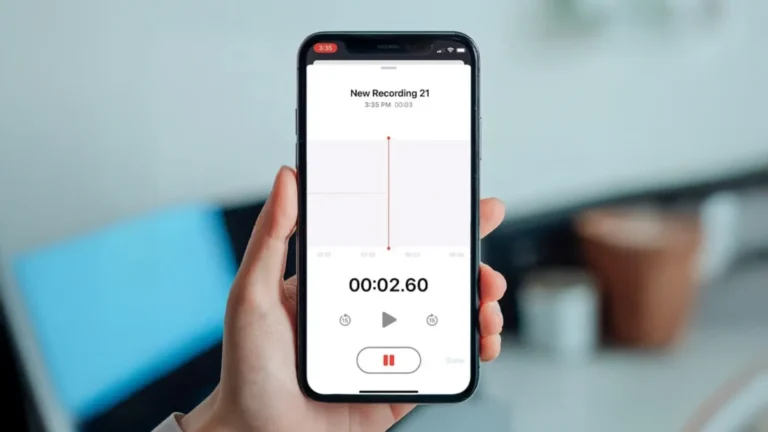
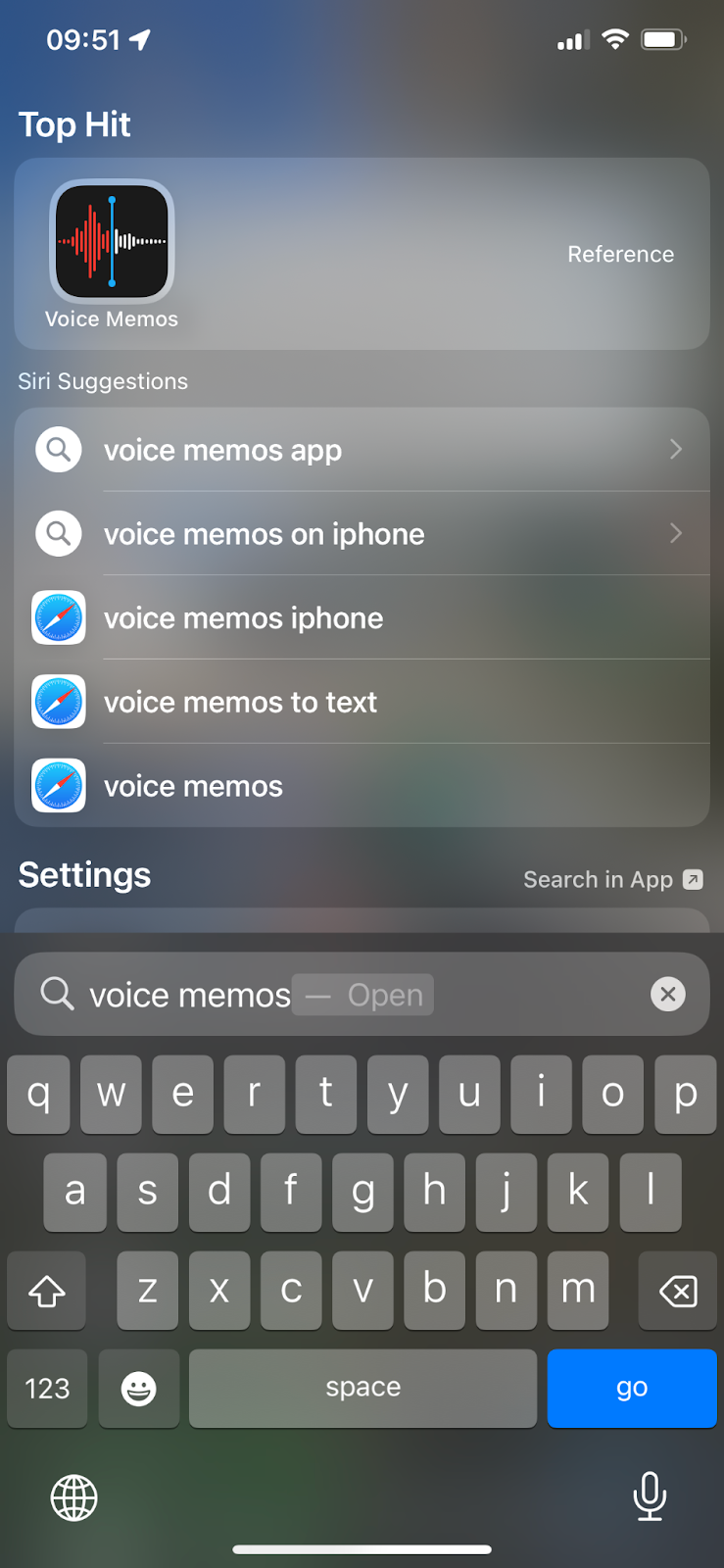
Open the Voice Memos app, or swipe down and type "Voice Memos" in Spotlight to find it quickly.
I’ve helped many users find the voice recorder on iPhone and get comfortable using it. This guide explains exactly how to find the voice recorder on iPhone, access it fast, recover it if it’s missing, and use features like sharing and syncing. I write from hands-on experience with iPhones and clear troubleshooting steps so you can follow along without confusion.
Where the voice recorder lives on your iPhone
Apple’s voice recorder is called Voice Memos. It comes preinstalled on most iPhones. The app icon looks like a black waveform on a white background. If your iPhone is updated, Voice Memos may appear in the App Library instead of on the Home Screen. Searching is often the fastest way to find it.
Voice Memos stores recordings locally and can sync via iCloud when enabled. That sync keeps your recordings available across devices signed into the same Apple ID. If you want to know how to find the voice recorder on iPhone quickly, learning these locations helps.
Step-by-step: how to find the voice recorder on iphone
Follow these steps to locate the voice recorder on iPhone with minimal fuss.
- Swipe down from the middle of the Home Screen to open Spotlight. Type voice memos or voice recorder. Tap the Voice Memos result to open the app.
- Check the Home Screen folders or the App Library. Look in Utilities or Recently Added. Tap the icon to open it.
- If Voice Memos is missing, open the App Store and search Voice Memos. Tap the cloud icon to re-download if it was removed.
- Use Siri: say "Open Voice Memos" or "Start a voice memo" to launch the recorder hands-free.
Each method works across iOS versions. If you often need the recorder, add it to the Dock or a Home Screen folder. These simple actions make finding the voice recorder on iPhone painless.

Access quickly: Control Center, Siri, and Back Tap
You can reach the voice recorder faster by customizing quick access features.
- Control Center: Go to Settings > Control Center > More Controls. Add Voice Memos if available. Tap the Control Center icon to open it instantly.
- Siri: Say "Open Voice Memos" or "Record a memo" to launch or start recording hands-free.
- Back Tap (iOS accessibility): Go to Settings > Accessibility > Touch > Back Tap. Assign Double Tap or Triple Tap to open Voice Memos via a shortcut app or a shortcut that opens the app.
These shortcuts answer many searches about how to find the voice recorder on iPhone when you’re in a hurry. They save time and make recording seamless.
Can Siri open the voice recorder for me?
Yes. Say "Open Voice Memos" or "Start a new voice memo" and Siri will open the app or begin recording if you allow voice commands.
How do I add Voice Memos to Control Center?
Open Settings, tap Control Center, then add Voice Memos from More Controls. It appears in Control Center for quick taps.
How to find recordings, organize them, and share
Once you open Voice Memos, finding specific recordings is straightforward.
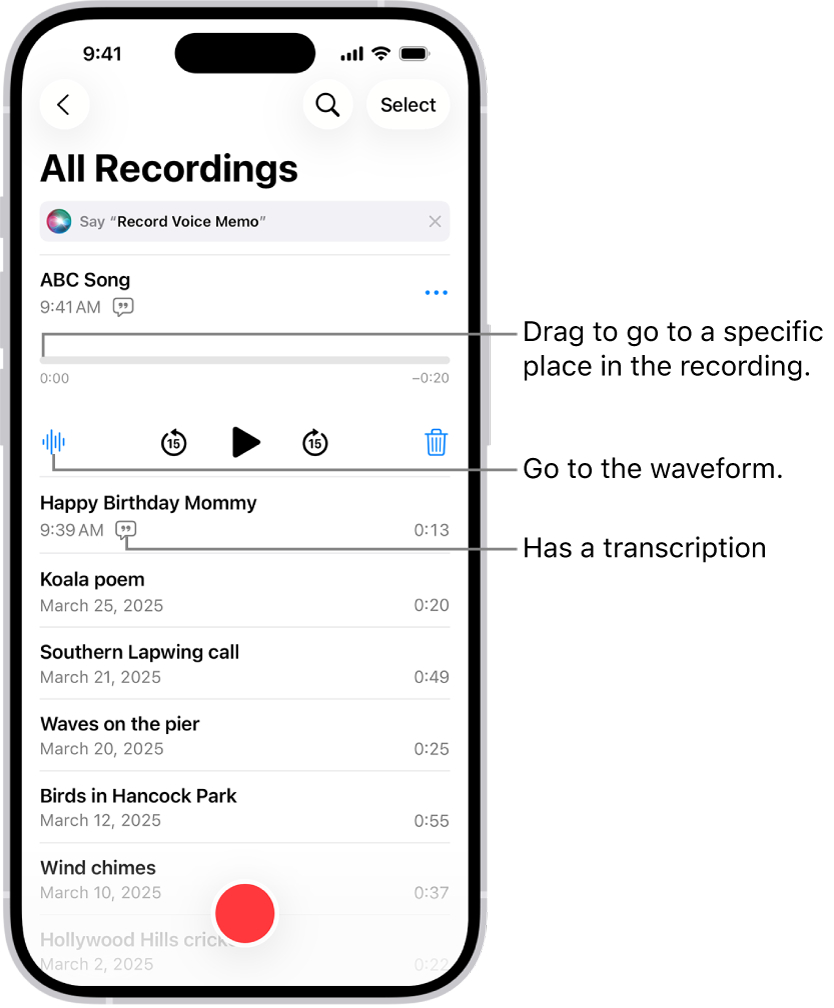
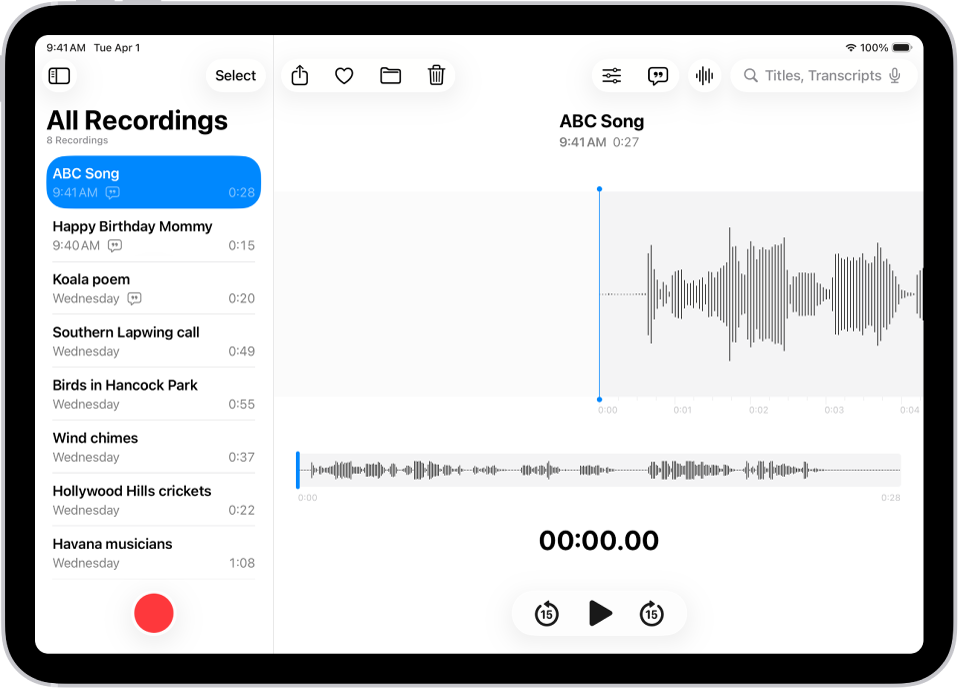
- Open Voice Memos. The list shows recordings with names, dates, and durations.
- Tap a memo to play it. Swipe left on an item to delete. Tap the three dots for options like Edit, Duplicate, or Share.
- Rename memos by tapping the title. Use folders or Tags in the Files app for further organization after exporting.
- To share, tap the share button and choose Mail, Messages, AirDrop, or save to Files. Large files can be saved to iCloud Drive for easy access.
If you use iCloud for Voice Memos, recordings sync to other Apple devices. That makes it easier to find the voice recorder on iPhone and retrieve recordings across platforms.
Troubleshooting: app missing, recordings lost, or mic not working
Problems happen. Here are clear fixes when you can’t find the voice recorder on iPhone or when recordings won’t behave.
- App missing: Search Spotlight. If not found, re-download from the App Store. Restart your iPhone if the App Store doesn’t show it.
- Recordings missing: Check Recently Deleted inside Voice Memos. Turn on iCloud sync under Settings > [your name] > iCloud > Voice Memos to restore from another device.
- Microphone issues: Test the microphone in Camera app by recording a video. If it’s quiet, remove the case, clean ports, and restart. Check app microphone permissions in Settings > Privacy > Microphone.
- Storage full: Free up space in Settings > General > iPhone Storage or offload large apps. Large recordings won’t save if storage is low.
These steps reflect real fixes I used on phones I manage. They will help you locate the voice recorder on iPhone and resolve common hiccups quickly.

Personal tips and lessons learned
I often record interviews and notes on iPhone. A few practical tips saved me time and stress.
- Add Voice Memos to a Home Screen folder labeled Recording. Simple labels make it fast to find the voice recorder on iPhone.
- Use clear file names right after recording. I once lost hours of work searching for vague titles. Renaming avoids that.
- Back up important memos to iCloud or export to Files. I recovered a saved client brief after a mistaken delete.
- Test microphone placement for voice quality. Speaking near the bottom of the phone typically gives better clarity.
These small habits make a big difference. They turned my chaotic recording routine into a reliable workflow for work and personal use.

Frequently Asked Questions of how to find the voice recorder on iphone
How do I open the voice recorder if the app is hidden?
Swipe down on the Home Screen for Spotlight, type voice memos, and tap the app. If hidden in App Library, check there too.
Can I reinstall Voice Memos if deleted?
Yes. Open the App Store, search Voice Memos, and tap the download cloud to reinstall the app.
Will my recordings sync across iPhone and iPad?
Yes, if you enable iCloud for Voice Memos under Settings > [your name] > iCloud > Voice Memos, recordings sync across devices using the same Apple ID.
How do I recover a deleted voice memo?
Open Voice Memos and check Recently Deleted. Tap Recover to restore the file within the allowed recovery period.
Why can’t I record audio in Voice Memos?
Check microphone permissions in Settings > Privacy > Microphone, free up storage, and test the mic in another app to rule out hardware issues.
Conclusion
Finding and using the voice recorder on iPhone is easy once you know where to look and how to set quick access. Use Spotlight search, Control Center, Siri, or organize your Home Screen for the fastest results. Back up important memos and test your microphone to avoid surprises. Try the tips here today: add Voice Memos to a quick-access spot, test a recording, and rename your first memo for practice. Share your experience or questions below, subscribe for more simple iPhone guides, or leave a comment to tell me what recording tip helped you most.