Open the Voice Recorder app, then stop recording and disable or force stop it via App info.
I’ve worked with Samsung phones for years and helped many people manage apps and privacy. This guide shows clear steps on how to turn off voice recorder on Samsung phones, why you might want to, and safe ways to prevent accidental or background recording. You’ll get easy, tested methods for One UI and older Android versions, plus troubleshooting and privacy tips so you can control the recorder with confidence.

Why you might want to turn off Voice Recorder on Samsung
Voice Recorder runs when you start a recording. It can also run in the background if permissions or apps allow it. Many people want to turn off voice recorder on Samsung to save battery, protect privacy, or stop accidental recordings. I’ve seen cases where a recording app used battery and created clutter. Turning it off is quick and gives control back.

How to turn off Voice Recorder on Samsung — quick app method
This method works on most Galaxy phones and tablets running One UI.
- Open the Apps list and tap Voice Recorder.
- If a recording is active, tap Stop to end it.
- Tap the three-dot menu or app icon and choose App info.
- Tap Force stop to halt the app immediately.
- To prevent it from restarting, tap Disable if available.
This is the easiest way to turn off voice recorder on Samsung without removing any settings. If Disable is greyed out, follow the permission or system methods below.
Disable microphone permissions to block recordings
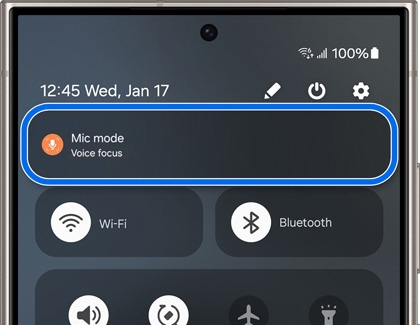
Removing mic access prevents the app from recording.
- Open Settings and go to Apps.
- Find Voice Recorder and tap Permissions.
- Tap Microphone and choose Deny.
- Also check Background permissions and choose Deny if present.
Blocking the microphone works well. It stops not only Voice Recorder but any app that tries to use the mic without permission. This is a privacy-first approach I use often.

Stop background activity and auto-start
Some apps auto-start after reboot or run in the background.
- Open Settings > Apps > Voice Recorder > Battery.
- Turn off Allow background activity or similar toggle.
- Back in App info, tap Mobile data and disable Background data if needed.
Stopping background activity reduces battery use and prevents the app from reactivating. This helps when you want the app present but inactive.

Uninstall updates or disable the app entirely
If Voice Recorder is a system app, you may not be able to uninstall it, but you can disable it.
- Go to Settings > Apps > Voice Recorder.
- Tap the three-dot menu and choose Uninstall updates if available.
- Then tap Disable to remove it from the app list.
If Disable is not shown, the app is system-locked. You can still restrict it with permissions and background limits. I only disable system apps when I know I won’t need them.

Advanced options: Safe Mode, ADB, and parental controls
Use these only if basic steps don’t work.
-
Safe Mode
- Restart the phone into Safe Mode to see if a third-party app is controlling the recorder.
- If the recorder is gone in Safe Mode, uninstall the interfering third-party app.
-
ADB (for advanced users)
- Use ADB commands from a computer to uninstall or disable system apps.
- This requires developer mode and care. I recommend a backup before trying ADB.
-
Parental controls
- Use Samsung or Google parental controls to block apps or limit microphone use.
- This helps manage devices used by kids or shared users.
These methods give deeper control but need caution. They are useful when basic options cannot turn off voice recorder on Samsung.

Troubleshooting: common problems and fixes
If the recorder restarts or won't disable, try these fixes.
- Restart your phone. This clears temporary bugs.
- Clear app cache and storage in App info, then Force stop.
- Check for system updates and install them. A bug may be fixed by an update.
- Boot to Safe Mode to rule out third-party apps.
- Reset app preferences to restore default app settings if things are inconsistent.
I once fixed a hidden auto-start by clearing cache and denying background activity. Small steps often solve the issue.

Privacy and security considerations
Turning off the recorder helps privacy, but apply layered protection.
- Revoke microphone permission for any app that does not need it.
- Use biometric or screen lock to prevent unauthorized access to your phone.
- Review app permissions monthly to catch new access requests.
- Consider encryption and regular updates for better security.
Preventing accidental recordings is part of a healthy device hygiene plan I follow on every phone I manage.
Practical tips and mistakes to avoid
Here are quick tips from my experience.
- Always stop an active recording before disabling the app.
- Backup important recordings to cloud or a computer first.
- Avoid uninstalling system apps unless you know the consequences.
- Test the mic after revoking permissions to verify behavior.
- Use Do Not Disturb or Airplane Mode for temporary peace of mind.
A common mistake is disabling the app without saving recordings. I learned this the hard way and now always back up first.
Frequently Asked Questions of how to turn off voice recorder on samsung
How do I stop voice recorder from running in the background?
Open Settings > Apps > Voice Recorder, then tap Battery and turn off Allow background activity. Also Force stop the app in App info.
Can I completely delete the Voice Recorder app from my Samsung phone?
If it's a user-installed app, yes. For system apps, you can uninstall updates and disable it, but full removal usually requires ADB or rooting.
Will revoking microphone permission affect other apps?
Yes. Apps that need the mic, like voice assistants or video apps, will not record until you grant permission again.
How do I recover recordings if I disabled the app?
Re-enable the app or grant mic access again. If recordings were deleted, restore from your backup or cloud if you had one.
Why does Voice Recorder restart after I force stop it?
It may be allowed to auto-start or another app may trigger it. Deny background activity and check recent apps that have mic access.
Conclusion
You now have multiple, clear ways to control and turn off voice recorder on Samsung devices. Start with the app info method, then tighten permissions and background access for stronger control. Back up any important recordings before making changes, and use advanced steps only when needed. Try these steps on your phone today and see which one fits your needs best. If this guide helped, leave a comment or subscribe for more device tips and privacy tricks.