Computer monitors cost more than TVs because they offer sharper pixels, faster response, better ergonomics, and specialized features.
The question “why are computer monitors more expensive than TVs” has a clear answer, but price alone does not tell the whole story. A TV is built for viewing video from a distance, while a monitor must perform like a precise, fast, and comfortable work tool right in front of your eyes.
This guide explains the real differences in panels, refresh rates, resolution, ports, smart features, warranties, and production costs. It also shows when a TV may be the better buy and when paying more for a monitor makes sense.
The short answer: monitors are built for precision
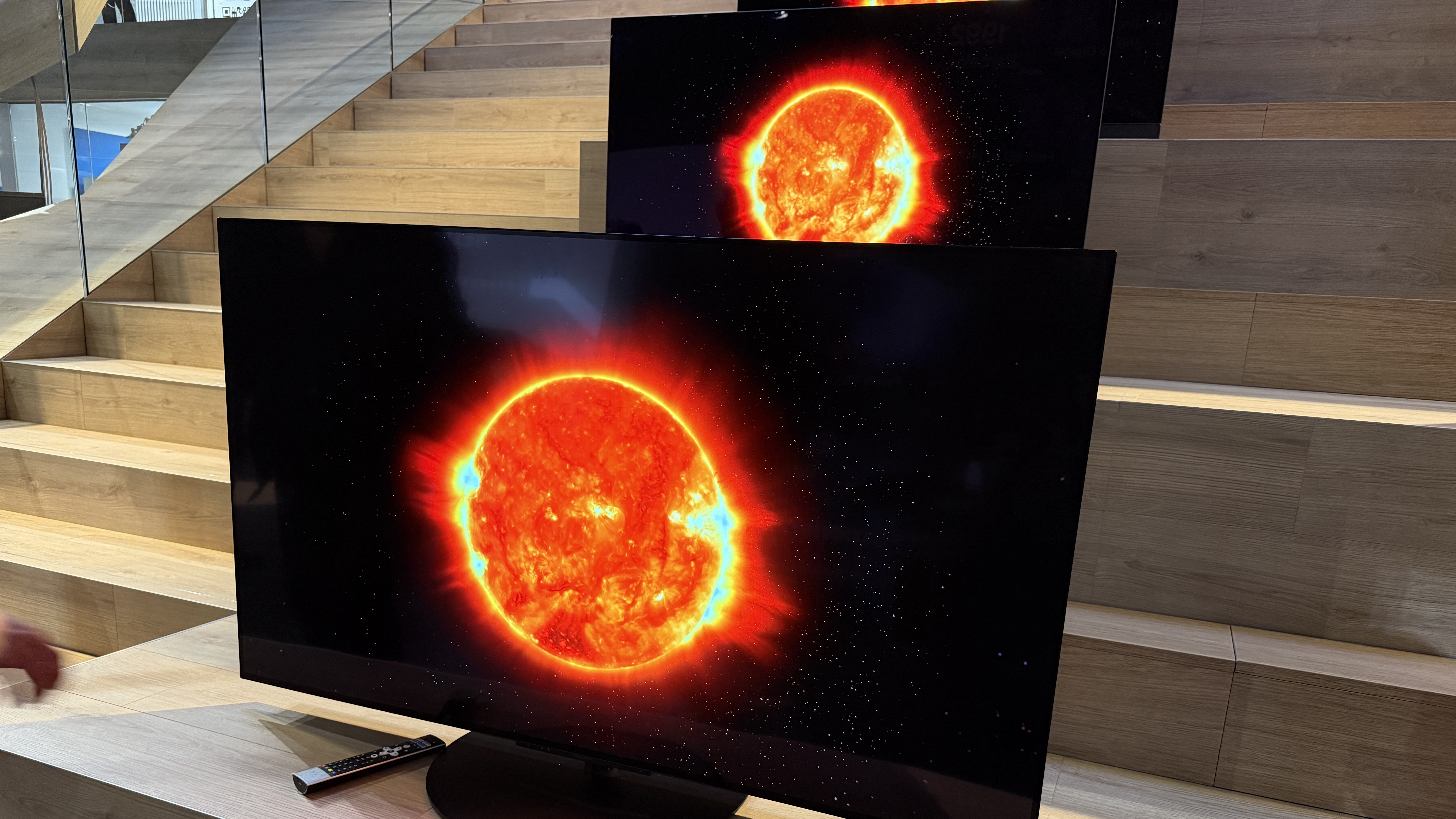
The main reason computer monitors are more expensive than TVs is that they serve different purposes. A TV is usually designed to deliver a large picture at a low cost. A monitor is designed for close viewing, frequent use, accurate detail, quick movement, and easy connection to a computer.
A 55-inch TV may cost less than a 32-inch monitor because the TV market is much larger and more competitive. Manufacturers sell millions of TVs for bedrooms, living rooms, hotels, and businesses. This large scale helps reduce the cost of each unit.
Computer monitors often sell in smaller groups. Many models target specific users, such as gamers, video editors, designers, programmers, or office workers. These buyers may pay more for features that are not important to regular TV viewers.
A monitor is closer to a tool than a simple display. Like a professional camera lens or a good office chair, it may cost more because small design details affect daily use.

Why are computer monitors more expensive than TVs?
Several factors explain why are computer monitors more expensive than TVs. Some relate to hardware, while others involve design, testing, software, and market demand.
1. Monitors use higher pixel density
Pixel density means how many pixels fit into each inch of the screen. A monitor often has a smaller screen with a high resolution, so text and fine lines look sharper.
For example, a 27-inch 4K monitor has about 163 pixels per inch. A 55-inch 4K TV has about 80 pixels per inch. Both screens have the same number of total pixels, but the monitor packs them into a smaller space.
High pixel density matters when you sit 20 to 30 inches from the screen. It makes:
• Small text easier to read
• Photos look more detailed
• Fine design work more accurate
• Interfaces appear cleaner
• Thin lines look less jagged
You may not notice this difference from across a room. At a desk, however, it can be clear within minutes.
2. Monitors offer higher refresh rates
Refresh rate shows how many times the display updates each second. A 60 Hz screen refreshes 60 times per second. Gaming monitors may offer 144 Hz, 165 Hz, 240 Hz, or even higher rates.
A higher refresh rate can make motion look smoother. It also reduces the time between frames, which can help during fast games. Many modern TVs now support 120 Hz, but high-refresh monitors offer more choices and often support these rates at common PC resolutions.
To use a high refresh rate, the computer must also produce enough frames per second. A powerful graphics card may be needed for demanding games.
3. Monitors need low input lag
Input lag is the delay between an action and the result appearing on the screen. It matters when you move a mouse, type, edit video, or play a competitive game.
TVs often include image processing to improve sharpness, color, and motion. This processing can add delay. Most TVs have a Game Mode that reduces it, but monitors are usually designed for low-latency computer use from the start.
Manufacturers may test gaming monitors with strict response and delay targets. This extra testing adds cost, especially in premium models.
4. Monitors support adaptive sync
Many gaming monitors support technologies such as AMD FreeSync or NVIDIA G-SYNC Compatible. These features match the display’s refresh rate to the graphics card’s frame rate.
Without adaptive sync, you may see screen tearing. This happens when the monitor displays parts of two different frames at once. Adaptive sync can make motion feel smoother, especially when frame rates change often.
Some TVs support variable refresh rate as well. Still, monitors usually provide broader support for computer graphics cards, PC resolutions, and high refresh settings.
5. Monitors often provide better text clarity
A TV can look excellent with movies and console games but still make text feel soft when used as a desktop display. This may happen because of chroma subsampling, image processing, scaling, or the TV’s pixel layout.
Many monitors are tuned for clear computer text. They usually support full chroma 4:4:4 input, which preserves color detail around letters. They also offer display modes designed for office work and productivity.
This does not mean every monitor has perfect text. Some OLED monitors use unusual subpixel layouts that can create color fringing around small letters. Your operating system, scaling level, and viewing distance also affect results.
6. Monitors include more ergonomic features
A TV usually comes with a simple stand. It may support height adjustment only through a separate wall mount or accessory.
Many monitors include stands with:
• Height adjustment
• Tilt adjustment
• Swivel movement
• Pivot rotation for portrait use
• VESA mounting support
These features can improve comfort during long work sessions. Better posture and eye position may reduce neck and shoulder strain.
A high-quality adjustable stand adds material and engineering costs. It also makes the monitor more useful in offices and multi-screen setups.
7. Monitors offer computer-friendly ports
A modern monitor may include DisplayPort, HDMI, USB-C, a USB hub, audio output, and power delivery. Some USB-C monitors can charge a laptop while carrying video and data through one cable.
Premium models may also include a built-in KVM switch. This lets you use one keyboard and mouse with two computers. Features like these are valuable in an office but unnecessary for most TV buyers.
TVs focus on HDMI ports, streaming apps, broadcast inputs, and sound systems. Monitors focus on flexible computer connections.
TVs are cheaper because they are made for a larger market
One of the biggest answers to why are computer monitors more expensive than TVs is production scale. TVs are among the most widely sold consumer electronics products in the world.
Large manufacturers can produce huge numbers of similar TV panels. Retailers then compete heavily on price during events such as Black Friday, Memorial Day, and holiday sales. Loss-leading promotions can make a TV appear surprisingly cheap.
A TV company may also earn money through:
• Streaming platform partnerships
• Advertising on the home screen
• App placement deals
• Extended warranties
• Accessories and services
This can allow the company to sell the TV itself with a smaller profit margin.
Monitors have fewer built-in revenue streams. The manufacturer usually depends more on the price of the display and its hardware. A specialized monitor cannot always rely on the same sales volume as a mainstream TV.
This is why screen size alone is a poor way to compare prices. A big TV may be cheap because it is mass-produced, while a smaller monitor may be expensive because it serves a narrow market.
Monitor panel technology can raise the price
The panel is the part of the display that creates the image. Different panel types have different strengths and costs.
IPS monitors
IPS panels are popular for work, design, and general use. They usually offer wide viewing angles and good color quality.
Their weaknesses may include lower contrast than VA or OLED panels. IPS glow can also appear as light around the corners, especially in dark rooms.
VA monitors
VA panels often provide better contrast than IPS panels. They can produce deeper blacks and work well for movies, games, and general desktop use.
Some VA displays have slower dark-pixel transitions. This can cause dark smearing in fast scenes. Better VA monitors reduce this issue through improved panel design and tuning.
OLED monitors
OLED displays can turn individual pixels off. This creates deep blacks, strong contrast, and very fast response times.
OLED monitors often cost more because the panel technology is advanced and production is more complex. They also require features that help manage image retention and burn-in risk.
Burn-in is a form of permanent image retention caused by repeated display of fixed elements. Modern OLED monitors include pixel shifting, panel refresh cycles, and other protective functions, but no OLED display is completely free from long-term risk.
Mini-LED monitors
Mini-LED monitors use many small LEDs behind an LCD panel. They can offer high brightness and local dimming.
These displays can produce better HDR than regular edge-lit LCD monitors. However, they require more backlight zones, control hardware, and testing. That often increases the price.

Features that make premium monitors cost more
A monitor may look simple from the outside, but premium models contain several costly systems.
High dynamic range
HDR expands the range between dark and bright parts of an image. Good HDR needs more than an HDR label. It usually requires high brightness, strong contrast, suitable color coverage, and effective local dimming or OLED control.
Some inexpensive displays accept an HDR signal but do not produce a meaningful HDR image. Premium monitors often cost more because they have the hardware needed to make HDR useful.
Wide color coverage
Basic displays often target the sRGB color space. Professional monitors may support wider spaces such as DCI-P3 or Adobe RGB.
Wide color coverage helps with video, photography, and digital design. It can also make games and films look richer. However, accurate wide-gamut output requires calibration and careful factory tuning.
Factory calibration
A monitor that is calibrated before shipping may cost more. Factory calibration can improve color accuracy from the first day.
This matters to photographers, graphic designers, video editors, and anyone who needs reliable color. It matters less if you mainly browse the web, write documents, or watch movies.
Built-in USB-C docking
USB-C monitors can act as a display, charger, USB hub, and network accessory. One cable may connect a laptop to the screen while also charging it.
This convenience requires extra chips, power circuitry, and testing. A basic TV does not need these parts.
Curved and ultrawide designs
Ultrawide monitors use unusual screen sizes and aspect ratios. A 34-inch or 49-inch ultrawide monitor may replace two traditional displays.
These panels can cost more because they are less common than standard 16:9 screens. Curved glass, special backlights, and unique stands can add more expense.

Monitor warranties and quality control also affect price
A monitor may be used for eight or more hours every day. Manufacturers must consider constant desktop use, fixed menus, heat, connection changes, and close viewing.
Professional and business monitors may include longer warranties, dead-pixel policies, and better service. These policies raise the overall cost, but they can reduce risk for people who depend on the screen for work.
Quality control also affects pricing. A premium monitor may receive more testing for:
• Dead or stuck pixels
• Backlight uniformity
• Color accuracy
• Refresh rate performance
• Input lag
• USB-C stability
• HDR brightness
• Stand strength
Not every expensive monitor is perfect. IPS glow, backlight bleed, uneven brightness, and quality differences can still occur. Read independent measurements when possible instead of trusting only marketing terms.
Are TVs really worse for computer use?
Not always. A TV can be an excellent computer display in the right situation.
A large 4K TV works well if you sit several feet away. It can be useful for:
• Console gaming
• Couch-based PC gaming
• Watching movies
• Presentations
• Casual browsing
• Split-screen games
Many newer TVs offer low-latency Game Mode, 120 Hz refresh rates, variable refresh rate, and HDMI 2.1. These features make them much better for gaming than older TV models.
Still, a TV may be less comfortable at a desk. Text can appear less crisp, the screen may be too large, and the stand may not offer height adjustment. Some TVs also turn off or dim aggressively when showing a static desktop.
A TV is like a large poster viewed from across a room. A monitor is more like a detailed map placed on your desk. Both show images, but they are designed for different distances and tasks.

When should you buy a monitor instead of a TV?
Choose a monitor when you need precision, comfort, or fast computer performance.
A monitor is usually the better option if you:
• Work with text for many hours
• Edit photos or videos
• Play competitive PC games
• Need a high refresh rate
• Use a laptop with USB-C
• Want an adjustable stand
• Need a portrait orientation
• Build a multi-monitor setup
• Sit close to the screen
• Need accurate color
Choose a TV when you want a large image at a low price and will sit several feet away. A TV can deliver excellent value for console gaming, films, and casual use.
Your computer also matters. A high-resolution, high-refresh monitor may require a strong graphics card. Buying an expensive 4K 240 Hz monitor for a basic office computer wastes money because the system may not use its full capability.
How to choose a monitor without overspending
The best monitor is not always the most expensive one. Start with your main task.
For office work
Look for:
• 24 to 27 inches
• 1080p or 1440p resolution
• An IPS panel
• Flicker reduction
• Height adjustment
• A matte or low-glare coating
A 27-inch 1440p monitor often offers a strong balance between sharpness, workspace, and price.
For gaming
Look for:
• At least 120 Hz for smooth play
• Low input lag
• Adaptive sync
• A response time measured in real testing
• The correct resolution for your graphics card
• HDMI 2.1 if you need modern console features
Do not buy based only on a claimed “1 ms” response time. That number may apply only to a special setting that creates visible ghosting or overshoot.
For creative work
Look for:
• Strong factory calibration
• Wide color coverage
• High resolution
• Uniform brightness
• A reliable color mode
• Hardware calibration support, if needed
Professional color work may require a colorimeter. Even a factory-calibrated monitor can change over time.
For laptop users
Look for:
• USB-C video input
• Enough power delivery for your laptop
• A built-in USB hub
• DisplayPort output for daisy chaining
• A KVM switch if you use two computers
Check the exact USB-C power rating. A monitor that delivers 65 watts may not fully charge a powerful laptop that needs 90 watts or more.
Common mistakes to avoid
The price difference between monitors and TVs can lead shoppers toward the wrong product. These mistakes are easy to avoid.
Buying by size alone
A larger screen is not automatically better. At a desk, a 55-inch display may force you to move your head often and sit too close.
Match the size to your viewing distance and desk depth. A 27-inch monitor is common for a reason: it offers a useful workspace without overwhelming a normal desk.
Trusting every HDR label
HDR support does not guarantee bright highlights or deep blacks. Check measured brightness, local dimming, and contrast performance.
A display with weak HDR may look almost the same in standard dynamic range.
Ignoring pixel density
A low-resolution large monitor can make text look soft. A high-resolution monitor can improve clarity, but your computer must support the resolution comfortably.
For many users, 1440p is a useful middle ground between 1080p and 4K.
Forgetting viewing distance
A TV may look sharp from a couch but uncomfortable from a chair. A monitor may look perfect at a desk but seem small across a living room.
Think about where you will sit before comparing specifications.
Paying for features you will not use
A 360 Hz gaming monitor is not necessary for spreadsheets. A professional wide-gamut display may not help if you only watch videos.
Spend money on features that match your habits. This is the easiest way to make sense of why are computer monitors more expensive than TVs.
A practical price comparison
Prices change often, so exact figures are less useful than feature comparisons. In general, the market tends to look like this:
• Budget TVs offer large screens and basic 4K resolution at low prices.
• Budget monitors offer smaller screens, basic refresh rates, and simple stands.
• Midrange monitors add 1440p resolution, high refresh rates, better stands, and adaptive sync.
• Premium monitors add OLED or Mini-LED panels, USB-C docking, HDR, wide color, and advanced gaming features.
• Premium TVs add OLED or Mini-LED panels, strong image processing, speakers, and smart features.
A $300 TV may be better for a living room than a $500 monitor. A $500 monitor may be better for eight hours of office work than a $1,000 TV.
The better value depends on the complete experience, not just the screen size or sticker price.
What I learned from comparing monitors and TVs
A common mistake in real-world testing is assuming that a TV with the same resolution will perform like a monitor. It often does not. Resolution is only one part of display quality.
A large 4K TV can look beautiful for games and films, but desktop text may feel less clean. A monitor with a smaller screen can feel more useful because its stand, scaling, refresh rate, and ports fit computer work better.
Another lesson is that the most expensive feature is not always the most useful one. A good stand and clear text can improve every workday, while an extreme refresh rate may only matter to a small group of competitive players.
Before buying, I recommend testing the display in the way you will actually use it. Open a document, read small text, move windows, watch a dark scene, and try your preferred game. A specification sheet cannot replace this practical check.
Frequently Asked Questions
Why are computer monitors more expensive than TVs?
Computer monitors often include higher pixel density, faster refresh rates, lower input lag, adjustable stands, and computer-focused ports. TVs are produced in larger volumes and often sell with lower profit margins, which helps reduce their prices.
Can I use a TV as a computer monitor?
Yes, you can use a TV as a computer monitor, especially for gaming, movies, and couch-based use. Choose a model with 4K resolution, low-latency Game Mode, full chroma support, and a suitable refresh rate for the best results.
Is a monitor better than a TV for gaming?
A monitor is usually better for PC gaming because it offers more refresh-rate options, low input lag, adaptive sync, and sharper close-range text. A TV may be better for console gaming if you want a large screen and strong HDR from a distance.
Why does a smaller monitor cost more than a larger TV?
A smaller monitor may use a higher-grade panel, higher pixel density, faster electronics, a better stand, and more specialized ports. The TV may cost less because it is mass-produced for a much larger market.
Are expensive monitors worth the money?
An expensive monitor can be worth it if you need accurate color, high refresh rates, HDR, USB-C docking, or long-term ergonomic comfort. If you only watch videos or play casual games, a less expensive monitor or TV may provide better value.
Is 4K better on a monitor or a TV?
4K is often more useful on a monitor because you sit close enough to see its fine detail. On a TV, 4K is most valuable when the screen is large or you sit close enough for the extra resolution to be visible.
Do monitors last longer than TVs?
Neither type automatically lasts longer. Lifespan depends on panel technology, daily use, heat, brightness, and build quality. OLED displays may face burn-in risk with static computer content, while LCD displays can develop backlight or uniformity problems over time.
Conclusion
The answer to why are computer monitors more expensive than TVs comes down to purpose, scale, and specialized hardware. Monitors are built for close viewing, clear text, fast response, accurate color, flexible connections, and long work sessions. TVs are built for large-screen entertainment and benefit from huge production volumes.
A TV may be the smarter choice for movies, console gaming, and casual use from a couch. A monitor is usually the better investment for office work, PC gaming, creative tasks, or any setup where your eyes sit close to the screen.
Compare refresh rate, pixel density, panel type, input lag, stand design, ports, and warranty before checking the price. Choose the features you will use every day, and explore more display guides or share your own monitor-versus-TV experience in the comments.