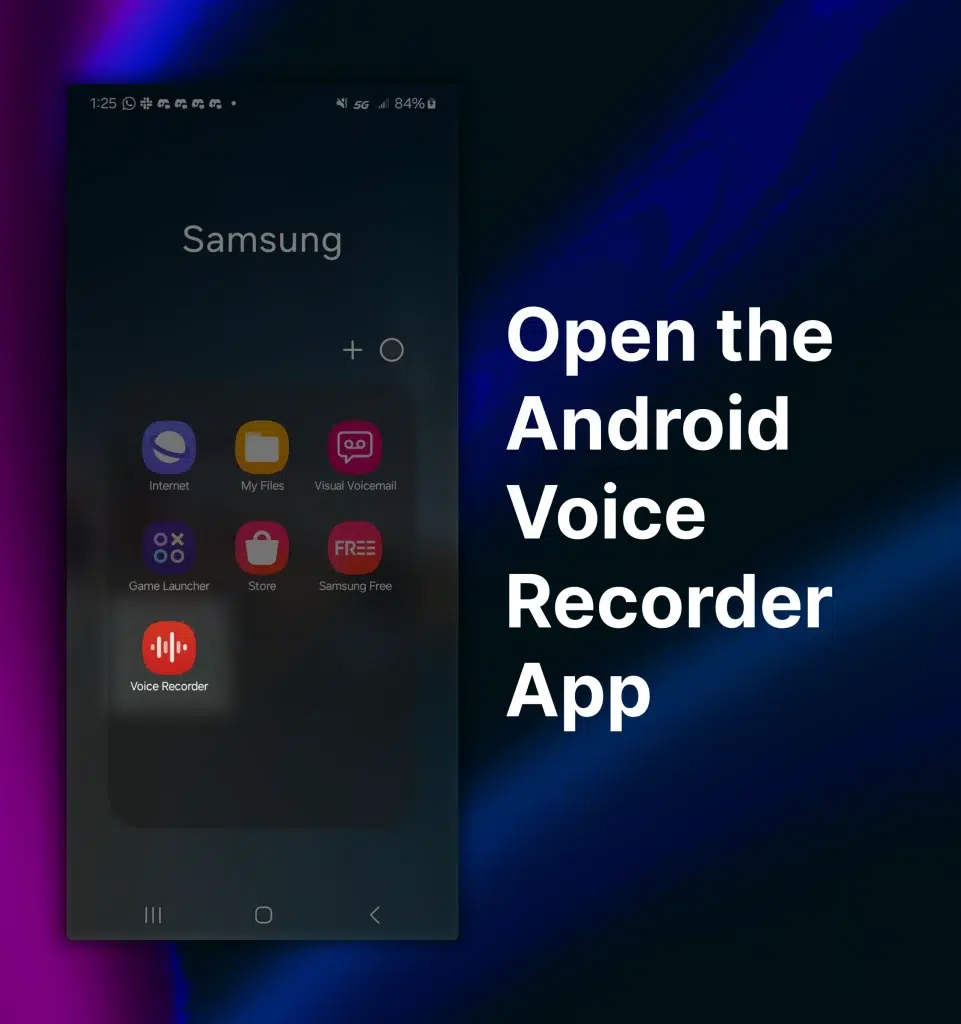
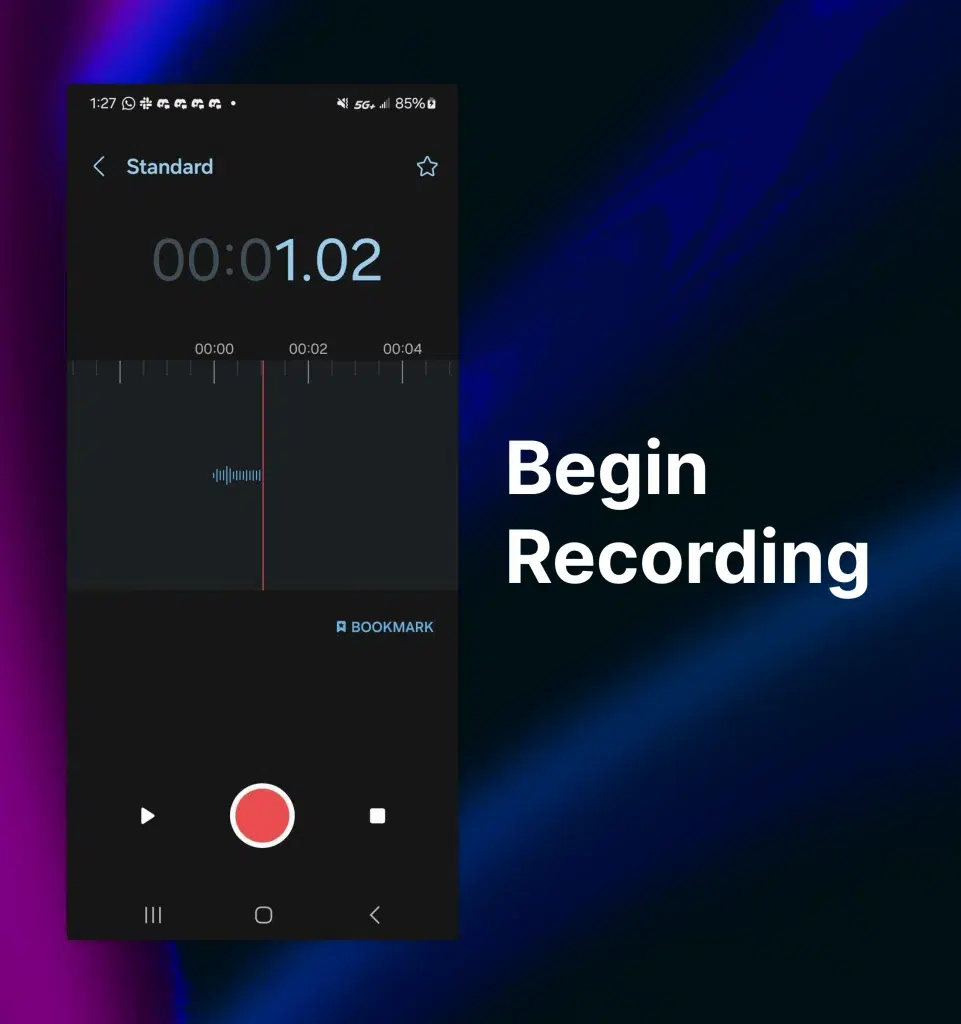
Open the Recorder app or Google Recorder, or install a recorder app and tap the mic to record.
I’ve helped many people learn how to access voice recorder on Android, and I’ll walk you through every step. This guide explains built-in options, popular apps, troubleshooting tips, and real-life tricks I use. Read on to master how to access voice recorder on Android with confidence and speed.
Getting started: what you need to know about how to access voice recorder on android
Most Android phones include a built-in recorder app. Older phones may call it Voice Recorder, Recorder, or Sound Recorder. Newer phones may include Google Recorder on Pixel devices. Third-party apps add features like transcription and cloud sync.
Before you begin, check your phone’s storage and microphone permissions. That prevents errors when you try to record. I recommend testing a short clip to confirm sound quality and access.
Accessing the built-in Recorder app (step-by-step)
Follow these simple steps to access the default voice recorder on most Android phones.
- Open the app drawer. Look for Recorder, Voice Recorder, or Sound Recorder.
- Tap the recorder app to open it.
- Allow microphone permission if prompted. Grant storage access when asked.
- Tap the red or microphone button to start recording.
- Tap stop when finished. Save or rename the clip.
If you can’t find the recorder app, use the search bar in the app drawer and type recorder. You can also add the recorder shortcut to your home screen for quick access.
Using Google Recorder (Pixel and compatible devices)
Google Recorder offers fast transcripts and smart search on supported devices. Here’s how to access it and use it well.
- Open the app drawer and tap Recorder.
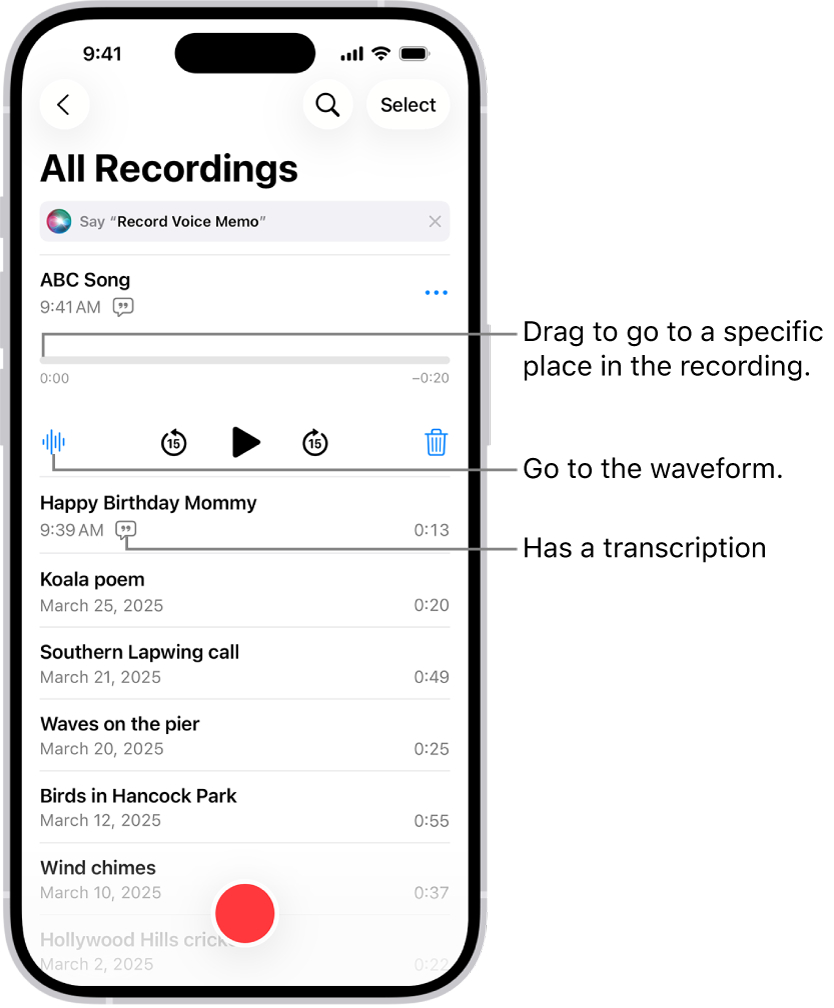
- Use the microphone button to record. You’ll see live audio waves and transcription if available.
- Tap a recording to view the transcript, trim audio, or export the file.
Google Recorder also indexes audio content, which makes it easy to find words or phrases later. If you use a Pixel, this is one of the easiest ways to access voice recorder on Android with added features.
Installing and using third-party voice recorder apps
Third-party apps can offer higher audio quality, cloud backup, and advanced editing.
Popular features to look for:
- High bitrate recording for clearer audio.
- File format options such as WAV, MP3, or M4A.
- Automatic cloud backup or export to Google Drive.
- Built-in editor and noise reduction.
How to install and access:
- Open Google Play Store.
- Search for voice recorder or recorder app.
- Pick a well-reviewed app and tap Install.
- Open the app and grant microphone permission.
- Tap the record button to start.
I often use a third-party recorder when I need long interviews or better file control. Make sure to check permissions and reviews before installing.

Tips to get the best recordings on Android
Small changes make a big difference when you access voice recorder on Android.
- Position: Keep the microphone near the sound source.
- Quiet space: Record in a quiet room to reduce background noise.
- Format and bitrate: Use higher bitrate when quality matters.
- Accessories: Use an external microphone for interviews or music.
- Airplane mode: Turn it on to avoid interruptions from calls.
From my experience, using a lavalier mic for interviews saved time in editing. I also label recordings right after saving to keep files organized.

Managing, sharing, and backing up recordings
Recording is only useful if you can find and share files later. Here’s how to manage recordings after you access voice recorder on Android.
- Rename files: Give each file a descriptive name immediately.
- Move to folders: Organize by project or date in a file manager.
- Share: Use the share menu to send files via email, cloud, or messaging apps.
- Backup: Sync recordings to Google Drive or another cloud service regularly.
I set up an automatic folder sync for important recordings. That way I never lose interviews or lecture notes.

Troubleshooting common issues when you try to access voice recorder on Android
If the recorder won’t work, try these quick fixes.
- No microphone access: Go to Settings > Apps > Recorder > Permissions and enable Microphone.
- App missing: Search the Play Store and reinstall the recorder app.
- Low volume or poor clarity: Check microphone holes for dust and test with a different app.
- App crashes: Clear app cache or force stop then reopen the app.
- Storage full: Free up space or change the app’s save location.
If problems persist, restart your phone or update the app. For hardware issues, a repair shop can test the microphone.
Security and privacy when you access voice recorder on Android
Recording can capture sensitive information. Keep privacy in mind.
- Check app permissions: Only give microphone access to trusted apps.
- Local vs cloud: Be aware that cloud backups may be searchable.
- Encryption: Use apps that offer encryption for private recordings.
- Legal: Know local laws about recording conversations and consent.
I always inform interview subjects before recording. It’s both legal and respectful.
My personal experience and lessons learned
I’ve recorded lectures, interviews, and voice notes on Android for years. A few tips I learned:
- Test before important sessions. One quick test prevents lost data.
- Use short filenames with dates to find files fast.
- Backup immediately for important files. I once lost an hour-long interview that I hadn’t synced.
- External mics are worth the cost for clean audio.
These practices made my workflow faster and reduced stress.
Frequently Asked Questions of how to access voice recorder on android
How do I find the voice recorder app on my Android phone?
Open the app drawer and look for Recorder, Voice Recorder, or Sound Recorder. Use the search bar and type recorder if you don’t see it.
Can I record phone calls with the built-in recorder?
Most built-in recorders do not record calls due to legal and OS restrictions. Use a dedicated call recording app and check local laws before recording.
What permissions are needed to use a voice recorder on Android?
You need Microphone permission and usually Storage permission. Grant both when the app prompts or adjust settings in the app permissions menu.
Which audio format is best for voice recordings?
M4A and MP3 are good for voice because they balance size and quality. Use WAV for uncompressed, highest-quality recordings.
Why won’t my recorder app save files?
Common reasons include full storage, missing storage permission, or app errors. Free up space, grant permissions, and restart the app.
Conclusion
Accessing voice recorder on Android is easy once you know where to look and what to set up. Use the built-in app for quick notes, Google Recorder for transcripts, and third-party apps for advanced needs. Test your setup, name files clearly, and back up important recordings to avoid loss. Try a short recording today, organize it, and consider subscribing to updates or leaving a comment about your setup.