Your laptop says no camera found when software, permissions, drivers, hardware, or privacy settings block webcam detection.
Seeing this message before a video call can feel like your webcam vanished. In most cases, the camera is still connected, but your laptop cannot access it. This guide explains why is my laptop saying no camera found, how to test the cause, and how to fix it safely on Windows and Mac.
What “No Camera Found” Means
The message means your operating system or app cannot detect an available camera. It does not always mean the webcam is broken. A blocked permission, disabled device, outdated driver, or privacy switch can cause the same warning.
Many laptops have a built-in camera above the screen. Your computer needs three things to use it:
• A physical connection to the camera
• A working camera driver or system component
• Permission for the operating system and app to access it
If one part fails, your laptop may report that no camera was found. Think of the webcam as a small light in a room. The camera may be present, but the software may not have a key to turn it on.
Why Is My Laptop Saying No Camera Found?
There are several common reasons why is my laptop saying no camera found. Start with the simple causes before changing advanced settings.
The camera is disabled
Some laptops let you turn off the webcam with a keyboard key, privacy switch, or function key. Look for a small camera symbol on the top row of the keyboard. You may need to press it alone or with the Fn key.
Some business laptops also have a sliding cover near the camera. A closed cover can make the image appear black, although some models may still show the camera as detected.
Camera access is blocked
Windows and macOS both include privacy controls for cameras. If camera access is off, apps such as Zoom, Microsoft Teams, Google Meet, or FaceTime cannot use the webcam.
A recent system update, privacy tool, or security program may also change these settings without making the cause obvious.
The camera driver is missing or damaged
Windows uses a driver to communicate with hardware. If that driver is outdated, corrupt, or removed, the camera may disappear from Device Manager.
This can happen after:
• A Windows update
• A system reset
• A driver cleanup tool
• A failed manufacturer update
• A change from one operating system to another
Another app is using the camera
Most webcams work with one main app at a time. If Teams is using the camera, Zoom may show a camera error. A browser tab, video recorder, or background utility can also hold the camera.
Closing the visible app may not be enough. Some programs continue running in the background.
The webcam is disabled in BIOS or UEFI
Advanced firmware settings can disable built-in hardware. This is less common, but it can happen on business laptops or refurbished computers.
If the camera does not appear in Windows Device Manager and all privacy settings look correct, BIOS or UEFI settings may be worth checking.
A hardware fault exists
The camera cable may be loose, especially if the laptop screen has been dropped or the hinge has suffered damage. The webcam module itself can also fail.
If an external USB camera works but the built-in camera does not appear anywhere, the built-in hardware may need service.
Quick Checks Before Changing Settings
Try these easy checks first. They often solve why is my laptop saying no camera found within a few minutes.
-
Restart the laptop. A restart clears temporary driver and app errors.
-
Open the laptop’s camera cover or privacy shutter.
-
Press the camera function key. Try Fn plus the key if needed.
-
Close Zoom, Teams, Meet, FaceTime, and other video apps.
-
Unplug external webcams and USB hubs.
-
Test the camera in a second app.
-
Install pending system updates.
-
Shut down the laptop fully, wait 30 seconds, and turn it on again.
A full shutdown can help when the camera controller gets stuck. This is different from simply closing the lid or using sleep mode.
In my own troubleshooting work, the privacy key is one of the easiest causes to miss. A user may spend 20 minutes changing drivers, only to discover that a tiny camera icon on the keyboard was switched off.

Fix “No Camera Found” on Windows
Windows laptops can show this error in the Camera app, video meetings, or browser calls. Use the steps below in order.
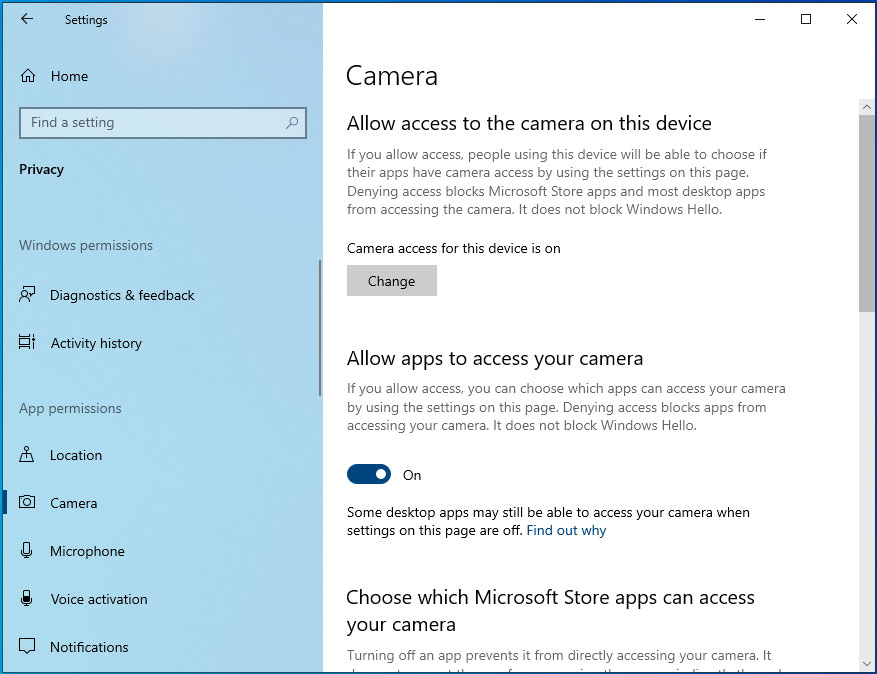
Check Windows camera permissions
-
Open Settings.
-
Select Privacy & security.
-
Choose Camera.
-
Turn on Camera access.
-
Turn on Let apps access your camera.
-
Turn on the permission for your specific app.
You may also need to allow desktop apps to access the camera. Browsers and programs such as Zoom often use this setting.
After changing the permission, close and reopen the video app. Some programs do not refresh access until they restart.
Check the camera in Device Manager
-
Right-click the Start button.
-
Open Device Manager.
-
Look under Cameras or Imaging devices.
-
Find the built-in webcam.
-
Right-click it and choose Enable device if that option appears.
-
Select Update driver.
-
Restart the laptop.
If the camera has a warning icon, Windows may have found the device but cannot load it correctly. You can also choose Uninstall device and restart the computer. Windows may reinstall the camera driver automatically.
Do not download random drivers from unfamiliar websites. Use Windows Update or your laptop maker’s official support page. Incorrect drivers can create new problems or expose your system to unsafe software.
Run the camera troubleshooter
Newer Windows versions may place troubleshooting tools under Settings, System, and Troubleshoot. Follow the recommended steps if a camera troubleshooter is available.
The tool may reset services, check permissions, or identify a driver issue. It cannot repair a broken camera cable, but it can rule out several software causes.
Check Windows Update
Open Settings, select Windows Update, and install available updates. Also check Optional updates for hardware drivers if that section appears.
Laptop makers sometimes release camera, chipset, or BIOS updates that improve hardware support. Read the update notes when possible, and keep the laptop connected to power during firmware updates.
Reset the Camera app
If the camera works in another program but not in the Windows Camera app, reset the app.
-
Open Settings.
-
Select Apps.
-
Choose Installed apps.
-
Find Camera.
-
Open Advanced options.
-
Select Repair first.
-
Choose Reset if repair does not help.
The reset removes the app’s stored settings. It should not remove your personal photos or files.

Fix “No Camera Found” on a Mac
Mac users may see a message such as “There is no connected camera” in FaceTime, Photo Booth, or another video app. The steps are slightly different from Windows.
Allow camera access on macOS
-
Open the Apple menu.
-
Select System Settings.
-
Choose Privacy & Security.
-
Select Camera.
-
Turn on access for the app you want to use.
On older macOS versions, this setting may appear under System Preferences and Security & Privacy. You may need to unlock the settings with your Mac login password.
Quit the app and open it again after changing access. If the app still cannot see the camera, restart the Mac.
Check Screen Time restrictions
Screen Time can restrict camera use. Open System Settings, choose Screen Time, and review Content & Privacy Restrictions. Make sure camera access is allowed.
This is especially important on a family Mac or a school-managed device. An administrator may control camera access, so you may not be able to change the setting yourself.
Close other camera apps
Quit FaceTime, Photo Booth, Zoom, Teams, web browsers, and video recording tools. If an app does not close normally, use Force Quit from the Apple menu.
Some camera problems clear after a complete restart. If they return often, check whether one particular app causes the issue.
Install macOS updates
Open System Settings and select General, then Software Update. Apple includes camera fixes in operating system updates from time to time.
Keep your Mac connected to power while it updates. If your Mac uses a managed work or school profile, contact the administrator before removing any security settings.

Check Your Browser and Video App
Sometimes the laptop detects the camera, but the website or app cannot use it. This can make it seem like why is my laptop saying no camera found is a system problem when the issue is limited to one program.
Test the camera in another app
Try the built-in Camera app on Windows, Photo Booth on Mac, or a trusted video meeting app. If the camera works in one program, the hardware is probably fine.
Then review the camera settings inside the problem app. Select the correct camera from its video settings. Some systems list an external webcam, virtual camera, and built-in camera as separate choices.
Check browser permissions
In Chrome, Edge, Firefox, or Safari, open the website’s permission settings. Make sure the site is allowed to use the camera.
You may need to:
• Select the lock icon near the web address
• Set Camera to Allow
• Choose the correct camera
• Refresh the page
• Rejoin the meeting
Private browsing modes, work policies, and browser extensions can also affect camera access. Testing in another browser can help identify the source.
Disable virtual cameras for testing
Programs that create virtual cameras can confuse video apps. Examples include streaming software, background replacement tools, and meeting utilities.
Temporarily close these tools and select the built-in camera. You can turn the tools back on after finding the correct camera setting.
When an External Webcam Works but the Built-In Camera Does Not
An external USB webcam is a useful diagnostic tool. If it works, your operating system, permissions, and video app are likely working. The problem may be limited to the built-in camera.
Try these checks:
• Look for the built-in camera in Device Manager or System Information.
• Confirm that the built-in camera is selected in the video app.
• Check the laptop maker’s privacy switch or hotkey.
• Install the official chipset and camera drivers.
• Review BIOS or UEFI camera settings.
If the built-in camera remains missing, the internal cable or camera module may have failed. A repair shop can test the connection without replacing the whole laptop.
Be careful if you open the laptop yourself. The screen bezel, display cable, and battery can be easy to damage. If the laptop is under warranty, contact the manufacturer before removing screws.
When No Troubleshooting Step Works
If you still wonder why is my laptop saying no camera found after trying the basic fixes, use a more structured test.
Check whether the camera appears at all
On Windows, look in Device Manager. On Mac, review System Information and check the USB or camera-related hardware details when available.
The result gives you a useful clue:
• The camera appears and works in one app: The issue is likely app permissions or settings.
• The camera appears with an error: The issue is likely a driver or system problem.
• The camera does not appear anywhere: The issue may involve a privacy switch, firmware setting, connection, or hardware failure.
Try a new user account
A damaged user profile can affect app permissions. Create a temporary local account and test the camera there.
If the camera works in the new account, your main profile may have a permission or configuration problem. You can repair the profile settings without replacing the camera.
Review recent changes
Think about what changed before the error appeared. Did you install an update, security program, driver tool, or privacy utility? Did the laptop suffer a fall or screen repair?
This timeline often points to the answer faster than trying random fixes.
Contact professional support
Contact the laptop manufacturer or a qualified repair technician when:
• The camera is missing from every app
• The device disappeared after physical damage
• BIOS settings do not show a camera option
• The laptop is still under warranty
• You see repeated hardware or driver errors
Share the exact error message and the steps you already tried. This helps the technician avoid repeating basic checks.
Mistakes to Avoid When Fixing a Laptop Camera
A few common actions can make the problem harder to solve.
• Do not install drivers from unofficial download sites.
• Do not remove security software without understanding its camera rules.
• Do not change BIOS settings at random.
• Do not open a warranty-covered laptop first.
• Do not assume a black screen means the camera is missing.
• Do not test only one app.
• Do not grant camera access to websites you do not trust.
Camera access is sensitive because a working webcam can record video. Give permission only to apps and websites that need it. Turn off access again when you no longer use the service.
A useful habit is to change one setting at a time. Write down what you changed and test the camera after each step. This makes the cause easier to identify and prevents confusion.
How to Prevent the Error in the Future
Once you fix why is my laptop saying no camera found, a few habits can help prevent the issue from returning.
Keep your operating system and manufacturer drivers current. Avoid aggressive driver updater tools, since they may install a poor match for your laptop model.
Before an important meeting, test the camera in advance. Check the image, microphone, lighting, and privacy shutter. A two-minute test can prevent a last-minute scramble.
You can also keep a backup plan:
• Use a trusted USB webcam.
• Keep a phone nearby for emergency video calls.
• Save the support page for your laptop model.
• Know where camera permissions are located.
• Keep your meeting app updated.
In one common case, the webcam was not broken at all. A privacy utility had disabled it after an update, and the keyboard camera key did not show a clear warning. The lesson was simple: check physical controls and privacy settings before replacing hardware.
Frequently Asked Questions About Why Is My Laptop Saying No Camera Found
Why is my laptop saying no camera found after an update?
An update may change camera permissions, replace a driver, or create a temporary device conflict. Restart the laptop, check camera permissions, and update or reinstall the camera driver through official system tools.
Can a laptop camera stop working because of a privacy shutter?
Yes. A closed shutter can block the lens, while a privacy switch may disable the camera completely. Open the shutter and check for a camera key, function key, or manufacturer privacy setting.
How do I know if my laptop camera is broken?
Test it in more than one trusted app and check whether the camera appears in system hardware settings. If it is missing everywhere while an external webcam works, the built-in camera or its internal connection may need repair.
Why does Zoom say no camera found when my camera works elsewhere?
Zoom may lack camera permission, use the wrong camera, or be blocked by another app. Check Zoom’s video settings, select the built-in webcam, allow camera access, and close other programs that may be using it.
Can a driver fix the “no camera found” error?
A correct driver can fix missing or malfunctioning camera detection on many Windows laptops. Use Windows Update or the laptop manufacturer’s official support page instead of downloading drivers from unknown sources.
Does restarting the laptop really fix camera problems?
Yes, sometimes. Restarting reloads system services, releases camera access from closed apps, and clears temporary driver errors, although it will not repair physical damage.
Conclusion
Why is my laptop saying no camera found? The cause is usually a disabled camera, blocked permission, busy app, missing driver, firmware setting, or hardware fault. Start with a restart, privacy switch, camera permissions, and a second app before moving to drivers or repairs.
Work through the checks in order, change one setting at a time, and use an external webcam as a simple test. If the built-in camera remains missing everywhere, professional support is the safest next step. Share this guide with someone preparing for a video call, and explore your laptop maker’s support resources for model-specific camera help.