Monitors are better for gaming because they offer lower input lag, faster refresh rates, sharper detail, and more responsive play.
The question of why are monitors better than TVs for gaming depends on the games you play, your hardware, and your room setup. After testing both display types for fast shooters, racing games, RPGs, and console play, I have found that monitors usually give gamers more control and speed. TVs still have clear strengths, but a good gaming monitor often feels like a direct connection between you and the game.

Why are monitors better than TVs for gaming?
A gaming monitor is built for close viewing and fast response. A TV is made for shared viewing, movies, shows, and casual play from a greater distance. That core design difference affects nearly every part of the gaming experience.
The strongest reasons to choose a monitor include:
• Lower input lag, so actions appear on screen sooner
• Faster refresh rates, such as 144Hz, 240Hz, or higher
• Faster pixel response times, which reduce blur
• Higher pixel density at a desk distance
• Better ergonomic adjustment
• Easier access to gaming features and PC connections
• More models designed for competitive play
This explains why are monitors better than TVs for gaming for many PC players and competitive console gamers. A monitor does not automatically make you better, but it can remove small delays that make games feel less precise.
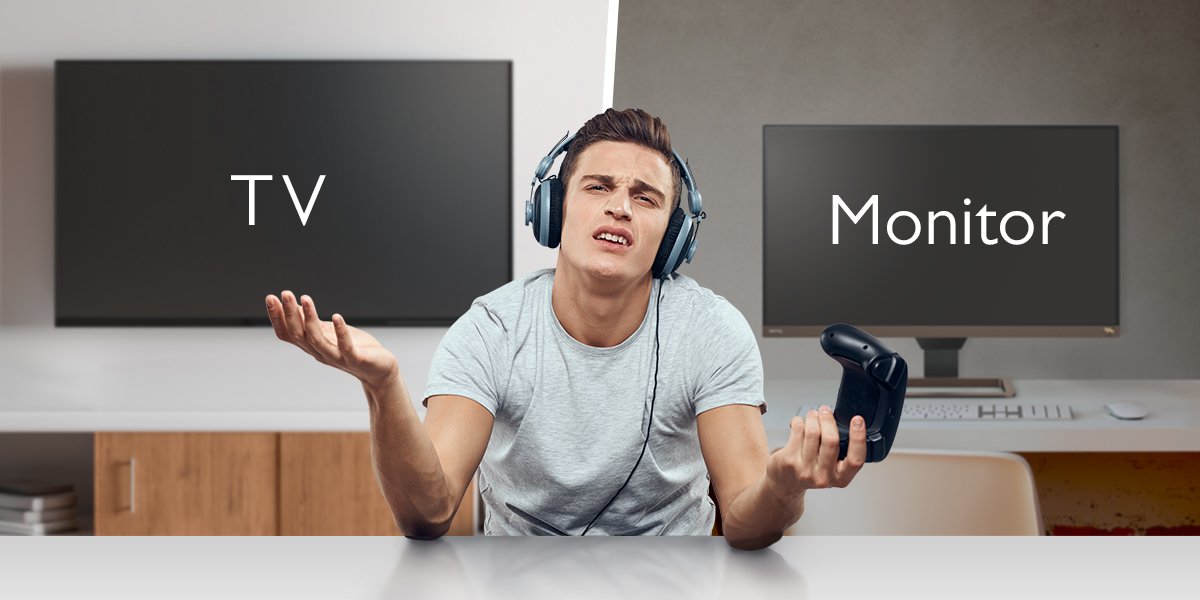
Lower input lag makes controls feel faster
Input lag is the time between an action and the image changing on screen. Pressing a button, moving a mouse, or pulling a trigger should create an almost instant response. A display with high input lag can make the game feel slow, even when your computer is powerful.
Most gaming monitors use a dedicated low-latency mode. Many also process the image with fewer extra effects. TVs often add image processing for movies, such as smoothing, sharpening, noise reduction, and frame creation. These features can increase delay unless you enable Game Mode.
For example, a few milliseconds may not matter in a slow adventure game. In a competitive shooter, fighting game, or racing game, small delays can affect timing. The difference is like reacting to a green traffic light a fraction of a second late. You may still move, but someone else gets ahead.
Independent display testing often measures input lag at common refresh rates. When comparing products, look for tested figures rather than relying only on a brand’s “gaming” label. A monitor with a low measured delay is usually a safer choice than a TV with unclear processing behavior.
Higher refresh rates improve motion clarity
Refresh rate tells you how many times the display updates each second. A 60Hz display refreshes 60 times per second. A 144Hz monitor can refresh 144 times per second, while some gaming monitors reach 240Hz or 360Hz.
A higher refresh rate can make several actions feel smoother:
• Camera movement in first-person games
• Tracking fast targets
• Panning across a racing track
• Scrolling through menus and maps
• Moving the mouse across the desktop
The benefit is not just visual smoothness. At 144Hz, a new frame can appear about every 6.9 milliseconds. At 60Hz, the interval is about 16.7 milliseconds. That shorter frame time can make aiming and movement feel more direct.
Many TVs still focus on 60Hz output. Modern gaming TVs can support 120Hz through HDMI 2.1, and some may use higher internal panel rates. However, high-refresh monitors are more common and often cost less than premium 120Hz TVs.
Remember that your game and graphics card must produce enough frames to use a high refresh rate. A 240Hz monitor will not show 240 unique frames per second if your system only produces 80 frames per second.
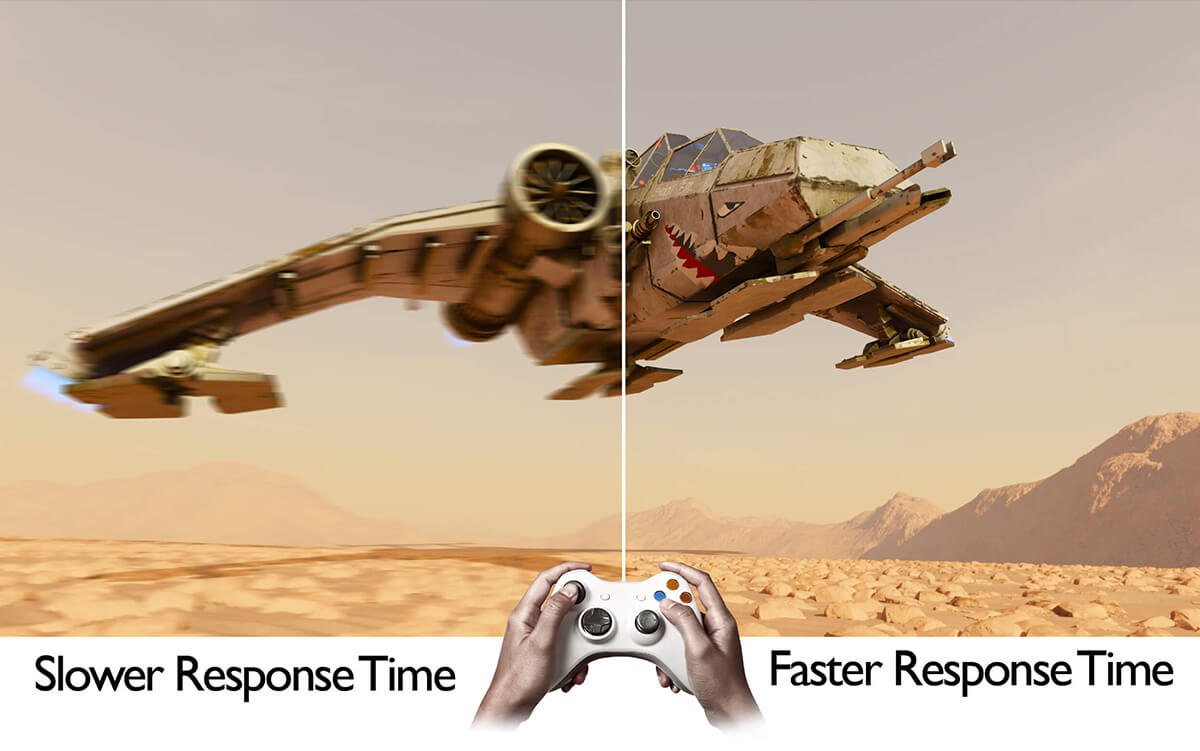
Faster response times reduce ghosting
Refresh rate and response time are related, but they are not the same. Refresh rate describes how often the screen updates. Response time describes how quickly pixels change from one color to another.
Slow pixels can leave faint trails behind moving objects. This effect is called ghosting or smearing. It is easy to notice when turning quickly in a dark game or moving a bright object across a dark background.
Gaming monitors often use fast IPS, OLED, or advanced VA panels. These technologies can provide strong motion performance when tuned well. OLED monitors are especially quick because each pixel controls its own light and can change state very rapidly.
TVs can also have fast OLED panels. The difference is that many TVs apply more image processing before showing the frame. Their panel may be fast, but the full display system can still feel less responsive.
When shopping, do not trust response-time numbers alone. A claimed “1ms” rating may use an ideal setting that creates visible overshoot or bright trails. Look for independent motion tests and reviews that examine several response transitions.
Monitors provide a sharper image at a desk
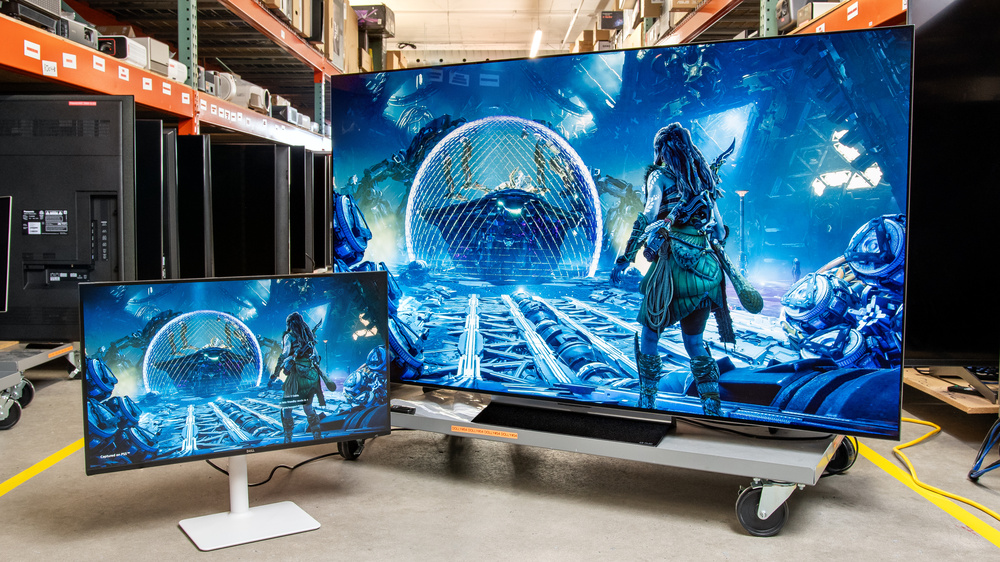
Most people sit much closer to a monitor than to a TV. At a desk, you may sit 20 to 32 inches from the screen. A TV often sits several feet away. This makes pixel density and screen size important.
A 27-inch 1440p monitor has a sharp image at normal desk distance. A 32-inch 4K monitor can show even finer detail. Small text, distant targets, map icons, and interface elements can look clear without needing a huge screen.
A 55-inch 4K TV may have the same number of pixels as a 32-inch 4K monitor. Since those pixels are spread across a larger area, the image has lower pixel density. This is not a problem from a couch, but it can look less crisp when viewed up close.
Monitors also tend to use computer-friendly scaling. You can sit close without moving your head as much. This matters in games with small text, detailed menus, or competitive interfaces.
Still, screen size is personal. Some players enjoy a large 4K TV for cinematic games. If you sit far enough away, its lower pixel density may not matter at all.
Adaptive sync helps prevent screen tearing
Screen tearing happens when the display shows parts of two different frames at once. It often appears as a horizontal break during quick movement. Fixed refresh rates can cause this when the game frame rate and display refresh rate do not match.
Gaming monitors commonly support variable refresh rate technologies such as AMD FreeSync, NVIDIA G-SYNC, or VESA Adaptive-Sync. These technologies allow the monitor to adjust its refresh rate to match the graphics card’s output.
Variable refresh rate can help with:
• Smoother motion when frame rates change
• Less tearing
• Fewer stutters
• Better playability when your system cannot hold a fixed frame rate
Many newer TVs support variable refresh rate too. However, monitor support is often easier to configure on a PC. You should still check the exact range, connection type, and graphics card support before buying.
A monitor may support adaptive sync over DisplayPort, HDMI, or both. For consoles, HDMI support matters most. For a PC, DisplayPort can provide wider compatibility at high refresh rates.

Monitors work better for competitive gaming
Competitive players usually value speed, clarity, and focus above cinematic size. A 24-inch or 27-inch monitor lets you see the entire screen without turning your head. This can help you track a target, read a minimap, and watch the edges of the display.
Many esports monitors use 1080p resolution at 240Hz or higher. They may look less impressive than a 4K TV, but they can deliver a cleaner motion experience when paired with a strong gaming PC.
This is one of the clearest answers to why are monitors better than TVs for gaming in competitive titles. A monitor places the action close to your eyes and reduces distractions. It feels more like looking through a clear window than watching a movie.
During my own testing, I once used a large TV for a fast shooter because the picture looked vivid from the couch. The colors were excellent, but I found myself turning my head to scan the screen. Switching to a smaller monitor made target tracking feel easier within a few matches.
A monitor will not replace practice or good aim. It can, however, give your skills a more consistent platform.

Monitors offer better desk ergonomics
Most gaming monitors include a stand with height, tilt, swivel, and pivot adjustment. You can place the top of the screen near eye level and set a comfortable viewing distance. This can reduce neck and shoulder strain during long sessions.
TV stands usually offer little or no adjustment. Wall mounting can solve the height problem, but it takes more work and may limit how easily you change the setup.
Monitors also fit well with:
• A keyboard and mouse
• A compact desk
• A dual-screen setup
• A monitor arm
• A vertical display for chat or guides
• A webcam mounted above the screen
A TV can work at a desk, but its large size may force you to sit farther back. It can also make text look too large or require more head movement.
Good ergonomics matter more than many buyers expect. A fast display is not helpful if your neck hurts after an hour. Set the screen at a comfortable height, keep it free from strong glare, and take short breaks.

Monitors often give PC gamers more useful features
Gaming monitors are designed around computers. They commonly include DisplayPort, multiple HDMI inputs, USB hubs, headphone outputs, and software controls. Some models also include a KVM switch, which lets you share one keyboard and mouse between two computers.
Other useful features may include:
• On-screen crosshairs
• Shadow control for dark scenes
• Frame-rate counters
• Custom picture presets
• Blue-light reduction
• Local dimming on premium models
• Picture-in-picture modes
These features are not essential for everyone. They are useful when you want to tune the display for a specific game or workflow.
Monitors also tend to wake quickly and show a computer signal without going through a smart-TV home screen. A TV may display ads, streaming recommendations, or several menus before you reach the correct input.
For a PC gaming desk, this simpler behavior can make daily use less frustrating. The best display is often the one that gets out of your way.
TVs still have important gaming advantages
The answer to why are monitors better than TVs for gaming should not ignore the strengths of modern TVs. A good gaming TV can be an excellent choice for console players and people who prefer relaxed, couch-based gaming.
TV advantages include:
• Larger screen sizes
• Strong HDR brightness on premium models
• Powerful built-in speakers
• Excellent OLED contrast
• Comfortable couch viewing
• Simple access to streaming apps
• Strong performance for cinematic games
A quality OLED TV can produce perfect black levels and rich contrast. It may also support 4K resolution, 120Hz refresh, HDMI 2.1, ALLM, and variable refresh rate. In some cases, it can look better than a midrange gaming monitor.
The main limits are often size, price, viewing distance, and desk use. A 65-inch TV may be wonderful from a couch but uncomfortable at arm’s length. Some TVs also have aggressive automatic brightness controls, image retention concerns, or limited DisplayPort support.
Console gamers should check the specifications of their system. For example, a console may support 4K at 120Hz only with a compatible HDMI 2.1 display and cable. A monitor can be better, but the right TV may be the better fit for your room.
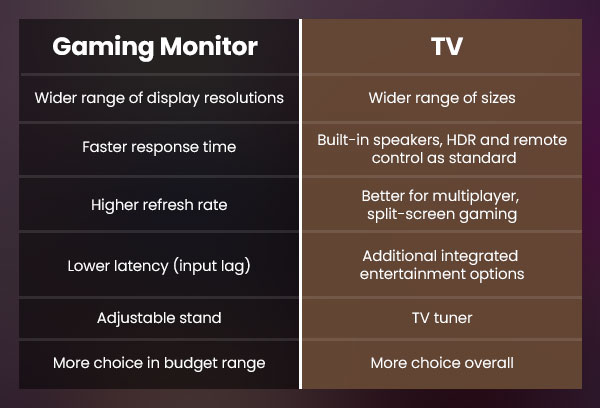
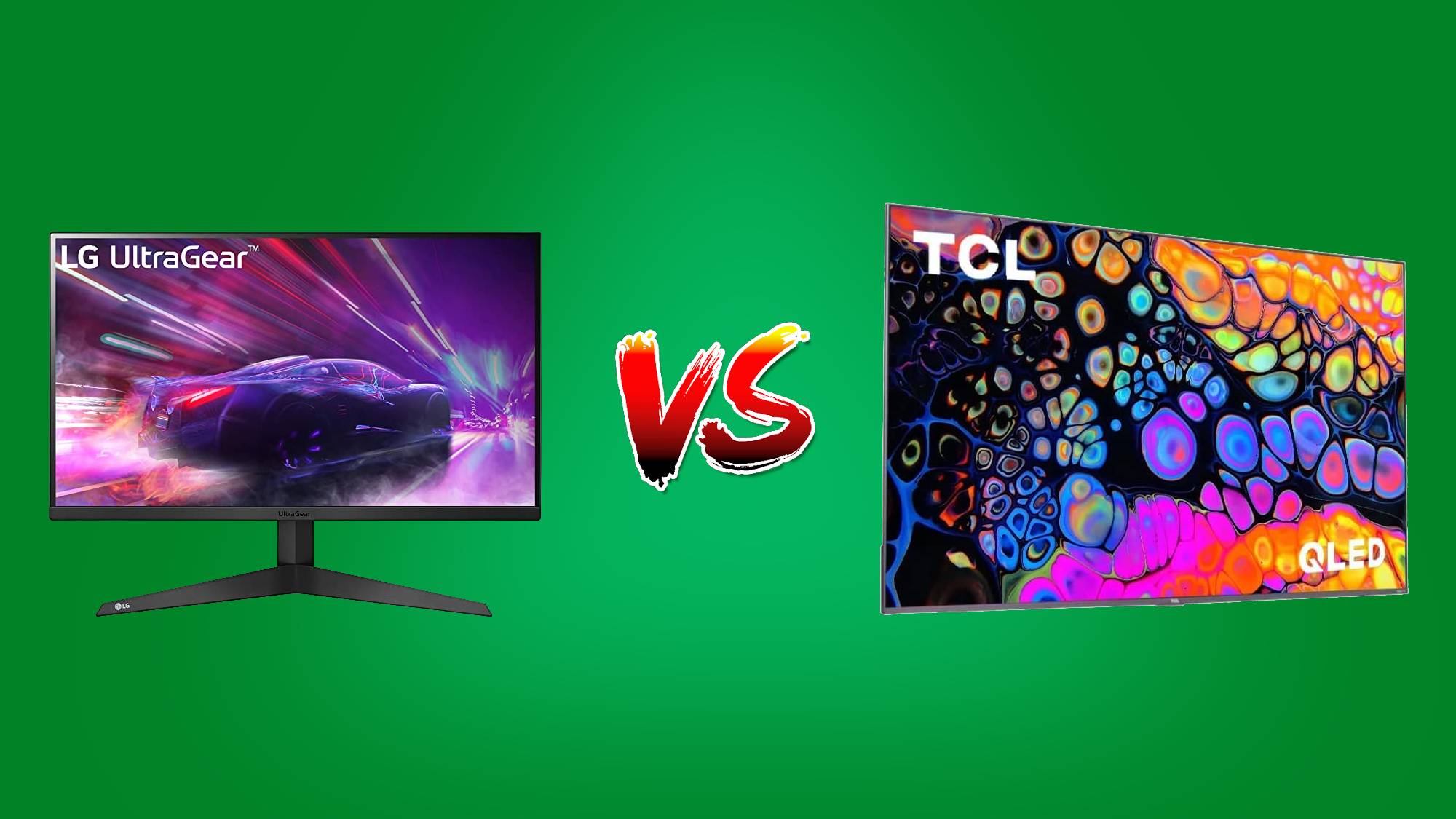
Monitor versus TV: key differences
The choice becomes easier when you compare the features that matter most to your style of play.
| Feature | Gaming monitor | Gaming TV |
|---|---|---|
| Typical viewing distance | Close desk distance | Several feet away |
| Common refresh rates | 144Hz to 360Hz or more | 60Hz or 120Hz |
| Input lag | Often very low | Low in Game Mode |
| Screen size | Usually 24 to 32 inches | Usually 42 to 85 inches |
| Desk use | Excellent | Can be awkward |
| Couch use | Limited | Excellent |
| HDR quality | Varies by model | Often strong on premium TVs |
| PC connections | DisplayPort and HDMI | Mostly HDMI |
| Competitive gaming | Usually better | Good with the right model |
| Cinematic gaming | Good | Often better |
This table shows why are monitors better than TVs for gaming in a desk setup. It also shows why a TV may be more enjoyable for story games, local multiplayer, and console gaming from a couch.
Do not compare only screen size or resolution. Check input lag, refresh rate, response behavior, adaptive sync, HDR performance, and the ports you need.
How to choose the right gaming monitor
Start with the games you play and the device you use. A competitive PC player may benefit from a 240Hz 1080p or 1440p monitor. A player who enjoys open-world games may prefer a 4K 144Hz monitor with strong HDR.
Use these steps:
-
Choose the right size. A 24-inch screen suits many esports setups. A 27-inch monitor is a flexible choice. A 32-inch model gives a larger view without reaching TV size.
-
Match the resolution to your hardware. Use 1080p for high frame rates on modest systems. Choose 1440p for a balance of sharpness and speed. Choose 4K if your graphics card can drive it well.
-
Check the refresh rate. Aim for at least 120Hz or 144Hz for modern PC gaming. A higher rate is useful only if your system can produce enough frames.
-
Confirm the ports. Check for DisplayPort, HDMI 2.1, USB-C, or the exact connection your computer or console requires.
-
Review adaptive sync support. Confirm that the monitor works with your graphics card or console.
-
Inspect independent tests. Look for measured input lag, motion clarity, HDR results, and real response behavior.
-
Consider panel type. IPS offers strong color and viewing angles. VA often provides better contrast. OLED offers excellent contrast and very fast response, but it may cost more and needs care with static images.
One mistake I have seen often is buying the highest resolution without checking the graphics card. A sharp 4K monitor can feel worse than a smooth 1440p display if the frame rate drops too low. Balance image quality with the performance your system can actually deliver.
Tips to get the best performance
Buying the right display is only the first step. Use the correct settings to reduce delay and improve image quality.
• Turn on Game Mode when using a TV
• Enable the monitor’s maximum refresh rate in Windows or your console settings
• Use a suitable DisplayPort or HDMI cable
• Turn on FreeSync, G-SYNC, or VRR when supported
• Disable unnecessary motion smoothing
• Keep firmware and graphics drivers updated
• Use an FPS limit that fits your display’s adaptive-sync range
• Avoid extreme overdrive settings that create bright trails
• Calibrate brightness for your room
Do not assume a branded cable will improve image quality. A certified cable that supports your target resolution and refresh rate is usually enough. Also, a monitor cannot display more detail than the game renders, so adjust in-game settings carefully.
If you use an OLED monitor, vary static content and follow the manufacturer’s care settings. Modern OLED displays include protection features, but no panel is completely free from image-retention risk.
When a TV is the better choice
A TV may be the smarter purchase if your main goal is comfort and immersion. Large screens work well for racing games, sports games, RPGs, and local multiplayer. Sitting on a couch with a controller can feel more natural than leaning toward a desk.
Choose a TV when:
• You play mostly on a console
• You sit several feet from the screen
• You want built-in speakers and streaming apps
• You prefer a large cinematic image
• You play slower games more than competitive shooters
• You want one screen for gaming and movies
A 42-inch or 48-inch OLED TV can also work well as a desktop gaming display if you have enough space. Just check text clarity, auto-dimming behavior, HDMI support, and input lag before buying.
The best answer to why are monitors better than TVs for gaming is not universal. It depends on whether you value response speed and desk control or size and living-room comfort.
Frequently Asked Questions: Why Are Monitors Better Than TVs for Gaming?
Are monitors always better than TVs for gaming?
No. Monitors are usually better for competitive PC gaming because they offer high refresh rates, low input lag, and strong desk ergonomics. Premium TVs can be better for couch gaming, HDR, large-screen immersion, and console play.
Is a monitor better than a TV for PS5 or Xbox Series X?
A monitor can be better if it supports 4K, 120Hz, HDMI 2.1, HDR, and variable refresh rate. A gaming TV may be the better choice if you want a large screen, built-in speakers, and comfortable couch viewing.
Does a higher refresh rate make games better?
A higher refresh rate can make movement smoother and reduce the time between visible frames. You need a game and system that can produce enough frames to benefit from 144Hz, 240Hz, or higher.
Do TVs have more input lag than gaming monitors?
Many TVs have more input lag when image processing is active. Game Mode can reduce that delay, and some modern OLED TVs perform very well, but gaming monitors usually offer low latency with fewer settings to adjust.
Is 4K better than 1440p for gaming?
4K gives a sharper image, but it requires more graphics power. For many PC gamers, 1440p at 144Hz or higher offers a better mix of clarity, smoothness, and performance.
Can I use a gaming monitor for movies and streaming?
Yes. A gaming monitor works well for streaming, especially when it has good contrast, color accuracy, and built-in or connected audio. A TV is often more convenient because streaming apps and speakers are usually included.
Are OLED monitors worth buying for gaming?
OLED monitors can be worth buying if you want perfect black levels, excellent contrast, and very fast response. They often cost more and require sensible care because long exposure to static images can increase image-retention risk.
Conclusion
Monitors are often better than TVs for gaming because they offer lower input lag, faster refresh rates, cleaner motion, sharper desk viewing, and more flexible PC features. They are especially strong for competitive shooters, racing games, and high-frame-rate PC play.
TVs remain excellent for console gaming, couch comfort, large images, HDR, and cinematic experiences. The best choice depends on your games, hardware, room, distance, and budget.
Before you buy, compare tested input lag, refresh rate, response performance, VRR support, HDR quality, and available ports. Choose the display that fits the way you really play, then share your setup or explore more gaming display guides to refine it further.