Gaming monitors often skip speakers to reduce cost, save space, and focus on better gaming performance.
If you are wondering why do gaming monitors not have speakers, the answer involves more than simple cost cutting. Monitor makers must balance refresh rate, response time, image quality, design, and price, while many gamers already use headsets or external speakers. This guide explains the design choices clearly so you can choose the right audio setup without wasting money.
Why Do Gaming Monitors Not Have Speakers?
Gaming monitors often do not have speakers because built-in audio adds cost and space without matching the sound quality of dedicated speakers or gaming headsets. A monitor must fit speakers into a thin frame, which limits the size of the drivers and the room needed for strong sound.
There is also a market reason. Many PC gamers already own a headset, desktop speakers, or a soundbar. Some use wireless headphones for games, chat, music, and movies. Because of this, manufacturers often spend their budget on features that gamers notice more, such as:
• A higher refresh rate
• A faster response time
• Better color accuracy
• Adaptive sync support
• A sharper resolution
• A stronger stand
• More useful ports
This explains why do gaming monitors not have speakers even when basic monitors sometimes include them. Gaming models are often built around speed and visual performance rather than all-in-one convenience.
A simple comparison helps. A monitor with a 240 Hz refresh rate may cost more to produce than a basic 60 Hz display. The company may choose to remove speakers so it can offer faster performance at a similar retail price.

The Main Reasons Gaming Monitors Skip Built-In Audio
Speakers take up valuable space
Modern gaming monitors are very thin. Their narrow bezels and slim panels leave little room for speaker chambers. Small drivers can fit inside the frame, but they usually produce weak bass and low volume.
Good sound needs more than a speaker driver. It also needs space for air movement. A thin monitor is like a small lunchbox trying to act like a large stereo cabinet. It can make sound, but it cannot create the same depth.
Built-in speakers can raise production costs
Adding speakers requires more parts. These parts may include drivers, wiring, an amplifier, audio controls, and extra testing. The manufacturer must also design the rear shell to hold the system safely.
That cost may seem small, but it matters in competitive monitor pricing. Removing speakers can help a company offer a better panel, faster refresh rate, or improved stand at the same price.
Many gamers prefer headsets
Gaming headsets provide several features that monitor speakers cannot match. They offer clearer game details, private listening, voice chat, and better awareness of sounds such as footsteps or reloads.
A headset also prevents sound from disturbing other people in the room. This is useful in apartments, shared bedrooms, dorms, and family homes.
Monitor speakers usually sound basic
Even when a gaming monitor includes speakers, the sound is often modest. Built-in speakers may be fine for system alerts, video calls, or a short YouTube clip. They are less suitable for deep music, cinematic games, or competitive play.
This is one of the most practical answers to why do gaming monitors not have speakers. A poor speaker system can create disappointment, while no speaker system makes the product’s purpose clear.
Gaming setups use different audio devices
PC gamers may connect audio through several devices:
• USB headsets
• Wireless gaming headsets
• Analog desktop speakers
• USB soundbars
• External amplifiers
• HDMI audio systems
• Console-compatible headsets
Because users have different preferences, a monitor speaker may not be useful to everyone. Some buyers would rather pay for a better display than a speaker they will never use.
Do All Gaming Monitors Lack Speakers?
No. Some gaming monitors have built-in speakers, but the feature is not standard. You can usually find speakers in productivity monitors, office displays, portable monitors, and some gaming models designed for general entertainment.
Before buying, check the product specifications. Look for terms such as:
• Built-in speakers
• Stereo speakers
• Audio output
• Headphone jack
• HDMI audio support
• DisplayPort audio support
Be careful with the phrase “audio support.” It may mean the monitor can receive and pass an audio signal to a headphone jack. It does not always mean the monitor has built-in speakers.
A monitor can have a headphone port without having speakers. It may simply take audio from HDMI or DisplayPort and send it to connected headphones.
This distinction solves much of the confusion around why do gaming monitors not have speakers. Audio passthrough and built-in sound are two different features.
How Gaming Monitors Handle Audio Without Speakers
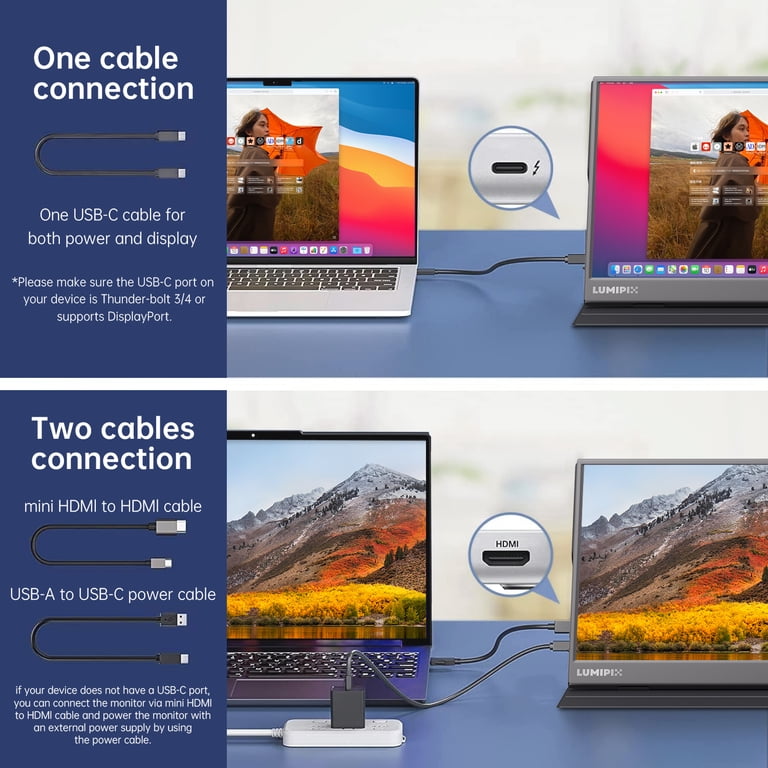
A gaming monitor can receive audio through HDMI or DisplayPort even if it has no internal speakers. The video card sends both the picture and sound through the cable. You then choose where the computer should play that sound.
You can select a headset or speaker system in Windows by following these steps:
- Connect your headset or speakers to the computer, monitor, or audio device.
- Right-click the sound icon in the Windows taskbar.
- Open the sound settings.
- Choose the correct output device.
- Test the audio before starting your game.
Some monitors include a 3.5 mm headphone output. In that case, you can connect headphones to the monitor instead of the computer. This can be useful when your computer is under a desk or when you switch between a PC and a game console.
However, audio through a monitor jack may have limits. The monitor may not provide strong volume, microphone support, virtual surround features, or easy audio controls. For the best experience, connect advanced headphones directly to the computer, console, or a dedicated audio interface.

The Best Alternatives to Gaming Monitor Speakers
Gaming headsets
A headset is often the best choice for competitive games. It places sound close to your ears and helps you hear small details. Many models also include a microphone for team chat.
Choose a headset with comfortable ear cups, a clear microphone, and a connection that matches your system. USB models may include software controls, while 3.5 mm models work with a wide range of devices.
Desktop speakers
Desktop speakers are better for relaxed gaming, music, and movies. They usually offer more volume and fuller sound than small monitor drivers.
A basic 2.0 speaker set has two speakers and no subwoofer. A 2.1 system adds a subwoofer for stronger bass. You do not need an expensive sound system for a good desk setup, but speaker placement matters.
Place the speakers on both sides of the monitor. Keep them close to ear level and angle them slightly toward you. This creates a wider stereo image.
USB soundbars
A USB soundbar fits under a monitor and keeps the desk tidy. It is a useful choice for people who want simple audio without wearing headphones.
Sound quality varies by model. Check whether the soundbar uses USB for both power and audio, or whether it needs a separate 3.5 mm cable.
Wireless headphones
Wireless headphones reduce cable clutter. They can also work well for console and PC gaming. Check battery life, connection stability, microphone quality, and platform compatibility before buying.
Bluetooth may introduce noticeable delay in some games. A dedicated wireless receiver often provides a better gaming connection.

Advantages and Disadvantages of Monitors Without Speakers
A monitor without speakers is not always a problem. In many cases, it offers useful benefits.
Advantages
• A lower purchase price
• More budget for refresh rate and resolution
• A thinner and cleaner design
• Less power use in some models
• Freedom to choose better external audio
• No unwanted sound from a weak speaker system
Disadvantages
• You need to buy separate headphones or speakers
• Your desk may have more cables
• Audio setup may take extra time
• You may need to check compatibility
• Basic troubleshooting can be less convenient
The best choice depends on how you use the monitor. If you mainly play competitive games with headphones, built-in speakers may not matter. If you want a simple setup for casual gaming, built-in audio can be useful.

How to Check Whether a Gaming Monitor Has Speakers
Product images can be misleading. A monitor may show an audio icon or include a headphone jack without having speakers. Always check the technical specifications before buying.
Use this checklist:
- Find the monitor’s official specifications page.
- Search for “speakers,” “audio,” or “sound.”
- Confirm the speaker power rating, such as 2 W plus 2 W.
- Check whether it has a headphone output.
- Review HDMI and DisplayPort audio support.
- Read reviews that test the actual sound quality.
- Confirm return policies if audio is important to you.
The speaker power rating can provide a basic clue, but it does not tell the whole story. Speaker size, enclosure design, tuning, and software also affect sound quality.
Reviews are helpful because they reveal problems that a specification sheet may hide. For example, a monitor may technically have speakers, but they may sound quiet or thin.

Common Mistakes to Avoid When Buying a Gaming Monitor
One common mistake is assuming every HDMI connection automatically produces sound from the monitor. HDMI can carry audio, but the monitor must have speakers or an audio output for you to hear it there.
Another mistake is buying a monitor with speakers and expecting television-level sound. Small monitor speakers are usually designed for convenience, not powerful bass or room-filling audio.
It is also easy to overlook console compatibility. If you plan to use a PlayStation, Xbox, or Nintendo Switch, check how the console sends sound and whether the monitor supports the needed audio connection.
When helping people build gaming setups, one lesson comes up often: decide where the sound should come from before buying the screen. This avoids the frustrating moment when everything is connected, the game looks perfect, and no sound comes out.

Are Gaming Monitors Without Speakers Better?
Gaming monitors without speakers are not automatically better. They are often better for buyers who already own audio equipment and want the manufacturer to focus on display performance.
A monitor without speakers may offer a faster panel or lower price. Yet a monitor with speakers may be more convenient for casual users, work-from-home setups, or small spaces.
Think of the monitor as the stage and the audio system as the band. A great stage does not need to include every instrument. It simply needs to support the performance well.
The right choice depends on your priorities:
• Choose no speakers if you use a headset or external speakers.
• Choose built-in speakers if you want a simple all-in-one setup.
• Choose a headphone jack if you want sound without extra desk cables.
• Choose external speakers if you enjoy music, movies, and relaxed gaming.
Frequently Asked Questions About Why Do Gaming Monitors Not Have Speakers
Why do gaming monitors not have speakers if HDMI carries sound?
HDMI can carry sound, but the monitor still needs internal speakers or an audio output to use that signal. Many gaming monitors receive the audio but do not include hardware to play it.
Can I add speakers to a gaming monitor?
Yes. You can connect speakers to your computer, console, monitor headphone jack, USB port, or another audio device. The correct method depends on the monitor’s ports and the system you use.
Do gaming monitors with speakers have good sound quality?
Most built-in gaming monitor speakers provide basic sound. They work for alerts, calls, and casual videos, but external speakers or a headset usually deliver better volume, bass, and clarity.
How can I get sound from a monitor without speakers?
Connect headphones or speakers to your computer, console, or the monitor’s 3.5 mm audio output. Then select that device as the sound output in your system settings.
Is a headphone jack the same as built-in speakers?
No. A headphone jack sends audio to connected headphones or speakers, but it does not prove that the monitor has internal speakers. Check the product specifications for a separate speaker listing.
Do DisplayPort and HDMI both support audio?
Yes. Modern DisplayPort and HDMI connections can carry digital audio. The final result depends on the computer, graphics card, monitor, operating system, and connected audio equipment.
Conclusion
The main reason why gaming monitors do not have speakers is simple: manufacturers often prioritize display performance, slim design, and competitive pricing. Many gamers already use headsets or external speakers, so built-in audio is not essential for every setup.
A monitor without speakers can still deliver sound through HDMI or DisplayPort when paired with the right audio device. Before buying, check the specifications, ports, speaker details, and compatibility with your PC or console.
Choose the monitor that fits your real habits, not just the one with the longest feature list. If this guide helped, compare your current audio needs with your next monitor purchase and share your setup or questions in the comments.