Monitors often look better than TVs because they offer sharper pixels, lower input lag, and better desktop viewing at close range.
If you have compared the same game, movie, or photo on both displays, you may have noticed a clear difference. The answer to “why do monitors look better than TVs” comes down to pixel density, image processing, refresh rate, color settings, and viewing distance. Once you understand these factors, choosing the right screen becomes much easier.
Why do monitors look better than TVs?
Monitors are built for close-up use. You usually sit two to three feet away from a monitor, while a TV may sit six to twelve feet from your sofa. Because monitors are designed for this short viewing distance, they often show small text, fine lines, and game details with greater clarity.
The main reason why do monitors look better than TVs is that monitors focus on accuracy and responsiveness. TVs focus more on large-screen entertainment, strong contrast, built-in speakers, and image processing that makes movies look dramatic from across a room.
A TV is not automatically worse. In fact, a premium OLED TV can look better than a low-cost monitor. The difference depends on the display panel, resolution, size, settings, and the content you watch.
Here are the most common reasons monitors appear sharper and cleaner:
• Higher pixel density at common desk sizes
• Less image processing
• Lower input lag
• Higher refresh rates on many models
• Better support for computer text and graphics
• More flexible adjustment for close viewing
Think of a monitor as a precision tool and a TV as a cinema screen. Both can produce a great image, but they are designed for different jobs.
Pixel density makes monitors look sharper
Pixel density describes how many pixels fit into each inch of the screen. It is measured in pixels per inch, or PPI. A higher PPI usually creates sharper text, cleaner edges, and more detailed images.
For example, a 27-inch 4K monitor has about 163 PPI. A 55-inch 4K TV has about 80 PPI. Both screens have the same number of pixels, but the monitor packs those pixels into a smaller area.
This is a major part of why do monitors look better than TVs on a desk. When you sit close to a large TV, you may notice softer text or slightly rough edges. From across the room, those flaws become much harder to see.
A 24-inch 1080p monitor has about 92 PPI. That is similar to a 55-inch 4K TV. However, the monitor is often used much closer, so the image may still feel less cinematic and less smooth than a 4K display.
The best resolution depends on screen size and viewing distance:
• 24 inches: 1080p can look clear, though 1440p is sharper
• 27 inches: 1440p offers a strong balance of clarity and performance
• 27 to 32 inches: 4K gives very sharp text and fine detail
• 42 inches and larger: 4K is usually the practical choice
Windows and macOS also use scaling to keep text readable on high-resolution screens. A 4K monitor may display a sharp image while scaling text to a comfortable size.
Monitor image processing can look more natural
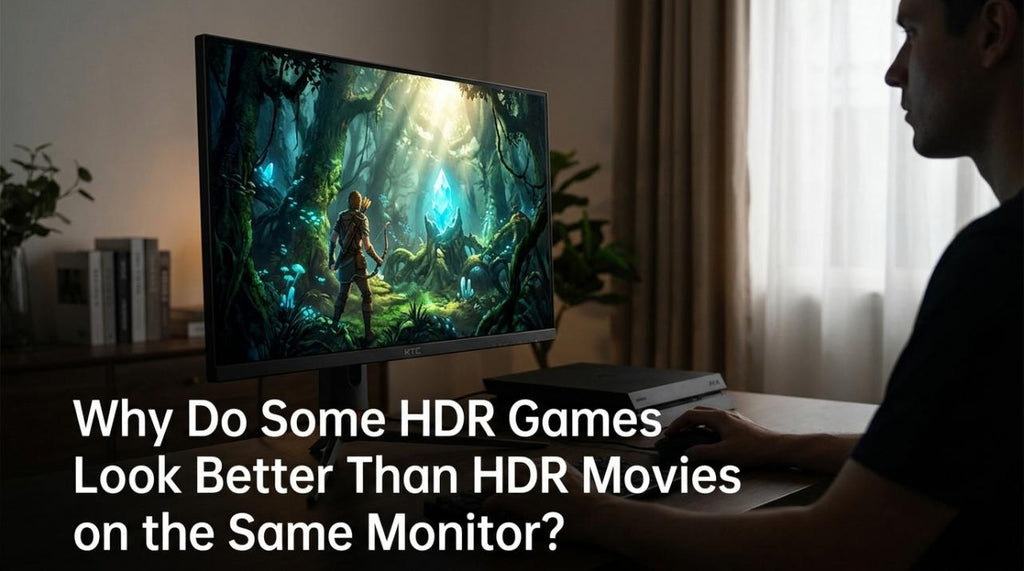
Televisions often process the image before showing it. This processing can improve low-quality video, smooth motion, boost contrast, and make colors appear more vivid. It can help movies and broadcast content, but it may also change the creator’s intended image.
Common TV processing features include:
• Noise reduction
• Sharpness enhancement
• Motion smoothing
• Dynamic contrast
• Edge enhancement
• Color boosting
These features can make a TV image look bright and exciting in a store. At home, however, they may create halos around objects, unnatural skin tones, or a soap opera effect during movies.
Monitors often use less processing in their standard or sRGB modes. This can make the image look more direct and neutral. It is similar to looking through a clean window instead of a window with a digital filter.
This is another answer to why do monitors look better than TVs for work, design, and gaming. The screen may show the signal with fewer changes. That helps text stay clean and helps colors remain closer to the source.
Still, monitor processing is not always perfect. Gaming monitors may ship with oversaturated modes, artificial sharpening, or poor factory calibration. A TV in Filmmaker Mode or Movie Mode can sometimes produce a more accurate picture than a gaming monitor set to a bright showroom preset.

Monitors usually have lower input lag
Input lag is the delay between an action and the result appearing on the screen. If you move a mouse, press a keyboard key, or pull a trigger in a game, low input lag makes the response feel immediate.
Many monitors are designed for direct connection to a computer or game console. They often skip extra video processing to reduce delay. Gaming monitors may offer input lag below 5 milliseconds, although the exact figure depends on the model and refresh rate.
TVs can also have low input lag when Game Mode is enabled. Without Game Mode, a TV may apply more processing. This can create a delay that feels noticeable during fast games.
The difference is easy to feel in competitive games. In a racing game, your steering may feel more direct on a fast monitor. In a first-person shooter, quick movements may feel more connected to your mouse or controller.
This explains why do monitors look better than TVs for PC gaming. The image may not only look sharper. It may also feel faster and more controlled.
Input lag is different from response time. Input lag measures signal delay. Response time measures how quickly a pixel changes color. Both matter, but they describe different parts of display performance.
Higher refresh rates improve motion clarity
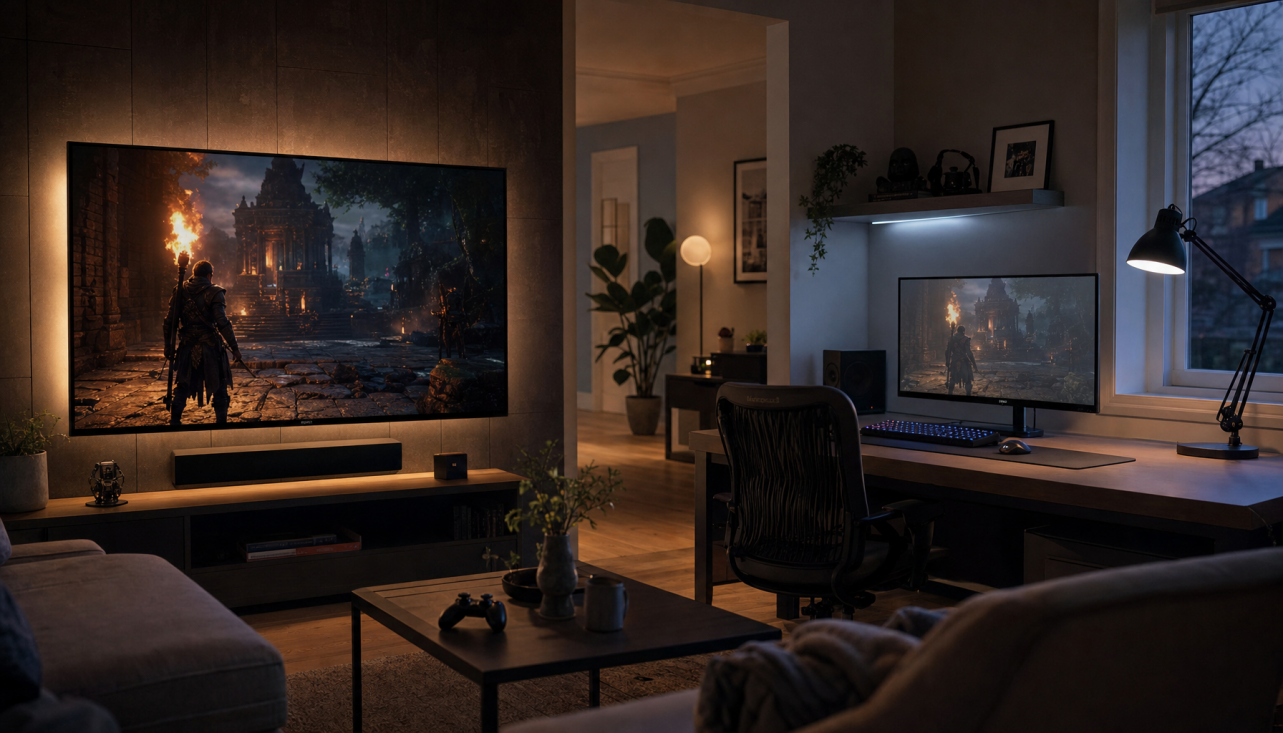
Refresh rate tells you how many times per second a display can update the image. It is measured in hertz, or Hz.
A 60 Hz screen refreshes up to 60 times per second. A 120 Hz screen can refresh up to 120 times per second. A 144 Hz or 165 Hz monitor can make cursor movement, scrolling, and games look smoother.
Many modern TVs now support 120 Hz, so this is no longer an advantage that belongs only to monitors. However, high refresh rates remain more common across the monitor market, especially in affordable gaming models.
A higher refresh rate can improve:
• Cursor movement
• Website scrolling
• Camera movement in games
• Sports broadcasts
• Fast action scenes
• General motion smoothness
You also need a computer or console that can produce enough frames. A 144 Hz monitor will not show 144 unique frames per second if your game runs at 60 frames per second.
Variable refresh rate technology can help. Features such as HDMI VRR, AMD FreeSync, and NVIDIA G-SYNC match the display refresh rate to the frame rate. This reduces tearing and can make gameplay feel smoother.
When people ask why do monitors look better than TVs during fast motion, refresh rate and response time are often the real reasons. The difference is especially clear when moving windows, scrolling through pages, or playing a fast game.

Monitors often handle computer text better
Text is one of the fastest ways to notice a difference between a monitor and a TV. A monitor usually supports computer-focused resolutions, scaling options, and chroma formats that keep letters clear.
Chroma subsampling reduces color detail to save bandwidth. It works well for movies because video images contain less fine text. It can make computer text look blurry, however, especially when a TV uses a 4:2:0 signal instead of a full 4:4:4 signal.
Many TVs support 4:4:4 chroma when connected to a computer, but you may need to enable the correct input mode. Some TVs also require you to rename the HDMI input to “PC” or turn on a setting such as Input Signal Plus.
A monitor normally detects a computer signal more easily. It may also offer:
• Clear 4:4:4 text reproduction
• Better support for DisplayPort
• More useful scaling choices
• A sharper default desktop mode
• Less overscan
Overscan is another issue. Some TVs enlarge the image slightly and cut off the edges. This was useful for older broadcast signals, but it is not helpful for a computer desktop.
If your TV looks blurry when used as a monitor, check the resolution, scaling, HDMI mode, chroma setting, and sharpness control before replacing the screen.
Monitors can offer more accurate colors
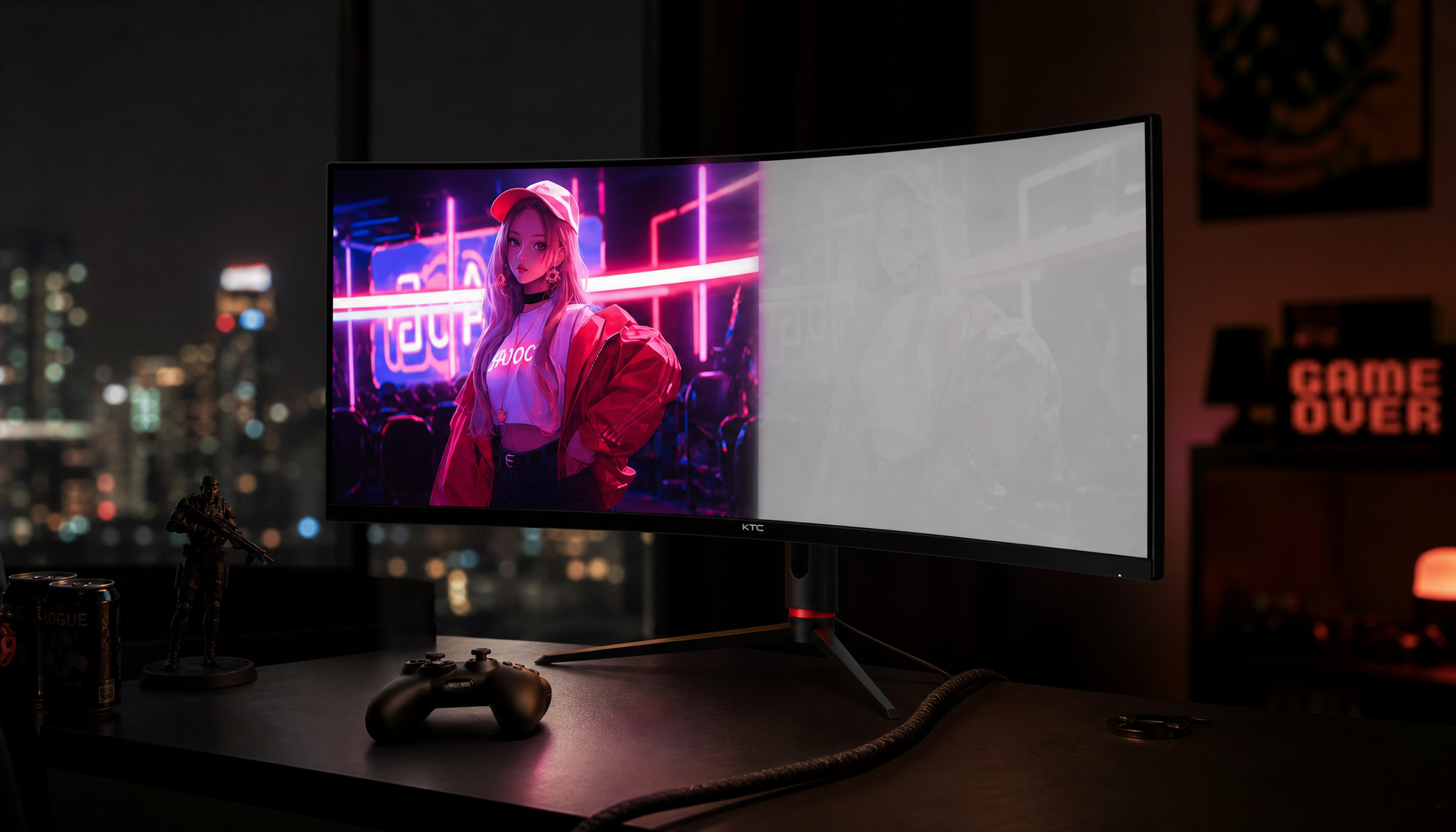
Color accuracy depends on the panel, backlight, calibration, and picture mode. It is not guaranteed by the word “monitor” or “TV.”
Many monitors include an sRGB mode for web content, photos, and standard computer work. Professional displays may support wider color spaces such as DCI-P3 or Adobe RGB. Some models also come with a factory calibration report.
TVs can provide excellent color too. OLED televisions often deliver deep blacks and rich contrast. Quantum-dot models can produce a wide color range and strong brightness. For movies and HDR games, a good TV may look more impressive than a basic monitor.
The issue is often calibration. TVs are commonly shipped in a bright Standard or Vivid mode. These modes may increase blue tones, saturation, and contrast. A monitor may use a calmer mode that looks less dramatic but more accurate.
For better color on either type of screen:
-
Select sRGB, Standard, Movie, or Filmmaker Mode.
-
Turn off excessive sharpness.
-
Disable motion smoothing for film content.
-
Adjust brightness for your room.
-
Use a colorimeter for serious photo or video work.
This detail matters when explaining why do monitors look better than TVs for creators. Designers and editors need predictable colors. A screen that looks attractive but shifts skin tones or shadows can lead to poor editing decisions.

HDR performance is more complicated
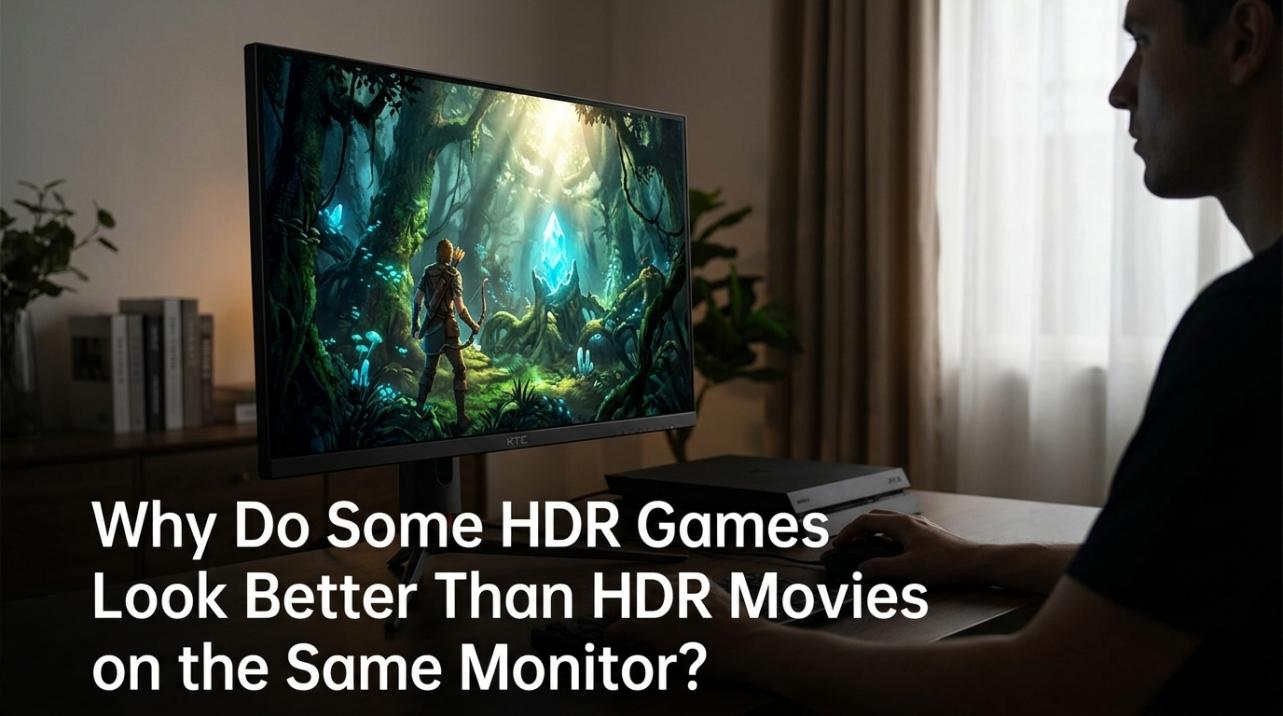
High Dynamic Range, or HDR, allows a display to show brighter highlights and darker shadows at the same time. Good HDR can make sunlight, fire, reflections, and stars look more realistic.
People often assume every 4K monitor has better HDR than every 4K TV. That is not true. HDR quality depends on peak brightness, black level, contrast, local dimming, and supported formats.
OLED TVs can create perfect black levels because each pixel can turn off. This gives them excellent contrast. Some high-end LED TVs use hundreds or thousands of local dimming zones to improve contrast.
Many affordable monitors advertise HDR but lack enough brightness or local dimming to make HDR meaningful. They may accept an HDR signal without showing a strong HDR effect.
For strong HDR, look for:
• High measured peak brightness
• Wide color coverage
• Local dimming or OLED pixels
• Good contrast
• Accurate HDR tone mapping
• Support for HDR10 or other relevant formats
This is one area where the answer to why do monitors look better than TVs may change. A premium TV can easily outperform a budget monitor in HDR movies and console games.
Viewing distance and screen size change what you see
Your eyes do not judge a screen in isolation. They judge it based on distance, size, lighting, and content.
A 32-inch monitor at two feet fills much of your field of view. A 65-inch TV at ten feet may feel large, but individual pixels become harder to notice. This is why a TV can look perfectly sharp from a sofa while looking soft on a desk.
Room lighting also matters. Reflections can reduce contrast and make a screen seem washed out. Glossy OLED TVs may look stunning in a dark room but show reflections near windows. Matte monitors often handle office lighting better.
Ergonomics play a role as well. Monitors usually offer height, tilt, swivel, and sometimes pivot adjustment. You can place the screen at eye level and reduce neck strain.
A TV often needs a separate stand or wall mount. Its size can make it difficult to position close enough for comfortable desk work.
In my own screen comparisons, the same 4K TV looked excellent for movies from a couch but tiring for spreadsheets at a desk. The monitor did not have deeper blacks, yet its smaller size, clear text, and adjustable stand made it feel better for daily work.
When a TV can look better than a monitor
A TV may be the better choice when you want a large, immersive image. This is especially true for movies, console gaming, sports, and shared viewing.
Modern OLED TVs offer several strengths:
• Excellent black levels
• Strong contrast
• Large screen sizes
• Smooth motion at 120 Hz
• Built-in streaming apps
• Good support for HDR formats
• Comfortable viewing from a distance
A 42-inch OLED TV can also work well as a large gaming monitor. It may deliver better contrast than many LCD monitors. You must check text clarity, automatic brightness limiting, desk distance, and available ports before buying one.
Large TVs can also make split-screen gaming more enjoyable. Two players can sit comfortably without crowding around a small monitor.
The answer to why do monitors look better than TVs depends on the task. A monitor often wins for office work, close-range gaming, and precise image editing. A TV often wins for movies, living-room use, console gaming, and dramatic HDR.
Monitor versus TV: key differences
The following comparison gives a simple overview:
| Feature | Monitor | TV |
|---|---|---|
| Main purpose | Computer work and gaming | Movies, shows, sports, and console gaming |
| Common viewing distance | Two to three feet | Six to twelve feet |
| Pixel density | Often high at desk sizes | Varies by screen size |
| Input lag | Usually low | Low in Game Mode |
| Refresh rate | Often 60 to 360 Hz | Commonly 60 or 120 Hz |
| Image processing | Usually limited | Often more advanced |
| Built-in apps | Less common | Very common |
| Stand adjustment | Often flexible | Usually limited |
| HDR | Varies widely | Strong on many premium models |
| Screen size | Commonly 24 to 32 inches | Commonly 42 to 85 inches |
These are general patterns, not fixed rules. A 32-inch 4K monitor and a 42-inch OLED TV may have more in common than a cheap monitor and a premium television.
Always compare measured performance rather than relying only on product labels. Look for reviews that test brightness, contrast, input lag, color accuracy, response time, and uniformity.
Common mistakes when choosing a display
Many buyers focus only on resolution. Resolution matters, but it does not tell the whole story.
A cheap 4K monitor may have poor contrast and slow pixels. A premium 1440p monitor may look better during games because it has faster motion and stronger image quality. The same is true for TVs.
Avoid these common mistakes:
• Buying the largest screen without considering viewing distance
• Assuming “HDR” means strong HDR performance
• Leaving a TV in Vivid Mode
• Ignoring input lag for gaming
• Using the wrong HDMI cable or port
• Forgetting to enable Game Mode
• Choosing a high refresh rate without enough graphics power
• Using a TV with overscan enabled
• Buying a wide-gamut monitor without checking its sRGB mode
I once tested a high-refresh monitor that looked disappointing at first. Its default color mode was overly bright and saturated. After switching to sRGB, reducing brightness, and disabling sharpening, the image became much more natural.
The lesson is simple: spend a few minutes tuning the display before judging it. Poor settings can make a good screen look cheap.
How to make a TV look better as a monitor
You do not always need to buy a monitor. A TV can work very well with a computer when configured correctly.
Start with the connection. Use HDMI 2.0 or HDMI 2.1 when needed for high resolution and high refresh rates. Check the graphics card, laptop, cable, and TV port because the weakest part limits the final signal.
Then adjust the TV:
-
Enable PC Mode if available.
-
Turn on Game Mode for low input lag.
-
Set the correct resolution and refresh rate.
-
Disable overscan or choose Screen Fit.
-
Turn off motion smoothing for desktop use.
-
Set sharpness close to its neutral value.
-
Use 4:4:4 chroma when supported.
-
Choose a neutral picture mode.
-
Adjust brightness for your room.
You should also sit far enough away to avoid eye strain. A 55-inch TV may be too large at two feet, even if its image is sharp.
These steps can reduce the gap described by why do monitors look better than TVs. A properly configured TV may become an excellent display for gaming and media.
Which display should you buy?
Choose a monitor if you mainly:
• Work with documents, code, or spreadsheets
• Edit photos or design graphics
• Play competitive PC games
• Need a high refresh rate
• Sit close to the screen
• Want easy height and angle adjustment
Choose a TV if you mainly:
• Watch movies and streaming services
• Play console games from a sofa
• Want a screen larger than 40 inches
• Share the screen with family or friends
• Prefer built-in apps and speakers
• Care strongly about HDR and cinematic contrast
A hybrid setup may be ideal. A 27-inch monitor can handle work, while a 55-inch TV can handle movies and console games. This gives each screen a clear job.
When deciding why do monitors look better than TVs for your needs, start with your daily habits. The best display is not the one with the longest feature list. It is the one that fits your distance, room, content, and comfort.
Frequently Asked Questions
Why do monitors look better than TVs for PC gaming?
Monitors often have lower input lag, higher refresh rates, and clearer text at close range. Gaming monitors also tend to offer features such as adaptive sync and fast response times.
Is a monitor sharper than a TV?
A monitor is often sharper at a desk because it usually has a higher pixel density and is designed for close viewing. A large 4K TV can look equally sharp from a normal living-room distance.
Can a TV replace a computer monitor?
Yes, a TV can replace a monitor if it supports the needed resolution, refresh rate, chroma format, and low-latency mode. Choose PC Mode or Game Mode and disable overscan for the clearest result.
Are monitors better for your eyes than TVs?
Neither type is automatically safer for your eyes. Comfort depends on brightness, viewing distance, glare, flicker, text size, and regular breaks.
Do OLED TVs look better than gaming monitors?
A high-end OLED TV may look better for contrast, black levels, and HDR. A gaming monitor may still be better for desk use, very high refresh rates, sharper text, and competitive play.
Why does my TV look blurry when connected to a computer?
The TV may use the wrong resolution, overscan, limited chroma, or an unsuitable picture mode. Set the native resolution, enable PC Mode, use 4:4:4 chroma if available, and turn off excessive sharpening.
Is 4K worth it on a monitor?
4K is useful on monitors 27 inches and larger, especially for text, design, and detailed images. A 1440p monitor may offer better gaming performance if your computer cannot produce high frame rates at 4K.
Conclusion
Monitors often look better than TVs because they are designed for close viewing, clear text, fast response, and precise computer use. Higher pixel density, lower input lag, high refresh rates, and lighter image processing can make a monitor feel sharper and more responsive.
TVs remain excellent for movies, console gaming, large-room viewing, and strong HDR. A premium OLED or high-end LED TV can outperform many monitors in contrast and cinematic image quality.
The smartest choice depends on your room, viewing distance, computer or console, and favorite content. Compare real measurements, use the right picture settings, and choose the screen that matches your routine. If this guide helped, explore more display guides or share your monitor and TV setup in the comments.