A monitor is better than a TV for desk use because it offers sharper text, lower lag, and better viewing comfort.
The question “why is a monitor better than a TV” matters when you work, study, edit photos, or play games at a desk. After comparing screen types in real home and office setups, I find that monitors give you more control, clearer detail, and a better fit for close viewing. TVs still have a place, but the right choice depends on how you use your screen.
Why Is a Monitor Better Than a TV?
A monitor is built for close-up use. A TV is built for viewing from several feet away. This basic design difference affects sharpness, response time, ports, stand height, picture settings, and comfort.
Here are the main reasons a monitor may be the better choice:
• Sharper text at close range
• Lower input lag for games
• Faster response times
• Better support for high refresh rates
• More ergonomic stands
• Easier use with a computer
• Better screen sizes for desks
• More accurate settings for work and creative tasks
• Less image processing
• More flexible viewing angles and adjustments
A TV can look bright and impressive, but a monitor often feels more precise. Think of a TV as a large window for a room. A monitor is more like a well-made workbench for your eyes and hands.
Monitors Usually Show Text More Clearly
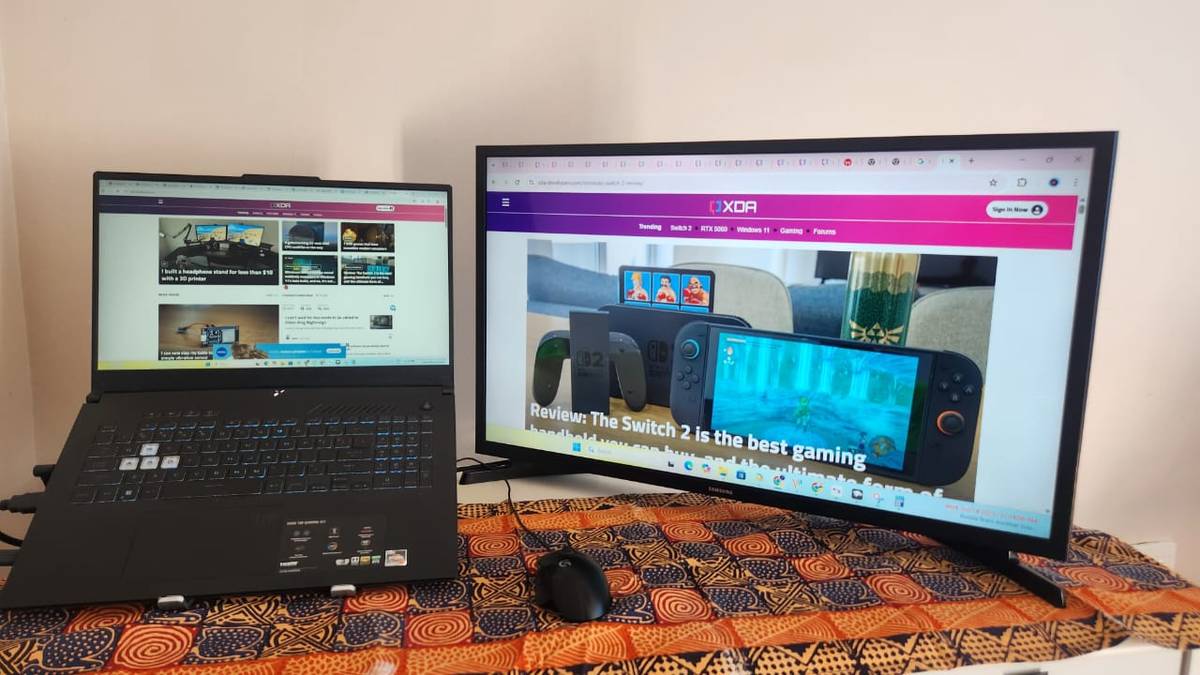
One of the biggest advantages of a monitor is text clarity. Monitors often use pixel layouts and image settings designed for computer text, menus, spreadsheets, and web pages.
Many TVs apply extra processing to make movies look smoother. This can soften small letters. Some TVs also use chroma subsampling, such as 4:2:0, which may reduce color detail around text. This effect is not always easy to notice in a movie, but it can make desktop text look less clean.
A monitor usually supports full chroma 4:4:4 at the correct resolution. This helps keep letters and fine lines sharp. It matters when you spend hours reading emails, writing documents, or working in design software.
Resolution also plays a major role:
• A 24-inch 1080p monitor can look sharp at a normal desk distance.
• A 27-inch 1440p monitor offers more workspace and detail.
• A 27-inch or 32-inch 4K monitor can show very fine text and images.
• A large 4K TV may still look soft if you sit too close or use the wrong input mode.
When I first used a TV as a computer display, the large picture looked exciting. After an hour of reading, though, the text felt less comfortable than it did on my monitor. The issue was not only resolution. It was also scaling, processing, and viewing distance.
A Monitor Gives You Lower Input Lag
Input lag is the delay between an action and what you see on the screen. It matters when you move a mouse, type, aim in a game, or adjust a design element.
Monitors often have lower input lag because they use less image processing. TVs may add motion smoothing, noise reduction, frame creation, and other effects. These features can improve video, but they may delay the picture.
Many modern TVs include a Game Mode that reduces this delay. However, a gaming monitor is still often more consistent for fast PC games.
Lower input lag can help with:
• Competitive shooters
• Racing games
• Fighting games
• Rhythm games
• Fast mouse movement
• Real-time strategy games
• Video editing with precise timeline control
The difference may be only a few milliseconds, but small delays can affect fast play. Casual players may not notice it. Competitive players often do.
One mistake I made was testing a TV in its normal picture mode and assuming it was too slow for games. Game Mode improved the result right away. This is a useful lesson: always check the display mode before judging a TV. Even so, monitors tend to make the best low-lag choice for a desk.

Monitors Support Higher Refresh Rates
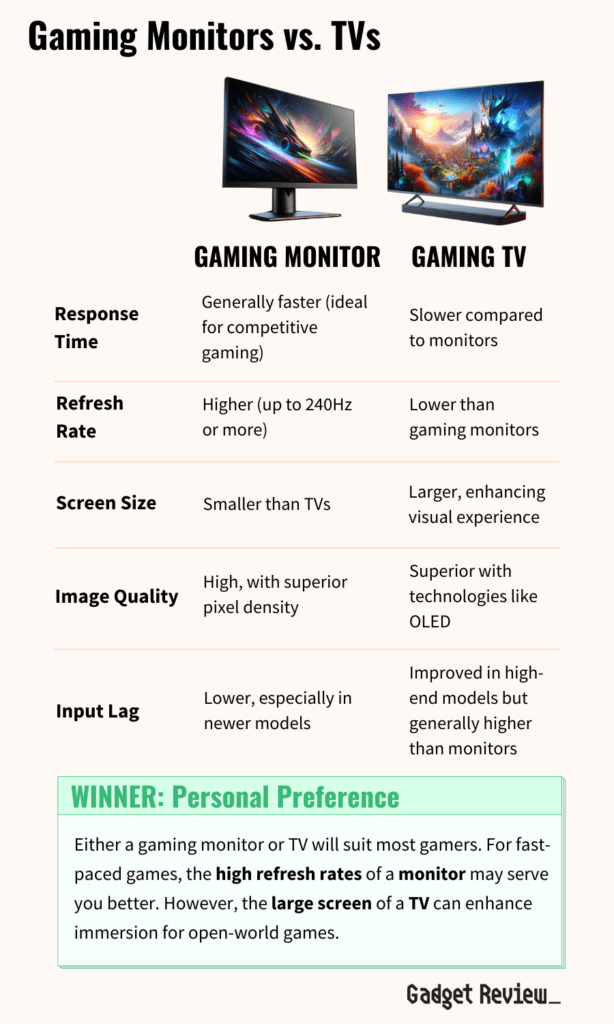
Refresh rate tells you how many times a screen updates each second. A 60Hz display refreshes 60 times per second. A 144Hz monitor can refresh up to 144 times per second, while some gaming monitors support 240Hz or more.
A higher refresh rate can make movement look smoother. It can also make mouse movement feel more direct. This is most useful when your computer can produce enough frames per second.
Monitors commonly offer:
• 75Hz for basic work
• 100Hz or 120Hz for smoother everyday use
• 144Hz or 165Hz for gaming
• 240Hz or higher for competitive play
Many TVs now support 120Hz, so the gap is smaller than it once was. Still, monitors often provide more refresh rate choices and better support for variable refresh rate technologies.
Variable refresh rate helps match the display refresh rate to the game frame rate. This can reduce screen tearing and stutter. Common technologies include HDMI VRR, FreeSync, and G-SYNC.
If you mostly watch films, 60Hz may be enough. If you play fast games or enjoy smooth scrolling, a monitor may feel much better.
Monitors Are Easier to Position on a Desk
Ergonomics is another major answer to why is a monitor better than a TV. A good monitor stand can provide height, tilt, swivel, and pivot adjustments.
Most TVs come with a simple stand. Some have fixed legs that offer little control. Wall mounting can solve part of the problem, but it takes more effort and may not work well in a rental home or small office.
Your screen should usually sit at a height that keeps your neck relaxed. The top edge can be near eye level, though the best position depends on screen size, glasses, and personal comfort.
A monitor also fits better with:
• A standard desk
• A monitor arm
• A laptop docking station
• A keyboard and mouse
• A dual-screen setup
• A standing desk
• A compact home office
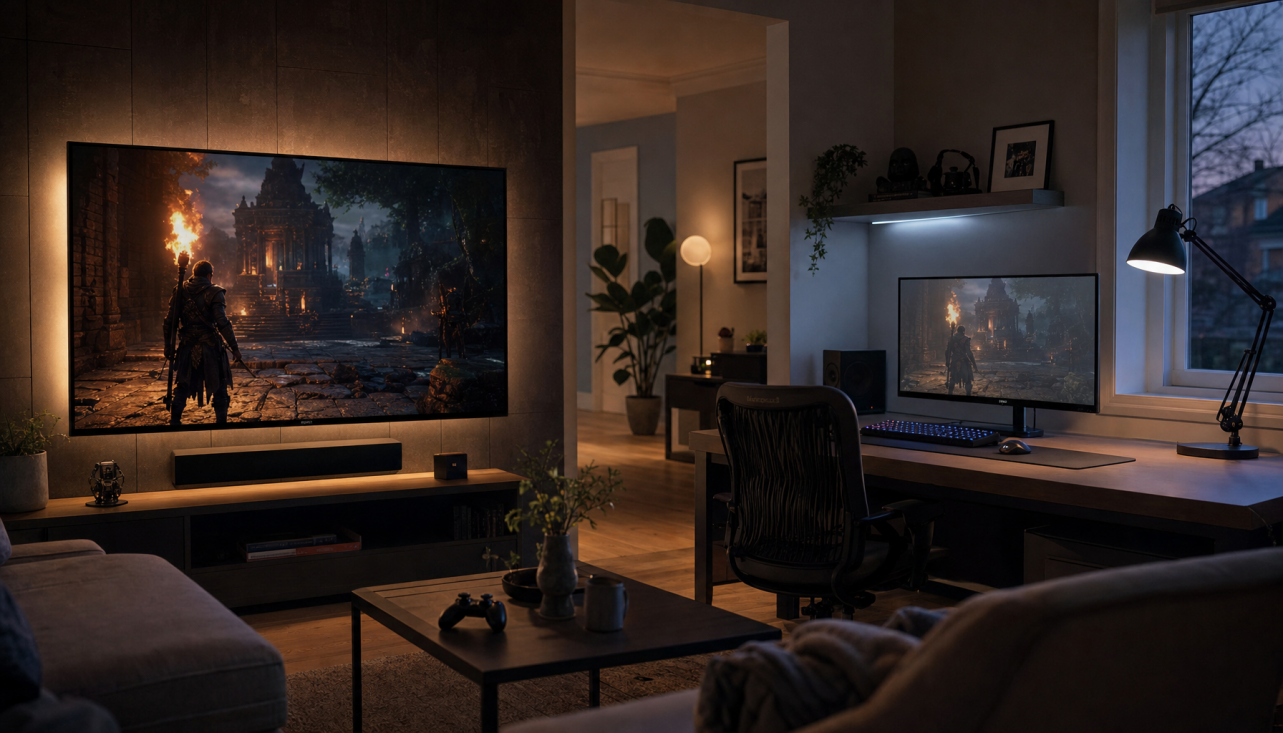
I once placed a 43-inch TV on a deep desk. It worked, but the screen felt too large at close range. I had to move my head more while reading, and the fixed stand made the setup awkward. A 27-inch monitor was less dramatic but far more comfortable.

Monitors Offer Better Desk-Friendly Screen Sizes
TVs usually begin at larger sizes. Monitors are available in sizes that suit close viewing.
Common monitor sizes include:
• 22 to 24 inches for small desks
• 27 inches for a balanced work and gaming setup
• 32 inches for more workspace
• 34 inches or wider for ultrawide layouts
• 42 inches or larger for specialized gaming and productivity use
A 27-inch monitor can provide plenty of space without overwhelming your desk. A 32-inch 4K monitor can replace two smaller screens for some tasks.
Size should match viewing distance. A large screen is not automatically better. If you sit too close, you may turn your head often or reduce the screen scale until you lose the benefit of the extra space.
The best monitor size depends on:
• Desk depth
• Viewing distance
• Screen resolution
• Your eyesight
• Type of work
• Game preferences
• Operating system scaling
For many people, 27 inches at 1440p is a comfortable middle ground. For detailed photo work or large spreadsheets, 4K can be worth the extra cost.
Monitors Provide More Useful Computer Features
Monitors often include features made for computers rather than home theater systems. These features can simplify your setup and improve daily use.
Useful monitor features may include:
• DisplayPort for PC connections
• USB-C with video and power delivery
• A built-in USB hub
• KVM switching between two computers
• Picture-by-picture mode
• Picture-in-picture mode
• Daisy chaining through DisplayPort
• Adaptive sync support
• Height-adjustable stands
USB-C monitors are especially useful with modern laptops. One cable can carry video, data, and power. This can reduce desk clutter and make it easier to move between home and office work.
A monitor with a KVM switch can also control two computers with one keyboard and mouse. This helps people who use a work laptop and a personal desktop.
TVs may offer HDMI, USB, and streaming features, but these are not always useful for a computer desk. A monitor usually puts the right tools in the right place.

Monitors Often Need Less Image Processing
TVs are designed to improve video content. They may adjust contrast, sharpness, color, motion, and brightness. These features can make a movie look more vivid from across a room.
For computer use, extra processing can cause problems. It may introduce delay, alter colors, or make text appear artificial. A monitor often gives you a simpler signal path.
Look for these settings when using either display with a computer:
• PC Mode
• Game Mode
• 1:1 pixel mapping
• Full RGB range
• Chroma 4:4:4
• Overscan disabled
• Sharpness set near its neutral level
Overscan is important. It slightly enlarges the image and cuts off the edges. This was common with older televisions, but it is not helpful for desktop work.
A TV can work very well as a monitor when you use the correct settings. However, a monitor is usually easier to configure because its default behavior is already aimed at computer signals.
Monitors Can Be Better for Work and Creative Tasks
People who work with documents, code, spreadsheets, photos, and video need more than a bright picture. They need predictable color, clear detail, and a layout that reduces fatigue.
Many professional monitors offer factory calibration or support for color spaces such as sRGB, Display P3, and Adobe RGB. The useful choice depends on your work. A graphic designer may need wider color coverage, while a writer may care more about text clarity and even brightness.
A monitor can help with productivity by giving you:
• More visible rows in a spreadsheet
• A sharper coding window
• Clearer small icons
• Better control over color profiles
• Easier multi-monitor alignment
• More precise scaling options
No display is perfect for every task. Some affordable monitors have poor contrast or uneven backlighting. Some TVs have excellent color and contrast, especially OLED models. Always check independent measurements when accurate color or brightness matters.
For office work, comfort and clarity usually matter more than dramatic contrast. For film viewing, contrast and HDR may matter more. This difference explains why neither display type wins every category.

When a TV May Be Better Than a Monitor
A balanced answer to why is a monitor better than a TV must also explain when a TV wins. A TV may be the better choice for entertainment and shared viewing.
Choose a TV when you want:
• A large screen for a living room
• Built-in streaming apps
• Strong HDR performance
• Better speakers
• Comfortable couch viewing
• A simple game console setup
• A screen for several viewers
Modern OLED and Mini-LED TVs can deliver outstanding contrast, deep blacks, and impressive HDR. A premium TV may look better than a similarly priced monitor when you watch films or play console games from a distance.
TVs can also offer excellent gaming features. Many support 4K resolution, 120Hz refresh rates, HDMI 2.1, VRR, and automatic low-latency modes. The key is to choose a model with the features you need.
The main limitation is distance. A TV may be excellent across a room but uncomfortable on a shallow desk. Before buying, measure the distance between your eyes and the screen.
Monitor vs. TV: A Simple Comparison
| Feature | Monitor | TV |
|---|---|---|
| Main purpose | Desk work and close viewing | Movies and room viewing |
| Text clarity | Usually excellent | Depends on model and settings |
| Input lag | Usually low | Low in Game Mode |
| Refresh rates | Many high-rate options | Often 60Hz or 120Hz |
| Stand adjustment | Often flexible | Usually limited |
| Built-in apps | Rare | Common |
| Speakers | Basic or absent | Usually included |
| HDR impact | Varies by model | Often stronger on premium TVs |
| Best screen size | Small to medium | Medium to very large |
| Computer ports | DisplayPort and USB-C are common | HDMI is standard |
| Best location | Desk or office | Living room or entertainment space |
This comparison shows why is a monitor better than a TV for most desk-based computer work. It also shows why a TV may be better for shared entertainment.
How to Choose the Right Monitor
Start with your main task. Do not buy based on screen size alone.
Use this simple process:
- Measure your desk depth and viewing distance.
- Choose a size that fits without forcing you to move your head often.
- Select 1080p, 1440p, or 4K based on size and computer power.
- Choose at least 100Hz if smooth scrolling and gaming matter.
- Check response time and measured input lag.
- Confirm that the ports match your computer.
- Look for height adjustment or plan to use a monitor arm.
- Check color accuracy if you edit photos or video.
- Review brightness, contrast, and HDR performance.
- Read independent test results before buying.
For a general setup, a 27-inch 1440p monitor with a refresh rate of 100Hz to 165Hz is a strong choice. For office work, USB-C and a height-adjustable stand may be more valuable than extreme gaming speed.
Avoid buying a monitor with a high refresh rate if your computer cannot produce enough frames. Also, do not assume that a “1ms” label proves real-world performance. Response time claims can use different testing methods, so independent measurements are more useful.
Practical Tips for Using a TV as a Monitor
If you already own a TV, you may not need to buy a monitor. A few changes can make the experience much better.
Try these steps:
• Use the TV’s PC or Game Mode.
• Turn off overscan.
• Set the computer to the TV’s native resolution.
• Use a high-quality HDMI cable.
• Enable 4:4:4 chroma if available.
• Set the correct RGB range.
• Increase text scaling instead of sitting too close.
• Keep the screen at a comfortable distance.
• Use a separate keyboard and mouse.
• Consider a monitor arm or wall mount.
A 4K TV can work well as a large desktop display when you sit far enough away. It can be a smart choice for casual gaming, media, and occasional computer use.
Still, a TV may not provide the same text clarity, stand flexibility, or desktop features as a dedicated monitor. The goal is not to prove that one screen is always superior. The goal is to match the display to your daily habits.
Common Mistakes to Avoid
Many display problems come from setup mistakes rather than the screen itself.
Avoid these common errors:
• Buying a screen that is too large for the desk
• Ignoring viewing distance
• Using a TV without enabling Game Mode
• Connecting a high-refresh monitor to the wrong port
• Forgetting to change the operating system refresh rate
• Choosing resolution without considering graphics performance
• Placing the screen too low
• Using maximum brightness all day
• Trusting marketing response-time claims
• Ignoring return policies and warranty terms
I have learned that comfort beats impressive specifications. A screen with a slightly lower resolution can be the better purchase if it has a good stand, stable brightness, and clear text.
Also consider your room. Glossy displays may show reflections near windows. Very bright screens can feel harsh in a dark room. A small bias light behind the display may reduce eye strain for some users, though it cannot replace proper breaks and good posture.
Frequently Asked Questions About Why Is a Monitor Better Than a TV
Is a monitor better than a TV for computer work?
Usually, yes. A monitor is designed for close viewing and often provides sharper text, lower input lag, better ergonomics, and more useful computer ports.
Is a TV good for gaming?
Yes, especially for console gaming and couch play. Choose a TV with Game Mode, low input lag, a 120Hz panel, HDMI 2.1, and variable refresh rate if those features matter to you.
Can I use a 4K TV as a computer monitor?
Yes. Set the TV to its native 4K resolution, enable PC Mode or Game Mode, turn off overscan, and use 4:4:4 chroma when available. Keep a suitable viewing distance so the large screen does not cause neck or eye discomfort.
Do monitors have better picture quality than TVs?
Not always. Premium TVs often provide better contrast and HDR, while monitors often provide clearer text and faster desktop response. Picture quality depends on the panel type, calibration, brightness, contrast, and intended use.
Is a 27-inch monitor better than a 32-inch TV for a desk?
In most cases, yes. A 27-inch monitor is easier to position at close range and often offers better text clarity and stand adjustment than a 32-inch TV.
Does a monitor reduce eye strain?
A monitor cannot prevent eye strain by itself. Correct distance, comfortable brightness, readable scaling, regular breaks, and proper lighting have a larger effect than the display category alone.
Why do TVs sometimes look blurry when connected to a computer?
The TV may be using overscan, limited chroma, extra sharpening, or a non-native resolution. PC Mode, native resolution, full RGB, and 4:4:4 chroma can often improve clarity.
Conclusion
A monitor is usually better than a TV for desk work because it offers sharp text, low input lag, flexible positioning, high refresh rates, and computer-focused features. A TV may still be the better choice for movies, console gaming, HDR, and large-room viewing.
The best answer to why is a monitor better than a TV depends on your distance, tasks, computer hardware, and budget. Measure your space, check the ports and refresh rate, and prioritize comfort over flashy specifications. Explore trusted display tests before buying, and share your preferred monitor or TV setup with others who are building a better workspace.