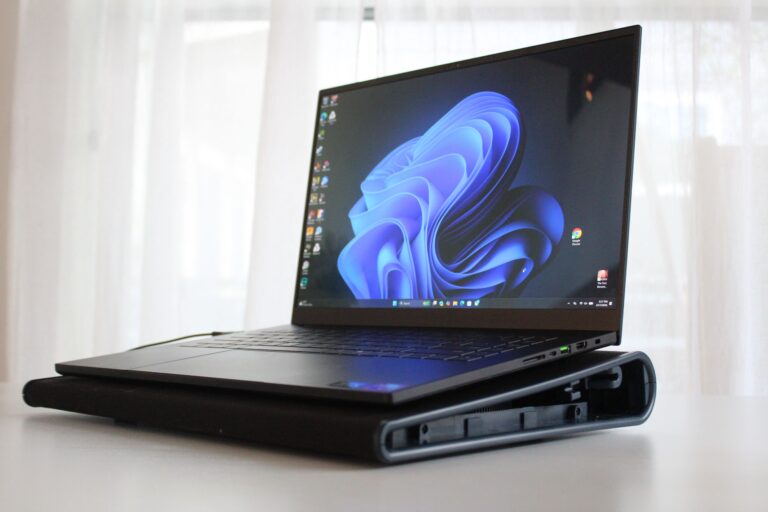
New laptops often lack Ethernet ports because wireless networks save space, weight, cost, and design complexity.
If you are wondering why do new laptops have no ethernet port, the answer involves more than fashion. Modern laptops are built around Wi-Fi, USB-C, thin bodies, and mobile use. This guide explains the technical, practical, and business reasons behind the change, plus the best ways to connect when wired internet still matters.
Why Do New Laptops Have No Ethernet Port?
The main reason why do new laptops have no ethernet port is simple: laptop makers want thinner and lighter computers. A traditional Ethernet port, also called an RJ45 port, is much thicker than many modern laptop parts.
Most Ethernet ports need enough space for:
• A wide connector opening
• A locking tab on the network cable
• Internal contacts and wiring
• A port housing that supports cable pressure
That space is easy to include in a desktop computer. It is harder to fit inside a slim laptop that may be less than three-quarters of an inch thick.
Laptop makers also consider how people use computers today. Many users connect through home Wi-Fi, office Wi-Fi, public hotspots, or a phone hotspot. For these users, an Ethernet port may sit unused for years.
The Main Reasons Ethernet Ports Disappeared
Slimmer laptop designs
Thin laptops are easier to carry. They also look cleaner and fit better in small bags. Removing a large port gives designers more freedom to reduce the laptop’s thickness.
This is one of the clearest answers to why do new laptops have no ethernet port. The port is not impossible to include. It simply takes up valuable room in a thin chassis.
Some laptops still include a small folding Ethernet port. However, this design can be fragile and may not support every cable or connector. Many brands now prefer USB-C adapters instead.
Lower weight
Every small part matters in an ultraportable laptop. The Ethernet port itself may not weigh much, but its metal frame, circuit parts, and surrounding structure add to the total design.
A laptop aimed at students, travelers, and remote workers may prioritize low weight over built-in wired networking. A few saved grams can help a device feel easier to carry all day.
Greater reliance on Wi-Fi
Wi-Fi has improved greatly. Wi-Fi 5 became common in many homes, while Wi-Fi 6 and Wi-Fi 6E offer better speed and network handling. Wi-Fi 7 is also reaching newer devices and routers.
Wireless internet is now fast enough for many common tasks, including:
• Web browsing
• Video calls
• Cloud documents
• Music streaming
• High-definition video
• Online classes
• Casual gaming
Because of this, laptop companies often view Ethernet as a special-use feature rather than a basic requirement.
More space for other hardware
Removing the Ethernet port can create room for parts that affect daily use more directly. Designers may use that space for a larger battery, better speakers, improved cooling, or stronger internal support.
This does not mean every laptop without Ethernet has a better design. It means manufacturers must choose which features matter most to their target buyers.
Lower production and repair costs
A laptop with fewer ports can have a simpler internal layout. Fewer openings may also make it easier to control dust, moisture, and structural weakness.
There can be cost savings, too. These savings are not always passed directly to buyers, but simpler designs may reduce manufacturing steps and part counts.
A cleaner product lineup
Some brands divide laptops into clear groups. Thin models focus on portability. Business laptops may keep Ethernet for office use. Gaming laptops often include it because wired connections are useful for stable, low-latency play.
This product strategy helps companies target different buyers without placing every port on every model.
Why Wi-Fi Does Not Fully Replace Ethernet
Wi-Fi is convenient, but it is not the same as a wired connection. A wireless signal must travel through the air. Walls, floors, appliances, distance, and nearby networks can affect it.
Ethernet sends data through a physical cable. This usually gives you a more stable connection and fewer signal changes.
Ethernet can offer several benefits:
• More consistent speed
• Lower delay for gaming and calls
• Less interference
• Better performance through walls
• Stronger security in some environments
• Reliable access to local network devices
A wired connection can be especially useful for large downloads, cloud backups, live broadcasts, and competitive games. It also helps when many people share the same Wi-Fi network.
That is why the answer to why do new laptops have no ethernet port should not suggest that Ethernet is outdated. Ethernet remains important. It is simply no longer needed by every laptop owner.
When You Still Need a Wired Connection
You may want Ethernet if you work in a place with weak Wi-Fi or strict network rules. Offices, schools, hotels, and conference centers sometimes provide wired access when wireless networks are busy.
Wired networking is also useful for home offices. If your router is near your desk, an Ethernet cable can improve video calls and reduce sudden drops.
Consider Ethernet for these situations:
• Competitive online gaming
• Frequent large file transfers
• Network-attached storage
• 4K or 8K media work
• Live video production
• Remote desktop work
• Business networks
• Poor Wi-Fi coverage
• Internet service above your Wi-Fi hardware’s limits
In my experience testing laptops in busy homes and offices, Wi-Fi problems are often blamed on the laptop. The real cause may be router placement, network congestion, or thick walls. A simple wired connection can quickly show whether Wi-Fi is the problem.

How to Connect Ethernet to a New Laptop
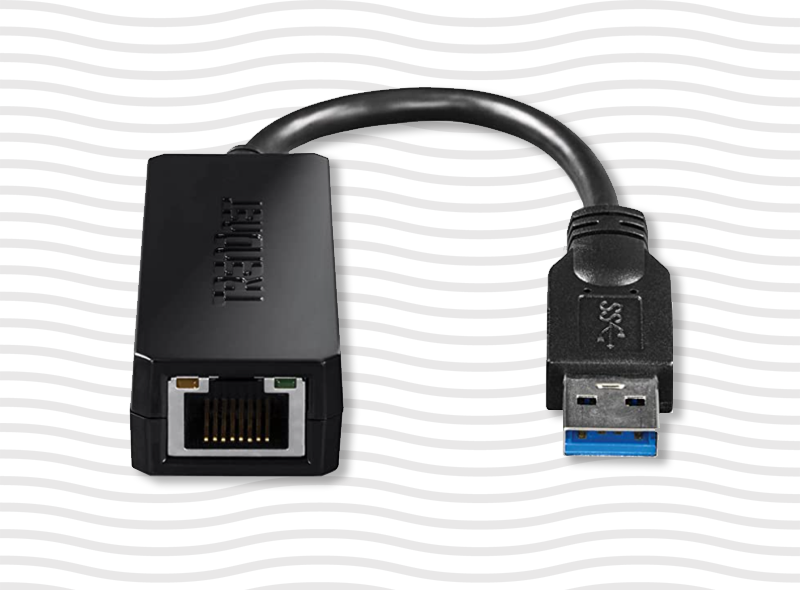
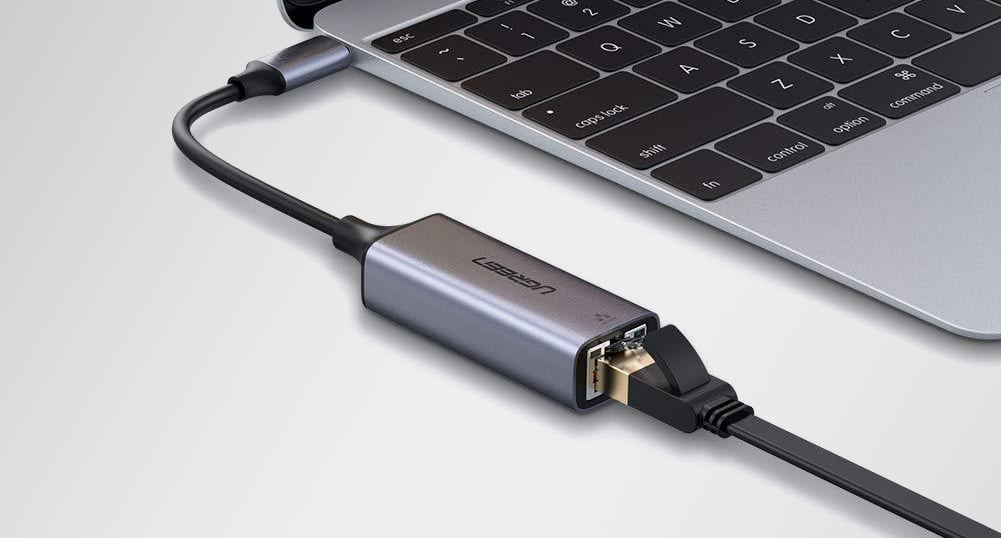
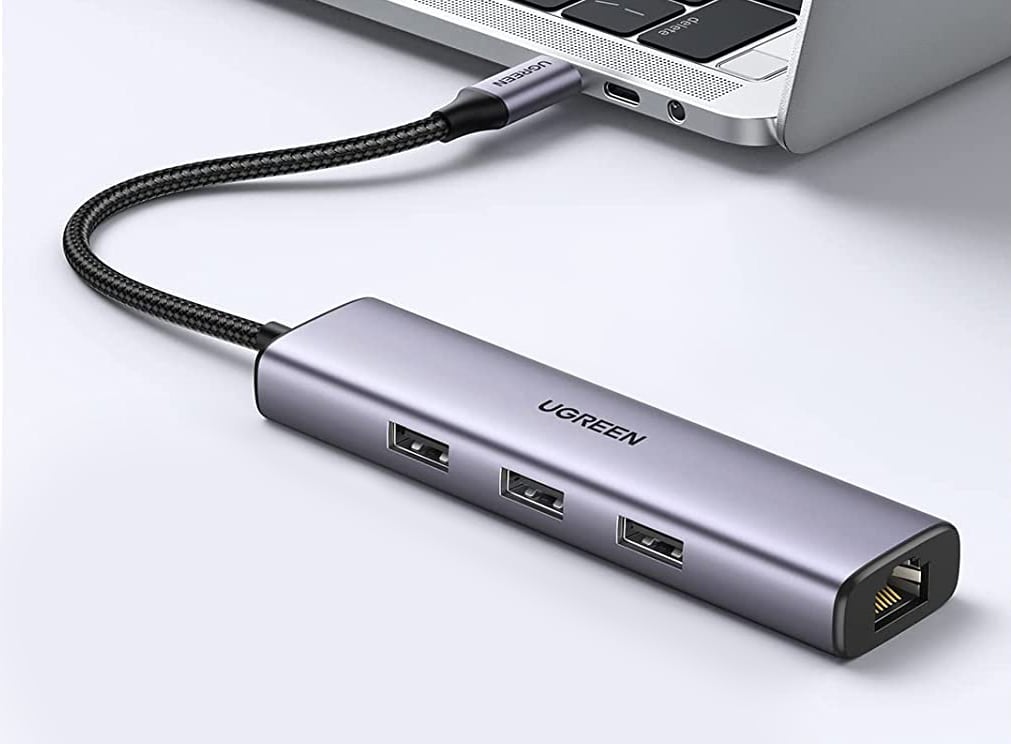
The easiest solution is a USB Ethernet adapter. It adds a wired network port without changing the laptop’s built-in design.
USB-C Ethernet adapters
USB-C is the most common choice for new laptops. A USB-C Ethernet adapter connects to the laptop and provides an RJ45 port.
Look for these features:
• Gigabit Ethernet for speeds up to 1,000 Mbps
• USB 3.0 or faster support
• A compatible operating system
• A strong cable and solid connector
• A compact design that does not block nearby ports
Some adapters support 2.5 Gigabit Ethernet. This can help if your internet plan, router, and network equipment all support speeds above 1 Gbps.
USB-A Ethernet adapters
Older laptops may have USB-A ports. A USB-A Ethernet adapter can work well, but its speed depends on the USB version.
USB 2.0 adapters may limit performance. For better results, choose a USB 3.0 or newer model when possible.
USB-C hubs and docking stations
A USB-C hub may include Ethernet along with HDMI, USB ports, memory card slots, and power delivery. This is useful if you connect your laptop to a monitor and other desk equipment.
A docking station can turn a thin laptop into a desktop setup. It may offer:
• Ethernet
• Multiple monitors
• Keyboard and mouse connections
• External storage support
• Audio ports
• Laptop charging
Before buying, check whether the hub supports the display resolution, charging power, and Ethernet speed you need.
Ethernet adapters for tablets and phones
Many tablets and some phones can also use USB-C Ethernet adapters. This can help with testing a network or getting online when Wi-Fi access is not available.
The device must support USB host mode or a similar feature. Check the manufacturer’s specifications before purchasing.

What to Check Before Buying an Ethernet Adapter
Not every adapter offers the same experience. A low-cost model may work well for basic browsing, but demanding tasks require closer attention.
Check the Ethernet speed
Gigabit Ethernet is a good standard for most homes. It supports up to 1,000 Mbps under ideal conditions.
A 2.5GbE adapter may be useful when you have:
• A 2.5GbE or faster router
• A high-speed internet plan
• Fast network storage
• Compatible Ethernet cables
• A laptop with a suitable USB-C port
Buying a 2.5GbE adapter will not make a 100 Mbps internet plan faster. The full network must support the higher speed.
Check USB-C capabilities
Not every USB-C port supports the same features. Some support data only. Others support charging, video output, or high-speed data.
Look at the laptop manual or product page. A USB-C connector’s shape does not tell you its full capability.
Check driver support
Most modern operating systems detect common Ethernet adapters automatically. Some models may need drivers, especially on older systems.
If you use a work laptop, you may need administrator permission to install a driver. This is worth checking before you arrive at an office or event.
Consider heat and power use
An adapter can become warm during heavy transfers. This is normal, but excessive heat may signal a poor design or blocked ventilation.
USB Ethernet adapters also use a small amount of laptop power. The difference is usually minor, but it can matter during long sessions away from an outlet.
Choose a reliable brand
A well-built adapter often has better shielding, smoother drivers, and stronger cable joints. Reviews can reveal problems such as random disconnects, poor sleep-mode behavior, or unstable speeds.
The cheapest adapter is not always the best value. A failed adapter during an important video call can cost more than the small amount saved.

Ethernet Port Versus Wi-Fi: Which Is Better?
Neither connection is always best. The right choice depends on your needs.
| Feature | Ethernet | Wi-Fi |
|---|---|---|
| Stability | Usually very strong | Can vary with distance and interference |
| Mobility | Limited by cable length | Excellent |
| Setup | Requires a cable or adapter | Usually quick and simple |
| Latency | Often lower | Can be higher |
| Security | Physical network access | Depends on encryption and password |
| Portability | Less convenient | Very convenient |
| Performance | Consistent on a good network | Depends on signal and congestion |
Ethernet is like a private road from your laptop to the router. Wi-Fi is more like a shared public road. Wi-Fi is easy to use, but traffic and obstacles can affect the trip.
For everyday work, Wi-Fi is usually enough. For stable performance, Ethernet still has a clear advantage.
Common Problems With USB Ethernet Adapters
USB adapters are useful, but they are not perfect. A few common issues can cause confusion.
The adapter is not detected
Try these steps:
- Unplug the adapter.
- Restart the laptop.
- Connect it directly instead of through another hub.
- Install the latest driver.
- Test a different USB-C port.
- Check the network settings.
If the adapter works on another computer, the issue may be related to drivers or laptop settings.
The connection is slower than expected
The cable, router, adapter, and laptop port all affect speed. A Cat 5e or better cable is usually suitable for gigabit Ethernet.
Run a local network test if possible. Internet speed tests can be affected by your service provider, server distance, and network traffic.
The connection drops during sleep
Some laptops turn off USB devices to save power. Look for USB power management settings or updated system drivers.
A different adapter may solve the issue if the current model does not handle sleep and wake cycles well.
The adapter blocks other ports
Short adapters can be awkward on crowded laptops. A model with a short flexible cable may be easier to use. A USB-C hub can also provide better spacing.
In daily use, I have found that physical fit matters as much as technical speed. An adapter that presses against another port can become annoying very quickly.

Is Removing Ethernet a Good Design Choice?
The answer depends on the laptop. For a thin travel laptop, removing Ethernet can be a sensible choice. Most buyers value battery life, low weight, a bright display, and fast wireless access.
For a business workstation, gaming laptop, or engineering computer, built-in Ethernet may be more valuable. These users often need stable network performance and may dislike carrying an adapter.
The best approach is to match the port selection to your routine. If you rarely use wired internet, a USB-C adapter keeps the laptop slim. If you use Ethernet every day, choose a laptop with a built-in port or buy a dependable docking station.
This balanced view explains why do new laptops have no ethernet port without treating the change as automatically good or bad.

Frequently Asked Questions About Why Do New Laptops Have No Ethernet Port
Why do new laptops have no ethernet port if Ethernet is faster?
Many users now rely on fast Wi-Fi, so manufacturers prioritize thin designs and low weight. Ethernet is still faster and more stable in many situations, but it is treated as an optional feature.
Can I add Ethernet to a laptop without an Ethernet port?
Yes. A USB-C or USB-A Ethernet adapter can add a wired network connection. USB-C hubs and docking stations may also include Ethernet.
Is Wi-Fi as reliable as Ethernet?
Wi-Fi can be very reliable when the router is close and the network is not crowded. Ethernet usually provides more consistent speed, lower delay, and fewer connection drops.
Does a USB Ethernet adapter reduce internet speed?
It can, depending on its USB standard and Ethernet rating. A quality USB 3.0 gigabit adapter can provide strong performance when the router, cable, and internet service support it.
Do gaming laptops need an Ethernet port?
Gaming laptops do not always need one, but Ethernet can reduce wireless delay and improve stability. Competitive players and users with crowded Wi-Fi networks may benefit from a built-in port or adapter.
Why do some business laptops still have Ethernet ports?
Business laptops often support office networks, secure wired access, and professional docking setups. Their designs may be thicker because reliability and connectivity matter more than minimum size.
Can Ethernet work through a USB-C docking station?
Yes. Many USB-C docks include gigabit or faster Ethernet. Make sure the dock supports your laptop’s operating system, USB-C features, and required network speed.
Conclusion
The reason why do new laptops have no ethernet port comes down to modern design priorities. Laptop makers want thinner bodies, lower weight, longer battery life, simpler layouts, and strong wireless support.
Ethernet is not gone because it has no value. It remains useful for gaming, business work, large transfers, network storage, and places with weak Wi-Fi. A USB-C Ethernet adapter or docking station offers a simple fix for most laptops.
Before your next purchase, check the laptop’s port list and think about your real routine. If wired networking matters, choose a model with Ethernet or keep a quality adapter in your laptop bag. Share your own experience with Wi-Fi and Ethernet in the comments, or explore more guides to build a faster and more reliable laptop setup.