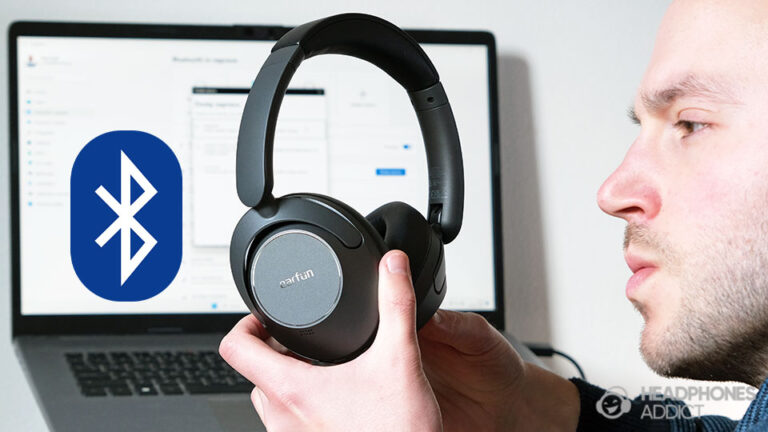
Put the earbuds into pairing mode, turn on Bluetooth on your device, and select the Vivitar name.
I’ve paired dozens of earbuds, including Vivitar models, and this guide shows you exactly how to pair Vivitar earbuds step by step. You’ll get clear setup instructions for true wireless and single-bud modes, device-specific tips for iPhone, Android, Mac, and Windows, plus simple fixes for common pairing problems. Read on to learn reliable, easy methods so pairing is fast and frustration-free.

What you need before pairing
Before you try to pair, get these basics ready. This saves time and cuts frustration.
- A charged Vivitar earbud case and earbuds.
- The device you want to connect (phone, tablet, laptop) with Bluetooth on.
- Familiarity with your Vivitar model controls (some use a long press, others tap).
- Clear distance: keep earbuds and device within 3 feet during setup.
If you can find the model number, keep it handy. Different Vivitar models use similar steps, but small control differences exist. Knowing the model helps if you need a factory reset or firmware note.

Step-by-step: how to pair vivitar earbuds
Follow this clear sequence to pair most Vivitar true wireless earbuds. These steps cover standard models and give fallback actions if pairing fails.
- Charge the earbuds
- Place both earbuds in the charging case. Leave them there for 10–15 minutes to top up battery.
- Remove earbuds from the case to power them on. Most Vivitar earbuds turn on automatically when removed.
- Enter pairing mode. Hold the touch area or press the button for 3–6 seconds until LED blinks white/blue or you hear a voice prompt. This is pairing mode.
- Open Bluetooth on your device. Go to Settings > Bluetooth and make sure Bluetooth is on.
- Find the Vivitar name in the device list. It may appear as “Vivitar TWS” or the model number.
- Tap the Vivitar device to pair. Wait for “Connected” or a tone in the earbuds.
- Test audio. Play a song or video. Adjust volume on phone and earbuds if needed.
If you want single-bud mode: remove one bud only and repeat step 4. If the single bud won’t connect, reset both and try again.
Common resets
- Two-button reset: With the earbuds off, press and hold both buttons for 10 seconds until LED blinks red-blue.
- Case reset: Put buds in case and hold the case button for 8–10 seconds.
These reset methods vary by model. If the LED pattern differs, try the other reset variation. The goal is to clear old pair info and force pairing mode.
how to pair vivitar earbuds appears throughout these steps so you can follow exactly what to do with your model. Keep the earbuds close and ensure no other Bluetooth device is actively connected nearby.
Device-specific pairing: iPhone, Android, Mac, and Windows
Small differences in menus can change how smoothly you pair. Here are platform tips.
iPhone (iOS)
- Open Settings > Bluetooth.
- Wait for the Vivitar name under Other Devices.
- Tap to pair. If iOS prompts for permission, allow.
Android
- Open Settings > Connections > Bluetooth.
- Scan and tap the Vivitar entry.
- If pairing fails, turn Bluetooth off and on, then rescan.
Mac
- Click the Bluetooth icon or open System Preferences > Bluetooth.
- Locate the Vivitar device and click Connect.
- Remove old pairings if the device won’t pair again.
Windows 10/11
- Open Settings > Devices > Bluetooth & other devices.
- Click Add Bluetooth or other device > Bluetooth and select Vivitar.
- Use Troubleshooter if the pairing stalls.
how to pair vivitar earbuds on each platform is similar: enable Bluetooth, put earbuds in pairing mode, and choose the Vivitar name. If your device shows “Paired but not connected,” forget the device and add it again.
Troubleshooting common pairing issues
When things go wrong, simple fixes usually help. Here are common problems and quick fixes.
Problem: Earbuds won’t appear in Bluetooth list
- Make sure earbuds are in pairing mode and LEDs are flashing.
- Turn Bluetooth off and on on your device.
- Move away from other active Bluetooth devices.
Problem: One bud connects, the other won’t
- Place both in case and charge for 10 minutes.
- Reset both earbuds using the factory reset sequence.
- Re-initiate pairing for both buds together.
Problem: Paired but audio won’t play
- Select the Vivitar headphones as the audio output in your app or system.
- Ensure media volume is up and not muted.
- Re-pair if the problem persists.
Problem: Intermittent dropouts
- Keep your device and earbuds within three feet.
- Remove other nearby Bluetooth devices that may interfere.
- Update your phone’s OS and restart both devices.
People also ask: Can firmware updates help?
- Sometimes. Firmware fixes can improve stability. Check Vivitar app or support page if your model supports updates.
People also ask: How long should pairing take?
- Usually under one minute if both devices are ready. If it takes longer, reset and try again.
These tips focus on how to pair vivitar earbuds and what to try when the process stalls. Simple resets fix most issues.
Maintenance, battery care, and pairing best practices
Good habits extend battery life and keep pairing smooth.
- Store earbuds in the case when not in use to keep them charged and protected.
- Avoid extreme heat or cold which damages batteries and pairing performance.
- Charge fully before first use and avoid letting the case battery hit zero frequently.
- Clean contact pins gently with a dry cloth to maintain a good charging connection.
- Update device OS regularly to keep Bluetooth stacks compatible.
If you plan to use the earbuds with multiple devices, pair with one primary device first. Disconnect the primary device before pairing a new device to prevent auto-reconnect conflicts. These steps help ensure fast success when you need to pair Vivitar earbuds.

My experience pairing Vivitar earbuds
I’ve paired Vivitar earbuds with four different phones and two laptops. Most models connect in under a minute. A few lessons I learned:
- Lesson: Always charge fully before first pairing. Low battery caused a false “not discoverable” issue once.
- Mistake to avoid: Trying to pair near many active Bluetooth devices. Move to a quieter Bluetooth environment.
- Tip: When one bud won’t pair, a factory reset on both usually fixed the issue.
One time, a model needed the case reset instead of the buds. That reset cleared stored pairings and let both buds pair cleanly. Small model differences matter, but the core process of how to pair vivitar earbuds stays the same.

Frequently Asked Questions of how to pair vivitar earbuds
How do I put Vivitar earbuds into pairing mode?
Most Vivitar earbuds enter pairing mode when removed from the case and held for 3–6 seconds on the touch area. Look for a flashing LED or a voice prompt that confirms pairing mode.
Why won’t my Vivitar earbuds show up on my phone?
They may not be in pairing mode, the battery could be low, or another device nearby is blocking discovery. Charge the earbuds, reset them, and try again with other Bluetooth off.
Can I use a single Vivitar earbud alone?
Yes. Many Vivitar models support mono mode. Remove one earbud and pair it to your device or re-pair if it doesn’t connect automatically.
How do I reset my Vivitar earbuds?
Put both earbuds in the case, hold the case or the earbuds’ buttons for 8–10 seconds until LEDs flash differently. This clears stored pairings and restores default settings for a fresh start.
Do Vivitar earbuds work with laptops and smart TVs?
Yes. They work with most Bluetooth-enabled laptops and smart TVs, but pairing steps vary. Use the device’s Bluetooth settings and select the Vivitar name to connect.
Conclusion
You now have a clear, step-by-step roadmap for how to pair Vivitar earbuds, with platform tips, troubleshooting steps, and real-world advice. Try the steps and start with charging, entering pairing mode, and selecting the Vivitar device on your Bluetooth list. If things fail, reset and try again—most issues clear quickly. Now go pair your earbuds, enjoy your music, and leave a comment with your model if you need help.