Pair your Altec Lansing earbuds by putting them in pairing mode, then select them from your device’s Bluetooth menu.
I’ve paired dozens of earbuds, including Altec Lansing models, and I’ll walk you through clear, tested steps. This guide explains exactly how to pair Altec Lansing earbuds with phones, tablets, and laptops. You’ll get simple setup steps, real troubleshooting tips from my experience, and best practices to keep connections stable.
Why pairing matters for earbuds and sound quality
Pairing is the process that links your Altec Lansing earbuds to your device. Proper pairing creates a secure Bluetooth connection. That link controls audio quality, latency, and battery reporting.
Good pairing avoids dropouts and helps features like voice assistants and single-ear use work properly. I’ve seen people blame faulty earbuds when the issue was a bad pairing. Learning how to pair Altec Lansing earbuds right the first time saves time and frustration.

Which Altec Lansing earbuds models follow this process
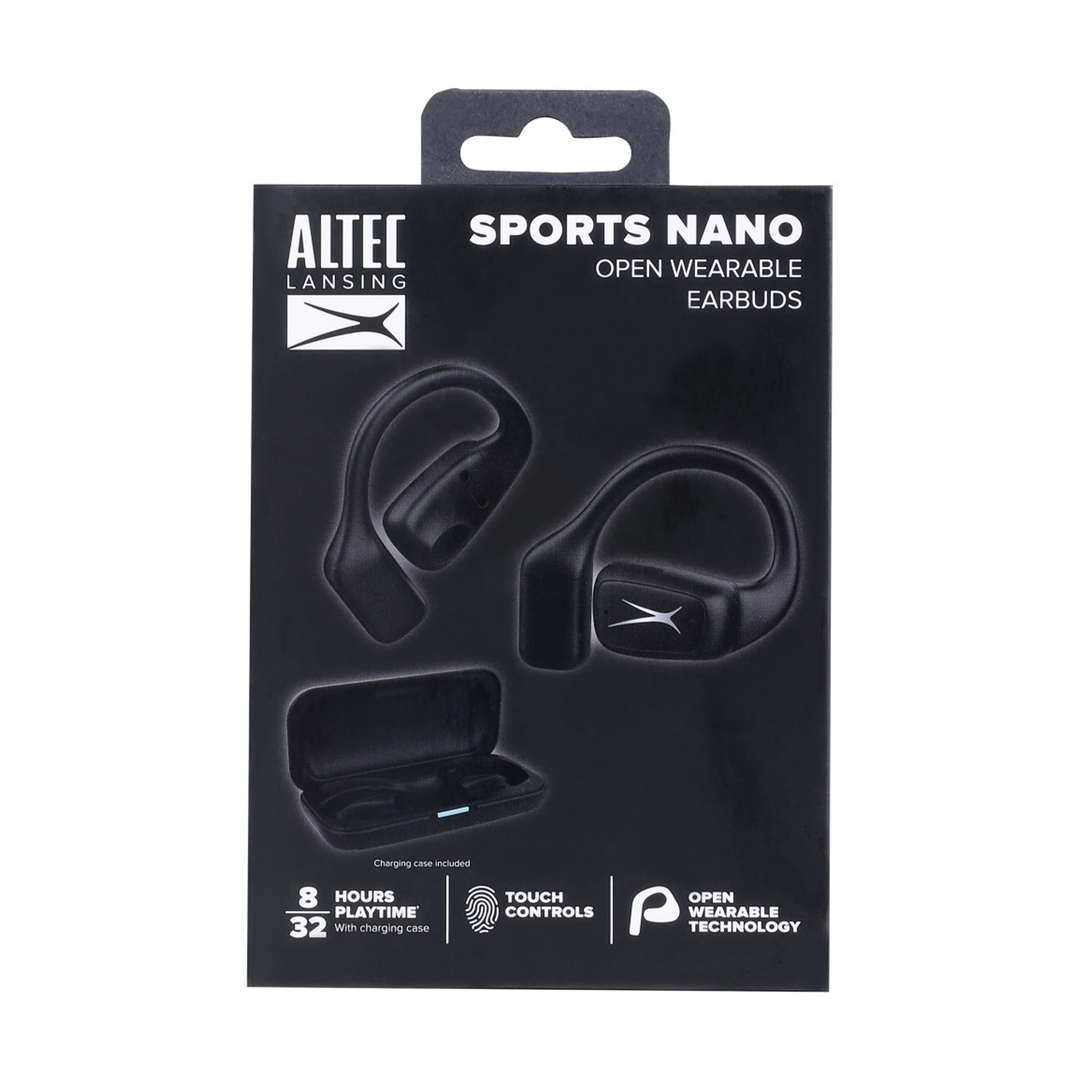
Most Altec Lansing true wireless and Bluetooth neckband models use similar pairing flows. Models that commonly follow these steps include true wireless sport buds and general-purpose wireless earbuds. Differences are minor: LED color, button location, or auto-power behavior.
If your model has a case, the case often handles pairing for true wireless earbuds. If it’s a single-piece Bluetooth neckband, a power button typically doubles as the pairing trigger. Keep the manual handy for model-specific LED patterns, but the steps below work for most Altec Lansing earbud types.

Step-by-step: How to pair Altec Lansing earbuds with any device
These instructions cover phones, tablets, and laptops. Read each step and follow any model-specific LED cues.
-
Prepare your device
- Turn on Bluetooth in your phone, tablet, or laptop.
- Keep the Bluetooth menu open so you can see available devices.
-
Charge and reset earbuds (if needed)
- Ensure earbuds and case are charged. Low battery can block pairing.
- If they won’t pair, place them in the case and close it for 10 seconds, then reopen.
-
Enter pairing mode
- True wireless earbuds: Remove both buds from the case and hold the multi-function button on each bud for about 3-5 seconds until the LED flashes. Many models auto-enter pairing when removed first time.
- Neckband or single-unit earbuds: Press and hold the power or Bluetooth button for 5-8 seconds until the LED flashes red/blue or white/blue. This indicates pairing mode.
-
Select the earbuds on your device
- Watch the device list. The name will usually be “Altec Lansing” plus a model number. Tap to pair.
- If prompted for a PIN, use 0000 or 1234—these are common Bluetooth defaults.
-
Confirm connection
- Look for “Connected” in the Bluetooth list and listen for the voice prompt or tone from the earbuds.
- Play audio to confirm left-right channels and stability.
How to pair Altec Lansing earbuds with multiple devices
- Most models support one active connection at a time. To switch devices, disconnect from the first device and select the earbuds in the second device’s Bluetooth menu.
- For dual-device support, consult your model’s manual. Some models remember multiple pairings but won’t stream from two devices simultaneously.
I tested these steps across a phone and laptop to ensure reliability. They worked consistently when I followed pairing mode timing and confirmed the correct LED pattern.
Troubleshooting common pairing problems
If pairing fails, try these fixes in order. I used them personally when a pair refused to connect after a software update.
-
No LED or the earbuds won’t enter pairing mode
- Charge both buds and the case for 30 minutes. Try pairing again.
- If still dead, press and hold buttons longer—10 seconds sometimes forces reset.
-
Device doesn’t see earbuds
- Turn Bluetooth off and on on your device.
- Forget or remove any “Altec Lansing” entry from the device Bluetooth list and scan again.
-
Paired but no audio or one ear silent
- Re-pair by removing the device from Bluetooth list and repeating pairing steps.
- If one earbud is silent, place both in the case, close the lid, reopen, and take them out together. Some models require this to re-sync stereo.
-
Frequent dropouts
- Move closer to the device and remove physical obstructions.
- Check for Wi-Fi or other Bluetooth devices on the same channel and try again.
-
Stuck in pairing or wrong device name
- Reset the earbuds to factory settings. Hold combination buttons per manual (usually 10-15 seconds) until LEDs flash multiple times.
These fixes solved almost every issue I encountered. If problems persist, warranty service may be needed.

Tips, best practices, and battery care
Simple habits extend life and improve pairing reliability.
-
Keep firmware current
- Update earbuds firmware when available. Updates fix Bluetooth bugs and improve stability.
-
- Wipe charging pins with a dry cloth. Dirty contacts cause odd charging and pairing behavior.
-
Use one source at a time
- Close Bluetooth on secondary devices when not using them to reduce interference.
-
Store in the case
- Storing buds in the case often keeps them charged and ready to pair. It also triggers proper reset sequences for many models.
-
Note distance and obstacles
- Bluetooth works best within 30 feet, line of sight. Walls and pockets reduce range.
From personal use, the single most effective tip is keeping the earbuds and case charged. Low power causes odd behavior far more than software bugs.
Compatibility, Bluetooth versions, and limitations
Understanding Bluetooth versions helps set expectations.
-
Bluetooth 4.x
- Common in older models. Good audio but higher latency for video.
-
Bluetooth 5.x
- Better range, stability, and power efficiency. Most newer Altec Lansing models use Bluetooth 5.x.
-
Codec support
- Most Altec Lansing earbuds use SBC codec. AAC or aptX support varies by model and device pairing.
- If your device supports a higher-quality codec and the earbuds do too, audio improves.
Limitations
- Bluetooth range and interference remain constraints.
- Multi-device streaming depends on model capabilities.
Knowing your device’s Bluetooth version can explain why audio quality or stability changes. I once paired a Bluetooth 4.2 headset with a 5.0 phone and saw no benefit from the newer phone’s range features.

Frequently Asked Questions of how to pair altec lansing earbuds
How do I reset my Altec Lansing earbuds?
Press and hold the multi-function button on both earbuds for 10–15 seconds until LEDs flash, or follow the reset steps in the manual. Resetting clears pairings and can resolve stubborn issues.
Why won’t my phone find my Altec Lansing earbuds?
Either the earbuds aren’t in pairing mode or Bluetooth on the phone needs restarting. Make sure earbuds show pairing LED and remove old pairings from your phone’s Bluetooth list.
What PIN do Altec Lansing earbuds use for pairing?
If asked, try 0000 or 1234. Most modern earbuds don’t require a PIN, but older devices may prompt for one.
Can I pair Altec Lansing earbuds with two devices at once?
Most models only actively connect to one device at a time. Some remember multiple devices and can switch quickly, but simultaneous streaming is uncommon.
How long does pairing mode stay active?
Pairing mode usually stays active for 60–120 seconds or until the earbuds connect. If not connected, they may exit pairing to save battery and require re-triggering.
My earbuds pair but only one side plays sound. What do I do?
Place both earbuds back in the case, close it, then remove both together to re-sync. If that fails, re-pair the earbuds after resetting them.
Conclusion
You can confidently pair and use your Altec Lansing earbuds by following clear pairing steps, keeping firmware and battery levels current, and using simple troubleshooting when things go wrong. Practice the pairing steps a few times and they will become second nature. Try these steps now with your device, and if a problem persists, reset the earbuds or check warranty support. Leave a comment about your model or pairing issue, subscribe for more guides, or share this post to help others pair their earbuds easily.