Hold earbuds near device, enable Bluetooth, then enter pairing mode to connect in seconds.
I’ve tested many Skullcandy models and walked users through pairing dozens of times. This guide explains clearly how to pair Skullcandy earbuds for different models, solves common issues, and gives proven tips so you can connect fast and stay connected. Read on to master pairing and get the most from your Skullcandy earbuds today.
.png?cache=always)
How Skullcandy earbuds work: basic Bluetooth pairing explained
Skullcandy earbuds use standard Bluetooth profiles to send audio from a phone, tablet, or computer. Most models use Bluetooth Low Energy and a primary earbud that shares audio with the other bud. Pairing creates a secure link between your device and the earbuds. Understanding this helps when a connection fails or when you want to pair to a second device.

Step-by-step: how to pair Skullcandy earbuds
Follow these clear steps to pair Skullcandy earbuds with most phones and computers. If a step does not match your model, try the model-specific notes below.
-
Charge the earbuds and case
Ensure both earbuds and the charging case have power. Low battery can block pairing. Charge for at least 15 minutes if the earbuds won’t enter pairing mode. -
Reset Bluetooth on your phone or computer
Turn Bluetooth off, wait 5 seconds, then turn it back on. This clears temporary issues before pairing. -
Open the case or power the earbuds on
For true wireless models, open the charging case and keep the earbuds inside. For single-piece models, press and hold the power button to turn them on. -
Enter pairing mode
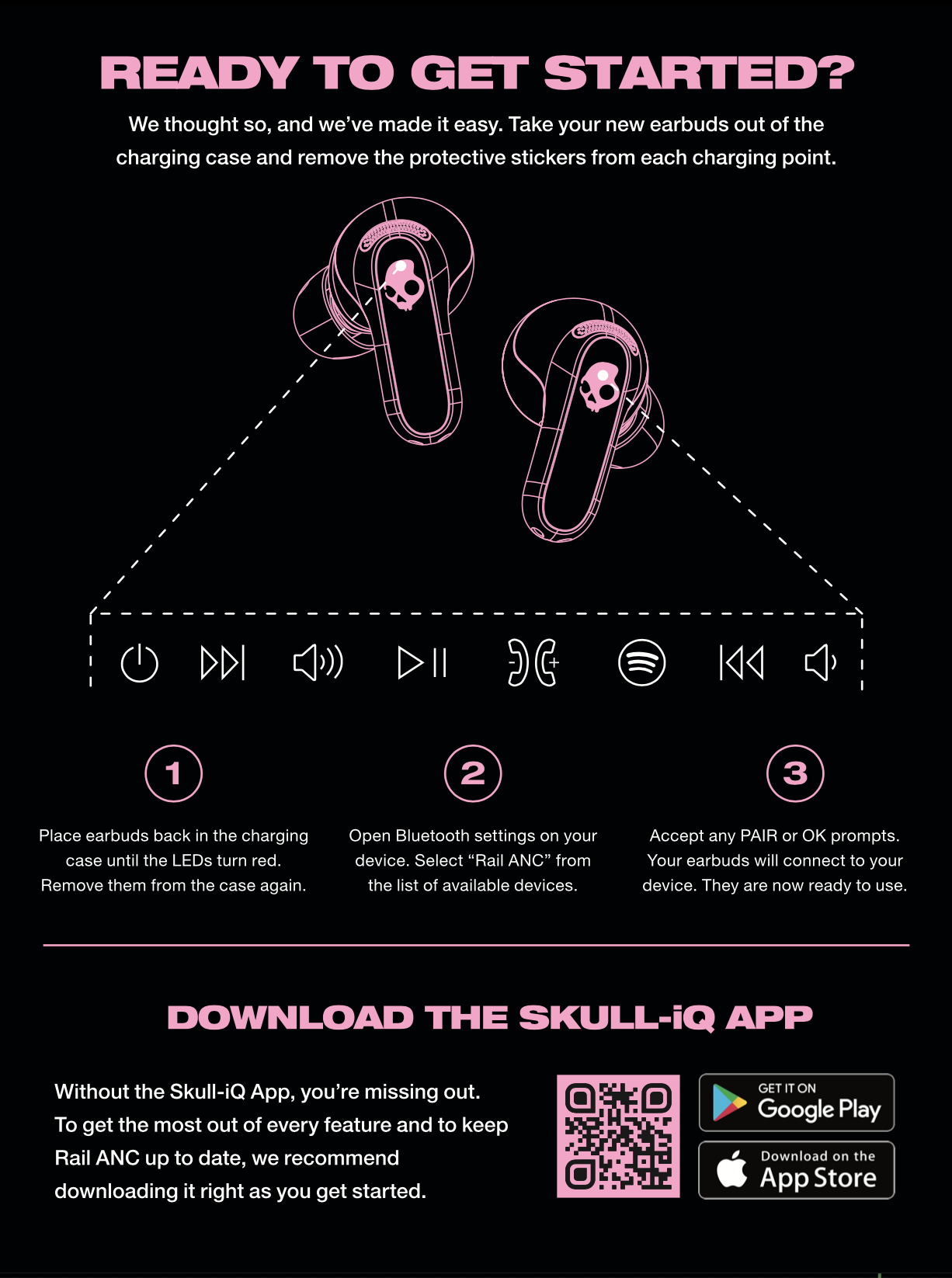
Common methods:- Many Skullcandy true wireless earbuds enter pairing mode automatically when first removed from the case.
- Press and hold the main button on each earbud for 3–6 seconds until a light flashes (blue, white, or red/blue).
- If there’s a single button on the case, press and hold it until LEDs flash.
-
Select Skullcandy on your device
On your phone or computer, open Bluetooth settings, scan, and tap the Skullcandy name shown (for example, “Skullcandy Sesh” or “Skullcandy Indy”). Wait for “Connected” or similar confirmation. -
Test audio and controls
Play music or a video. Check volume and skip/play functions. If the left or right bud is silent, re-seat them in the case and retry.
Model-specific notes:
- Sesh / Indy: Remove from case or hold button 5 seconds to pair.
- Crusher ANC: Turn on both earbuds, press and hold the multi-function button until LED flashes.
- Jib / Ink’d: Press and hold power button until pairing indicator pulses.
Repeat these steps any time you pair to a new device or if you need to re-pair after a reset.
Troubleshooting common pairing problems
If pairing fails, try these fixes in order. Short steps are easier to follow and fix most issues.
-
Earbuds not showing up in Bluetooth list
Restart earbuds and phone. Make sure earbuds are in pairing mode and not already connected to another device. -
One bud won’t connect or is quiet
Place both buds in the case, close it, wait 10 seconds, then remove and try again. If that fails, reset the earbuds (see FAQ). -
Device says “Paired” but no sound
Check the phone’s audio output. Sometimes the device picks a different audio source. Select Skullcandy in the audio output menu. -
Pairing drops frequently
Move away from Wi‑Fi routers, microwave ovens, or crowded Bluetooth areas. Update firmware if your model supports it. -
Bluetooth incompatible or old device
Older devices with outdated Bluetooth versions may connect poorly. Try pairing with a newer phone or update drivers on a computer.
If problems persist after these steps, a factory reset often restores normal pairing. Follow the reset method for your specific model.

Advanced pairing tips and features
These tips help you get extra value from how to pair Skullcandy earbuds and avoid repeat issues.
-
Use the Skullcandy app when available
Some Skullcandy models support firmware updates and EQ via the app. Update firmware first to fix pairing bugs. -
Try single-ear mode
Many Skullcandy earbuds let you use one bud alone. Power on a single bud and pair it to your device for calls or music. -
Multipoint and dual connections
Most Skullcandy earbuds do not support multipoint reliably. To switch devices, disconnect from one and pair to the other. Check your model’s specs for multipoint support. -
Reset before firmware updates
If an update fails or the app can’t find earbuds, reset the buds, then retry the update. -
Keep earbuds clean
Dirty contacts in the case can block charging and pairing. Wipe contacts gently with a dry cloth.
Using these steps increases the chance that pairing works smoothly and stays stable.
Compatibility, battery, and Bluetooth versions
Knowing device compatibility helps when considering how to pair Skullcandy earbuds.
-
Bluetooth versions matter
Bluetooth 4.2 and later work fine for most audio. Newer earbuds often use Bluetooth 5.0 for better range and stability. -
Platform support
Skullcandy earbuds pair with iOS, Android, Windows, and macOS devices. Some features like voice assistant activation can vary by platform. -
Battery impact on pairing
Low battery can prevent a successful pairing. Always charge the case and earbuds before pairing attempts. -
Range and environment
Expect 30–50 feet of range in open space. Walls and other electronics reduce that range.
If your device is older or uses a nonstandard OS, check compatibility notes from the manufacturer before purchase or pairing.

Personal experience and practical tips
I’ve paired Skullcandy earbuds with phones, laptops, and smart TVs. My go-to routine works most of the time.
-
Tip 1: Start simple
Power on only the earbuds and your phone. Avoid complex step changes like enabling airplane mode first. -
Tip 2: Clean contacts regularly
I once spent 20 minutes troubleshooting because a charging contact had earwax. A quick clean fixed it. -
Tip 3: Keep the firmware current
Updating via the Skullcandy app removed a pairing bug on one of my older pairs. -
Tip 4: Label your earbuds in Bluetooth settings
Rename the device on your phone so you can spot them quickly when multiple Skully devices are nearby.
One mistake I made early on was trying to pair earbuds that were still connected to my laptop. Disconnect first, then pair the new device. This keeps things quick and frustration-free.

Frequently Asked Questions of how to pair skullcandy earbuds
How do I put Skullcandy earbuds in pairing mode?
Press and hold the main button on the earbuds for about 3–6 seconds until the LED flashes. For many models, removing the earbuds from the case automatically starts pairing mode.
Why won’t my Skullcandy earbuds show up on my phone?
Make sure the earbuds are in pairing mode, the phone’s Bluetooth is turned on, and the earbuds aren’t already connected to another device. Also ensure the earbuds are charged.
How do I reset my Skullcandy earbuds?
Reset methods vary by model but usually involve holding the power or multi-function button for 10–15 seconds or placing both buds in the case and holding the case button. Check your model’s quick guide if unsure.
Can I pair Skullcandy earbuds to two devices at once?
Most Skullcandy earbuds do not support seamless multipoint pairing. You can pair to multiple devices, but you usually must disconnect one before using the other.
What should I do if one earbud is louder than the other?
Check balance settings on your device first. If balance is normal, clean earbud contacts, reseat the earbuds in the case, and re-pair them. If imbalance continues, try a full reset.
Will old phones work with Skullcandy earbuds?
Yes, but very old phones with outdated Bluetooth may have limited performance. For best results, use a device with Bluetooth 4.2 or newer. Newer Bluetooth gives better stability and battery life.
Conclusion
You now have a clear, practical plan for how to pair Skullcandy earbuds across models and devices. Start by charging the buds, enter pairing mode, and select the Skullcandy device in your Bluetooth menu. Use the troubleshooting steps and advanced tips when problems arise. Try these steps today, update firmware if available, and leave a comment below about your model or pairing experience so others can learn from your results.