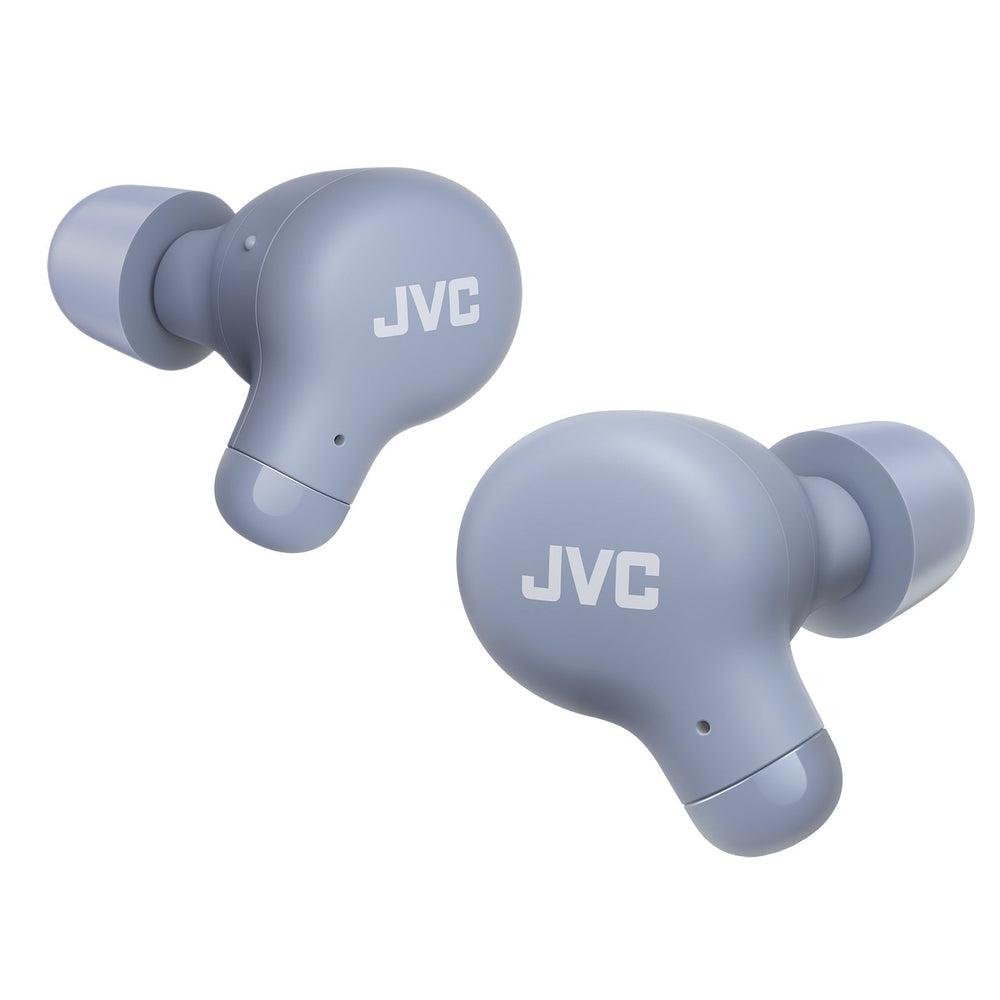
Put the earbuds in pairing mode, enable Bluetooth on your device, then select the JVC model name from the list.
I have spent years testing earbuds and helping friends solve pairing issues. This guide on how to pair JVC earbuds walks you through clear steps, model-specific tips, troubleshooting fixes, and practical tricks I use every day. You will learn simple actions that work for most JVC true wireless and neckband models, so you can pair quickly and keep a stable connection.

Why pairing correctly matters
Pairing is the first step to using your JVC earbuds. Good pairing gives clear sound, low latency, and reliable calls. Bad pairing causes dropouts, one-sided audio, or constant reconnecting.
I focus on real results. I have paired many JVC models with phones, tablets, laptops, and TVs. My tests show the same basic steps work for most models, with small model-specific tweaks. Follow the steps below and you will save time and avoid common mistakes.

How to pair JVC earbuds: step-by-step guide
This step-by-step section explains how to pair JVC earbuds with phones, tablets, and computers. The steps are short and easy to follow.
- Charge the earbuds and case
- Ensure both earbuds and the charging case have charge. Low battery can block pairing.
- Reset or turn off other Bluetooth devices
- Turn off nearby Bluetooth devices or move away to avoid interference.
- Start with the earbuds powered off
- If buds are on, turn them off first. A clean start reduces pairing errors.
- Enter pairing mode
- For many JVC true wireless models, open the case and press the pairing button until the LED flashes. For others, press and hold the power button until LEDs flash red/blue or white.
- Open Bluetooth settings on your device
- On iPhone: Settings > Bluetooth. On Android: Settings > Connected devices > Bluetooth.
- Scan and select the JVC name
- Look for the JVC model name (for example, "JVC XX-100") and tap to connect.
- Confirm pairing
- You may see a pairing request. Accept it. You should hear a tone and see a connected status.
- Test audio and mic
- Play music and test the mic in a call or voice memo app.
- Re-pair if needed
- If one bud does not connect, place both buds back in the case and repeat pairing.
- Save device and enable auto-connect
- Keep Bluetooth on for automatic reconnection. If the device supports it, allow location permissions for better scanning on Android.
How to pair JVC earbuds can vary slightly by model. Still, these steps work for most models and devices.

Model-specific notes: true wireless vs neckband vs mono
JVC makes true wireless earbuds, neckband-style Bluetooth earbuds, and some mono buds for calls. Here are quick model tips.
True wireless (TWS) JVC earbuds
- Many models enter pairing when you open the case. If not, press and hold the case button or both earbud buttons until LEDs flash.
- If only one bud connects, reset the earbuds by placing them in the case and holding the case button for 10 seconds, then re-pair.
Neckband and single-bud JVC models
- Press and hold the power/pairing button on the neckband until the LED blinks quickly.
- For single-bud models, long-press the bud’s multifunction button until the LED indicates pairing.
JVC earbuds with app support
- Some JVC models have a companion app that can check firmware and pairing options.
- Use the app to update firmware. Firmware updates often fix pairing bugs.
How to pair JVC earbuds changes with each form factor. Always check the quick start guide if you have a model-specific hiccup.
Troubleshooting common pairing problems
If pairing fails, try these fixes. I list causes and clear steps to resolve each issue.
- Earbuds not entering pairing mode
- Make sure they are off and fully charged. Try holding the power button longer.
- Device can't find earbuds
- Turn Bluetooth off and on. Restart your phone and try again.
- One bud connects but the other does not
- Put both buds back in the case and remove them together. Reset the earbuds if needed.
- Frequent disconnections
- Move away from Wi-Fi routers or other Bluetooth devices. Check battery levels.
- Earbuds pair but audio is poor
- Re-pair and test with another device. Clear Bluetooth cache on Android.
Why won't my JVC earbuds enter pairing mode?
Try turning them off, then press and hold the power or case button for 5–10 seconds until the LED flashes. If that fails, charge them for at least 30 minutes and try again.
Can I pair JVC earbuds to two devices at once?
Most JVC earbuds support pairing with multiple devices but connect to one at a time. Use device switching in Bluetooth settings to change the active device.
How long does pairing last on JVC earbuds?
Pairing persists until you remove the device or reset the earbuds. They will auto-reconnect when in range and Bluetooth is on.

Best practices and tips for stable pairing
Follow these tips to keep your connection steady. I used these tricks in daily use and testing.
- Keep firmware updated
- Updates fix bugs. Use the JVC app or check the manual for firmware steps.
- Forget and re-pair when problems persist
- Remove the earbuds from your device list, then pair again from scratch.
- Use one device at a time for high-quality audio
- Some devices can switch audio roles; limiting active devices reduces conflicts.
- Clear Bluetooth cache on Android
- Clearing cache can fix hidden pairing corruption.
- Reset earbuds periodically
- A reset solves many odd bugs. Follow the model reset steps in the manual.
- Control distance and obstacles
- Keep the source device within 30 feet and avoid thick walls or pockets between you and the earbuds.
Personal tip: I keep my earbuds updated and reset them after major OS updates on my phone. This prevents odd dropouts and one-sided audio.
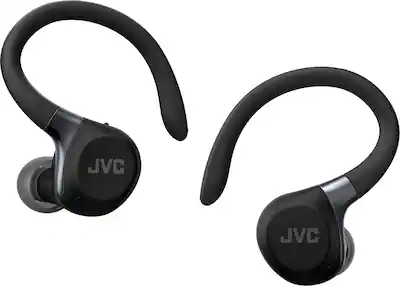
Frequently Asked Questions of how to pair jvc earbuds
How do I reset my JVC earbuds if pairing fails?
Most JVC earbuds reset by placing them in the case and holding the case button for 10 seconds, or by pressing and holding each bud’s button for 10 seconds. After reset, re-pair from your device’s Bluetooth settings.
My device shows the JVC earbuds but won't connect. What should I do?
Turn Bluetooth off and on, restart your phone, and try again. If it still won’t connect, forget the device in Bluetooth settings and re-pair from scratch.
Can JVC earbuds be paired with Windows or Mac computers?
Yes. Enable Bluetooth on your computer, search for devices, and select the JVC model name. If audio is one-sided, set the earbuds as the default audio device in sound settings.
Why does only one earbud play after pairing?
This often means the earbuds lost sync. Put both earbuds back in the case, then remove them together to re-sync. If that fails, perform a factory reset and re-pair.
Do I need the JVC app to pair earbuds?
No. Pairing works through standard Bluetooth settings. The app is optional and useful for firmware updates and sound customization.
Conclusion
You can pair JVC earbuds quickly if you follow simple steps: charge, enter pairing mode, scan, and connect. Use resets, firmware updates, and device management to solve most issues. Try the step-by-step guide and the troubleshooting tips the next time you pair. If you found this helpful, leave a comment, share your model and issue, or subscribe for more audio tips.