Pairing is simple: put earbuds in pairing mode, enable Bluetooth on your device, then select them.
I’ve spent years testing headphones and solving Bluetooth headaches, so I know how to pair true wireless earbuds quickly and reliably. This guide walks you through clear steps, common problems, device-specific tips, and real-life tricks I learned from testing dozens of earbuds. Read on and you’ll pair true wireless earbuds with confidence every time.
Why pairing matters and how Bluetooth works
Pairing links your phone, tablet, or computer to your earbuds so audio and controls work reliably. Good pairing reduces dropouts, ensures left/right channels sync, and enables features like voice assistant and firmware updates. Understanding the basics helps you troubleshoot faster when a connection fails.
Bluetooth uses a handshake process and a secure key exchange to create a trusted link between devices. True wireless earbuds use small batteries and chips that prioritize low power and low latency. Knowing these limits explains why steps like charging, resetting, or updating firmware often fix pairing problems.

Before you start: quick checklist
Prepare both the earbuds and the device for a smooth pairing session. A short prep step saves time and avoids common hiccups.
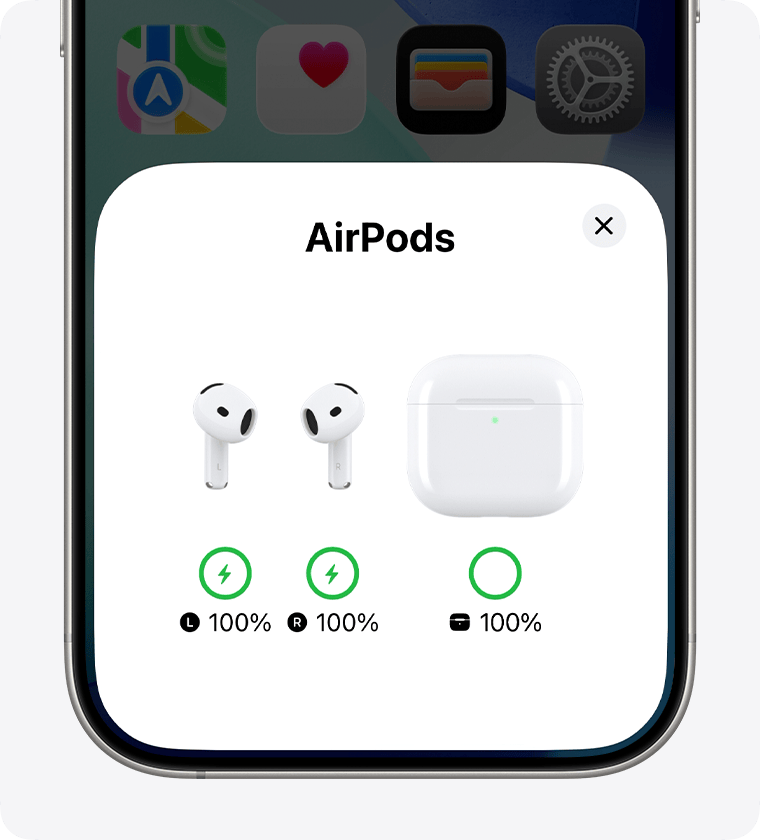
- Charge both earbuds and the case to at least 50% to prevent power-related failures. Low battery can block pairing or drop connections.
- Turn off other Bluetooth devices nearby to avoid accidental pairing or interference. Too many active connections can confuse your phone.
- Update your phone, tablet, or laptop operating system if possible. New OS versions often fix Bluetooth bugs.
- Read the earbuds manual for the exact pairing method. Brands use slightly different button combos and timing.
- Have your device’s Bluetooth settings open and ready to scan. This speeds up the process once the earbuds enter pairing mode.

Step-by-step: how to pair true wireless earbuds (generic)
These universal steps apply to most modern true wireless earbuds. Follow them in order and you’ll pair true wireless earbuds with nearly any device.
- Charge and open the case
- Ensure earbuds and case are charged. Place earbuds in the case and open the lid to power them on.
- Enter pairing mode
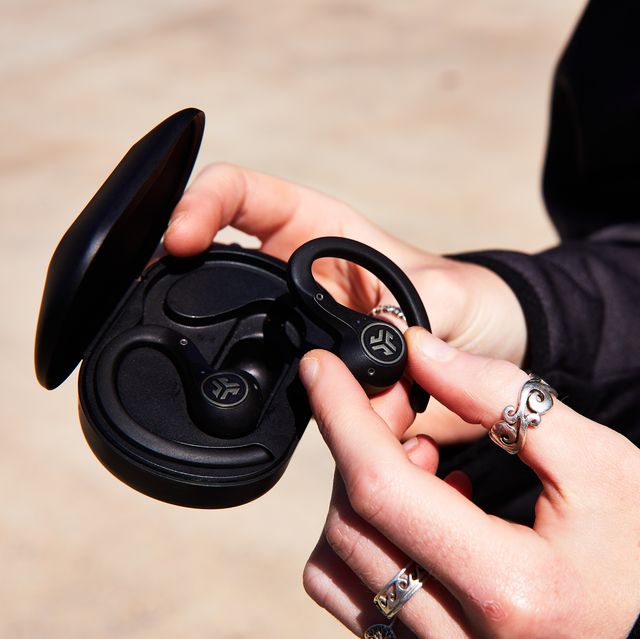
- Many earbuds start pairing automatically when first used. If not, press and hold the touch pads or physical buttons on both earbuds for 3–5 seconds until LED flashes or voice prompts indicate pairing mode.
- Enable Bluetooth on your device
- Open Settings > Bluetooth on your phone, tablet, or laptop. Turn Bluetooth on and keep the screen awake.
- Scan and select
- Look for the earbuds’ name in the available devices list. Tap to connect. You might see left/right tags or a model number.
- Confirm and test
- Once paired, play audio and test mic and controls. Adjust volume and check for left/right stereo balance.
- Save and reconnect
- Most devices will remember the earbuds. Next time you open the case or take the earbuds out, they should reconnect automatically.
Tips for specific behaviors:
- If pairing fails, remove any old ghost entries of the same model from your device’s Bluetooth list. Then retry the steps above.
- If one earbud pairs but the other doesn’t, reinsert both in the case and perform a reset (see troubleshooting).

Troubleshooting common pairing problems
Even with the right steps, problems happen. Here are fixes I used during testing.
- Earbuds not appearing in scan results
- Make sure they are in pairing mode and not already connected to another device. Close other Bluetooth apps and move closer to the device.
- Single earbud connects only
- Reset both earbuds by following the manufacturer’s reset sequence. Place them in the case, hold the button for 10 seconds, then redo pairing.
- Intermittent audio or dropouts
- Reduce wireless interference by moving away from Wi-Fi routers, microwaves, or other Bluetooth devices. Update firmware if available.
- Device says “pairing failed”
- Delete the earbuds from Bluetooth settings (forget/remove device), reboot your phone, and try pairing again.
- Mic not working or call audio missing
- Check app permissions and Bluetooth audio profile settings. Some devices separate media and call audio and require specific settings.
Advanced tips and device-specific notes
Certain brands and operating systems add quirks. These tips save time if you use multiple devices.
- Android phones
- Use the Bluetooth settings to grant location and nearby device permissions, which can affect discovery. Enable high-quality audio codecs (AAC/aptX) under developer options for better sound.
- iPhone and iPad
- iOS often shows a quick pairing prompt at the top of the screen. Use the Control Center to switch audio between devices quickly.
- Windows laptops
- Remove old Bluetooth drivers if pairing fails repeatedly. Use the Bluetooth Troubleshooter in Windows settings.
- macOS
- Hold Shift + Option and click the Bluetooth icon to access detailed logs for diagnostics. Reset the Mac Bluetooth module if needed.
- Gaming consoles and TVs
- Many consoles block microphone features on Bluetooth earbuds. Use a manufacturer dongle when available for low-latency audio.
- Multipoint and sharing
- Some earbuds support simultaneous pairing with two devices. Follow the brand guide to enable multipoint and remember that multipoint may reduce battery life.
Personal note: I once paired a set of earbuds to a smart TV that kept reconnecting to my phone. Turning off Bluetooth on the phone and updating the TV firmware solved it. Learning small device quirks prevents frustration.

Care, updates, and best practices
Good maintenance keeps pairing smooth over time. These habits prevent many issues.
- Keep firmware updated
- Firmware updates fix pairing bugs and improve stability. Check the brand app regularly.
- Store earbuds in the case
- The case protects them and conserves battery. Always close the lid to preserve pairing state.
- Avoid water and extreme heat
- Moisture and heat can damage Bluetooth chips and reduce pairing reliability.
- Clean the contacts
- Dirty charging contacts can prevent proper charging and cause weird pairing behavior. Use a soft cloth or cotton swab.
- Reset as a last resort
- Use reset when other options fail. Resetting clears stored pairings and often resolves persistent issues.

Frequently Asked Questions of how to pair true wireless earbuds
How do I put earbuds into pairing mode?
Most earbuds enter pairing mode by pressing and holding touchpads or buttons for 3–5 seconds until an LED flashes or you hear a voice prompt. If that doesn’t work, check the manual for the exact button combination.
Why won’t my device find the earbuds?
Your earbuds might already be paired to another device or not in pairing mode. Turn off other Bluetooth devices, enable pairing on the earbuds, and rescan from your device’s Bluetooth settings.
How can I fix one earbud not connecting?
Try placing both earbuds back in the case, performing a reset, and then pairing again. Often a factory reset of the earbuds resolves single-earbud pairing issues.
Do earbuds need firmware updates for pairing?
Yes, firmware updates can fix pairing bugs and improve stability. Use the manufacturer’s app or website to check and install updates when available.
Can I pair earbuds with multiple devices at once?
Some earbuds support multipoint pairing with two devices. Check the model’s specs; multipoint can make switching easier but may use more battery.
Conclusion
Pairing true wireless earbuds becomes simple when you follow clear steps, prepare devices, and use good habits. Start by charging, entering pairing mode, and selecting the earbuds in Bluetooth settings; then use resets and updates if needed. Practice these tips and you’ll spend less time troubleshooting and more time enjoying music, calls, and podcasts.
Try the steps now with your earbuds, leave a comment with your model if you hit a snag, or subscribe for more hands-on guides.