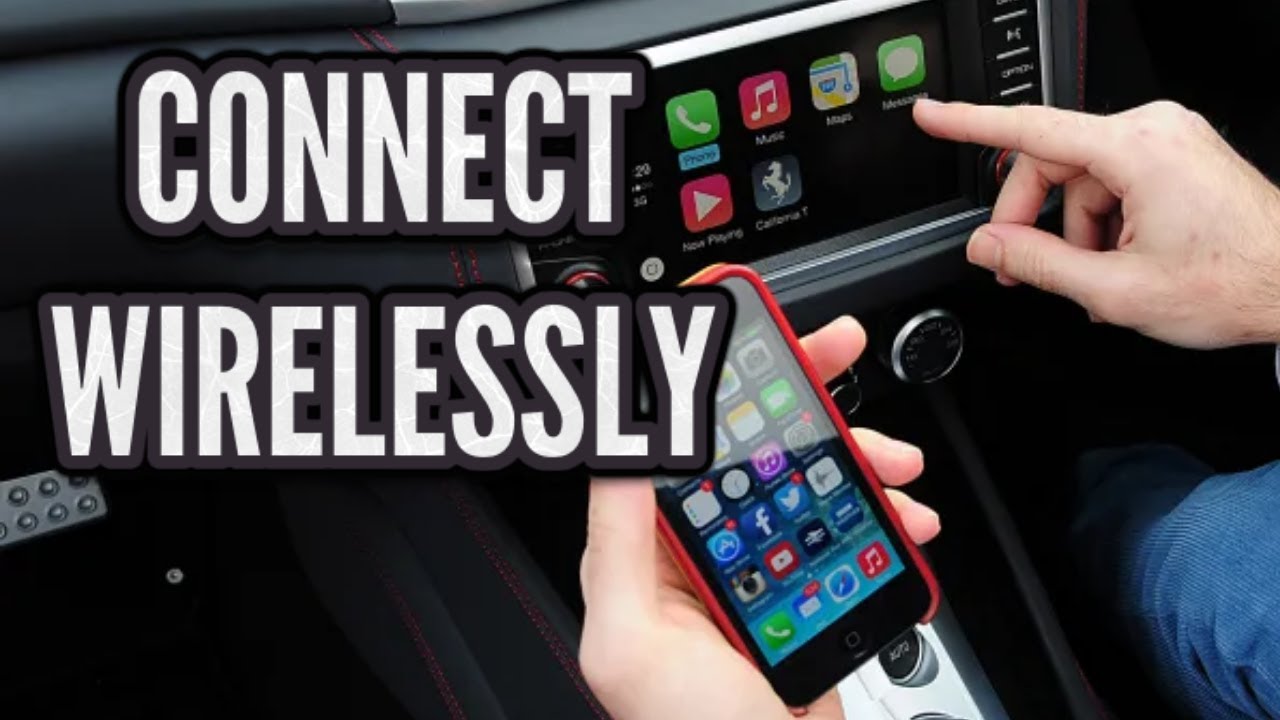
To connect CarPlay wirelessly, make sure your vehicle supports wireless Apple CarPlay, enable Bluetooth and Wi-Fi on your iPhone, pair your phone with the car, and complete the CarPlay setup from your vehicle’s display.
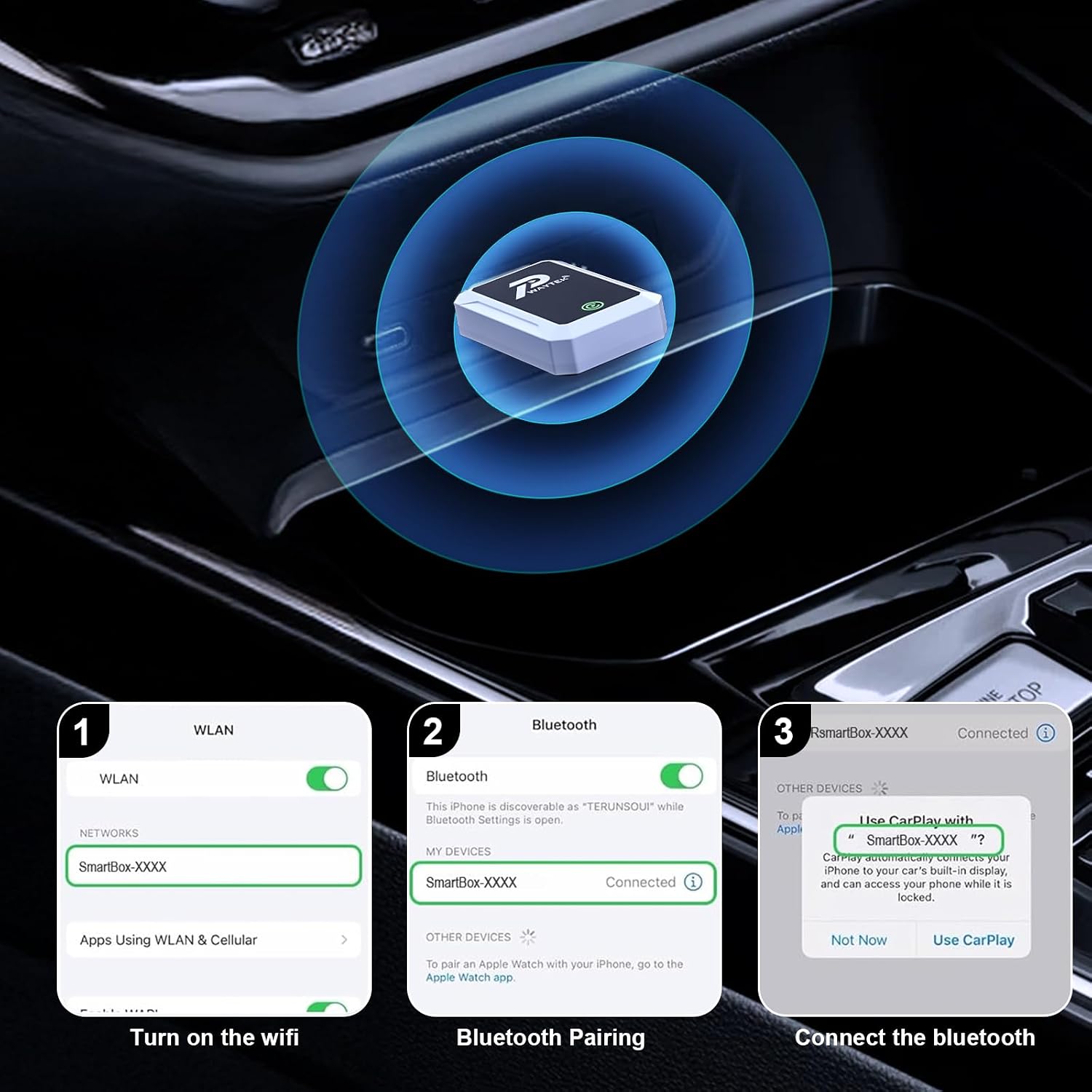
Across the United States, many newer vehicles from brands such as Ford, Honda, Toyota, Hyundai, BMW, and others include wireless Apple CarPlay support, allowing drivers to access navigation, calls, messages, music, and compatible apps without plugging in a Lightning or USB-C cable. The wireless connection uses Bluetooth for initial pairing and Wi-Fi for the higher-speed data connection required by CarPlay.
Before starting the setup process, confirm that both your iPhone and vehicle support wireless CarPlay. Vehicles that only support wired CarPlay usually require a compatible wireless CarPlay adapter connected to the USB port. The exact menus and pairing steps can vary by vehicle manufacturer, so checking the owner’s manual remains the most reliable source for model-specific instructions.
Source: ottocast.com
What You Need Before Connecting CarPlay Wirelessly
Before attempting a wireless CarPlay connection, check that your equipment meets the basic requirements. Wireless Apple CarPlay is not available on every vehicle, even if the vehicle has a touchscreen or supports wired CarPlay.
You need an iPhone model that supports CarPlay, a compatible iOS version, and a vehicle infotainment system that includes wireless CarPlay functionality. If your car only supports wired CarPlay, a third-party wireless CarPlay adapter may be required.
Source: storage.googleapis.com
Compatible iPhone
Your iPhone must support Apple CarPlay. Most modern iPhone models with recent iOS versions can use CarPlay when paired with compatible vehicles.
Wireless CarPlay Vehicle Support
The car’s infotainment system must support wireless CarPlay through factory-installed hardware.
Bluetooth and Wi-Fi Enabled
Both wireless features must remain active because CarPlay uses them together during the connection process.
How to Connect CarPlay Wirelessly Step by Step
The wireless CarPlay setup process usually takes only a few minutes. Park your vehicle safely before pairing devices because some vehicles restrict setup options while driving.
Follow these general steps. Your vehicle’s menu names may be slightly different depending on the manufacturer.
Source: hitchesguide.com
Step 1: Start Your Vehicle
Turn on your vehicle and open the infotainment system’s Bluetooth or smartphone connection menu.
Step 2: Enable iPhone Wireless Settings
On your iPhone, turn on Bluetooth, Wi-Fi, and Siri because CarPlay requires these features for full operation.
Step 3: Pair Your iPhone
Select your vehicle from the Bluetooth devices list and accept the pairing request on both the phone and vehicle display.
Step 4: Allow CarPlay Access
Approve the CarPlay connection prompt and allow contacts, messages, and notifications if you want those features available.
How to Know Wireless CarPlay Connected Successfully
A successful connection normally opens the CarPlay interface automatically on your vehicle screen. You should see familiar CarPlay apps such as Maps, Phone, Messages, Music, or other compatible applications.
CarPlay Dashboard Appears
The vehicle display changes from the standard infotainment menu to the Apple CarPlay interface.
Phone Functions Work
Calls, navigation directions, and compatible apps respond through the vehicle controls.
How Wireless CarPlay Works
Wireless CarPlay combines two wireless technologies instead of using only Bluetooth. Bluetooth helps the vehicle and iPhone discover and authenticate each other, while Wi-Fi provides the faster connection needed to transmit the CarPlay interface, audio, and app data.
This design allows drivers to place their phone in the vehicle and start using CarPlay without physically connecting a cable. However, wireless operation may use more iPhone battery compared with wired CarPlay because the phone maintains a wireless data connection.
Source: storage.googleapis.com
Bluetooth Pairing
Creates the initial connection between the iPhone and vehicle system.
Wi-Fi Data Link
Handles the larger amount of data required for wireless CarPlay features.
How to Make Wired CarPlay Wireless
If your vehicle supports only wired CarPlay, you may be able to add wireless functionality using a compatible wireless CarPlay adapter. These adapters connect to the vehicle’s existing CarPlay USB port and create a wireless bridge between the car and iPhone.
Compatibility varies between vehicle models, adapter versions, and software updates. Check the adapter manufacturer’s compatibility list before purchasing because not every USB CarPlay system works with every adapter.
Source: manuals.plus
Connect the Adapter
Plug the adapter into the same USB port normally used for wired CarPlay.
Pair Your iPhone
Follow the adapter instructions to complete Bluetooth pairing and wireless setup.
Common Wireless CarPlay Problems and Fixes
Wireless CarPlay connection problems are usually caused by compatibility issues, outdated software, saved Bluetooth pairings, or incorrect settings. Start with simple checks before resetting the entire system.
Avoid repeatedly deleting settings without checking the cause first. Removing all paired devices can require setting up other phones again.
Source: manuals.plus
CarPlay Does Not Appear
Confirm that Bluetooth, Wi-Fi, and Siri are enabled. Also check whether wireless CarPlay is turned on in the vehicle settings.
Connection Drops Frequently
Restart the iPhone, restart the infotainment system if possible, and remove outdated Bluetooth pairings.
CarPlay Is Slow or Laggy
Check for software updates and reduce wireless interference from nearby devices.
Resetting Wireless CarPlay Connection
If basic troubleshooting does not work, remove the vehicle from the iPhone CarPlay settings and delete the iPhone from the vehicle’s paired devices. Then repeat the pairing process from the beginning.
Remove Old Connection
Delete previous Bluetooth and CarPlay records from both devices.
Pair Again
Create a fresh wireless connection using the vehicle’s recommended setup process.
Frequently Asked Questions
Q
Can I use CarPlay wirelessly if my car only has wired CarPlay?
Yes, in many cases you can use a compatible wireless CarPlay adapter to convert a wired CarPlay system into a wireless connection. Compatibility depends on your vehicle model and the adapter.
Q
Does wireless CarPlay work without Bluetooth?
No. Bluetooth is generally needed for the initial wireless CarPlay pairing process. Wi-Fi is then used for the main CarPlay connection.
Q
Why does my iPhone connect to Bluetooth but not CarPlay?
A Bluetooth connection alone does not guarantee CarPlay access. Check that your vehicle supports CarPlay, Siri is enabled, and wireless CarPlay permissions are allowed on your iPhone.
Q
Does wireless CarPlay drain the iPhone battery faster?
Wireless CarPlay may use more battery than wired CarPlay because the iPhone maintains Bluetooth and Wi-Fi communication during use. Long trips may still require charging.
Q
Do all iPhones support wireless CarPlay?
Not every iPhone and vehicle combination supports wireless CarPlay. Check your specific iPhone model, iOS version, and vehicle compatibility information.
✦ Wrapping Up
Conclusion
Connecting CarPlay wirelessly usually requires only a compatible vehicle, an updated iPhone, and a proper Bluetooth and Wi-Fi pairing process. Once configured, the system can automatically connect when you enter the vehicle.
When wireless CarPlay fails, checking compatibility, updating software, and resetting old pairings are the most practical troubleshooting steps. Vehicles without factory wireless CarPlay may need a compatible adapter to add this feature.
💡 Key Takeaway
Before troubleshooting, confirm your vehicle supports wireless CarPlay. Then follow the official pairing steps for your vehicle model and keep your iPhone software updated for the most reliable connection.