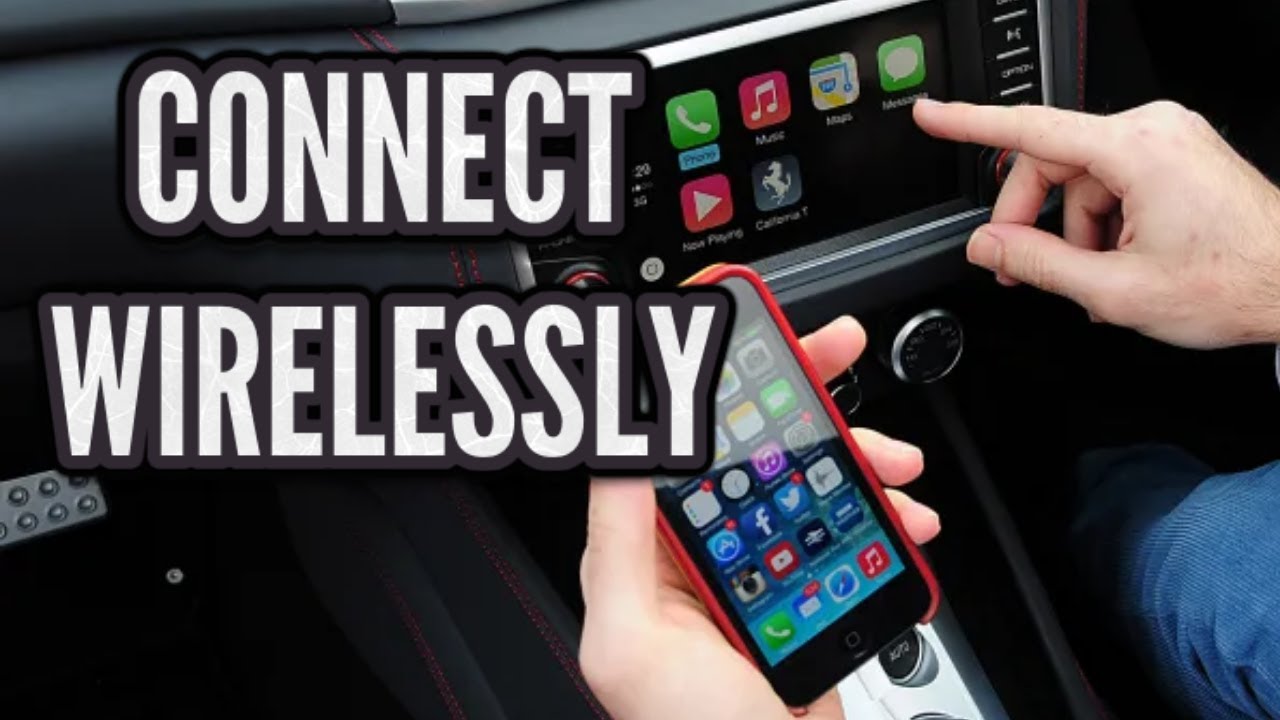
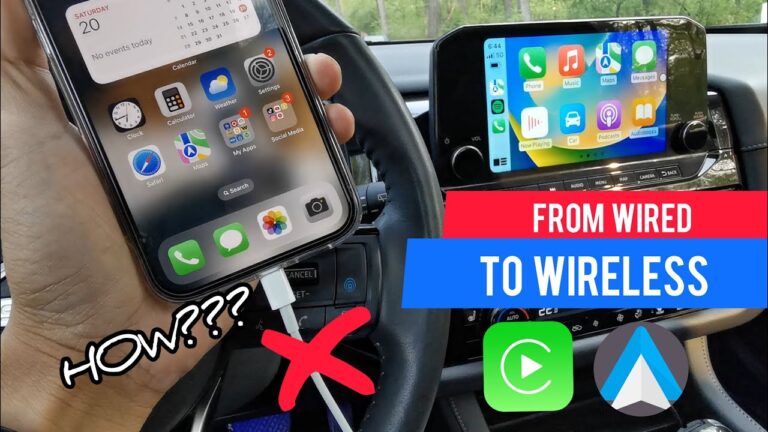
To connect wireless CarPlay, make sure your iPhone and vehicle support wireless Apple CarPlay, enable Bluetooth and Wi-Fi, pair your iPhone with the car, and follow the on-screen setup instructions.
Drivers across the United States use Apple CarPlay to access navigation, calls, messages, music, and compatible apps through their vehicle’s infotainment system. Wireless CarPlay removes the need for a Lightning or USB-C cable in supported vehicles by creating a connection between the iPhone and the car using Bluetooth and Wi-Fi technologies.
The setup process depends on your vehicle model, infotainment system, and iPhone version. Some newer cars include built-in wireless CarPlay, while older vehicles may require a compatible wireless CarPlay adapter to convert an existing wired CarPlay connection.
Source: carluex.store
What You Need Before Connecting Wireless CarPlay
Before starting the setup, confirm that your vehicle and iPhone meet the requirements for wireless Apple CarPlay. Wireless CarPlay is not available on every vehicle that supports standard Apple CarPlay.
Apple CarPlay compatibility varies by manufacturer, model year, and infotainment system. Checking your owner’s manual or vehicle manufacturer’s documentation is the most reliable way to confirm support.
Source: storage.googleapis.com
Compatible iPhone
You need an iPhone model that supports Apple CarPlay and a current version of iOS recommended by Apple for the best compatibility.
Wireless CarPlay Support
Your vehicle must have factory-installed wireless CarPlay or a compatible wireless CarPlay adapter connected to a wired CarPlay system.
Bluetooth and Wi-Fi Enabled
Wireless CarPlay uses Bluetooth for initial discovery and Wi-Fi for the main data connection.
How Wireless CarPlay Works
Wireless CarPlay creates a communication link between your iPhone and the vehicle’s infotainment system. Bluetooth helps identify and pair devices, while a Wi-Fi connection allows faster data transfer for maps, audio, and app features.
Bluetooth
Used mainly during the discovery and pairing process between the iPhone and vehicle.
Wi-Fi
Provides the higher-bandwidth connection needed for CarPlay functions after pairing is complete.
How to Connect Wireless CarPlay Step by Step
The exact menu names differ between vehicles, but most wireless CarPlay setups follow the same general process. Complete the first connection while the vehicle is parked to avoid distractions while driving.
Source: manuals.plus
Step 1: Start Your Vehicle
Turn on the ignition and activate the vehicle’s infotainment system.
Step 2: Enable iPhone Wireless Settings
On your iPhone, turn on Bluetooth, Wi-Fi, and Siri because CarPlay requires these features for proper operation.
Step 3: Open the CarPlay Pairing Menu
Use the infotainment display to search for available phones or start wireless CarPlay pairing.
Step 4: Pair Your iPhone
Select your vehicle from the Bluetooth list on your iPhone and confirm the pairing request.
Step 5: Accept CarPlay Permissions
Approve CarPlay access when your iPhone displays permission requests for contacts, messages, and other features.
How to Know Wireless CarPlay Connected Successfully
A successful connection usually shows the CarPlay interface on your vehicle screen within a few seconds after starting the car. Your iPhone may also display the CarPlay icon or connection status.
CarPlay Home Screen Appears
The vehicle display changes from the regular infotainment menu to the Apple CarPlay interface.
Apps Are Available
Compatible apps such as Maps, Phone, Messages, and Music become accessible through the vehicle screen.
How to Connect Wireless CarPlay in a Car That Only Has Wired CarPlay
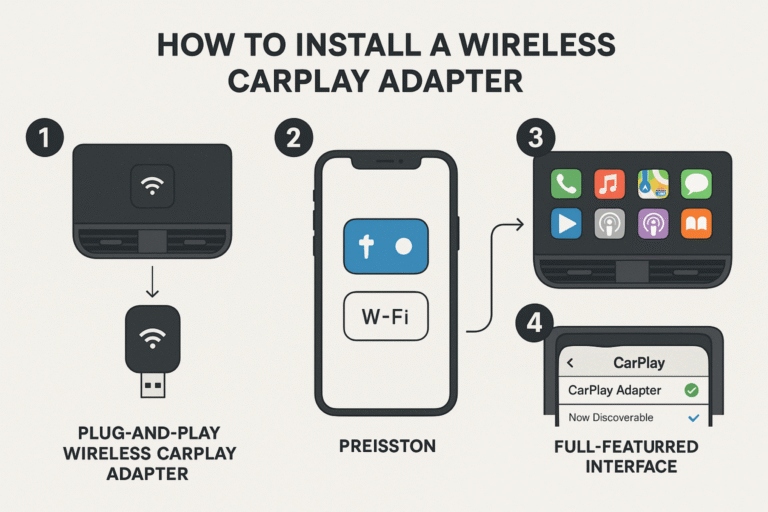
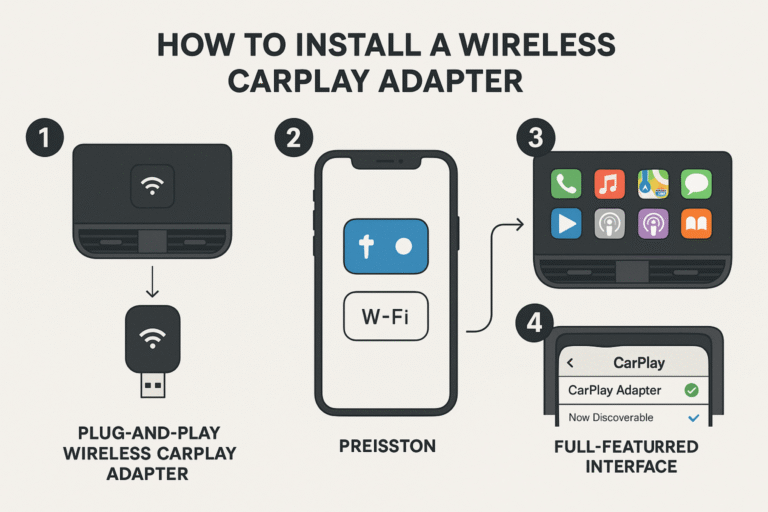
If your vehicle supports wired Apple CarPlay but does not include wireless CarPlay from the factory, a wireless CarPlay adapter may allow you to use a cable-free connection. These adapters connect to the vehicle’s existing USB CarPlay port and create a wireless bridge between the iPhone and infotainment system.
Adapter compatibility is not universal. The vehicle must already support wired CarPlay, and the adapter should be compatible with the specific infotainment system.
Source: storage.googleapis.com
Check Wired CarPlay Availability
A wireless adapter generally cannot add CarPlay to a vehicle that does not already support Apple CarPlay.
Follow Adapter Instructions
Most adapters require an initial Bluetooth pairing process before wireless CarPlay becomes available.
Expect Some Differences
Startup speed, controls, and reliability may vary compared with factory-installed wireless CarPlay.
Choosing Between Factory Wireless CarPlay and an Adapter
Factory wireless CarPlay is generally designed as part of the vehicle system, while adapters depend on compatibility with existing hardware. The best option depends on whether your car already supports wired CarPlay and how much setup flexibility you need.
Factory Wireless CarPlay
Usually provides integrated operation through the vehicle’s original infotainment system.
Wireless Adapter
Can be useful for upgrading some older vehicles without replacing the infotainment system.
Wireless CarPlay Troubleshooting: Common Problems and Fixes
When wireless CarPlay does not connect, check the simplest causes first. Many connection problems come from incorrect Bluetooth settings, saved pairing conflicts, or software issues.
Source: storage.googleapis.com
CarPlay Does Not Appear
Confirm that your vehicle supports wireless CarPlay and that Bluetooth and Wi-Fi are enabled on the iPhone.
Connection Drops Frequently
Remove old Bluetooth pairings, restart both devices, and check for software updates.
Phone Connects but CarPlay Does Not Start
Check iPhone CarPlay permissions under Settings and verify that Siri is enabled.
Resetting a Wireless CarPlay Connection
If normal troubleshooting does not work, delete the vehicle from the iPhone’s CarPlay settings and remove the phone from the vehicle’s Bluetooth memory. Then repeat the pairing process from the beginning.
Forget the Vehicle
Remove the saved CarPlay connection from iPhone settings.
Restart Devices
Restart the iPhone and vehicle infotainment system before pairing again.
Common Wireless CarPlay Mistakes to Avoid
Many setup problems happen because users treat wireless CarPlay like a standard Bluetooth audio connection. CarPlay requires specific compatibility and permissions beyond simple Bluetooth pairing.
Source: slideshare.net
Assuming Every Car Supports Wireless CarPlay
A vehicle may support wired CarPlay but not wireless CarPlay.
Ignoring Software Updates
Older iOS versions or vehicle firmware may create connection problems.
Using Multiple Paired Phones
Several saved phones can sometimes cause the wrong device to connect automatically.
Frequently Asked Questions
Q
Can I use wireless CarPlay without Bluetooth?
No. Wireless CarPlay typically requires Bluetooth for the initial connection process. After pairing, Wi-Fi handles the main CarPlay data connection.
Q
Why does my iPhone connect to Bluetooth but not CarPlay?
Bluetooth audio pairing alone does not activate CarPlay. Check that your vehicle supports CarPlay, Siri is enabled, and CarPlay permissions are allowed on your iPhone.
Q
Can I make my old car support wireless CarPlay?
If your vehicle already supports wired Apple CarPlay, a compatible wireless CarPlay adapter may allow wireless use. Vehicles without CarPlay support generally require a different infotainment solution.
Q
Does wireless CarPlay use mobile data?
Wireless CarPlay itself uses the vehicle connection between the iPhone and infotainment system, but apps such as maps and streaming services may use your iPhone’s cellular data.
Q
Why is wireless CarPlay slower than wired CarPlay?
Wireless CarPlay may take slightly longer to start because it requires wireless discovery and connection steps. Performance depends on the vehicle system, iPhone model, and software versions.
✦ Wrapping Up
Conclusion
Connecting wireless CarPlay usually requires only a compatible vehicle, an iPhone with the correct settings, and a successful Bluetooth and Wi-Fi pairing process. The first setup may take a few minutes, but future connections often happen automatically when you start the vehicle.
If wireless CarPlay fails to connect, check compatibility first, then troubleshoot settings, saved pairings, and software updates before considering additional hardware.
💡 Key Takeaway
Confirm your vehicle supports wireless CarPlay, enable Bluetooth and Wi-Fi on your iPhone, complete the pairing process while parked, and reset saved connections if problems continue.
Learn how to enable wireless CarPlay on your iPhone and vehicle. This guide explains compatibility checks, setup steps, troubleshooting, adapters, and common mistakes.
Learn how to connect Apple CarPlay wirelessly using Bluetooth and Wi-Fi, check compatibility, complete setup steps, and fix common connection problems.
Learn how to connect CarPlay wirelessly using Bluetooth and Wi-Fi, check compatibility, complete setup steps, and troubleshoot common wireless Apple CarPlay problems.