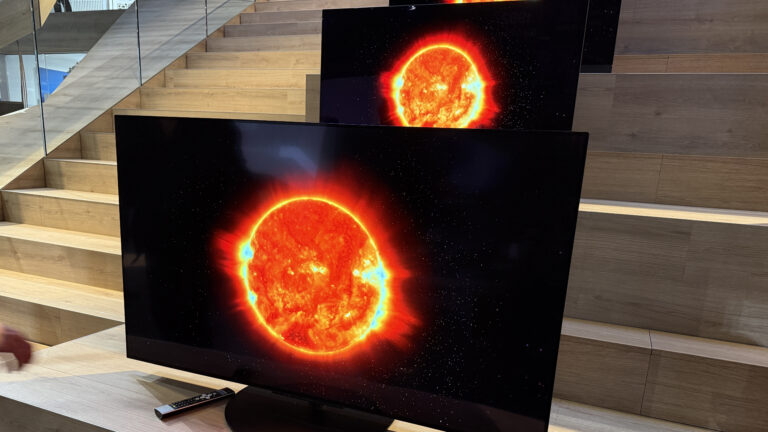
Browser flickering usually comes from graphics drivers, hardware acceleration, extensions, or a failing display connection.
If you are wondering, “why does my browser keep flickering,” the cause may be simple to fix or linked to your graphics hardware. This guide explains the most likely reasons, safe troubleshooting steps, and signs that your screen or computer needs professional help.
Why does my browser keep flickering?
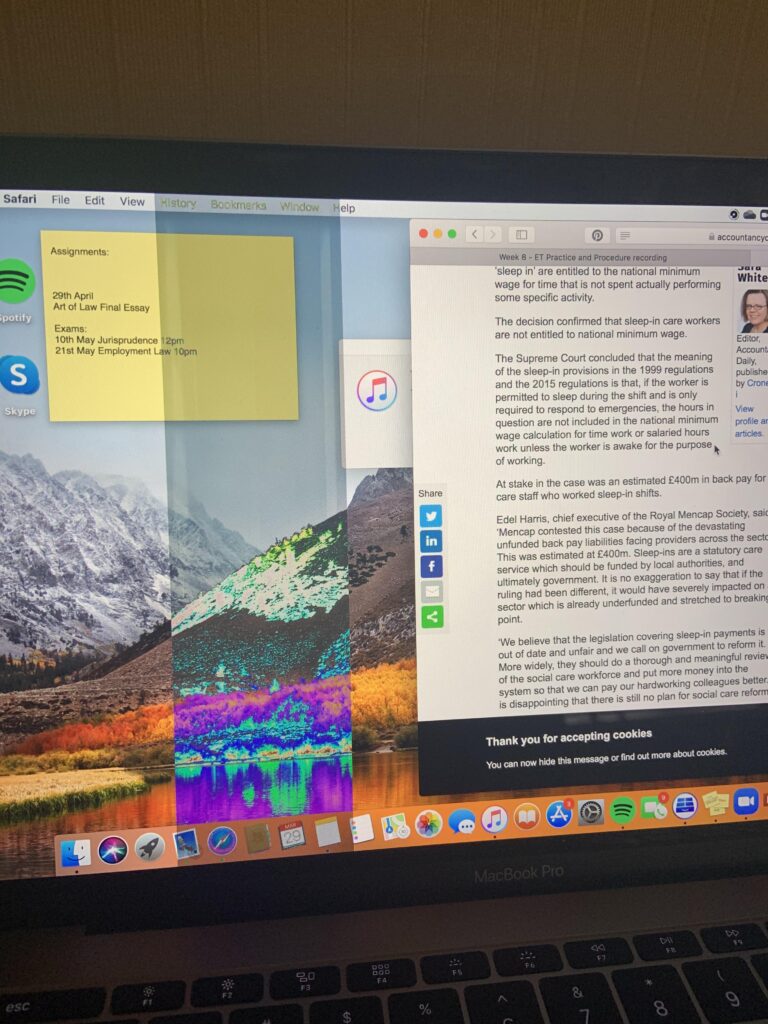
Browser flickering means the screen flashes, blinks, shakes, or briefly turns black while you browse. It may affect the whole window or only one part of a webpage, such as videos, ads, menus, or text.
The problem often starts when your browser, graphics driver, operating system, and display do not work well together. Think of them as musicians in a band. If one plays out of time, the whole song can sound wrong.
Common causes include:
• Outdated or damaged graphics drivers
• Browser hardware acceleration
• A faulty browser extension
• Too many open tabs or high memory use
• Incompatible display settings
• A loose cable or failing monitor
• Malware or unwanted software
• A recent browser or operating system update
• Website coding problems
• Overheating graphics hardware
If the flicker appears only in one browser, the browser settings or extensions are the most likely causes. If it appears across your whole computer, the display, cable, graphics card, or driver may be at fault.
Quick checks before deeper troubleshooting
Before changing advanced settings, try a few simple checks. These steps can reveal whether the issue is temporary or tied to a specific app.
- Refresh the page by pressing Ctrl + R on Windows or Command + R on Mac.
- Close extra tabs and apps.
- Restart the browser.
- Restart the computer.
- Test a different website.
- Open the same website in another browser.
- Check whether the desktop or other apps also flicker.
- Disconnect and reconnect your monitor cable.
- Try a private or incognito window.
A restart can clear a stuck graphics process. It can also release memory that a browser tab has used for too long.
If the browser flickers only on one website, that site may have a video, animation, ad, or coding issue. If the problem follows you to other browsers, look at the graphics driver and display hardware.
The most common reasons your browser keeps flickering
Hardware acceleration is causing a conflict
Hardware acceleration lets the browser use your graphics processing unit, or GPU, to display video, animations, and complex web pages. This can make browsing smoother, but it can also create flickering when the browser and GPU driver disagree.
This is one of the most common answers to “why does my browser keep flickering” after a browser update or graphics driver change.
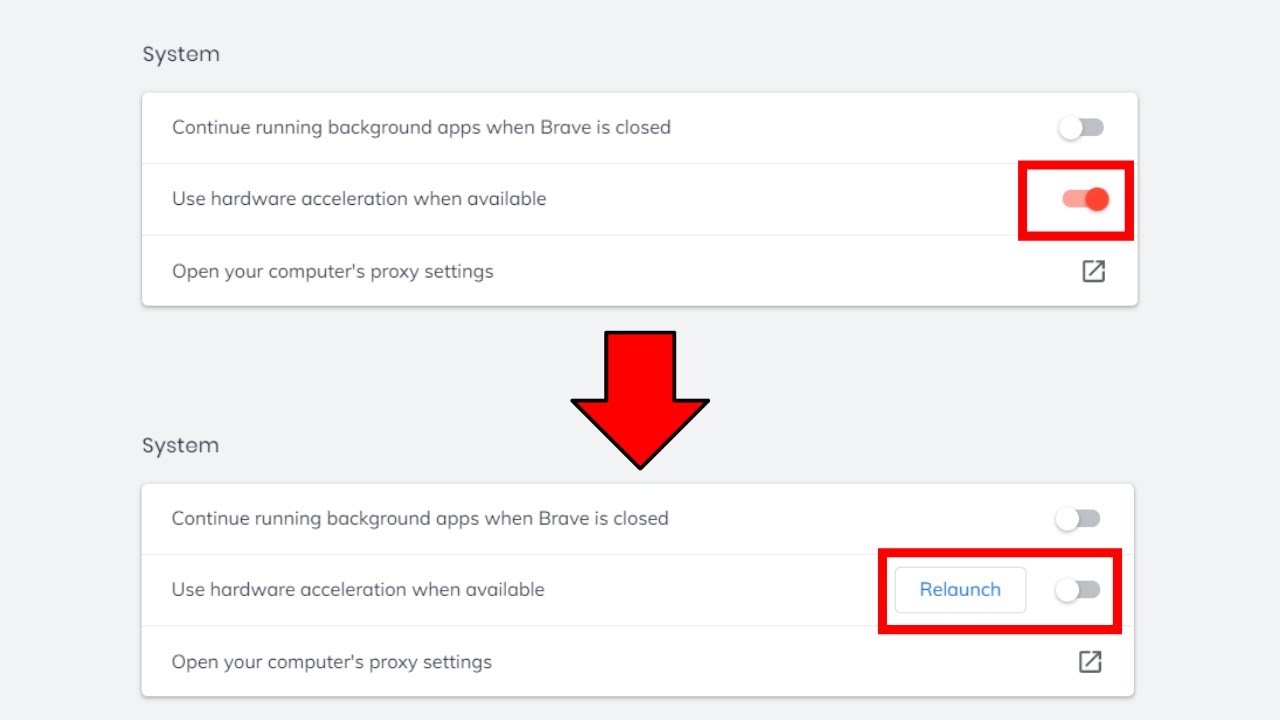
To test it, turn off hardware acceleration:
- Open your browser settings.
- Search for “hardware acceleration.”
- Turn off the setting.
- Restart the browser.
The exact menu name can differ between Chrome, Edge, Firefox, and other browsers. If the flicker stops, hardware acceleration is likely involved. You can leave it off, update your graphics driver, or turn it back on later to test again.
Your graphics driver is outdated or damaged
A graphics driver helps your operating system communicate with your GPU. If the driver is old, corrupt, or poorly matched with a recent update, your browser may flicker.
Driver issues can also cause:
• Black flashes
• Screen tearing
• Frozen video
• Random color changes
• Flickering during scrolling
• Problems with multiple monitors
Download drivers only from your computer maker or graphics card maker. Avoid random driver websites. They may bundle unwanted programs or install the wrong software.
On Windows, you can check for driver updates through Device Manager or Windows Update. On a Mac, graphics updates usually arrive through macOS updates. If the problem began after a driver update, rolling back to the earlier driver may help.
A browser extension is interfering
Extensions can change page layouts, block scripts, inject ads, manage video, or alter colors. A poorly built or outdated extension can make a page flash or reload.
To test for an extension:
- Open a private or incognito window.
- Visit the page that flickers.
- Check whether the problem remains.
- Disable extensions one at a time.
- Reopen the page after each change.
If the flicker stops after disabling one extension, remove it or look for an update. Be careful with extensions that have poor reviews, unknown developers, or permissions that do not match their purpose.
Your browser has a bug or damaged files
Browsers update often. Most updates improve security and speed, but a new release can sometimes create a temporary bug with certain hardware or websites.
A damaged browser profile may also cause flickering. Your profile stores settings, cookies, extensions, and other data. If one part becomes corrupted, the browser may behave strangely.
Try these steps:
• Update the browser.
• Clear cached images and files.
• Create a new browser profile.
• Reset browser settings.
• Reinstall the browser if needed.
Save important passwords and bookmarks before resetting or reinstalling. Many browsers sync this data, but it is wise to confirm first.
Your computer is low on memory
Modern websites can use a large amount of memory. Video sites, online editors, web games, and pages with many ads may use even more.
When memory is low, the browser may freeze, flash, reload, or show a white screen. This can make you ask, “why does my browser keep flickering,” even though the main issue is system strain.
Close tabs you no longer need. Then check the browser’s task manager, if available, to find tabs using too much memory or CPU power.
Also check for:
• Several video streams playing at once
• Large downloads
• Many open programs
• Cloud backup activity
• Background game launchers
• High CPU or GPU use
A browser tab that uses excessive resources may have a memory leak. Closing that tab can provide a quick fix, but updating the browser or avoiding the faulty page may be the long-term answer.
The display refresh rate is not stable
Your monitor refresh rate controls how many times per second the screen updates. A wrong or unstable setting can cause flicker, especially with high refresh rate monitors.
On Windows, open display settings and check the advanced display section. On a Mac, open display settings and review the refresh rate options.
Try a standard setting such as 60 Hz. If the flicker stops, test a higher setting later. Make sure your cable supports the selected resolution and refresh rate.
A cable, port, or monitor is failing
Sometimes the browser is not the real problem. A loose HDMI, DisplayPort, USB-C, or power cable can cause intermittent flashing.
Check the following:
• Push the video cable firmly into both ends.
• Test another cable.
• Try another port on the computer.
• Connect a different monitor.
• Test the monitor with another device.
If another monitor works normally, your original monitor or cable may be failing. If every monitor flickers, focus on the computer, GPU, or driver.
The GPU or computer is overheating
A hot graphics card may become unstable. You may notice flickering during video playback, gaming, video calls, or long browsing sessions.
Dust, blocked vents, a failed fan, or poor airflow can raise temperatures. Keep the computer on a hard surface and clean vents carefully. Do not block a laptop’s air intake with blankets or cushions.
If the computer becomes unusually hot, shuts down, smells burnt, or shows visual artifacts, stop using it until it can be checked. Flickering can sometimes warn of a serious hardware fault.

How to fix browser flickering on Windows
Windows users can follow this troubleshooting order. Start with simple changes and move toward system repairs only if needed.
1. Restart the graphics driver
Press Windows + Ctrl + Shift + B. The screen may flash briefly, and Windows will reload the graphics driver.
This shortcut does not erase files. It is useful when the display driver has stopped responding but the computer is still running.
2. Update Windows and the browser
Install pending Windows updates. Then update your browser from its settings menu.
Updates often include fixes for display compatibility, video playback, security, and memory use. However, if the flicker started immediately after an update, note the date and consider testing a different driver or browser version.
3. Check the Task Manager
Press Ctrl + Shift + Esc to open Task Manager. Watch the window for a moment.
If Task Manager flickers too, the issue is probably related to Windows, the driver, or hardware. If Task Manager stays stable while the browser flickers, the browser or an extension is more likely responsible.
4. Reinstall the graphics driver
If updating does not help, uninstalling and reinstalling the graphics driver may remove damaged files. Use the official instructions for your GPU brand or computer model.
Avoid advanced driver-cleaning tools unless you understand the risks. A wrong driver can leave you with low resolution or no display.
5. Test a clean browser profile
Create a new profile with no extensions. Browse for a while and check if the problem returns.
A clean profile can confirm whether saved settings or add-ons are causing the issue.

How to fix browser flickering on Mac
Mac users can also narrow down the problem with a few safe tests.
Check macOS updates
Open System Settings and look for software updates. Apple often includes graphics, browser, and display fixes in system updates.
Restart the Mac after installing an update. Some display changes do not take effect fully until the system restarts.
Test without external accessories
Disconnect docks, USB-C hubs, external displays, and adapters. Then test the browser on the built-in screen.
A low-quality adapter or damaged cable can cause flicker. If the issue disappears, reconnect each accessory one at a time to identify the cause.
Try safe mode
Safe mode starts macOS with limited software and checks certain system components. If the browser works normally in safe mode, a login item, extension, driver helper, or third-party tool may be involved.
The steps differ between Apple silicon Macs and Intel Macs, so follow the instructions for your model.
Check display settings
Try a different resolution or refresh rate. Turn off display features that may affect compatibility, such as adaptive refresh or certain external monitor settings.
Make one change at a time. This makes it easier to identify the setting that fixes the flicker.

How to tell whether the browser or screen is the problem
A simple comparison test can save you hours.
Open the browser and visit a basic text page. Then open a video site, an online document, and another browser. Watch what happens.
Use this guide:
• Only one website flickers: The website, ad, video, or page script may be faulty.
• One browser flickers: The browser, profile, or extension may be responsible.
• All browsers flicker: Check the driver, display settings, cable, or GPU.
• The whole desktop flickers: The issue is probably outside the browser.
• One monitor flickers: Check that monitor, its cable, and its power supply.
• Flicker starts under heavy use: Check heat, memory, and graphics load.
You can also take a screen recording. If the flicker appears in the recording, the browser or graphics system is likely producing it. If the recording looks normal but your eyes see flicker, the monitor, cable, or refresh rate may be the cause.
This test is not perfect. Some display problems do not appear in recordings. Still, it gives you a useful direction.
Browser flickering during videos or scrolling
Flickering that appears only during video playback may involve video decoding or hardware acceleration. Turn off hardware acceleration first, then test the same video again.
If scrolling causes the issue, try these steps:
• Disable smooth scrolling.
• Turn off extensions that change page appearance.
• Reduce the browser window size.
• Test a lower display refresh rate.
• Disable experimental browser features.
• Try a different video quality.
Websites use different scripts and media formats. One site may expose a graphics problem that another site never triggers.
If only advertisements flicker, an ad script may be loading poorly. A content blocker can sometimes reduce the problem, but use trusted tools and remember that many sites depend on advertising for free content.
Mistakes to avoid when fixing browser flicker
Troubleshooting works best when you change one thing at a time. Making ten changes at once may hide the real cause.
Avoid these common mistakes:
• Downloading drivers from unofficial websites
• Installing several “PC cleaner” apps
• Disabling security software without a clear reason
• Changing advanced registry settings too soon
• Ignoring overheating signs
• Assuming every flicker is a browser bug
• Continuing to use a monitor with a burning smell
• Resetting the browser before saving passwords and bookmarks
A common troubleshooting mistake is replacing hardware before testing the cable and settings. A five-minute cable test can prevent an expensive and unnecessary purchase.
Another mistake is ignoring when the problem began. Think back to recent changes, such as a browser update, new extension, monitor, dock, driver, or operating system update. The timing often points to the cause.
When browser flickering may be a security concern
Flickering alone does not usually mean malware. However, unwanted software can cause pop-ups, redirects, high CPU use, browser crashes, or strange extensions.
Run a security scan with trusted, updated security software. Review your browser extensions and remove anything you do not recognize.
Be cautious if you also notice:
• A new search engine you did not choose
• Unknown browser extensions
• Frequent redirects
• Fake virus warnings
• Sudden homepage changes
• Programs you did not install
• Major slowdowns when the browser is closed
Do not click alarming pop-ups that demand payment or immediate action. Close the tab and scan the computer through trusted security tools.

When to contact technical support
You can usually fix software-related flickering at home. Contact the computer maker, monitor maker, or a qualified technician if:
• The screen flickers before the operating system loads.
• Multiple monitors show the same problem.
• You see colored blocks, lines, or permanent artifacts.
• The computer crashes or shuts down.
• The GPU fan stops working.
• The monitor smells hot or burnt.
• A new cable and driver do not help.
• The problem continues after a clean browser test.
If the computer is under warranty, do not open the case unless the warranty allows it. Record a short video of the flicker and write down when it occurs. This can help support staff identify the issue faster.
In troubleshooting work, clear evidence is often more useful than a long description. Note the browser version, operating system, monitor model, graphics card, and steps that reproduce the problem.
Frequently Asked Questions
Why does my browser keep flickering but other apps work normally?
The browser may be using hardware acceleration, a damaged profile, or a faulty extension. Turn off hardware acceleration and test the page in a private window to narrow down the cause.
Why does my browser screen flicker when I scroll?
Scrolling flicker may come from graphics acceleration, smooth scrolling, an extension, or a display refresh problem. Disable smooth scrolling and extensions, then test a different refresh rate.
Can an outdated graphics driver make a browser flicker?
Yes. Browsers use the graphics processor for video, animations, and page rendering. An outdated or damaged driver can cause flashing, black frames, screen tearing, or visual artifacts.
Why does my browser flicker only on one website?
The website may use a script, video format, advertisement, or animation that conflicts with your browser or GPU. Test the site in another browser and report the issue to the website if it continues.
Can a bad HDMI or DisplayPort cable cause browser flickering?
Yes. A damaged or loose cable can make the entire screen flash, even when the browser is not the true cause. Test another cable, port, or monitor to confirm the source.
Does turning off hardware acceleration fix browser flickering?
It often helps when the browser and graphics driver have a compatibility problem. If it fixes the issue, update the driver and browser before deciding whether to keep acceleration disabled.
Should I replace my monitor if my browser keeps flickering?
Not right away. First test the cable, port, refresh rate, another browser, and another computer. Replace the monitor only when the flicker follows the display and other causes have been ruled out.
Conclusion
The answer to “why does my browser keep flickering” usually involves hardware acceleration, graphics drivers, extensions, display settings, memory use, or a cable problem. Start with a restart and private-window test, then check hardware acceleration, updates, drivers, cables, and refresh rates.
Test one change at a time, and stop using the device if you notice heat, burning smells, crashes, or serious display artifacts. With a careful process, you can often find the cause without replacing hardware. Try the steps above, explore your browser’s support tools, and share your experience if one solution solved the flicker.