Your webcam is usually slow because of weak USB power, heavy apps, poor lighting, outdated drivers, or a busy network.
If you are asking, “why is my webcam slow,” the answer may be simple—or a mix of several small problems. A delayed video feed, choppy image, frozen frames, or slow camera startup can make meetings and recordings stressful. This guide explains the most common causes and shows you how to fix them with clear, practical steps.
What a Slow Webcam Looks Like
A slow webcam does more than show a poor picture. It can create a delay between your movement and the video shown on screen. In some cases, the image freezes while the audio continues, or the camera takes several seconds to turn on.
Common signs include:
• Your video looks behind your voice by one or more seconds.
• Your face moves in short, jerky steps instead of smoothly.
• The camera image freezes during Zoom, Teams, Meet, or FaceTime calls.
• Your webcam takes a long time to start.
• The picture becomes blurry, dark, or pixelated.
• The camera works well in one app but poorly in another.
• Your computer shows a high CPU, memory, or disk load while the camera is active.
A slow webcam is often not broken. Think of it like a narrow road during rush hour. Too many cars may be using the road, even though the road itself still works.
Why Is My Webcam Slow? The Main Causes
The answer to “why is my webcam slow” often starts with system resources. Your webcam needs processing power, memory, a USB connection, and sometimes a stable internet connection. If one part struggles, the video may lag.
1. Too many apps are running
Video calls use more power than many people expect. Your computer must capture the image, process it, send it through the internet, and display video from other people at the same time.
Browsers with many open tabs, cloud storage tools, games, screen recorders, and editing software can compete for the same resources. Older laptops may slow down quickly when several of these apps run together.
2. Your internet connection is unstable
A webcam does not always need fast internet, but it does need a steady connection. If your upload speed drops, your meeting app may reduce video quality, freeze the picture, or add a delay.
Wi-Fi interference can also cause trouble. Walls, distance from the router, Bluetooth devices, and other users can affect the connection. A video may look slow even when the webcam itself is working normally.
3. The USB port or cable is limiting the camera
External webcams rely on the USB connection to send video data. A loose cable, damaged cable, old hub, or overloaded USB port can cause lag and disconnects.
A USB hub may share one connection with other devices. External drives, microphones, capture cards, and webcams can compete for bandwidth. Connecting the camera directly to the computer often gives better results.
4. The camera resolution or frame rate is too high
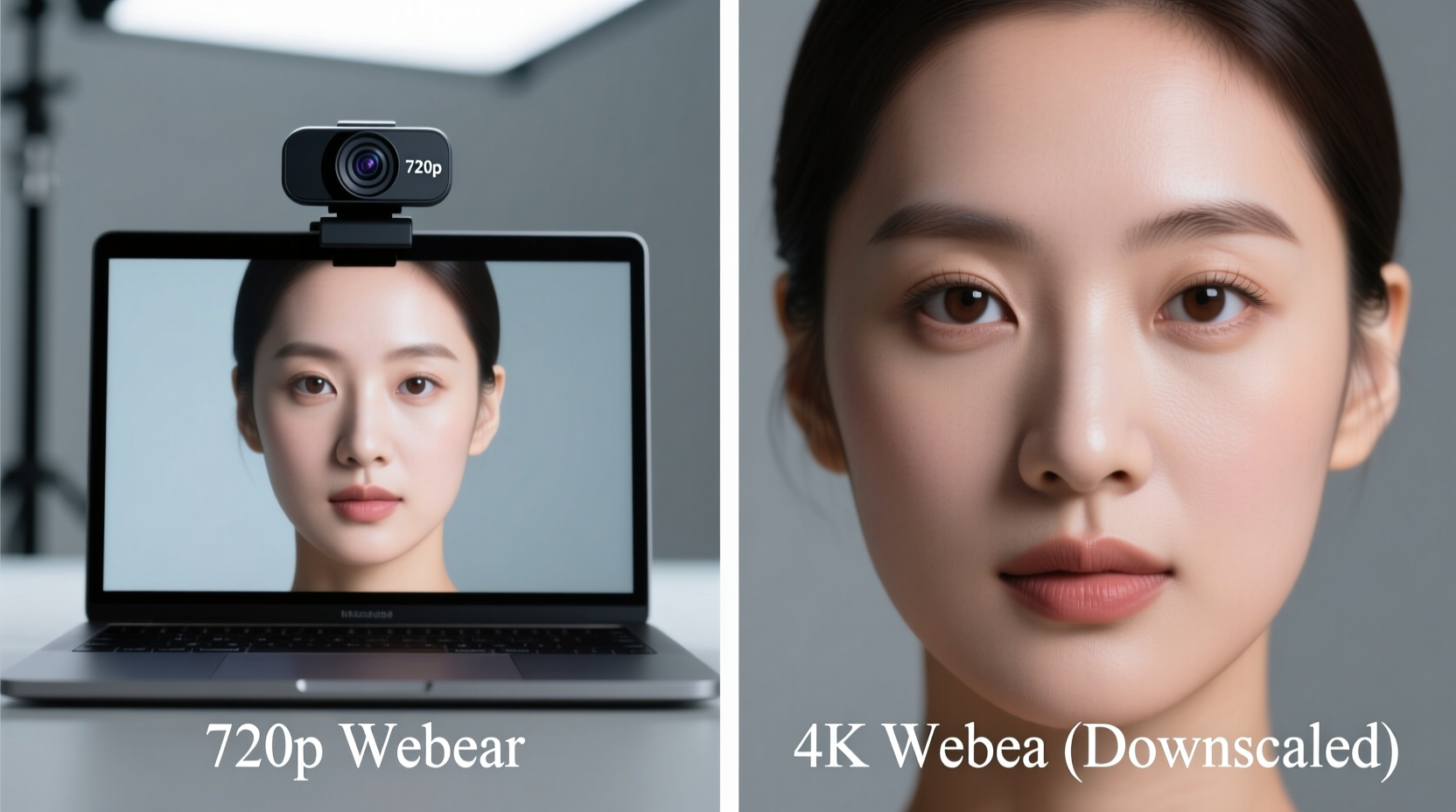
Many webcams can record at 1080p or higher. That sounds useful, but high resolution creates more data for your computer to process and your network to upload.
A camera set to 1080p at 30 frames per second may struggle on an older system. Lowering it to 720p can make the video smoother without making the picture unusable.
5. Your computer is overheating
Heat can cause a computer to reduce its speed. This process is called thermal throttling. When the processor becomes too hot, the system lowers performance to protect its parts.
A blocked air vent, dusty fan, soft bed, or warm room can make this worse. You may notice webcam lag after your computer has been running for a long time.
6. Camera drivers or system software are outdated
Drivers help your operating system communicate with the webcam. An outdated or damaged driver can cause delays, crashes, poor focus, or compatibility problems.
Operating system updates can also affect camera software. Most updates improve performance, but some may require a fresh driver or a restart before the camera works properly.
7. The lighting is poor
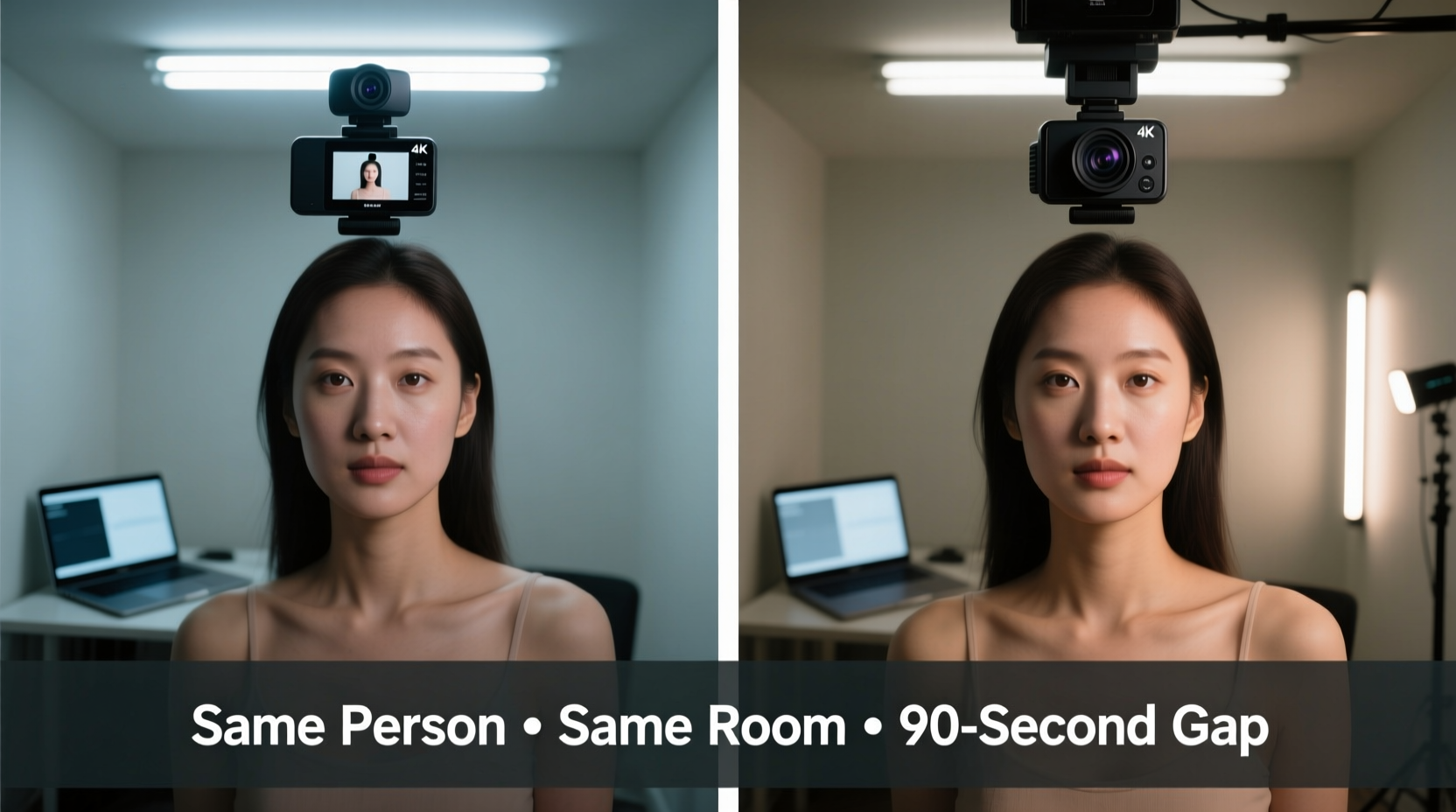
Low light does not always cause true webcam lag, but it can make the image appear slow and blurry. Many webcams lower their shutter speed in dark rooms. This creates motion blur when you move.
A small lamp placed in front of you can help more than an expensive camera. Face a window or use soft light behind your screen. Avoid bright light directly behind your head.
8. The video app is causing the problem
Zoom, Microsoft Teams, Google Meet, Discord, and other apps process video in different ways. Virtual backgrounds, background blur, face filters, noise removal, and high-quality video modes can increase the workload.
If the webcam works smoothly in the operating system’s camera app but lags in a meeting app, the app settings are likely part of the problem.
How to Fix a Slow Webcam
Now that you know why your webcam is slow, try these fixes in order. Start with the easiest steps. You may solve the problem without buying new equipment.
1. Restart the computer
A restart clears temporary memory, closes hidden processes, and reloads camera services. It is a basic step, but it solves many short-term webcam problems.
Do not only close the meeting app. Restart the whole computer, then test the camera before opening other programs.
2. Close apps you do not need
Before joining a call, close heavy programs such as:
• Video editors
• Games
• Screen recording tools
• Large file transfers
• Extra browser windows
• Photo editing apps
• Virtual machine software
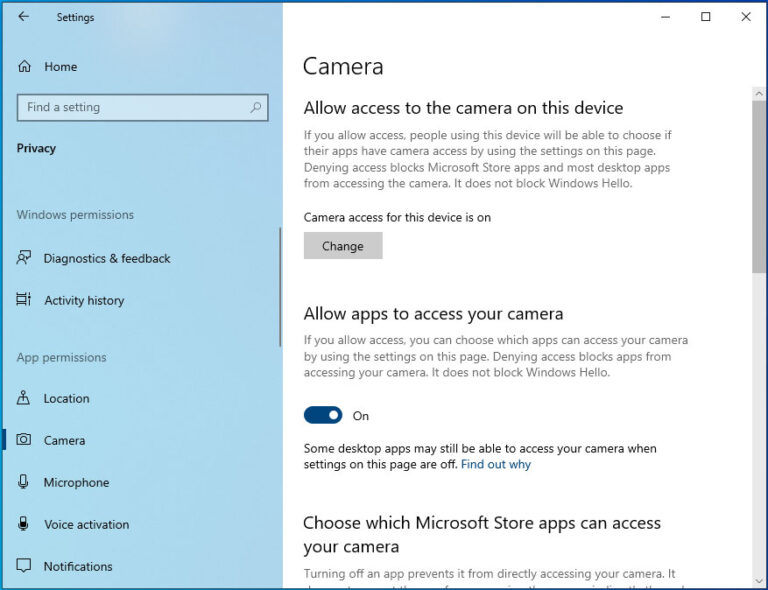
On Windows, open Task Manager with Ctrl + Shift + Esc. On a Mac, use Activity Monitor. Check which apps use the most CPU and memory, then close only programs you recognize.
3. Test the webcam in another app
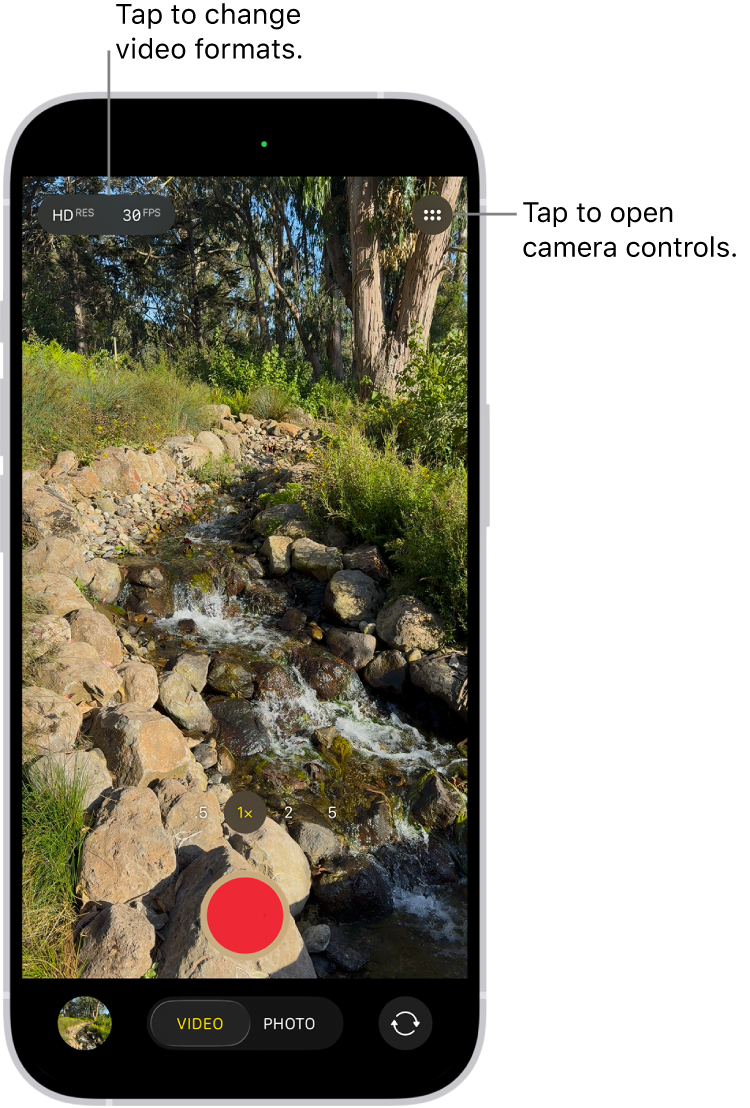
Open the built-in Camera app on Windows or Photo Booth on macOS. Record a short clip and move your head from side to side.
If the camera is smooth there, the issue may be inside your meeting app. If it is slow everywhere, check the USB connection, driver, lighting, and computer performance.
4. Lower the video quality
Open your video app’s camera settings. If available, change the resolution from 1080p to 720p. Turn off high-definition video if your computer or network struggles.
You can also disable:
• Virtual backgrounds
• Background blur
• Face filters
• Auto-framing
• Video touch-up effects
• High-quality video processing
These features are useful, but they are not necessary for a clear conversation.
5. Connect the webcam directly
Remove the webcam from its hub or docking station. Plug it into a different USB port on the computer.
If your computer has both USB-A and USB-C ports, test another port. Avoid using a long extension cable while troubleshooting. If the camera becomes smooth when connected directly, the hub or cable may be the cause.
6. Improve the lighting
Place a lamp in front of your face, close to the camera. Use soft, even light rather than a harsh light pointed straight at you.
A window can work well during the day. However, do not sit with the window behind you. The bright background can make your face appear dark and force the webcam to adjust constantly.
7. Update the webcam driver and operating system
On Windows, check Device Manager and look under Cameras or Imaging devices. You can also visit the webcam maker’s support page for a current driver.
On macOS, camera drivers are usually managed through system updates. Install available updates, then restart the computer. Only download drivers from the computer or webcam manufacturer’s official site.
8. Check for overheating
Keep the computer on a hard, flat surface. Make sure the air vents are clear. Remove dust carefully if you know how to clean your device safely.
If the webcam becomes slow after 20 or 30 minutes, heat is a strong possibility. A cooler computer often provides a smoother video stream.
9. Use a wired internet connection
If the issue appears only during online calls, connect your computer to the router with an Ethernet cable. A wired connection removes many common Wi-Fi problems.
If Ethernet is not practical, move closer to the router. Pause large downloads and ask other users to avoid streaming high-resolution video during your call.
How to Find the Real Cause
Randomly changing settings can waste time. A simple test can show whether the problem comes from the webcam, computer, app, or internet.
Follow this order:
-
Open the built-in camera app.
-
Record a 30-second video.
-
Watch the recording for skipped frames or delay.
-
Test the webcam in a second app.
-
Check whether the problem happens offline.
-
Try a different USB port.
-
Lower the resolution to 720p.
-
Test the webcam on another computer, if possible.
This process works because it isolates one part at a time. If the recorded video is smooth but a live call is slow, your network or meeting app is the likely cause. If the recording is slow in every app, focus on the hardware, drivers, lighting, or computer performance.
A useful lesson from troubleshooting is to change only one setting at a time. If you change five settings at once, you may fix the issue but never learn what caused it.
Webcam Lag During Zoom, Teams, or Google Meet
Many people ask why their webcam is slow only during an online meeting. Live video adds extra work because the computer must capture, encode, upload, download, and display data in real time.
Start by checking the meeting app’s camera settings. Select the correct webcam and turn off features such as virtual backgrounds and HD video. Then close other calls, browser tabs, and recording tools.
The meeting platform may also reduce video quality when it detects poor network conditions. This is normal. The app is trying to keep the call connected, so it may lower frame quality or pause video.
If the sound is clear but the picture freezes, check upload stability. If both audio and video cut out, check the full internet connection. Running a speed test can help, but stability and upload performance matter as much as the advertised download speed.
For important meetings, do a quick test five minutes early. Check the camera preview, microphone, lighting, and connection before other people join.

Why Is My Webcam Slow on a Laptop?
Laptops often have limited cooling, shared memory, and lower-power processors. They may work well for basic calls but struggle with high-resolution video and several open apps.
Battery-saving modes can also reduce performance. Connect the laptop to power and select a balanced or performance mode when appropriate. The exact setting depends on your operating system and laptop brand.
Older laptops may also use integrated graphics. That is not automatically a problem, but advanced camera effects can place extra pressure on the processor. Turning off background blur and filters often helps right away.
Another common issue is a crowded startup list. Programs that launch when the laptop starts may continue using memory in the background. Removing unnecessary startup apps can improve general performance, not just webcam speed.
Why Is My Webcam Slow on a Desktop Computer?
Desktop computers usually have stronger cooling, but they can still experience camera delays. USB ports on the front of a desktop may connect through an internal hub or extension. Try a rear USB port connected directly to the motherboard.
If you use a capture card, microphone, external drive, and webcam at the same time, test each device separately. A faulty device can affect the shared USB controller.
Also check your graphics driver. Some video apps use the graphics processor to process camera effects. An outdated graphics driver may cause stuttering or high resource use.
If a different webcam works perfectly on the same desktop, your original camera or cable may be failing. If every webcam is slow, look at the computer, USB system, software, or network.
When You Should Replace the Webcam
Software fixes cannot repair every hardware problem. Consider replacing the webcam if:
• The cable is damaged or loose.
• The camera disconnects on several computers.
• The lens will not focus.
• The image has permanent lines, flicker, or color errors.
• The camera overheats or becomes unreliable.
• It is limited to a very low frame rate for your needs.
Before buying a new webcam, check your computer and USB ports with another camera. A new device will not fix a weak network, overheating laptop, or overloaded system.
For most calls, a reliable 720p or 1080p webcam is enough. Look for stable autofocus, a decent microphone, good low-light performance, and broad support for your operating system. More megapixels do not always mean a better live video experience.
Mistakes That Can Make Webcam Lag Worse
Some quick fixes create new problems. Avoid these common mistakes:
• Installing drivers from unknown websites. These files may contain malware or may not match your device.
• Using several camera apps at once. Two apps may compete for control of the webcam.
• Running a webcam through a low-quality USB hub. Shared bandwidth can cause dropped frames.
• Choosing the highest resolution automatically. Higher quality needs more processing power and upload capacity.
• Sitting in a dark room. Poor light can create blur that looks like lag.
• Ignoring heat. A laptop that feels very hot may slow down other tasks too.
• Changing many settings at once. You will lose track of what helped.
The safest approach is simple: test, change one thing, and test again. This method takes a little patience but usually leads to a lasting fix.
Frequently Asked Questions About Why Is My Webcam Slow
Why is my webcam slow even though my internet is fast?
A fast download speed does not rule out problems with CPU use, USB connections, drivers, or lighting. Test the camera in an offline recording app to see whether the delay exists without the internet.
Why is my webcam slow but my microphone works normally?
The webcam may be using too much processing power, while the microphone needs far fewer resources. Lower the camera resolution, disable video effects, and close heavy background apps.
Can a USB hub make my webcam slow?
Yes. A busy or low-quality USB hub can share bandwidth with other devices and cause dropped frames or delays. Connect the webcam directly to the computer to test this cause.
Why is my webcam slow in Zoom but not in the Camera app?
Zoom may use more processing power because it encodes and sends live video. Turn off HD video, virtual backgrounds, and filters, then close other programs before joining the call.
Does poor lighting cause webcam lag?
Poor lighting can cause motion blur and make the camera appear slow. Add soft light in front of your face and avoid placing a bright window behind you.
Should I buy a new webcam if the video is delayed?
Not right away. Test another USB port, lower the resolution, update software, and try the camera on another computer first. Replace the webcam only if the problem follows the device.
Conclusion
A slow webcam is usually caused by overloaded software, weak USB connections, high video settings, poor lighting, heat, outdated drivers, or an unstable network. The best fix is to test each part in order instead of guessing.
Start by restarting your computer, closing heavy apps, testing the camera offline, lowering the resolution, and connecting the webcam directly. With a few small changes, you can often turn a choppy video feed into a smooth and reliable one. Try these steps before your next call, and share your result or question in the comments.