Chrome needs camera access to let websites use video features such as meetings, calls, scans, and identity checks.
If you have seen a Chrome camera permission request, you may wonder whether your camera is being watched. The answer is usually simple: Chrome is acting as a bridge between your camera and a trusted website. This guide explains why Chrome needs access to my camera, how permissions work, how to stay safe, and how to block access when you do not need it.
Why does Chrome need access to my camera?
Chrome needs camera access when a website wants to capture live video or take a picture. Common examples include Google Meet, Zoom, Microsoft Teams, online classrooms, telehealth services, job interviews, video chats, and QR code scanners.
A website cannot normally use your camera without permission. Chrome asks first, then follows your choice. This permission system helps prevent websites from turning on your camera without your knowledge.
Think of Chrome as a doorman. The website asks to enter, Chrome checks your choice, and your operating system adds another layer of control. The camera does not belong to Chrome alone. Access depends on Chrome, the website, and your device settings.

Common reasons Chrome asks for camera permission
The reason Chrome needs access to my camera depends on what the website is trying to do. Some requests are clear, while others may appear unexpected.
Video meetings and online calls
Video meeting tools need camera access to send your live image to other people. The site may also ask for microphone access so others can hear you.
Examples include:
• Google Meet
• Zoom in a browser
• Microsoft Teams on the web
• Webex
• Online tutoring platforms
• Telehealth appointments
You can often join a call with the camera off. In that case, the service may still request permission because the video feature is available.
Online identity checks
Banks, employers, schools, and government services may use a camera to verify your identity. A website might ask you to take a photo of your face, scan an ID, or complete a liveness check.
These services often use camera access only during the verification step. Still, read the site’s privacy policy before sharing sensitive images.
QR codes and document scans
Some websites use your camera to scan QR codes, barcodes, receipts, or documents. This can be useful for signing in, making payments, or uploading information.
A browser-based scanner may need temporary camera access. After the scan is complete, you can remove the permission.
Web apps and creative tools
Photo editors, video recorders, virtual backgrounds, and augmented reality tools may need your camera. These tools process video inside the page or send it to a service for editing.
The camera request does not always mean the site saves your video. However, the site may collect images if its privacy policy allows it.

Does Chrome watch or record through my camera?
Chrome does not normally watch you by itself. A website must request camera permission, and Chrome must allow that request before the site can use the camera.
When a site uses the camera, Chrome usually shows a camera indicator near the address bar. Your computer or phone may also show a system indicator. These signs help you notice active camera use.
Camera access is not the same as recording. A site may receive a live video stream without saving it. Recording, storage, and sharing depend on the website’s code and privacy rules.
There are limits to what a browser permission can tell you. Chrome can show which sites have access, but it cannot guarantee that every website handles data well. Use trusted sites, check the address carefully, and avoid granting access to pages that seem suspicious.

How Chrome camera permissions work
When a website requests camera access, Chrome gives you choices such as:
• Allow this time
• Allow while visiting the site
• Block
• Ask each time, where available
The exact wording can differ by device and Chrome version. On some platforms, Chrome also follows permission rules set by the operating system.
Chrome usually connects camera permission to a specific website address. For example, allowing access for example.com does not automatically allow every website on the internet.
A secure website should use HTTPS. Look for a lock or tune icon beside the web address. HTTPS helps protect data while it travels between your browser and the website, although it does not prove that the website is honest.
A camera permission can remain active until you change it. That is why reviewing old permissions matters, especially on a shared computer.

Is it safe to allow Chrome camera access?
It can be safe when you know the website and understand why it needs the camera. A trusted video meeting site has a clear reason to request access. An unrelated shopping page probably does not.
Before selecting Allow, check these points:
• Confirm the website address is correct.
• Look for HTTPS.
• Ask whether the site truly needs video.
• Read the privacy notice if you will share your face or ID.
• Avoid permission requests from pop-ups or unknown pages.
• Select Block when the request does not make sense.
A useful rule is to give the least access needed. If a site needs one scan, allow access for that task and remove it afterward.
Also remember that browser security is only one part of privacy. Keep Chrome, your operating system, and security software updated. Updates often fix bugs that could affect privacy or device security.
How to check which websites can use your camera
You can review camera permissions in Chrome settings. The menu names may vary slightly between Windows, macOS, ChromeOS, Android, and iPhone.
On a computer
- Open Chrome.
- Select the three-dot menu.
- Choose Settings.
- Open Privacy and security.
- Select Site settings.
- Choose Camera.
- Review the allowed and blocked websites.
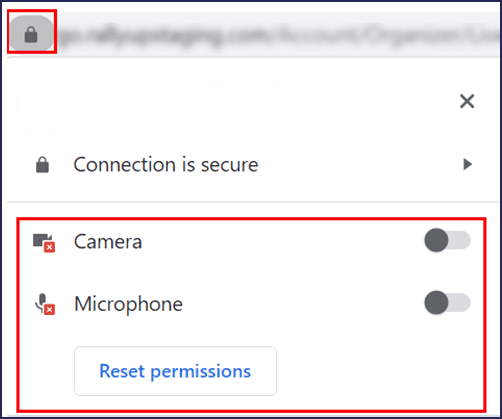
You can also open a website, select the icon beside its address, and change the Camera setting for that site.
On Android
- Open the Android Settings app.
- Tap Apps.
- Select Chrome.
- Tap Permissions.
- Choose Camera.
- Select an option such as Allow only while using the app, Ask every time, or Don’t allow.
Chrome may also have site-specific settings inside its own privacy controls.
On iPhone or iPad
- Open the Settings app.
- Scroll to Chrome.
- Tap Camera.
- Turn camera access on or off.
Apple’s system permission controls can override what a website requests. If camera access is blocked at the device level, Chrome cannot grant it to a site.

How to stop Chrome from using your camera
If you no longer want a website to use your camera, remove its permission. This is often better than turning off the camera for every website.
On a computer:
- Open the website in Chrome.
- Select the icon beside the address.
- Open Site settings.
- Find Camera.
- Change the setting to Block.
- Reload the page.
You can also remove a site from Chrome’s allowed list through Settings. The next time the site needs your camera, Chrome should ask again.
For stronger privacy, block camera access by default. Then allow it only for services you trust. This may feel less convenient, but it gives you more control.
If the camera light stays on after you close the site, check other open tabs, browser windows, desktop apps, and system camera settings. The browser may not be the only program using the camera.
What to do when camera access does not work
Sometimes Chrome needs access to my camera, but the camera still fails. The problem may come from device permissions, another app, a blocked site, or an outdated driver.
Try these steps:
- Reload the page.
- Close other apps that may use the camera.
- Check Chrome’s camera permission for the website.
- Check your operating system’s camera permission.
- Confirm that the correct camera is selected.
- Restart Chrome.
- Restart the computer or phone.
- Update Chrome and your device software.
- Test the camera in another trusted app.
On Windows, camera privacy controls are found in Privacy and security settings. On macOS, camera permissions are managed in Privacy & Security settings. Chrome must have permission at both the browser and system levels.
A frequent mistake is allowing access for the wrong site. Check the address bar carefully. A fake page may copy the look of a real service but use a different domain.

Practical privacy tips for camera permissions
In my own browser testing, the most common mistake is clicking Allow quickly during a meeting. The person wants to join on time, so the permission request becomes an automatic choice. A better habit is to pause for two seconds and check the website address.
Another useful habit is to review permissions once every few months. Old access can remain after you stop using a service. Removing it does not damage Chrome, and you can grant access again later.
Use these simple habits:
• Keep a physical camera cover for laptops when practical.
• Turn off camera access for websites you do not recognize.
• Do not install unknown browser extensions.
• Use separate browser profiles for work and personal accounts.
• Sign out of sensitive services on shared computers.
• Avoid camera access on public or borrowed devices.
• Check whether a service offers an audio-only option.
A camera cover can protect against unwanted visual access, but it does not stop a website from accessing your microphone or personal data. Use it as one layer, not as your only defense.
The biggest lesson is to avoid treating every permission request as harmless. Chrome’s permission system helps, but your judgment still matters.

Chrome camera access on work and school devices
On a work or school computer, an administrator may control camera permissions. You may see settings that are locked or cannot be changed.
Organizations often use device management tools to support video meetings, online exams, security checks, or remote work. If a setting is unavailable, contact your IT department instead of trying to bypass it.
Be careful with online exams and monitoring tools. Some services may use the camera to record your face, scan your room, or verify your identity. Ask what is collected, how long it is stored, and who can access it.
A browser permission tells you that a site can use the camera. It does not fully explain how the organization will process the video. That information should appear in the service’s privacy notice or user agreement.
Why does Chrome need access to my camera on a phone?
Chrome needs access to my camera on a phone for the same basic reasons as on a computer: video calls, scans, identity checks, and web apps.
Mobile devices add another permission layer. Android or iOS may block Chrome even when the website permission appears correct. You must allow camera access for Chrome in the phone’s system settings.
On a phone, camera use may also affect battery life and mobile data. Video can use a large amount of data, especially during long calls. Use Wi-Fi when possible and close camera-based pages when you are finished.
If the camera request appears on a page that has no clear camera feature, choose Block. You can always change the setting later.
Frequently Asked Questions About Why Does Chrome Need Access to My Camera
Why does Chrome need access to my camera for Google Meet?
Google Meet needs camera access to show your video to other participants. You can deny access or turn off your camera and still use features such as audio, chat, or screen sharing when available.
Can Chrome access my camera without permission?
A website normally cannot access your camera through Chrome until you grant permission. Your operating system may also require separate permission for Chrome.
How do I know if Chrome is using my camera?
Look for the camera indicator near Chrome’s address bar or in your device’s status area. You can also check Chrome’s site permissions and close tabs that may be using video.
Should I click Allow when Chrome asks for camera access?
Click Allow only when you recognize the website and understand why it needs your camera. Choose Block if the request is unexpected, unclear, or connected to a suspicious page.
How do I turn off camera access in Chrome?
Open Chrome settings, go to Privacy and security, select Site settings, and choose Camera. You can block all sites or remove permission from specific websites.
Why does Chrome need access to my camera when I only want to scan a QR code?
A browser-based QR scanner uses the camera to read the code. Once the scan is complete, you can block the site or remove its permission.
Can a website record me after I allow camera access?
Permission lets a website receive camera video, but recording and storage depend on the site’s software and privacy practices. Use trusted websites and review their privacy terms before sharing sensitive video.
Conclusion
Chrome needs camera access when a website uses video, scans, identity checks, or other camera-based tools. The request does not automatically mean Chrome is watching you, but it does give a website access to your camera after you approve it.
Check the website address, allow access only when needed, and review your permissions from time to time. When a request feels unexpected, choose Block and investigate before continuing.
Take a moment today to review Chrome’s camera settings on your devices. For more practical browser privacy tips, explore additional guides or share your camera-permission questions in the comments.