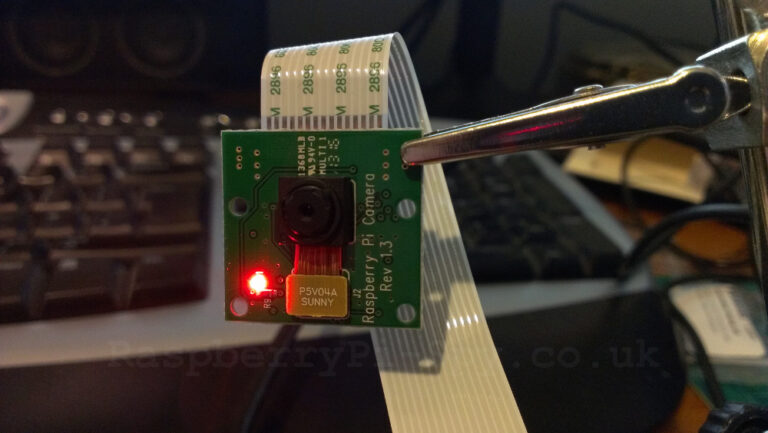
A white laptop camera light usually means your webcam is active and recording or streaming video.
If you are wondering why is there a white light on my laptop camera, the answer is usually simple: an app or website is using the webcam. Still, the light can raise valid privacy concerns, especially when it appears without warning. This guide explains what the camera indicator means, which apps can trigger it, how to check webcam access, and what to do if the light stays on.
Why Is There a White Light on My Laptop Camera?
The white light beside your laptop camera is a privacy indicator. It turns on when the webcam is active. In most laptops, the light is linked to the camera hardware, so it should appear when an app accesses the camera.
This design helps you know when video may be visible to another person. Video meeting apps, camera tools, social media sites, and browser pages can all activate the camera.
Common reasons the light appears include:
• You joined a video meeting in Zoom, Microsoft Teams, Google Meet, or another app.
• A camera app is open in the background.
• A website has permission to use your webcam.
• A browser tab is still connected to a video call.
• A laptop feature, such as facial login, is checking your face.
• A camera driver or operating system process is testing the webcam.
In most cases, a white camera light is normal. It does not automatically mean that someone hacked your laptop.

What Does the White Camera Light Mean?
The camera light means that the webcam sensor is receiving power or has been activated by software. On many laptops, the light turns on as soon as the camera starts sending video to an app.
The exact color can differ by model. Some laptops use white, blue, green, or amber lights. Others show a small camera icon on the screen instead of a physical light.
The indicator does not tell you exactly which app is using the camera. It only shows that the camera is active. You must check your system settings or open apps to find the source.
A useful way to think about it is like a light in a room. The light tells you that something is happening, but it does not tell you who switched it on. Your privacy settings provide that extra detail.
If the light appears for a few seconds when you start your laptop, it may be part of a normal hardware check. If it stays on while no camera app seems open, investigate further.

Which Apps Can Turn On a Laptop Camera?
Many common programs can activate a laptop webcam. Some may use it only after you click a button, while others may keep access during a call.
Apps that often use a camera include:
• Zoom and Microsoft Teams
• Google Meet in Chrome, Edge, or another browser
• Skype, FaceTime, and Discord
• Windows Camera and macOS Photo Booth
• Facebook, Instagram, TikTok, and other social platforms
• Antivirus or security tools with camera protection features
• Facial recognition and biometric login software
• Remote support and virtual machine programs
A browser tab can also use the camera even when the page is not visible. For example, you may close a meeting window but leave the browser open with the meeting still connected.
When troubleshooting why is there a white light on my laptop camera, close every app that might use video. Pay special attention to browser tabs, video calls, and messaging programs that launch when the computer starts.

How to Check Which App Is Using Your Camera
You can check camera permissions in your operating system. The steps may vary slightly by laptop model and software version.
On Windows 11 and Windows 10
-
Open Settings.
-
Select Privacy & security, then choose Camera. On some versions, select Privacy, then Camera.
-
Review camera access for your device.
-
Check which apps have permission to use the camera.
-
Turn off access for apps you do not recognize or no longer use.
Windows may also show a small camera icon in the taskbar notification area when the webcam is active. Selecting the icon can help identify the program using it.
On macOS
-
Open the Apple menu and select System Settings.
-
Choose Privacy & Security.
-
Select Camera.
-
Review the list of apps with camera permission.
-
Disable access for any app that does not need it.
Older Mac versions use System Preferences instead of System Settings. The privacy controls work in a similar way.
Check browser permissions
If a website is using the camera, review your browser settings.
In most browsers, select the lock icon near the website address. Find Camera permissions, then choose Block or Ask before allowing access. You can also remove camera access from websites you no longer trust.
This step often solves why is there a white light on my laptop camera when no desktop app appears to be open.
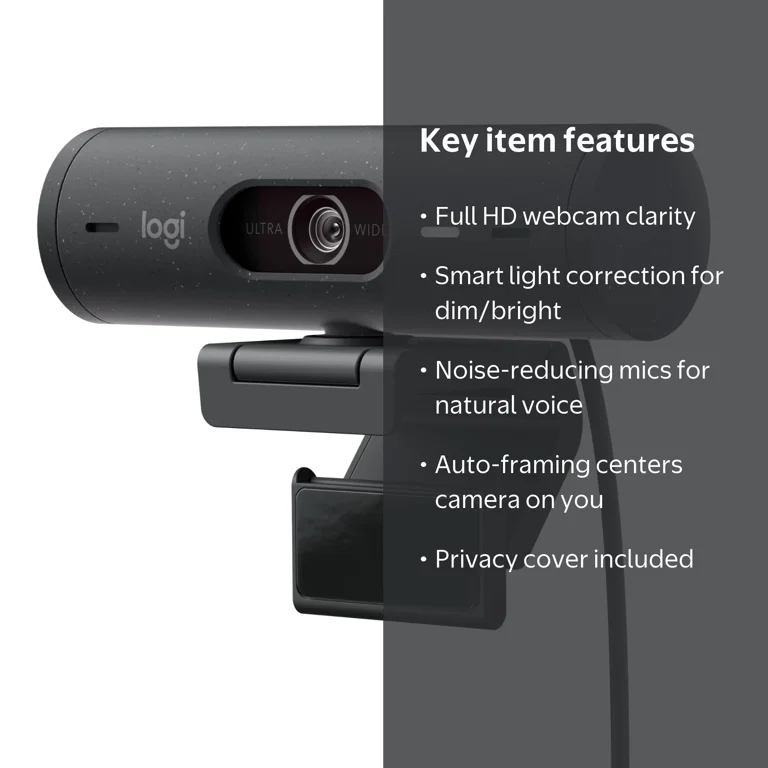
What to Do When the Camera Light Stays On
A camera light that remains on can be worrying, but you can usually find the cause with a few simple steps.
- Close all video apps
Exit Zoom, Teams, Skype, Discord, FaceTime, and the built-in camera app. Do not just minimize them. Some programs continue running in the background.
- Close browser tabs
Close tabs that use video or microphone access. If needed, quit the whole browser and reopen it.
- Restart the laptop
A restart ends most temporary camera sessions. This is one of the safest and fastest fixes.
- Check camera permissions
Review your Windows or macOS privacy settings. Remove access from apps that do not need the webcam.
- Update the operating system
Security and driver updates can fix camera bugs. Install updates through the official Windows Update or macOS software update feature.
- Update or reinstall the camera driver
On Windows, open Device Manager and find the camera under Cameras or Imaging devices. You can update the driver or remove the device and restart the computer so Windows can detect it again.
- Scan for malware
Run a trusted security scan if the light appears often without a clear reason. Keep your antivirus software current.
- Contact the laptop maker
If the light stays on after a restart and no app has permission, contact the manufacturer. The problem may involve the webcam driver, firmware, or hardware.
One troubleshooting lesson is especially useful: do not cover the light and assume the problem is solved. A cover can block the image, but it does not explain which program has access. Find the cause first, then use a physical cover as an extra privacy measure.

Could Someone Be Accessing Your Webcam?
Unauthorized webcam access is possible, but it is not the most likely explanation for a white camera light. Most unexpected camera activity comes from a forgotten meeting tab, an app that launches at startup, or a permission setting.
Modern operating systems provide camera permission controls and activity indicators. These protections make secret access more difficult, but they are not a complete guarantee. Malware can sometimes abuse trusted apps, stolen login details, or security weaknesses.
Look for other warning signs, such as:
• New apps that you did not install
• Unusual battery drain or fan activity
• Strange browser extensions
• Unknown startup programs
• Security alerts
• Unexpected account login notifications
• Camera activity that returns after a restart
If you notice several warning signs, disconnect from the internet and run a full security scan. Change important passwords from a trusted device, enable multifactor authentication, and install operating system updates.
A physical webcam cover can provide extra peace of mind. Use a thin cover designed for laptops, and make sure it does not damage the screen when the lid closes. Never place tape over a camera without checking whether it leaves residue or presses against the display.
Why Does the Camera Light Turn On During Startup?
Some laptops briefly activate the webcam during startup. The computer may be checking hardware, loading a camera driver, or preparing a facial recognition feature.
A short flash during startup is usually harmless. The same can happen when waking the laptop from sleep or switching users.
However, the light should normally turn off after the startup process ends. If it remains on for several minutes, check your camera permissions and background apps.
Facial recognition tools may also use the camera during login. On Windows, Windows Hello can use compatible cameras for face sign-in. On some devices, similar biometric tools may briefly access the camera on macOS or through third-party security software.

Why Is There a White Light on My Laptop Camera When the Camera Is Off?
Sometimes the camera app looks closed, but another program still has access. A browser, messaging app, virtual meeting tool, or security utility may be using the webcam in the background.
The camera preview may also be hidden while the camera remains active. For example, a video call can continue when you switch to another window.
Try these steps:
• End all video calls.
• Quit apps instead of minimizing them.
• Close every browser window.
• Check camera permissions.
• Restart the laptop.
• Install system and driver updates.
If the white light returns after every restart, review startup apps. On Windows, check Task Manager’s Startup apps section. On macOS, review Login Items in System Settings.
This is one of the most common explanations for why is there a white light on my laptop camera, and it often takes only a few minutes to fix.
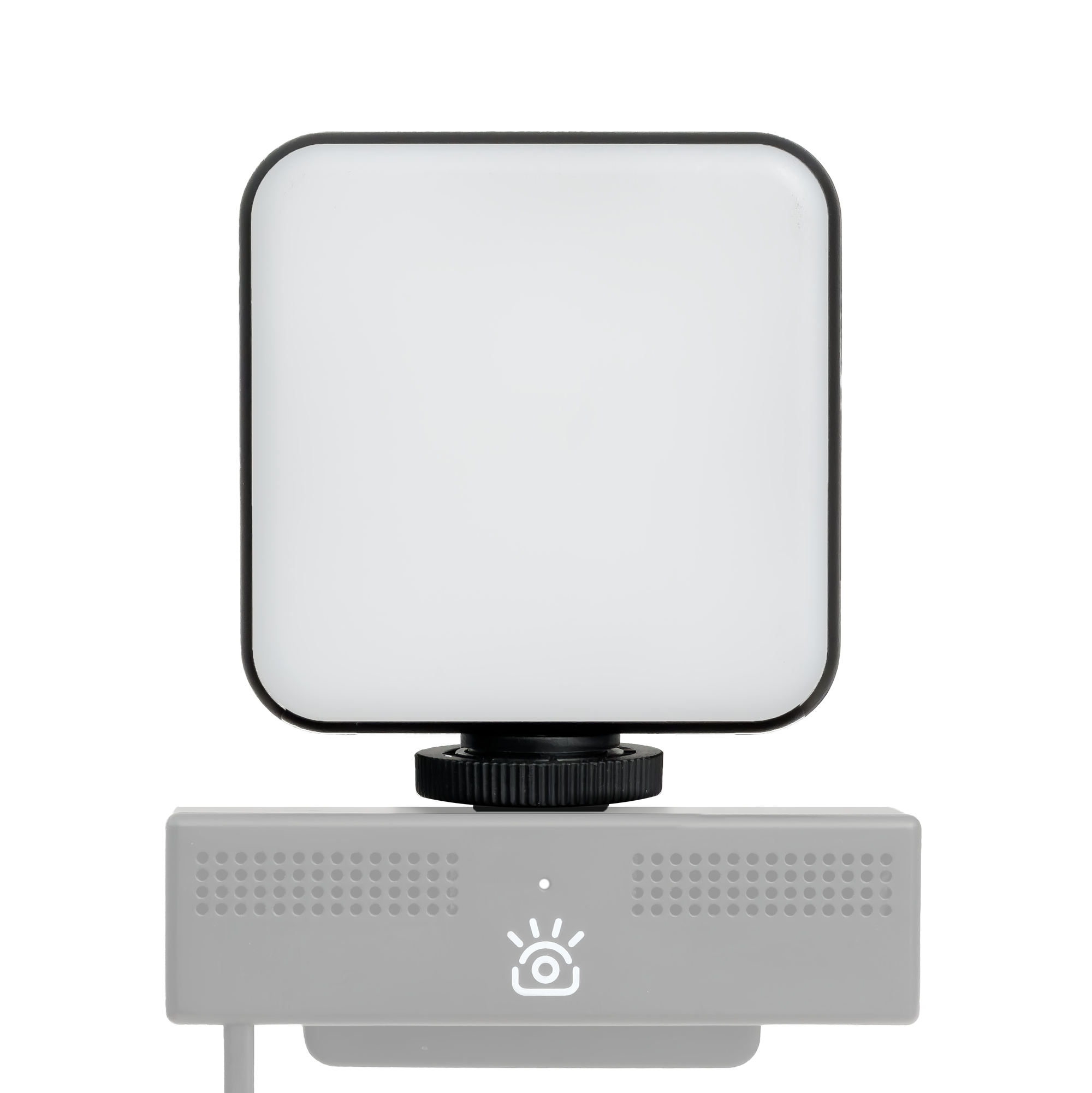
Can You Use a Laptop Camera Without the Light?
On many laptops, the physical indicator is designed to turn on with the camera. This makes it difficult for ordinary software to use the webcam without showing the light.
Some older laptops may not have a built-in indicator. External webcams can also use different indicator designs. A few devices may show a software notification instead.
The camera light is helpful, but it should not be your only privacy tool. Review app permissions, keep your operating system updated, avoid suspicious downloads, and use a trusted security program.
If you need stronger protection, disable the camera in system settings or Device Manager. You can also disconnect an external webcam when you are not using it.

How to Prevent Unexpected Camera Activity
Good privacy habits can reduce unwanted camera access.
• Allow camera access only to apps you trust.
• Set websites to ask before using the camera.
• Remove apps you no longer need.
• Review browser extensions from time to time.
• Keep Windows, macOS, browsers, and camera drivers updated.
• Avoid downloading cracked software or unknown files.
• Use multifactor authentication on important accounts.
• Restart your laptop after an unusual camera event.
• Use a webcam cover when you want a physical barrier.
• Do not ignore repeated camera activity with no clear cause.
Be careful when granting permissions. A flashlight app, game, or simple utility should not need webcam access. If an app requests access without a clear reason, deny the request.
Common Mistakes to Avoid
People often make a few simple mistakes when they see a white camera light.
The first is assuming that the light always means spying. The indicator means the camera is active, but it does not prove criminal access. Check your apps and permissions before taking more serious steps.
The second mistake is force-closing only the visible window. Many apps continue running in the system tray or menu bar. Quit the app fully, then check whether the light turns off.
The third mistake is installing random “webcam protection” software. Some programs make dramatic claims and may collect data themselves. Use built-in privacy settings and well-known security tools whenever possible.
The fourth mistake is ignoring updates. Camera problems often come from software conflicts, outdated drivers, or browser bugs. Regular updates can improve both security and reliability.
When to Get Professional Help
You may need technical help if the camera light stays on after a restart, permissions are disabled, and no camera app appears to be running.
A technician can check the webcam driver, firmware, startup services, and possible malware. Contact the laptop manufacturer first if the device is still under warranty.
Before taking the laptop in, write down:
• When the light appears
• Which operating system you use
• Whether the light turns off after a restart
• Which apps were open
• Any recent updates or new software
This information can save time and help support staff identify the issue. Do not give remote access to an unknown person who contacts you unexpectedly about your camera.
Frequently Asked Questions
Is a white light on a laptop camera normal?
Yes. A white light usually means the built-in webcam is active. It commonly appears during video calls, camera app use, facial login, or a browser session.
Does a white camera light mean my laptop has been hacked?
Not usually. Most cases come from a normal app or website with camera permission, but repeated unexplained activity should be checked through privacy settings and a security scan.
How do I turn off the white light on my laptop camera?
Close the app using the webcam or restart your laptop. You can also disable camera access in Windows or macOS privacy settings.
Can a website turn on my laptop camera?
A website can use the camera only after receiving browser permission. Review site permissions and set camera access to Ask or Block for websites you do not trust.
Why is my laptop camera light on after I close Zoom?
Zoom or another video app may still be running in the background. Quit the program fully, close browser tabs, and restart the laptop if the light remains on.
Should I cover my laptop camera?
A webcam cover can add physical privacy, especially when you are not using the camera. Choose a thin cover that does not press against the screen when you close the laptop.
What should I do if the camera light will not turn off?
Restart the laptop, check camera permissions, update the operating system and driver, and run a security scan. If the light continues, contact the laptop manufacturer or a qualified technician.
Conclusion
A white light on your laptop camera usually means the webcam is active. A video call, browser tab, camera app, facial login tool, or background process may be responsible. Check your apps and privacy settings before assuming the worst.
If you are still asking why is there a white light on my laptop camera, start with the simple steps: close camera apps, quit your browser, restart the laptop, and review permissions. Keep your software updated, use trusted security tools, and consider a webcam cover for extra peace of mind. Explore your laptop’s privacy settings today, and share this guide with anyone who has the same camera concern.