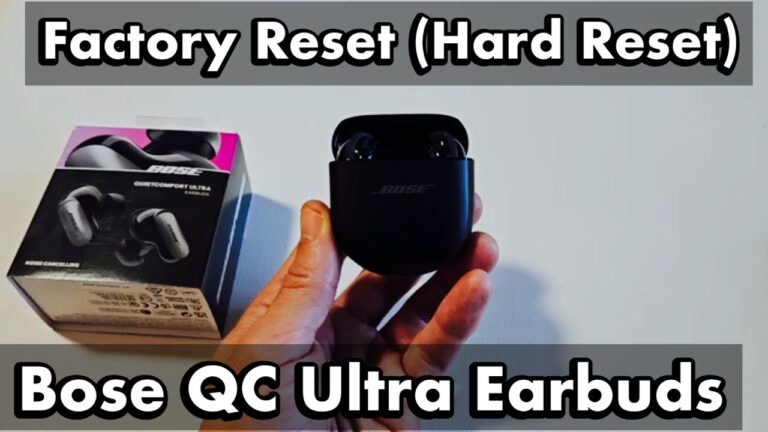
Reset the earbuds, update firmware, enable low-latency codec, and reduce interference to fix delay.
I’ve spent years fixing audio gear and helping people solve sync and lag issues. This guide explains how to fix wireless earbuds delay with clear steps, real examples, and simple checks you can run right now. You’ll learn why delay happens, easy fixes, advanced tweaks, and when to get a replacement. Read on to stop the lag and get audio that feels instant.
What causes wireless earbuds delay?
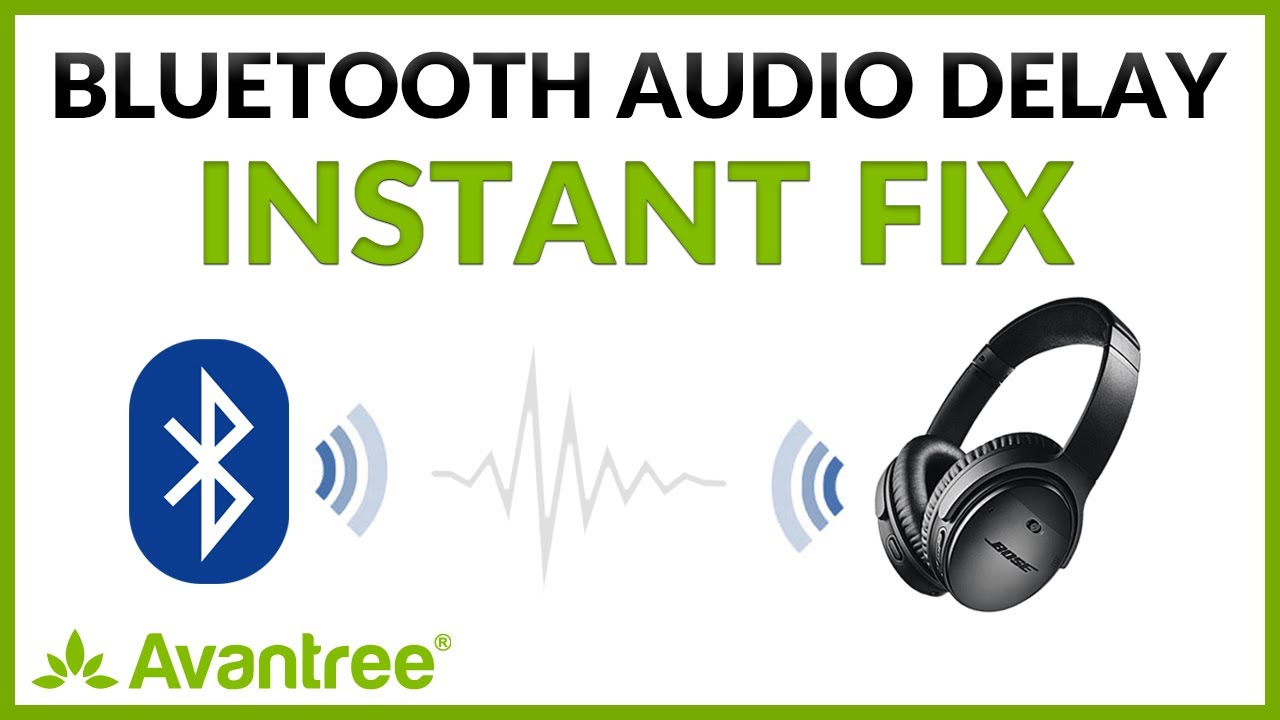
Wireless earbuds use Bluetooth. Bluetooth adds some lag by design. Different codecs add more or less delay. Device settings and apps can add buffering that makes delay worse. Interference from Wi‑Fi, crowded Bluetooth channels, and distance also slow audio. Low battery and old firmware create stutters and uneven timing. Knowing the cause helps you decide how to fix wireless earbuds delay.

Quick step-by-step fixes you can try now
- Restart both earbuds and your phone or computer. This clears temporary glitches that cause delay.
- Re-pair the earbuds. Remove them from Bluetooth list and pair again to ensure a clean connection.
- Move closer to the source and turn off nearby Wi‑Fi or other Bluetooth devices. Less interference reduces delay.
- Check battery level. Charge earbuds and the source device. Low power can cause higher latency.
- Close apps that play audio in the background. One app can add buffering and cause out-of-sync sound.
- Update the earbuds’ firmware and your device OS. Patches often reduce latency and fix bugs.
- Try a different app or browser. Some apps have better sync and less buffering.
- Enable “game mode” or low-latency mode if your earbuds or app offer it. That setting lowers buffering and improves sync.
If simple steps fail, move to the advanced fixes below to learn how to fix wireless earbuds delay more deeply.

Advanced fixes and technical troubleshooting
Update firmware and drivers
- Check the manufacturer app for firmware updates. New firmware often cuts latency.
- Update your phone or computer Bluetooth drivers. Driver updates can improve codec support.
Change or force a low-latency codec
- aptX Low Latency and AAC reduce delay compared with SBC in many cases.
- On Android, enable Developer Options and change Bluetooth audio codec to aptX or LDAC if supported.
- On iOS, AAC is automatic. If earbuds don’t support AAC, they may fall back to SBC and lag.
Reduce Bluetooth handoff problems
- Some TWS earbuds use a “master-slave” design that can cause slight lag. Resetting the pair often reassigns roles cleanly.
- If one ear is late, re-pair both buds together rather than pairing each bud separately.
Use a wired option or a low-latency adapter
- For gaming or live video, a wired connection is the fastest fix.
- USB Bluetooth adapters that support aptX Low Latency can give major improvements on PCs and consoles.
Check app-specific settings
- Streaming apps and video players may use extra buffering. Lower buffer or enable “sync” modes in the app when available.
- For web video, try a different browser or disable extensions that affect audio.
Personal note from experience
- I once fixed serious home-theater lag by switching to a USB aptX‑LL dongle for the TV. The change removed nearly all delay. Small tweaks like a codec change or firmware update often solve the problem quickly.
PAA-style questions
Why do my earbuds lag more when watching videos than when on calls?
Video apps add buffering and the video stream can be processed differently than voice. Calls often use low-latency voice codecs, while video playback may prioritize stability over speed.
Can Bluetooth interference cause the earbuds to lag randomly?
Yes. Routers, microwaves, and many Bluetooth devices in the same area can cause packet loss and retransmits, which look like lag. Moving closer or turning off nearby transmitters helps.
Will resetting both earbuds fix sync issues?
Resetting usually restores the proper master‑slave relationship and clears pairing glitches. It often fixes one-ear delay and timing mismatches.
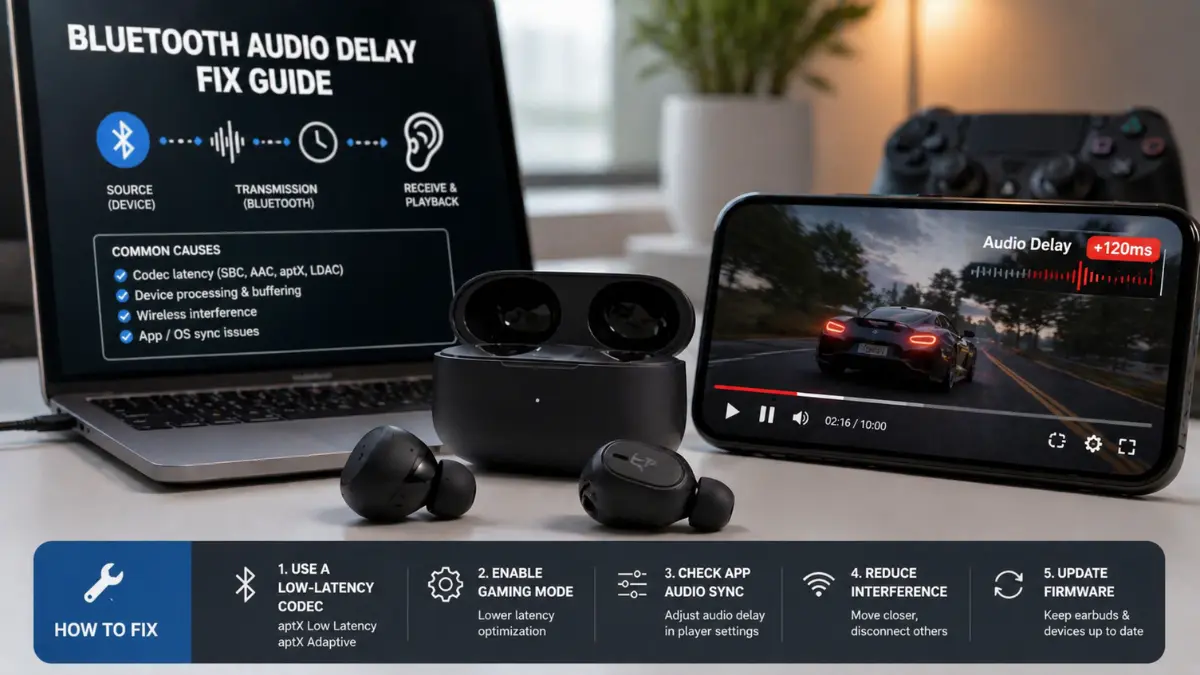
Tips for gaming and watching video with low latency
Use wired when possible
- Plug in if you need zero delay. Cables eliminate Bluetooth latency.
Buy earbuds or adapters that support low-latency codecs
- Look for aptX Low Latency or similar in specs. This gives a measurable drop in delay.
Enable game mode on phone or console
- Many devices include a mode that lowers Bluetooth buffering. Turn it on before playing.
Limit other wireless traffic
- Pause large downloads and reduce Wi‑Fi activity to reduce interference while gaming or watching.
Fine-tune audio settings in apps
- Some streaming apps let you lower buffer size. Smaller buffers reduce delay but may increase dropouts.

Compatibility, codecs, and device settings explained
What a codec does
- A codec compresses audio for Bluetooth. Faster codecs use less processing time and create less delay.
- Common codecs: SBC, AAC, aptX, aptX-LL, LDAC. SBC is the slowest and most generic.
How to check codec support
- Check earbuds specs and device Bluetooth settings. On Android, Developer Options shows the active codec.
- If your phone and earbuds support the same low-latency codec, enable it to reduce delay.
Device limitations
- Older phones or cheap earbuds may not support low-latency codecs. In those cases, you’ll only get small improvement with tricks.
- Many streaming services transcode audio, which can add latency beyond the Bluetooth layer.
Tradeoffs and limits
- Lower latency codecs may slightly reduce battery life.
- Some codecs sound better; others are faster. Pick what matters most: sync or quality.
When to replace earbuds or contact support
Check for persistent imbalance
- If delay persists after updates, resets, and codec checks, it may be a hardware issue.
- Hardware faults, worn batteries, or damaged antennas can cause constant lag.
Warranty and support
- Contact the manufacturer if the earbuds are under warranty. Describe steps you tried and include firmware versions.
- Ask about known latency issues for your model. Some brands provide updates or exchanges.
Know when to replace
- If you need low-latency audio daily (gaming, editing), consider replacing with a model that lists aptX Low Latency or similar support.
- If fixes don’t help after troubleshooting, replacement is often the fastest solution.

Frequently Asked Questions of how to fix wireless earbuds delay
How do I know whether the delay is from my earbuds or my phone?
Test the earbuds with another device. If lag changes or disappears, the phone or its settings are likely the cause.
Can software updates really fix Bluetooth delay?
Yes. Firmware and OS updates often include codec improvements and bug fixes that reduce latency and improve stability.
Is there a setting on phones to lower Bluetooth latency?
On Android, Developer Options can change the Bluetooth codec and some related settings. iOS manages codec choice automatically and has limited manual controls.
Will restarting Bluetooth on both devices help reduce delay?
Often. Restarting clears temporary issues and forces a fresh handshake that can fix timing and sync problems.
Are wired earphones always better for latency?
Wired earphones have near-zero latency and are best when timing is critical. However, new wireless solutions can be good enough for most users.
Conclusion
You can fix wireless earbuds delay with simple resets, firmware updates, and codec changes. Start with the easy steps: restart, re-pair, reduce interference, and update software. If needed, use low-latency codecs, a wired backup, or a dedicated adapter for gaming and video. Try the recommended fixes, track what helped, and reach out to support if hardware limits remain. Share your results or questions below, subscribe for more audio tips, or test a codec change today to hear the difference.