To clear a voice recorder, back up any files, then delete recordings or reset the app/device.
I’ve helped dozens of people tidy up voice recorders and recover lost space. This guide explains exactly how to clear voice recorder data on Android, iPhone, and standalone recorders. You’ll get step-by-step actions, safety tips to avoid data loss, and common fixes when clearing doesn’t work. Read on to learn practical, tested methods for how to clear voice recorder safely and fast.
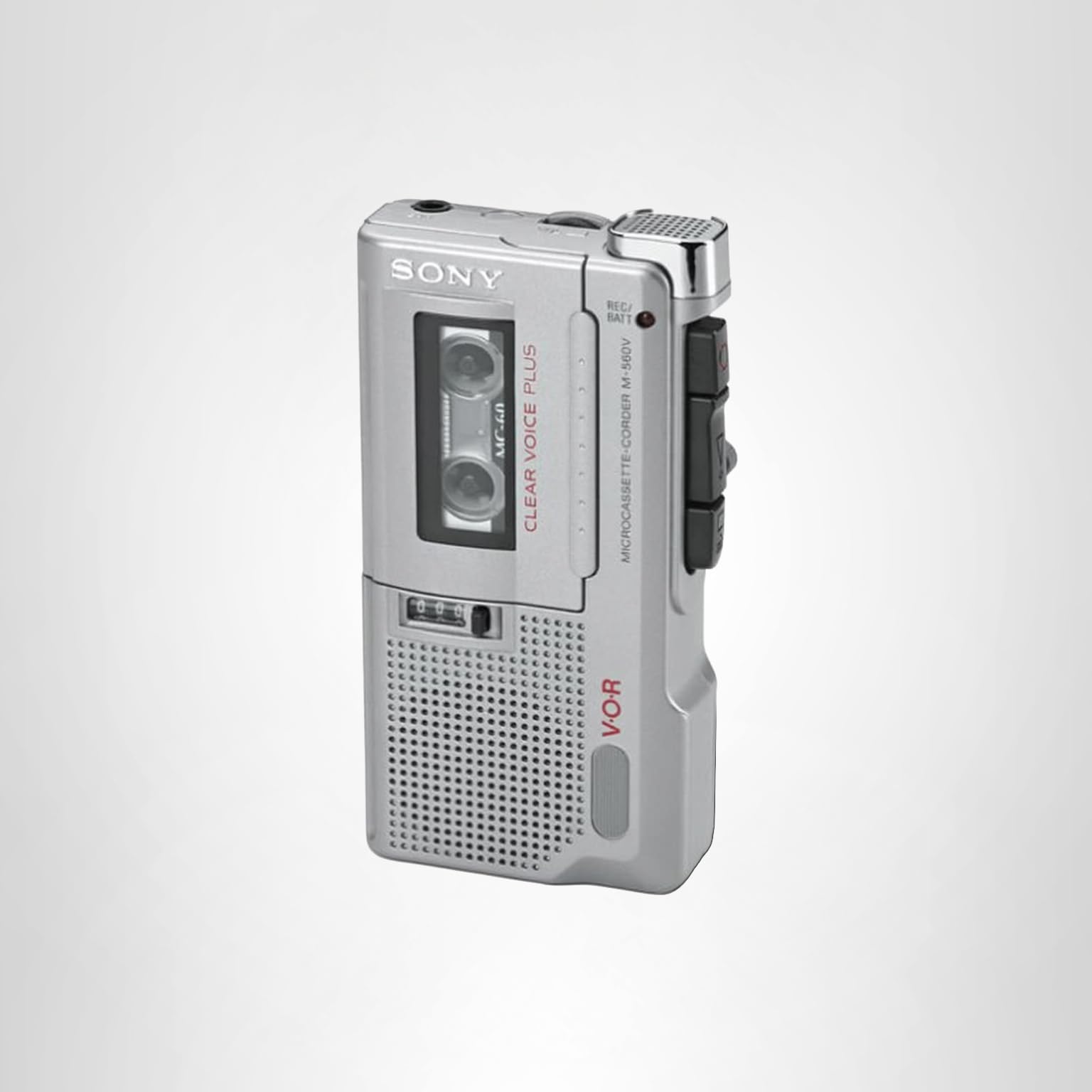
Understand what “clear voice recorder” means
Clearing a voice recorder can mean several things. It can mean deleting single files. It can mean clearing all recordings. It can mean resetting the app or device to free space. Knowing which you need avoids mistakes.
Why this matters:
- Deleting single files helps keep important notes.
- Clearing all files frees space quickly.
- Resetting app data fixes bugs but removes settings.
I focus on clear, safe steps for how to clear voice recorder without losing what matters.

Why you might need to clear voice recorder
There are common reasons to clear voice recorder data. Each reason changes how you should act.
Common reasons:
- Running low on storage and needing space.
- Organizing recordings and removing duplicates.
- Fixing app glitches or corrupted files.
- Preparing a device for resale or handoff.
Knowing the cause helps choose the right method for how to clear voice recorder.

Before you clear: backup and preparation
Always back up before you clear voice recorder. Backups prevent regret. Follow these quick checks.
Backup steps:
- Export important files to cloud storage or your computer.
- Use USB file transfer for standalone recorders.
- Use the app’s share or export option on phones.
- Name files clearly before deleting to avoid confusion.
Other prep tips:
- Note app settings you want to keep.
- Charge the device to avoid interruptions.
- Check file formats you might need later.
These steps make clearing safer and reversible when needed.

How to clear voice recorder on Android
Android voice recorder apps vary. These steps cover common apps and built-in recorders.
Step-by-step:
- Open the voice recorder app.
- Long-press a recording to select it.
- Tap other files you want to remove.
- Tap the delete icon or trash option.
- Empty the trash if the app has one.
To clear all app data:
- Go to Settings > Apps > Voice Recorder.
- Tap Storage > Clear Cache to free temp space.
- Tap Clear Data to remove all recordings and settings.
If recordings sync with cloud:
- Also delete files in the cloud to truly clear voice recorder storage.
These steps work for most Android phones and apps.
How to clear voice recorder on iPhone
iPhone uses Voice Memos for many users. Clearing is simple and safe if you back up first.
Delete single or multiple memos:
- Open Voice Memos.
- Swipe left on a memo, then tap Delete.
- To delete multiple, tap Edit, select memos, then Delete.
Empty Recently Deleted:
- Open Recently Deleted inside Voice Memos.
- Tap Edit > Delete All to permanently clear voice recorder data.
To reset app data:
- Offload the app in Settings > General > iPhone Storage > Voice Memos.
- Reinstall to clear local data while keeping app version.
If using third-party apps, follow similar delete and empty-trash steps.
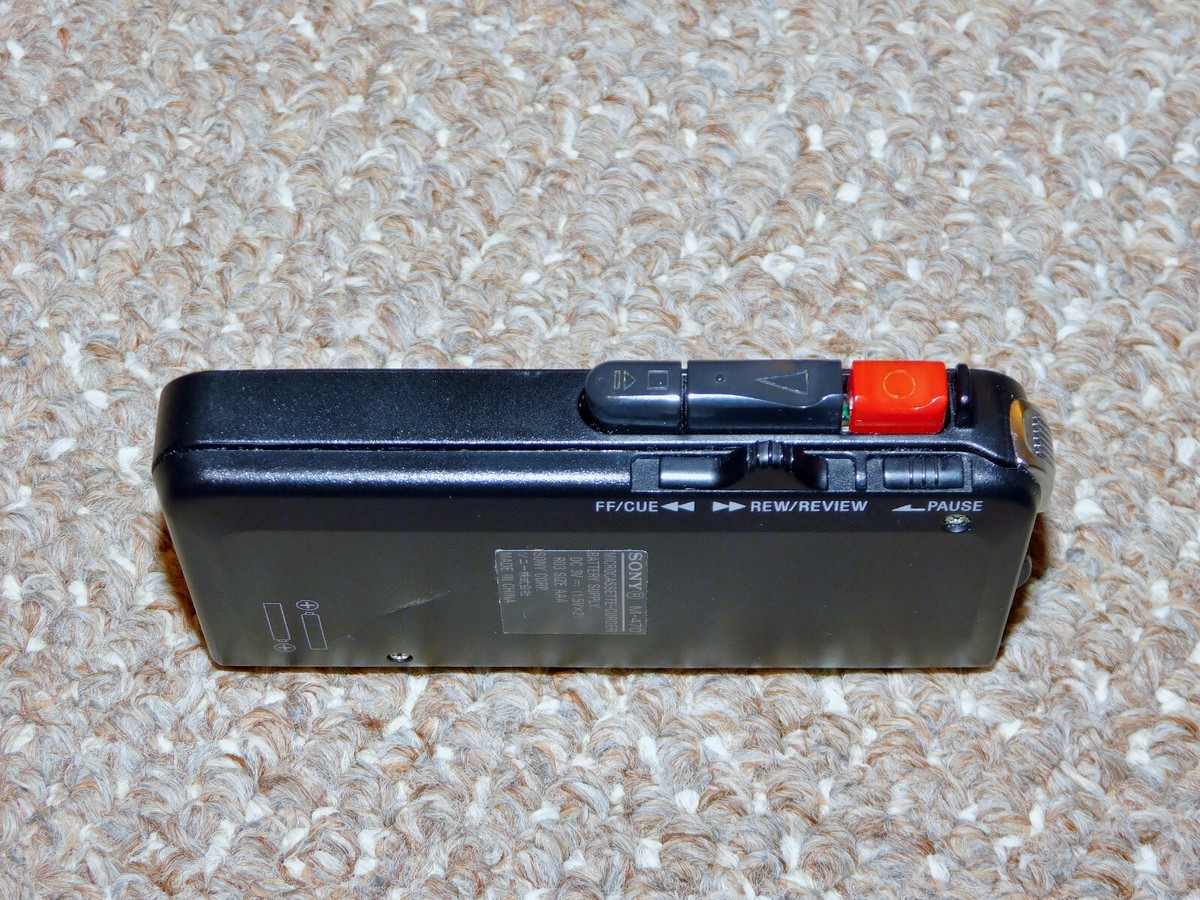
How to clear a standalone digital voice recorder or PC files
Physical recorders and desktop files need different steps. Be careful with firmware or hidden folders.
For standalone recorders:
- Connect the recorder to a PC via USB.
- Browse folders and back up files.
- Delete selected files or format the internal memory from device settings.
- Use the device’s format option to clear everything safely.
For PC files:
- Locate the folder where the recorder saves files.
- Back up important items.
- Delete files and then empty the Recycle Bin to truly clear voice recorder data on the computer.
Formatting is fast but permanent. Only format after backup.

Troubleshooting common problems when you clear voice recorder
Sometimes deleting doesn’t work. These fixes have helped me in real cases.
Problem: Deleted files still show up
- Check Recently Deleted or Trash within the app.
- Restart the app or device to refresh file lists.
Problem: Files won’t delete due to permissions
- For Android, grant storage permissions in Settings.
- For PC, ensure files are not open in another program.
Problem: Space not freed after clearing
- Clear app cache and empty system trash.
- Check cloud sync for duplicates.
Problem: Accidentally deleted important recording
- Stop using the device immediately to avoid overwriting.
- Restore from backup or use file-recovery tools for computers.
These practical fixes help when basic clearing fails.

Tips to avoid losing recordings when you clear voice recorder
Prevent mistakes with a few habits I learned over years of work.
Best practices:
- Always back up before deleting anything.
- Use clear naming and folders for recordings.
- Keep regular exports to cloud or drive.
- Use auto-backup features if available.
- Periodically review and delete duplicates, not everything at once.
A little routine prevents big data loss later.

Personal experience and lessons learned
I once cleared a device before a trip and lost an interview. That taught me three lessons I share now.
Lessons:
- Always make two backups before a big clear.
- Test restore from backup before deleting originals.
- Keep a small folder of “do not delete” items.
I now use a checklist before I clear voice recorder. It saves time and stress. Try a short checklist before you delete anything valuable.
Frequently Asked Questions of how to clear voice recorder
How do I permanently delete voice recordings on my phone?
Open the voice recorder app, select files, and delete them. Then empty the app’s Recently Deleted or Trash to permanently clear voice recorder files.
Will clearing the voice recorder free up device storage?
Yes, deleting files and clearing app cache usually frees storage. Also check cloud backups and system trash to fully clear space.
Can I recover a recording after I clear voice recorder data?
Recovery is possible if you have a backup or use recovery tools on a computer. If the device overwrote the data, recovery becomes unlikely.
Should I format my recorder to clear all data?
Formatting clears everything and is fast. Only format after you back up important files and confirm you want everything removed.
How do I clear voice recorder data without losing settings?
Back up recordings only. Use the app’s clear cache option or delete files individually to keep app settings intact.
Is clearing voice recorder safe for old or corrupted files?
Clearing can remove corrupted files and improve performance. Back up first, because corrupted files may still be needed for recovery attempts.
Conclusion
Clearing a voice recorder can be quick and safe when you follow a clear plan. Back up first, choose the right delete method, and confirm that cloud copies are removed if you want full clearance. Use the simple steps here for Android, iPhone, standalone recorders, and PC files. Try a short backup checklist before you clear voice recorder data next time. If this guide helped, leave a comment or subscribe for more tech tips and step-by-step fixes.