Use a voice changer app or built-in effects, record or process the file to alter your voice.
I’ve tested many tools and techniques for how to change voice in voice recorder across phones and computers. This guide explains simple methods, step-by-step workflows, and real tips from my own recordings. You will learn how to change voice in voice recorder for live calls, voice notes, edits, and creative projects. Read on to master practical and safe ways to make your recorded voice deeper, higher, robotic, or fun.

Why change your voice in a voice recorder?
People change their voice in a voice recorder for many reasons. Podcasters shape tone to match a character or mood. Creators add effects for privacy or comedy. Teachers and narrators tweak pitch to improve clarity.
Changing voice in a voice recorder can be quick or detailed. You can apply a preset filter in seconds. Or you can use multi-band processing for a pro finish. Both ways help you make the voice suit the use case.
Methods to change voice in voice recorder
There are several methods to change voice in voice recorder. Pick one based on your device and skill level.
- Built-in effects on phones and recorders
- Many phones and apps include simple pitch and speed controls. Use these for fast edits.
- Third-party apps and plugins
- Apps offer presets like chipmunk, deep, robot, and radio voice. They often work live or in post.
- Desktop editors for detailed work
- Software like audio editors gives full control. You can change pitch, formants, EQ, and add reverb.
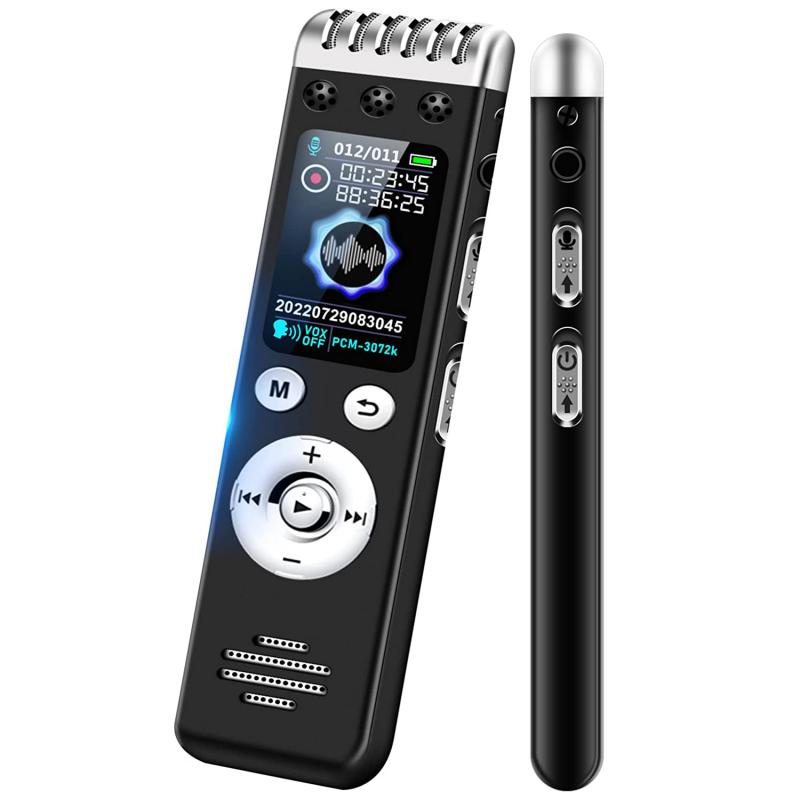
- Hardware and external devices
- Physical voice processors and mixers give reliable real-time effects. They are great for live streams.
- Real-time vs post-recording processing
- Real-time changes let you speak with the effect live. Post-recording lets you tweak and undo changes.
Each method has pros and cons. Real-time is fun and fast. Post-processing gives higher quality and more control. I use post-processing for final projects and live tools for quick streaming.

How to change voice in voice recorder: step-by-step for phones
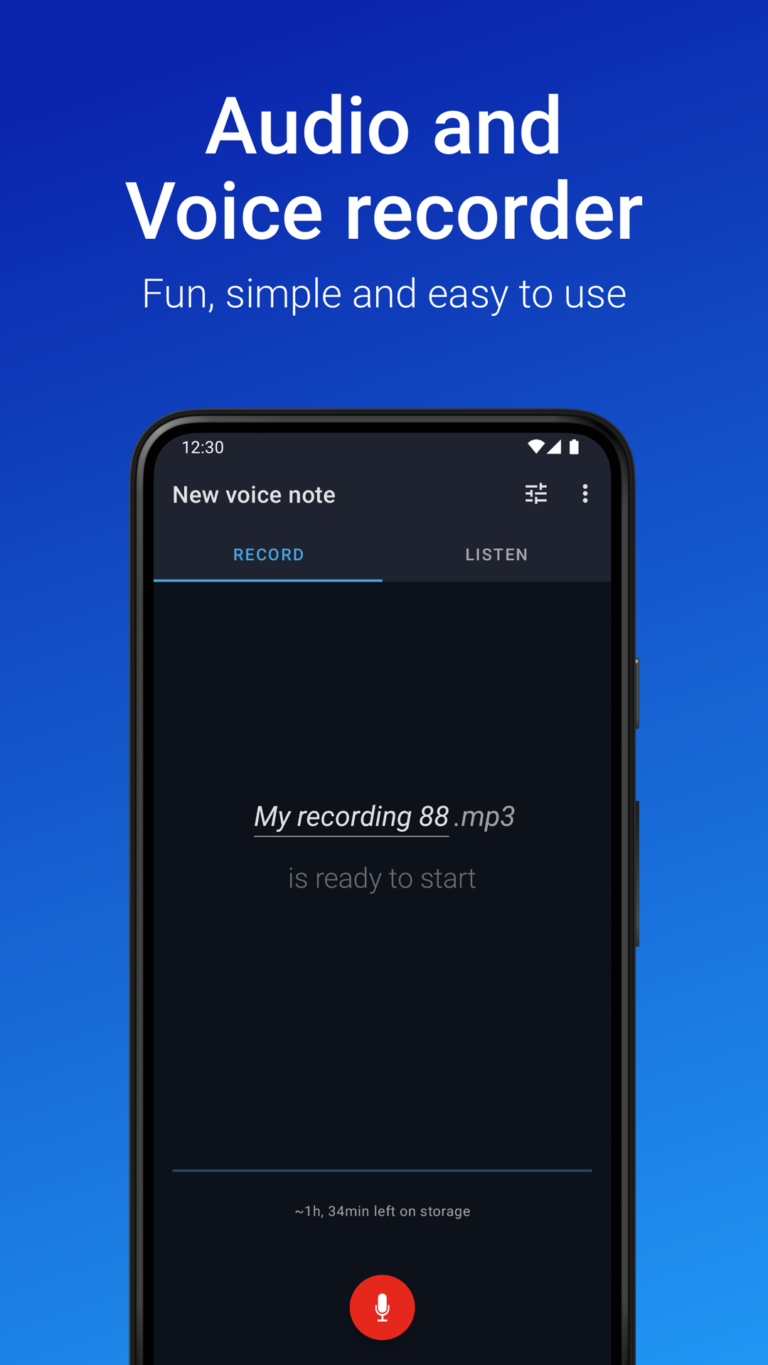
Follow these short steps for most phones. This covers quick edits and using a voice changer app.
- Record your voice
- Use your phone’s built-in recorder or a dedicated app. Speak clearly and at a steady distance from the mic.
- Try built-in effects
- Open the recording. Look for speed, pitch, or effect options. Apply them and preview.
- Use a voice changer app
- Install a trusted app. Import the recording or record inside the app. Pick a preset or tweak sliders.
- Export or share
- Save the edited file. Export in MP3 or WAV for best compatibility.
Tips for phone work:
- Use headphones to monitor live changes.
- Record in a quiet room for cleaner results.
- If available, adjust formant controls to keep natural tone when changing pitch.
I once used a phone app to create a character voice for a vlog. I recorded three takes and used small pitch shifts. The result sounded natural and saved me hours of editing.

How to change voice in voice recorder: step-by-step for PC and Mac
Desktop tools give more control. Here is a practical workflow for how to change voice in voice recorder on a computer.
- Choose an editor
- Pick a simple editor or a DAW (digital audio workstation).
- Import or record audio
- Use a USB mic or your interface. Record in WAV for quality.
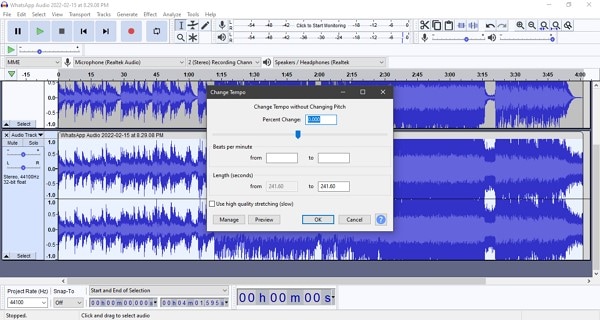
- Apply pitch and formant changes
- Use pitch-shift for frequency changes. Use formant controls to keep the voice natural when shifting pitch.
- Add EQ and compression
- Cut muddy lows and boost presence. Use mild compression to even levels.
- Add creative effects
- Try chorus, distortion, reverb, or robotic vocoder effects for character voices.
- Export the final file
- Render to WAV or MP3. Test the file on different devices.
Desktop editing is where you can refine subtle details. I learned to trust small changes. A 1–2 semitone pitch shift plus a light EQ often yields a strong, natural result.

Tips for best results and common mistakes
Simple choices can make or break the edit. Use these tips when changing voice in voice recorder.
- Record clean audio first
- Noise limits how well effects work. Record in a quiet space.
- Make small adjustments
- Large pitch jumps often sound unnatural. Move in small steps.
- Use formant control when shifting pitch
- Formants keep vowel quality stable. This prevents the “chipmunk” or “muppet” sound.
- Monitor with good headphones
- Cheap speakers hide issues. Headphones reveal artifacts.
- Save copies of the original
- Keep the raw file so you can revert and try different effects.
- Match effects to context
- A podcast needs subtle changes. A character voice can be dramatic.
Common mistakes
- Over-using heavy presets that distort clarity.
- Skipping EQ and compression when needed.
- Not checking how the voice sounds on mobile devices.
From experience, a clear take plus light processing wins more often than heavy presets. I learned this after a few edits sounded fun in the studio but bad on phone speakers.
Legal and ethical considerations
Changing voice in voice recorder can raise ethical and legal concerns. Be mindful of consent and context.
- Respect privacy
- Don’t alter a voice to deceive someone in personal or legal matters.
- Avoid impersonation
- Impersonating a person for fraud or harm is illegal in many places.
- Label edited audio when needed
- Be transparent in public content or journalism.
- Consider platform rules
- Some apps ban manipulated audio that misleads listeners.
I always add a short note if a voice clip was modified for creative reasons. Clear disclosure protects you and your audience.

Frequently Asked Questions of how to change voice in voice recorder
How can I change voice in voice recorder on Android?
Use a voice changer app or a recording app with effect options. Record, choose a preset or adjust pitch and formant, then export the edited file.
Can I change my voice in voice recorder on iPhone without apps?
Some built-in apps allow speed or pitch changes. For more control, use a dedicated app or a desktop editor after exporting the audio.
Will changing pitch make speech sound unnatural?
Large pitch shifts can sound unnatural. Use formant controls and small changes to keep speech natural while altering pitch.
Is real-time voice changing better than post-processing?
Real-time is great for live streams and fun. Post-processing is better for quality and fixable edits. Choose based on your needs.
What file type should I use after editing voice?
Export to WAV for best quality or MP3 for smaller files. Use WAV for archival or professional work and MP3 for quick sharing.
Do I need special hardware to change voice in voice recorder?
No. Most phones and computers can change voice with software. Hardware helps for live, pro setups but is not required.
Conclusion
You now have clear options for how to change voice in voice recorder on phones and computers. Start with clean recordings, choose the right method for your project, and tweak pitch, formant, and EQ with care. Try both quick presets and detailed edits to see what works for your content. Practice often, save originals, and stay ethical when sharing altered audio. Ready to experiment? Try one small edit today and share the result or ask a question below.