Your laptop camera flickers because of unstable lighting, outdated drivers, loose hardware, or a software conflict.
If you are asking, “why is my laptop camera flickering,” the answer often depends on when the flicker starts. It may appear only during video calls, in certain rooms, or after a system update. This guide explains the most likely causes and gives safe steps to fix the problem on Windows and Mac laptops.

Why Is My Laptop Camera Flickering?
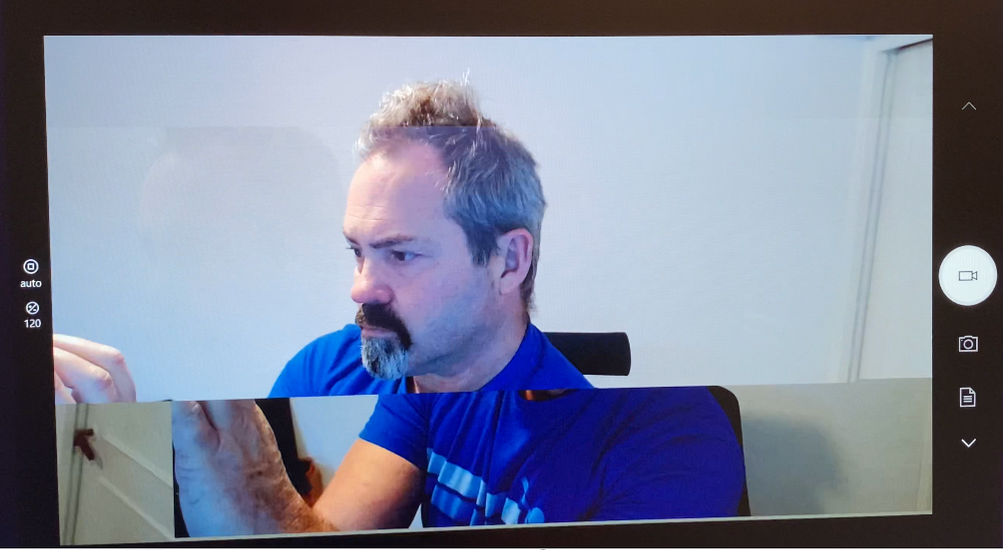
Laptop camera flicker means the image brightness changes again and again. The screen may flash, turn dark, or show rolling lines. Sometimes, the video looks normal for a few seconds and then begins to pulse.
The most common causes include:
• LED or fluorescent lights that refresh at a different rate than your camera
• An outdated or damaged camera driver
• A video app using the wrong camera settings
• Another app accessing the camera at the same time
• Low light or automatic exposure changes
• A loose camera cable inside the laptop display
• Camera hardware damage
Many people first blame the webcam. However, lighting is often the real cause. A laptop camera works like a small sensor. It must match the timing of the light in the room. When it does not, the image can flicker like a TV with a weak signal.
The fastest way to narrow down the cause is to test the camera in more than one place. Try daylight near a window, then test it under your usual desk lamp. If the flicker appears only under artificial light, your camera may be working correctly.

Common Causes of Laptop Camera Flickering
LED and fluorescent lighting
Some LED bulbs pulse very quickly. Your eyes may not notice this change, but the camera sensor can detect it. Fluorescent lights can create the same problem.
This issue becomes more visible when the camera uses a high shutter speed. The camera captures the light at a timing that does not match the light’s electrical cycle. The result is a bright and dark image that repeats.
Try turning off your main lamp and using natural daylight. If the flicker stops, change the room lighting or adjust the camera’s anti-flicker setting.
Camera exposure changes
Most laptop cameras adjust brightness automatically. When the room is dark, the camera raises exposure. When a bright object enters the frame, it lowers exposure.
This automatic adjustment can happen too often. The image then appears to flash, even though the camera itself is not broken. A bright window behind you can make this worse.
Place a soft light in front of your face. Avoid sitting with a window directly behind you. Better lighting gives the camera less work to do.
Outdated camera drivers
A driver helps the operating system communicate with the camera. If the driver is old, damaged, or incompatible with a recent update, the camera may flicker or fail.
Drivers can cause other problems too. You may see a black screen, poor image quality, missing camera access, or an error message in apps such as Zoom or Microsoft Teams.
Video app conflicts
Sometimes, the camera works in one app but flickers in another. This points to an app setting or software conflict.
Common examples include:
• Zoom using a different resolution than the Camera app
• Teams applying automatic brightness or background effects
• A browser tab using the camera in the background
• Security software blocking or changing camera access
• Two apps trying to control the webcam at the same time
Close every app that may use the camera. Then open only one camera app and test again.
Loose internal camera connection
The webcam sits inside the laptop’s display panel. A thin cable connects it to the main board. If that cable becomes loose, the image may flicker when you move the screen.
A useful test is to open and close the lid very slowly. If the flicker changes when the screen moves, the cable or hinge area may need service.
Do not open the display panel unless you have the right tools and experience. Laptop screens are fragile, and the repair can affect the display cable or microphone.
Camera hardware failure
A damaged webcam can flicker in every app and under every type of light. Physical impact, moisture, heat, or normal wear may cause this failure.
Hardware trouble is more likely when:
• The camera flickers in the built-in Camera app
• The problem continues in bright daylight
• The camera disappears from Device Manager or System Information
• The image changes when you move the laptop lid
• Reinstalling the driver does not help
A USB webcam can help confirm the diagnosis. If the external webcam works well, the built-in camera may need repair or replacement.
How to Fix a Flickering Laptop Camera
Work through these steps in order. Start with simple changes before installing drivers or opening the laptop.
1. Restart the laptop
A restart clears temporary software errors and releases the camera from apps that may still be using it.
Save your work, restart the laptop, and test the camera before opening other programs. This simple step often fixes camera problems after sleep mode or a system update.
2. Test the camera in daylight
Move near a window, but keep the window in front of you rather than behind you. Turn off nearby LED and fluorescent lights.
Open the built-in camera app. If the picture is stable in daylight, the room lighting is the likely cause. You can solve this with a different bulb, a desk lamp with steady output, or an anti-flicker setting.
3. Close other camera apps
Quit video meeting apps, browsers, screen recorders, and camera utilities. Some programs continue running in the background after you close the window.
On Windows, open Task Manager with Ctrl + Shift + Esc. Select an app that may use the camera, then choose End task. On Mac, use Force Quit only for apps that are not responding.
4. Clean the camera lens
Dust, fingerprints, and smudges can confuse automatic exposure. They do not usually create true flicker, but they can make brightness shifts look worse.
Use a clean microfiber cloth. Do not spray liquid directly on the camera. Avoid rough paper towels, which may leave fibers or create fine scratches.
5. Change the room lighting
Try these lighting changes:
• Use daylight or a steady lamp in front of your face
• Turn off overhead fluorescent lights
• Replace a flickering or low-quality LED bulb
• Avoid placing the camera directly under a strong ceiling light
• Do not sit with a bright window behind you
A soft light placed slightly above eye level usually gives the best result. It reduces harsh shadows and helps the camera keep a steady exposure.
6. Change the camera resolution
Some apps behave poorly at a high resolution. Open the video settings in the app and try a lower option, such as 720p.
If the flicker stops at a lower resolution, the problem may involve the app, driver, or camera bandwidth. Keep the lower setting as a temporary solution while you update the system.
7. Turn off video effects
Background blur, automatic framing, low-light correction, and virtual filters use extra processing. On some laptops, these effects can make the camera image unstable.
Turn off all effects, then test the camera. If the image becomes stable, enable the features one at a time to find the setting that causes the issue.
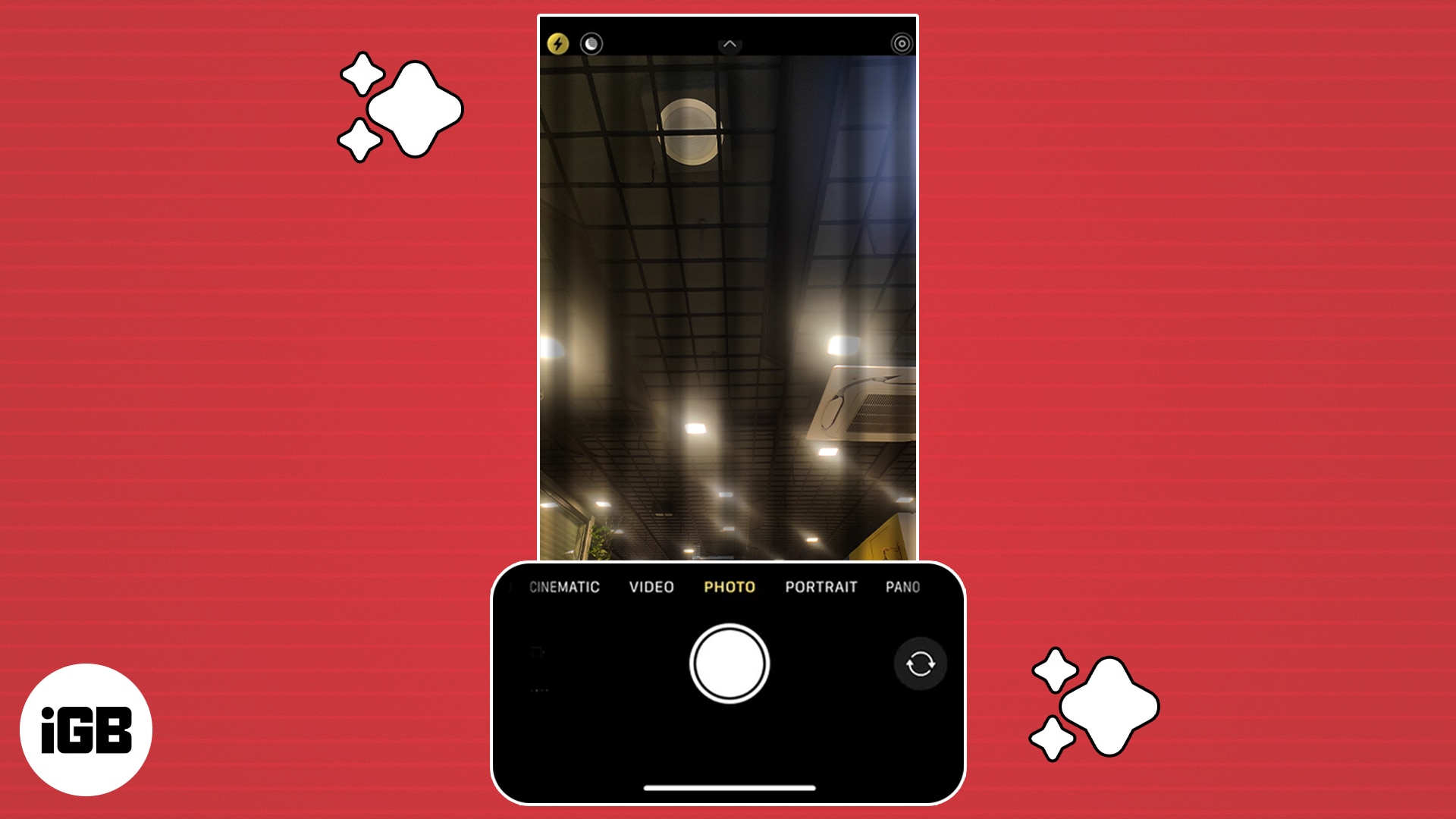
Fixing Camera Flicker on Windows
Windows offers several tools for diagnosing a flickering laptop camera. The exact menus may differ slightly between Windows 10 and Windows 11.
Check camera permissions
Open Settings, then go to Privacy and security. Select Camera and make sure camera access is enabled.
Allow access for the camera app and the video app you want to use. If you use a browser, also check the camera permission for the specific website.
Privacy settings can block video without showing a clear hardware error. A blocked camera may appear black, frozen, or unstable in some apps.
Run the camera troubleshooter
Open Windows Settings and search for troubleshooting. Use the available camera or hardware troubleshooter if your version of Windows provides one.
The tool may reset services, check permissions, or identify a driver problem. It cannot repair damaged hardware, but it can save time when the issue is caused by software.
Update the camera driver
Right-click the Start button and open Device Manager. Look under Cameras, Imaging devices, or Sound, video and game controllers.
Right-click the integrated camera and choose Update driver. Let Windows search automatically. You can also visit the laptop maker’s support page and download the camera or chipset driver made for your exact model.
Avoid random driver websites. They may offer incorrect files or unwanted software.
Reinstall the camera driver
If updating does not help, open Device Manager again. Right-click the camera and choose Uninstall device. Restart the laptop.
Windows may reinstall the driver automatically. If it does not, install the correct driver from the laptop maker’s official support page.
Create a restore point before making major driver changes. This gives you a safer way to undo a change if another device stops working.
Check for Windows updates
Open Windows Update and install available security and system updates. Camera problems sometimes appear after an update, but later patches may correct them.
If the flicker began immediately after a major update, check the laptop maker’s support notes before rolling anything back. A rollback may solve one issue while creating another.
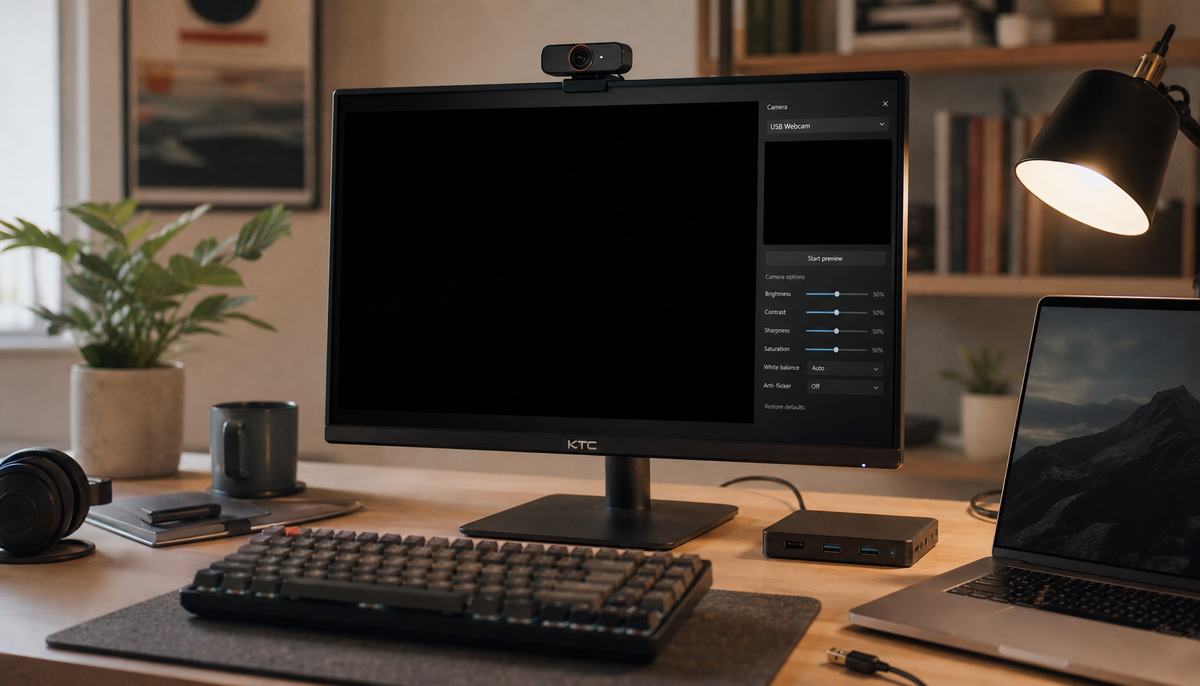
Fixing Camera Flicker on a Mac
Mac laptops also use automatic exposure, app permissions, and system camera controls. The steps are slightly different from Windows.
Check camera permissions
Open System Settings and choose Privacy & Security. Select Camera and allow access for the app you want to use.
Quit the app and open it again after changing the permission. Some apps do not detect a new permission until they restart.
Test the camera in another app
Try FaceTime, Photo Booth, or another trusted camera app. If the camera flickers in only one app, update or reinstall that app.
If it flickers everywhere, the issue may involve lighting, macOS, or the camera hardware. Testing more than one app prevents you from blaming the wrong part of the system.
Install macOS updates
Open System Settings, choose General, and select Software Update. Install updates that support your Mac model.
Updates can improve camera compatibility and fix problems with video calls. Keep your files backed up before a major system update.
Reset the app and restart
Quit the affected app fully. Then restart your Mac and test the camera again.
Older troubleshooting guides may suggest resetting special system controllers. The correct process depends on the Mac model, especially for Apple silicon devices. Follow current instructions for your exact model rather than using a generic reset.

How to Tell Whether Lighting or Hardware Is the Problem
A simple test can save you hours. Test the camera in three conditions:
-
Bright daylight
-
A different indoor light
-
A different camera app
Record what happens in each test. For example, if the camera flickers only under an LED bulb, the light is the cause. If it flickers in every setting, software or hardware becomes more likely.
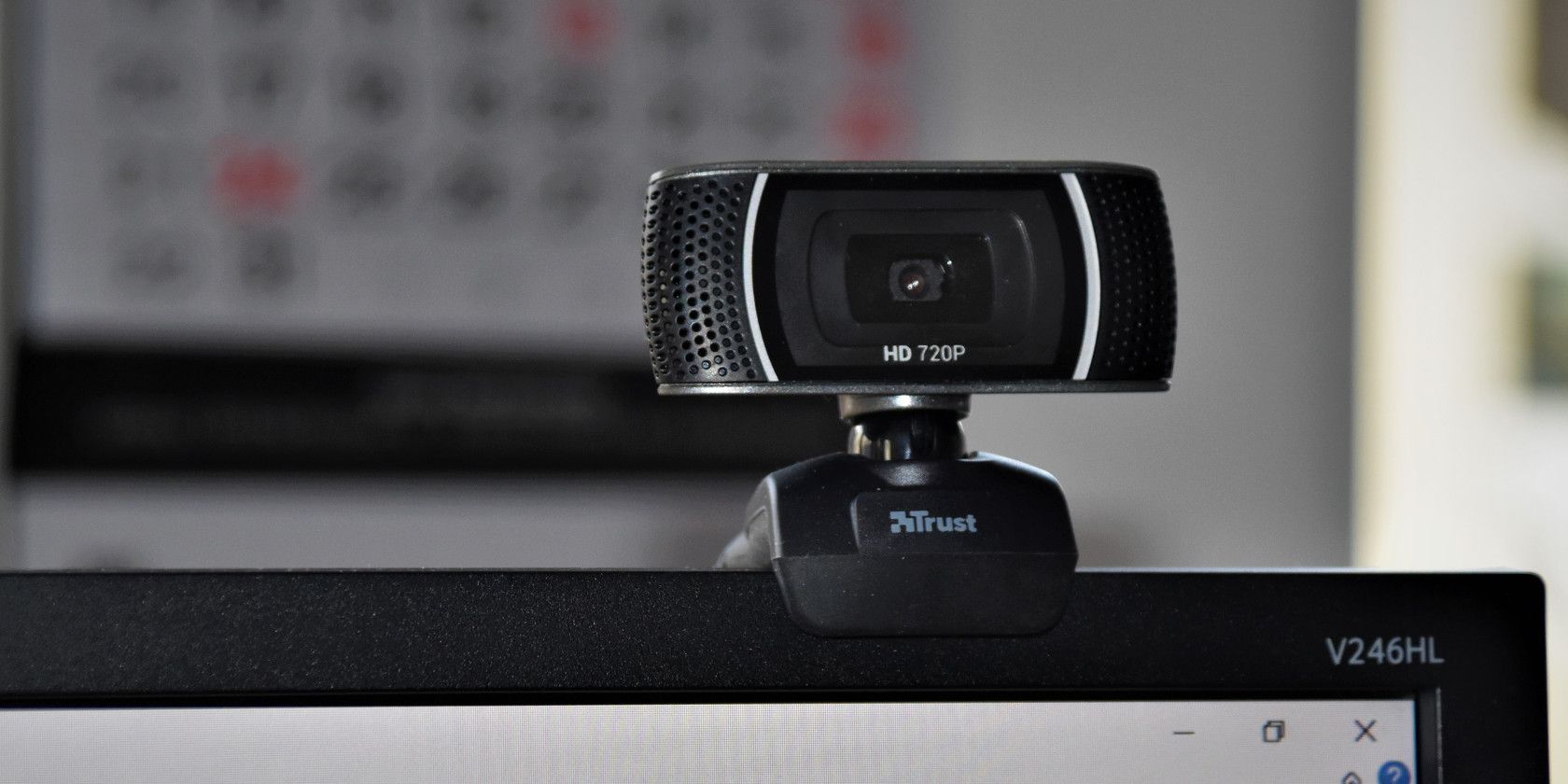
You can also connect a USB webcam. This creates a useful comparison:
• Built-in camera flickers but USB webcam works: the internal camera or cable may be faulty
• Both cameras flicker in the same room: lighting or software is more likely
• Both cameras flicker only in one app: that app may have a setting or compatibility problem
In troubleshooting work, I have seen people replace a laptop camera when the real problem was a cheap desk lamp. Testing with daylight first is one of the best ways to avoid spending money too soon.
When to Repair or Replace the Camera
You may need professional help if the laptop camera flickers after all software and lighting checks fail.
Contact the manufacturer or a trusted repair shop when:
• The camera is missing from the operating system
• The camera flickers in daylight and in every app
• The image changes when you move the display
• The laptop recently suffered a drop or liquid spill
• The screen bezel or hinge looks damaged
• The laptop is still covered by a warranty
Do not open the laptop while a warranty claim is active unless the manufacturer allows it. Internal repairs may affect warranty coverage.
A camera replacement is not always the best choice. If you rarely use video calls, a small external webcam may cost less and provide a sharper image. It can also be easier to position near a window or desk light.

How to Prevent Laptop Camera Flickering
Once you fix the issue, a few habits can help prevent it from returning.
• Keep the camera lens clean
• Use steady lighting in front of the laptop
• Install operating system and driver updates
• Close camera apps when you finish a call
• Avoid unknown webcam tools and drivers
• Keep the laptop cool and well ventilated
• Do not force the display hinge
• Use a surge protector for your desk equipment
Do not cover the camera with thick tape or a hard slider that presses against the display. A thin cover made for laptops is safer, but remove it before closing the lid if it creates pressure.
Good lighting is also useful for privacy and video quality. It lets you use lower exposure and often reduces grain, blur, and sudden brightness changes.
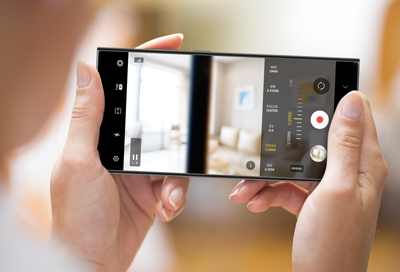
Mistakes to Avoid When Your Laptop Camera Flickers
One common mistake is changing many settings at once. If you update the driver, change the app, alter the lights, and reset privacy controls together, you may not know which step fixed the issue.
Use one change at a time. Test the camera after each change and write down the result.
Another mistake is downloading a driver from an untrusted website. Camera drivers should come from Windows Update, macOS, or the laptop manufacturer. Unofficial tools can create security and stability problems.
Finally, do not assume a flicker always means the camera is broken. Artificial light is a frequent cause. Test daylight before buying a new webcam or paying for repair.
Frequently Asked Questions About Why Is My Laptop Camera Flickering
Why is my laptop camera flickering only during Zoom calls?
The Zoom camera settings, video effects, or lighting controls may be causing the problem. Test the camera in the built-in camera app, then turn off automatic adjustments and virtual backgrounds in Zoom.
Why is my laptop camera flickering under LED lights?
Some LED bulbs pulse at a rate that does not match the camera’s shutter timing. Try daylight, a different bulb, or the camera’s 50 Hz or 60 Hz anti-flicker setting if the app provides one.
Can a bad camera driver make my laptop camera flicker?
Yes. A damaged or outdated driver can cause unstable video, poor exposure control, or app conflicts. Update or reinstall the driver through the operating system or the laptop manufacturer.
Why does my camera flicker when I move the laptop screen?
The internal camera cable may be loose or damaged near the hinge. Stop moving the lid repeatedly and have the laptop inspected, especially if the issue began after a drop or hinge problem.
Why is my laptop camera flickering in every app?
Flickering in every app suggests a lighting problem, system issue, or hardware fault. Test the camera in daylight and with an external webcam to separate the likely causes.
Can low light cause laptop camera flickering?
Low light can make automatic exposure change quickly. Add a soft light in front of you and avoid a bright window behind you to create a more stable image.
Conclusion
A flickering laptop camera is often caused by room lighting, automatic exposure, outdated drivers, app conflicts, or a loose internal connection. Start with daylight testing, camera permissions, app settings, and a full restart before considering repair.
If the camera flickers in every app and under steady light, hardware may be the cause. Work through the steps above, record what changes, and choose a repair or external webcam only after testing the simple fixes. Share this guide with someone dealing with a shaky video call, and explore your laptop maker’s support resources for model-specific help.