Increasing laptop RAM helps apps run more smoothly, improves multitasking, and reduces slowdowns caused by memory limits.
If your laptop freezes when many tabs are open, struggles with large files, or feels slow during normal work, more RAM may help. Understanding why increase RAM in laptop situations can save you money because RAM upgrades improve some problems greatly, but not every slow laptop needs more memory.
What Is RAM in a Laptop?
RAM, or random access memory, is the laptop’s short-term workspace. It holds the apps, files, browser tabs, and system tasks that you are using right now. Think of RAM as a desk: a larger desk gives you more room to work without constantly moving items away.
Laptop RAM is different from storage. An SSD or hard drive stores your files for the long term, while RAM works only while the laptop is powered on. When you shut down the laptop, the information in RAM disappears.
The main reason to understand why increase RAM in laptop upgrades is that limited memory can slow down everyday work. When RAM becomes full, the operating system uses part of the storage drive as temporary memory. This process is much slower than using physical RAM.

Why Increase RAM in Laptop Computers?
The biggest reason to increase RAM in laptop computers is to improve multitasking. More RAM lets your laptop keep more programs active at the same time. You can switch between a browser, video call, word processor, music app, and spreadsheet with fewer pauses.
Here are the most common reasons people upgrade:
• Better multitasking when using many apps and browser tabs
• Fewer slowdowns during video calls and online classes
• Smoother photo and video editing
• Better performance in some games
• Faster work with large spreadsheets and databases
• More comfortable use of Windows, macOS, or Linux
• Longer useful life for an older laptop
A RAM upgrade does not make every task faster. It mainly helps when your laptop does not have enough memory for the work you are doing. If your laptop already has enough RAM, adding more may produce little or no visible change.
How More RAM Improves Laptop Performance
When a laptop has enough RAM, active programs can stay in memory. This allows the processor to access the data quickly. When RAM is full, the system moves less important data to the storage drive, which creates extra delays.
You may notice this as:
• Apps taking longer to open
• Browser tabs reloading when you return to them
• Short freezes when switching programs
• A spinning cursor or beach ball
• Delays while typing or saving files
• Stuttering during video calls
• Slow response after waking the laptop
This is why increase RAM in laptop advice often focuses on real memory use rather than the age of the computer. A five-year-old laptop with enough RAM may feel better for basic work than a newer laptop with too little memory.
RAM also helps reduce the need to close and reopen apps. For example, a student may keep research tabs, a document, a PDF textbook, and a video meeting open. With enough memory, the laptop can handle this workflow more comfortably.
How Much RAM Does a Laptop Need?
The right amount depends on your operating system and daily tasks. More RAM is helpful, but buying the largest amount available is not always the best use of money.
4GB of RAM
Four gigabytes is usually the bare minimum for modern laptop use. It may work for simple writing, email, and light web browsing, but the experience can become uncomfortable quickly.
Many modern operating systems and websites use more memory than they did several years ago. A laptop with 4GB may struggle when you open several tabs or join a video meeting.
8GB of RAM
Eight gigabytes is a practical starting point for basic home, school, and office work. It can handle web browsing, document editing, streaming, email, and light multitasking.
If your laptop has 8GB and feels slow, check memory usage before upgrading. The problem may instead be a slow storage drive, too many startup apps, overheating, or malware.
16GB of RAM
Sixteen gigabytes is a strong choice for most users. It gives you room for many browser tabs, office programs, creative apps, and communication tools.
For many people asking why increase RAM in laptop computers, moving from 8GB to 16GB offers the most useful balance of price and performance. It is especially helpful for students, remote workers, developers, and creative users.
32GB or more
Thirty-two gigabytes is useful for demanding work. This includes advanced video editing, 3D design, virtual machines, software development, large data sets, and high-end gaming.
Most casual users do not need 32GB. More RAM cannot compensate for a weak processor, poor cooling, or an old mechanical hard drive.
:max_bytes(150000):strip_icc()/upgraderam02-fa287777d1744ae88339ea68acc3ba5b.jpg)
Who Benefits Most From a RAM Upgrade?
A RAM upgrade helps most when your laptop regularly reaches high memory use. You can identify this by checking the memory section in Windows Task Manager or the Memory tab in macOS Activity Monitor.
People who may benefit include:
• Users who keep many browser tabs open
• Students using research tools, meetings, and office apps together
• Remote workers running video calls and collaboration software
• Photographers editing large RAW image files
• Video editors working with high-resolution footage
• Developers running code editors, browsers, and virtual machines
• Gamers whose systems meet the game’s other hardware needs
• Professionals using large spreadsheets or design programs
For example, a laptop with 8GB may feel fine when writing an email. The same laptop may slow down when it runs a video meeting, 20 browser tabs, a cloud storage app, and a spreadsheet at once.
In hands-on laptop troubleshooting, a common mistake is upgrading RAM without checking actual usage. If memory use stays below about 70% during your normal work, more RAM may not solve the problem. High usage combined with freezing, tab reloads, and drive activity is a stronger sign that an upgrade could help.

RAM and Gaming Performance
More RAM can improve gaming, but it is not the only part that matters. The processor, graphics chip, storage drive, cooling system, and game settings also affect performance.
A RAM upgrade may help games by:
• Reducing stutter in open-world games
• Improving background multitasking
• Supporting larger game worlds
• Helping prevent slowdowns while recording gameplay
• Improving performance when using game mods
Many modern games run well with 16GB of RAM. Some demanding titles and gaming setups benefit from 32GB, especially when other apps are open. However, adding RAM will not turn integrated graphics into a powerful gaming graphics card.
Memory configuration also matters. Some laptops perform better with two matching RAM modules because they can use dual-channel memory. The exact benefit depends on the laptop and processor, so check the manufacturer’s specifications before buying.

RAM for Video Editing, Design, and Creative Work
Creative software often needs more memory because it handles large files. A high-resolution photo, video project, 3D scene, or audio session can occupy a large amount of RAM.
For light photo editing, 16GB is often comfortable. Video editors working with 4K footage, motion graphics, or large project files may prefer 32GB or more.
More RAM helps creative work by allowing:
• Larger projects to remain open
• More layers in design software
• Smoother timeline previews
• Better multitasking with media tools
• Fewer pauses while switching between files
Still, RAM is only one part of the workflow. A fast SSD can improve file loading, while a strong graphics processor can help with effects and rendering. This is another reason why increase RAM in laptop decisions should include a full hardware check.
Signs Your Laptop Needs More RAM
You do not need to guess. Look for repeatable signs during your normal tasks.
Windows
Open Task Manager by pressing Ctrl, Shift, and Esc. Select the Performance tab, then choose Memory. Watch memory use while opening the programs that normally cause slowdowns.
macOS
Open Activity Monitor and select the Memory tab. Pay attention to memory pressure rather than only the amount of free memory. Green memory pressure usually means the system is managing memory well, while yellow or red pressure can indicate a limitation.
Common warning signs include:
• Memory use remains very high during normal work
• The system becomes slow when switching apps
• Browser tabs reload often
• The storage drive stays busy during simple tasks
• Apps close or become unresponsive
• Video calls suffer when other apps are open
Check these signs more than once. A single spike may be normal, especially when opening a large program.

How to Check Whether a Laptop Can Be Upgraded
Not every laptop allows a RAM upgrade. Some models have removable memory modules, while others have RAM soldered directly to the motherboard.
Before buying anything, check:
• The laptop model and exact model number
• The maximum supported RAM
• The type of memory, such as DDR4 or DDR5
• The supported memory speed
• The number of RAM slots
• Whether a slot is already occupied
• Whether the laptop uses soldered memory
• The maximum capacity supported by the processor
The laptop maker’s service manual is usually the safest reference. Reputable memory manufacturers also provide compatibility tools, but compare their results with the laptop manufacturer’s specifications.
Do not assume that two laptops with the same processor use the same RAM. Motherboard design, firmware, physical size, and memory layout can differ.

How to Upgrade Laptop RAM Safely
If your laptop supports an upgrade, the process is often simple, but care is important.
-
Back up important files before opening the laptop.
-
Shut down the computer fully.
-
Disconnect the charger and other cables.
-
Follow the service manual for removing the bottom cover.
-
Touch a grounded metal surface to reduce static electricity.
-
Remove the old module only if the installation requires it.
-
Align the notch on the new module with the slot.
-
Press the module down until the clips hold it in place.
-
Replace the cover and start the laptop.
-
Confirm the new capacity in the operating system.
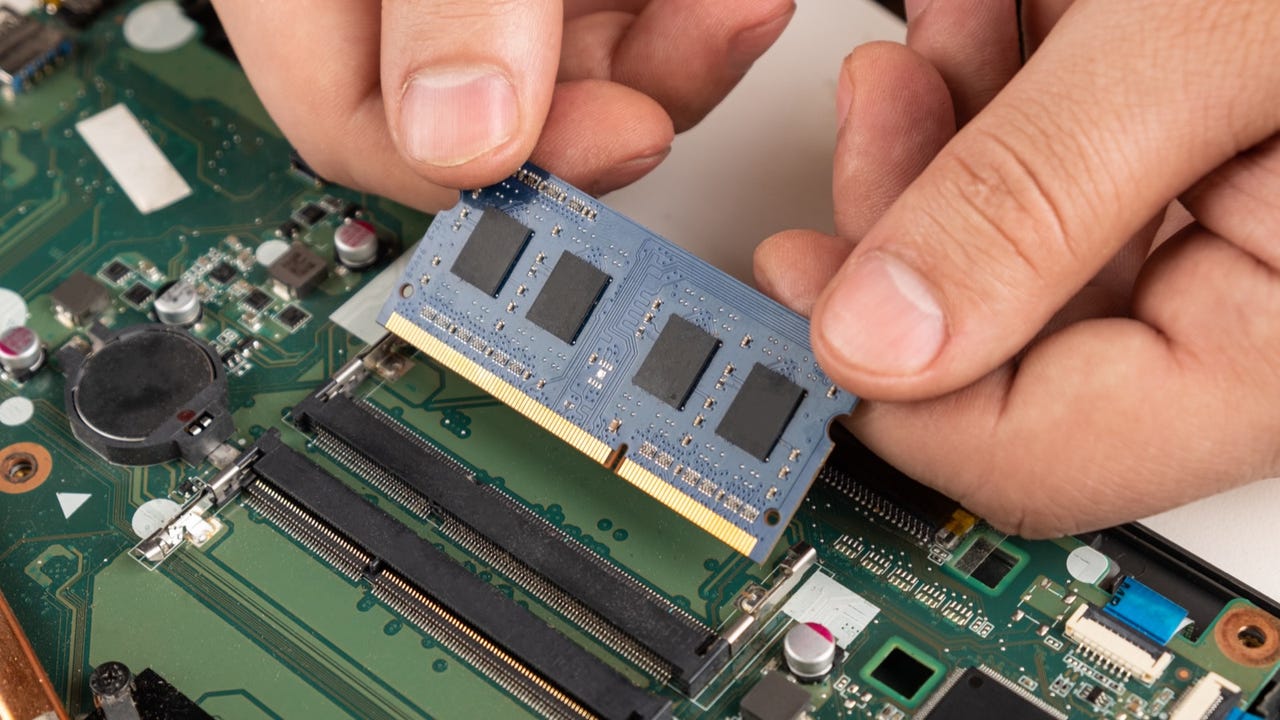
Use the correct laptop memory type. Desktop RAM is not the same size as laptop SO-DIMM memory. Never force a module into a slot.
One lesson worth remembering is that capacity is not the only issue. Mixing different modules may work, but matching modules are often the safer choice. If a laptop has one 8GB module and one empty slot, adding another compatible 8GB module may be a simple path to 16GB.

When Increasing RAM Will Not Help
More RAM is not a cure for every slow laptop. If memory use is low, the cause may be elsewhere.
A RAM upgrade may not help when:
• The laptop uses a very slow hard drive
• The processor is too old for your software
• The graphics chip is too weak
• The laptop overheats and reduces its speed
• Too many unwanted startup programs are running
• The operating system has damaged files
• Malware is consuming system resources
• The battery or power settings limit performance
Replacing a mechanical hard drive with an SSD often creates a larger improvement than increasing RAM. Cleaning dust from vents and reducing startup apps can also help at little cost.
If the laptop has soldered RAM and cannot be upgraded, focus on lighter software, fewer background apps, and storage improvements. In some cases, replacing the laptop is more practical than trying to work around fixed hardware.
Common Mistakes to Avoid
Many RAM upgrade problems come from rushing the purchase.
Avoid these mistakes:
• Buying desktop RAM for a laptop
• Ignoring the laptop’s maximum supported capacity
• Mixing incompatible generations such as DDR4 and DDR5
• Assuming faster RAM will always run at its advertised speed
• Forgetting that some RAM is reserved for integrated graphics
• Installing only one module when dual-channel support would help
• Opening a laptop while it is still connected to power
• Skipping a backup before hardware work
• Paying for 64GB when your tasks use only 8GB
Also check the warranty rules. Some manufacturers permit user upgrades, while others may limit service coverage if the device is damaged during installation. If the laptop is difficult to open, professional installation may be worth the small extra cost.
RAM Upgrade Cost and Value
The value of an upgrade depends on your laptop’s age, condition, and use. A low-cost RAM upgrade can extend the useful life of a good laptop, especially when the processor and SSD are still adequate.
Before spending money, compare these options:
• Add RAM if the laptop has empty slots and high memory use
• Replace the SSD if storage activity causes the main slowdown
• Clean and maintain the laptop if heat is the problem
• Remove unnecessary startup software if boot time is slow
• Buy a new laptop if the processor, display, battery, and other parts are outdated
A sensible target for many users is 16GB. Users with demanding creative, technical, or gaming workloads may choose 32GB. The best decision comes from measuring your needs rather than following a general maximum.
Frequently Asked Questions About Why Increase RAM in Laptop
Why increase RAM in laptop computers instead of replacing the laptop?
Increasing RAM can be cheaper than replacing a laptop when the main problem is limited memory. It is worthwhile only if the laptop supports upgrades and its processor, storage, battery, and other parts still meet your needs.
Does more RAM make a laptop faster?
More RAM can make a laptop feel faster when the current memory is full. It does not directly increase processor speed, so it may not help if the bottleneck is the CPU, SSD, graphics chip, or cooling system.
Is 8GB RAM enough for a laptop?
Eight gigabytes can handle basic browsing, schoolwork, email, and office tasks. For heavy multitasking, creative work, gaming, or long-term use, 16GB provides more comfort.
Is 16GB RAM enough for gaming?
Sixteen gigabytes is enough for many modern games when the laptop has a suitable processor and graphics chip. Some demanding games, mods, streaming tools, and background apps may benefit from 32GB.
Can I add RAM to any laptop?
No. Some laptops have soldered RAM that cannot be removed or expanded. Check the exact model’s service manual to confirm the memory type, available slots, and maximum capacity.
Does RAM improve battery life?
More RAM does not always improve battery life. It may reduce slow storage swapping, but higher-capacity memory can also use more power, so the result depends on the laptop and workload.
Should I upgrade RAM or install an SSD?
Choose RAM when memory use is high and the laptop slows during multitasking. Choose an SSD when booting, opening files, and launching apps are slow because the laptop uses an old mechanical drive.
Conclusion
Increasing laptop RAM can improve multitasking, reduce memory-related freezes, and make demanding programs easier to use. The upgrade is most useful when your system regularly runs out of memory, but it will not fix every performance problem.
Check memory use first, confirm upgrade compatibility, and choose a sensible capacity such as 16GB for most users or 32GB for demanding work. Make an informed choice, follow safe installation steps, and share your laptop model or upgrade experience in the comments.