You can merge voice clips by importing, arranging, and exporting them in a recorder or editor.
I’ve spent years editing interviews, lectures, and field notes, so I know how to combine recordings on voice recorder in ways that save time and keep sound clean. This guide walks you through simple methods for phones and computers, step-by-step workflows, pro tips I learned the hard way, and real fixes for common problems so you can merge clips with confidence.
Why combine recordings on voice recorder
Combining recordings on voice recorder helps you make longer files from short takes, fix breaks, and create a single, clean file for sharing or archiving. It keeps your workflow simple and reduces the chance of losing bits of audio across multiple files.
Combining also saves space when you export once and lets you add edits like fades and noise reduction in one place. If you plan podcasts, interviews, or lecture notes, learning how to combine recordings on voice recorder becomes a core skill.
Methods for how to combine recordings on voice recorder
There are four common ways to combine recordings on voice recorder:
- Use the recorder app’s built-in append or merge feature. Some phone apps let you add to existing files.
- Use a mobile audio editor to import files and join them on a timeline.
- Use a desktop editor for more control and quality (Audacity, GarageBand, or Adobe Audition).
- Use a web-based editor when you don’t want to install software.
Phone apps are quick for simple merges. Desktop apps give better control over levels, crossfades, and format choices. Web editors are handy if you work on the go and trust the service.
How to combine recordings on iPhone (Voice Memos + GarageBand)
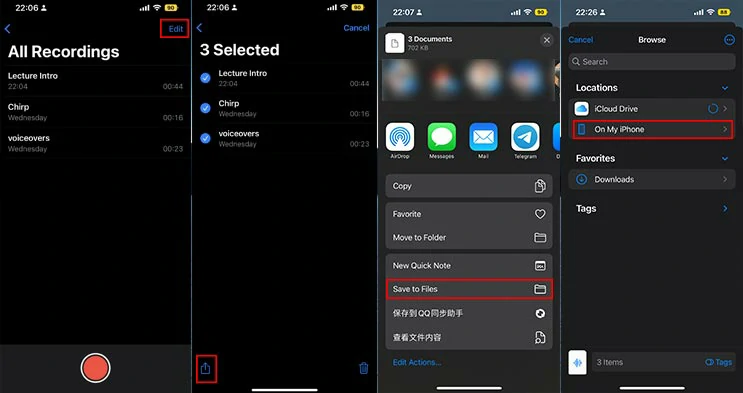
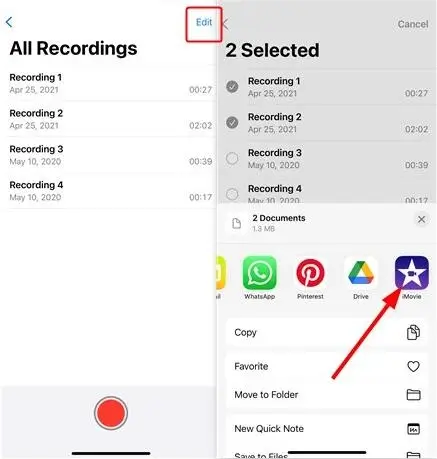
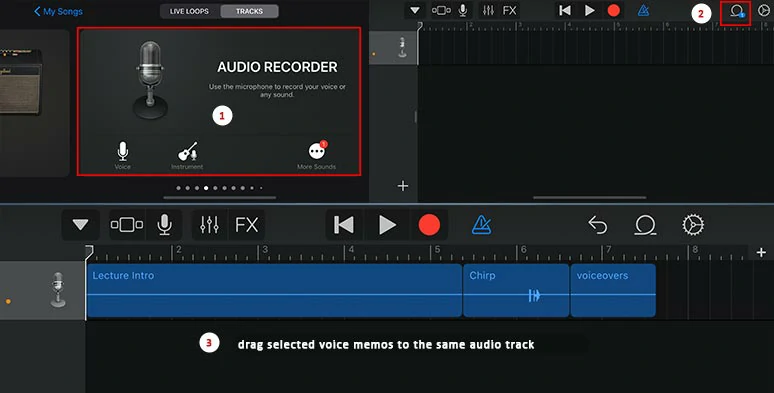
- Open Voice Memos and share the clips to Files or directly to GarageBand.
- In GarageBand, create a new audio track and import each clip into the timeline in order.
- Trim, add fades, and export as a single file (choose WAV or M4A).
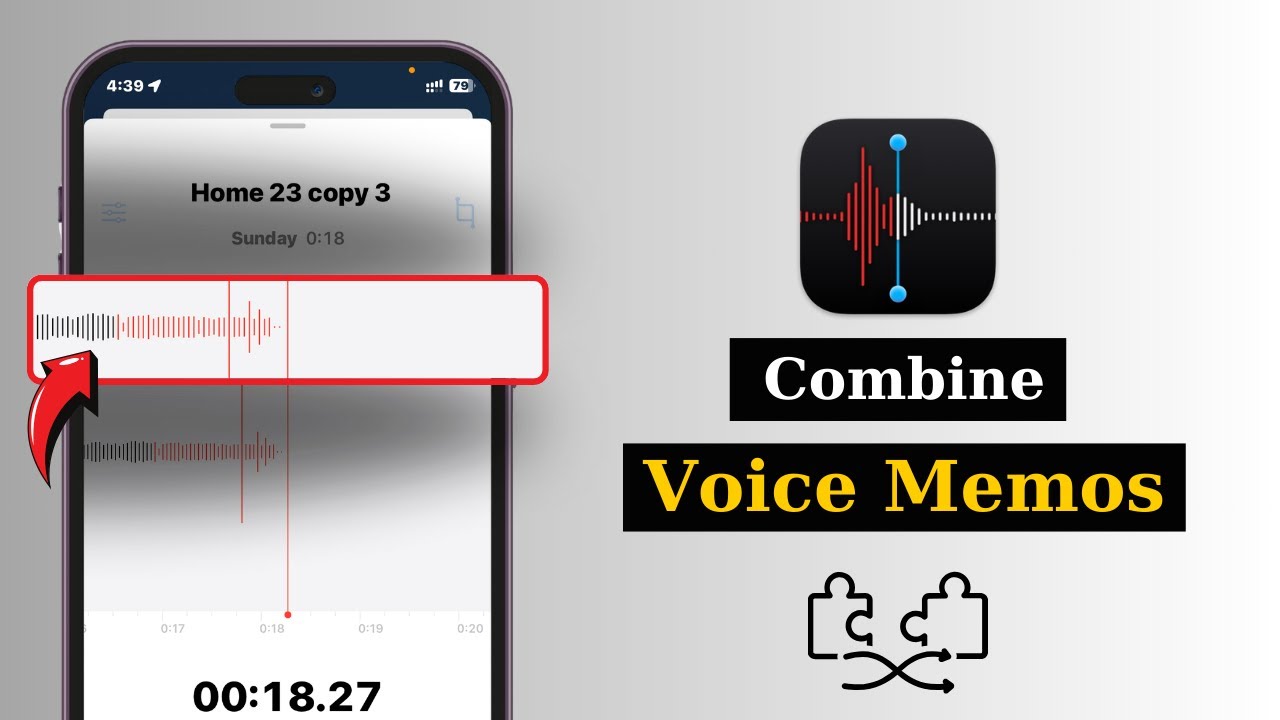
Voice Memos doesn’t natively merge multiple memos into one file, so GarageBand or a third-party app is the easiest fix.
How to combine recordings on Android
- Check your recorder app for an “append” or “merge” option when saving.
- If none exists, export MP3/WAV files and open them in a mobile audio editor (like Lexis Audio Editor).
- Arrange clips on the timeline, apply crossfade if needed, and export.
Android apps vary, so pick one with timeline editing for the best control.
How to combine recordings on Windows and Mac
- Export voice recorder files to your computer.
- Open Audacity (free) or GarageBand (Mac) and import all clips.
- Drag clips into order, add fades, normalize levels, then export as a single file.
Desktop editors let you correct sample rate mismatches and do batch processing.
Step-by-step: A simple workflow in Audacity for how to combine recordings on voice recorder
- Install and open Audacity.
- File > Import > Audio and select your recorded files.
- Select the Time Shift tool and move clips into the desired order.
- Zoom in and trim silence or unwanted noise between clips.
- Apply Effects > Fade In / Fade Out or Crossfade Tracks to smooth joins.
- Select all tracks, go to Tracks > Mix > Mix and Render to New Track.
- File > Export > choose WAV or MP3 and save.
This workflow keeps your original files safe and gives access to repair tools like noise reduction. Audacity is free and reliable for basic merges and restores.

Tips to get clean merges when you combine recordings on voice recorder
- Match sample rates: Convert all clips to the same sample rate (44.1kHz or 48kHz) before merging.
- Normalize or match loudness: Use LUFS or peak normalization to avoid jumps in volume.
- Use short crossfades: A 50–200 ms crossfade hides clicks and makes joins natural.
- Noise reduction: Run light noise reduction before merging if background hiss varies.
- Keep backups: Save originals before edits so you can revert.
Small prep steps prevent big problems later. These tips make your merged file sound like a single, continuous recording.
Common problems when you combine recordings on voice recorder and how to fix them
- Mismatched volume: Use normalization or manual gain to balance clips.
- Different file formats: Convert to WAV or MP3 with the same bit depth and sample rate.
- Pops or clicks at joins: Add short fades or a crossfade to mask artifacts.
- Stereo vs mono mismatch: Convert stereo to mono (or vice versa) consistently to prevent channel loss.
- Big file size: Export MP3 at a reasonable bitrate (128–192 kbps) for speech to save space.
When problems happen, a simple fix usually solves them. If quality is critical, keep edits minimal and export in a lossless format.

Best tools and apps to combine recordings on voice recorder
- Audacity (Windows/Mac/Linux): Free, reliable, great for batch joins and fixes.
- GarageBand (Mac/iOS): Good for iPhone users, easy import and export.
- Adobe Audition (Paid): Professional features for detailed edits and restoration.
- Lexis Audio Editor (Android): Lightweight mobile editor for basic merges.
- Ferrite and Hokusai (iOS): Mobile editors made for interviews and podcasts.
- Online Audio Joiner: Fast web tool for quick merges without install.
Pick a tool that matches your needs. For podcast-level work use Audition or GarageBand; for quick field merges use a mobile app.
Personal experience: lessons learned combining recordings on voice recorder
Early in my work I tried to stitch phone memos together without normalizing. The result had loud spots and thin parts that annoyed listeners. I now always match sample rates and normalize levels first.
I once lost an interview because I overwrote the original file. After that, I made a habit: export a working copy and keep originals untouched. That one habit saved hours of rework.
Tips I swear by:
- Always keep originals.
- Do light edits first, then finalize export.
- If moving between devices, use a lossless transfer to avoid extra compression.

Frequently Asked Questions of how to combine recordings on voice recorder
How do I merge voice memos on iPhone into one file?
You can’t merge directly in Voice Memos. Share the memos to GarageBand or a third-party app, import them onto a timeline, arrange, and export as a single file.
Can I combine recordings without losing quality?
Yes. Use a lossless format like WAV during editing, keep the same sample rate, and export as WAV or high-bitrate MP3 to preserve quality.
Is there a free tool to combine recordings on voice recorder?
Audacity is a free, reliable tool that imports, orders, and exports multiple audio files into one merged track.
How do I avoid clicks or pops between clips?
Add short fades or overlap clips with a crossfade of 50–200 ms to mask abrupt transitions and prevent clicks.
What is the best format to export after combining recordings?
For speech, export WAV for best quality or MP3 at 128–192 kbps for smaller files and acceptable clarity.
Conclusion
Combining recordings on voice recorder is a small skill with big payoff: one clean file, simpler sharing, and smoother edits. Start by matching sample rates, backing up originals, and using a simple editor like Audacity or GarageBand. Try one merge today, keep your workflow safe, and you’ll save time on every future project. If this helped, subscribe for more tips or leave a comment about your setup and I’ll share tailored advice.