Back up Samsung Voice Recorder by copying recordings to cloud or local storage quickly.
I’ve backed up hundreds of voice notes from Samsung phones. In this guide, I explain practical, tested ways to back up Samsung Voice Recorder files. You’ll learn step-by-step methods, simple tips, and fixes so your recordings stay safe. Read on to master how to backup Samsung Voice Recorder with easy tools and clear steps.
Understanding why you should backup Samsung Voice Recorder files
Voice recordings often hold ideas, interviews, lectures, and memories. Losing them hurts work and mood. Backing up keeps files safe from loss, theft, or accidental deletion.
I use simple cloud sync and a local mirror. That combo saved hours of rework for me. This section explains why the backup matters and which risks you avoid.

Where Samsung Voice Recorder stores files on your phone
Samsung Voice Recorder saves files in predictable folders. Most devices place recordings under Internal storage > VoiceRecorder or Records. File names often include date and time and use .m4a or .wav formats.
Knowing the folder makes manual backup fast. You can copy the folder over USB or use an app to sync it. This knowledge is key when you learn how to backup Samsung Voice Recorder.
How to backup Samsung Voice Recorder — step-by-step methods
Here are clear methods to back up Samsung Voice Recorder. Choose one or combine several for extra safety. Each method shows steps and tips.
1) Manual USB transfer to PC
- Connect your Samsung phone with a USB cable.
- Set the phone to File Transfer (MTP) mode.
- Open the Phone drive on your computer.
- Navigate to Internal storage > VoiceRecorder or Records.
- Copy the folder to a safe PC folder or external drive.
This is fast and direct. I use it when I need full control and offline copies. It is a simple way to back up Samsung Voice Recorder.
2) Backup to Google Drive
- Open the Google Drive app on your phone.
- Tap Add and choose Upload.
- Browse to the VoiceRecorder folder and select files.
- Optionally, create a dedicated folder in Drive for recordings.
Google Drive works well for small libraries. It keeps files accessible from any device. For many users, this is the easiest cloud option when learning how to backup Samsung Voice Recorder.
3) Use Samsung Cloud (when available)
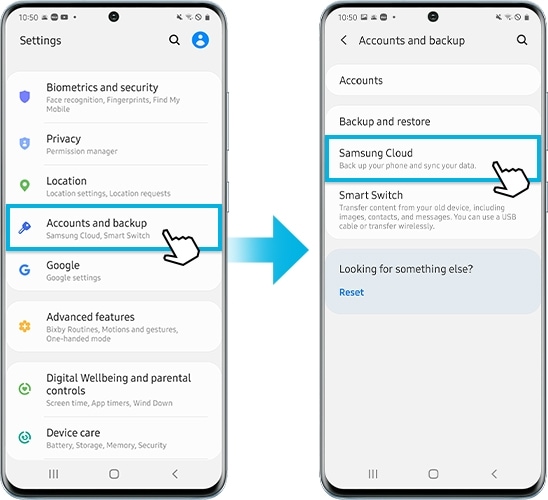
- Open Settings > Accounts and backup > Samsung Cloud.
- Check Backup and restore options for files or app data.
- If Voice Recorder supports cloud sync, enable it.
Samsung Cloud varies by model and region. It can back up app data automatically. If available, it integrates neatly with how to backup Samsung Voice Recorder on Samsung devices.
4) Sync with OneDrive
- Install OneDrive and sign in.
- In the app, tap Upload and select your recordings.
- Use the OneDrive folder on PC to keep a synced copy.
OneDrive is great for Microsoft users. It can be set to auto-sync specific folders. This method helps when you want an integrated PC and cloud workflow for how to backup Samsung Voice Recorder.
5) Smart Switch backup
- Install Smart Switch on your PC or use the app on the phone.
- Connect your phone and choose Backup.
- Smart Switch backs app data and media, including recordings.
Smart Switch creates a full device backup. It’s handy if you want an image-style backup that includes voice files. Use it to back up Samsung Voice Recorder as part of a larger device backup strategy.
6) Automatic backups with folder-sync apps
- Install a folder sync app (for example, a reliable sync tool).
- Grant access to the VoiceRecorder folder.
- Set a schedule to auto-sync to Google Drive, Dropbox, or an FTP server.
Auto-sync prevents forgetting backups. I set daily sync the night after large interviews. This keeps new recordings safe without manual steps.
7) Exporting and converting recordings
- Open the Voice Recorder app.
- Use Share or Export to save a file to cloud or email.
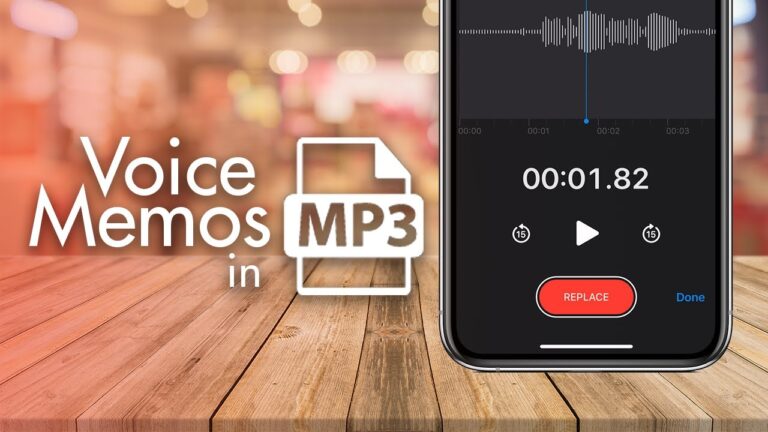
- Convert to MP3 if needed for compatibility.
Exporting from the app is quick for single files. It’s handy when someone requests an MP3 or when you need to attach recordings to messages. This is a common part of how to backup Samsung Voice Recorder.

Organizing, naming, and versioning your backups
Good naming makes recovery fast. Use consistent names like YYYYMMDD_topic_location. Keep a simple folder tree by year and project. Version important edits by adding v1, v2.
Store at least two copies. For example:
- Primary cloud copy for access.
- Secondary local copy for quick restore.
These habits make backups useful, not just stored. They are practical steps in how to backup Samsung Voice Recorder that I learned the hard way.

Troubleshooting common backup issues
If files don’t appear in cloud sync, check app permissions. Grant storage access for the cloud app. Also check that battery optimization isn’t stopping background sync.
If a recording is missing, search the phone for .m4a or .wav files. Use a file manager to scan hidden folders. These tips solve most problems when you try to back up Samsung Voice Recorder.

PAA-style questions — quick answers users often search for
What file formats does Samsung Voice Recorder use?
Samsung Voice Recorder typically saves in .m4a or .wav. These formats are widely supported and easy to upload to cloud services.
Can I auto-backup my Samsung Voice Recorder files?
Yes. Use folder-sync apps or cloud apps with folder upload to enable automatic backups. Schedule daily sync for best results.
Will Smart Switch include my voice recordings?
Smart Switch backs app data and media in most cases. Confirm by checking the backup contents before relying on Smart Switch alone for voice file backups.

Personal tips and mistakes to avoid
I once lost a whole week’s interviews by relying on one cloudy backup. Since then I use both cloud and a local mirror. I also name files consistently and check backups weekly.
Avoid these mistakes:
- Relying on one copy only.
- Skipping checks after large recording sessions.
- Using unclear file names.
These little routines saved me from stress. They will help you when you search for how to backup Samsung Voice Recorder.

Security and privacy when backing up recordings
Encrypt sensitive files before upload if the cloud provider doesn’t offer end-to-end encryption. Use strong passwords and enable two-factor authentication on cloud accounts.
Limit sharing links and clear old shared links. These steps protect confidential recordings and improve trust when you back up Samsung Voice Recorder.
 recorder”
style=”max-width: 100%; height: auto; border: 2px solid black; border-radius: 10px; display: block; margin: 0 auto;”
loading=”lazy”
/>
Frequently Asked Questions of how to backup samsung voice recorder
### How do I find my recorded files on a Samsung phone?
Open a file manager and look under Internal storage > VoiceRecorder or Records. You can also use the Voice Recorder app’s share or export option to locate the file.
Can I backup Samsung Voice Recorder automatically?
Yes. Use folder-sync apps or cloud apps that permit automatic uploads from the VoiceRecorder folder. Schedule regular syncs to keep your backups current.
Are voice recordings included in Samsung Cloud backups?
Sometimes. Samsung Cloud may back up app data depending on your model and region. Check backup settings to confirm that Voice Recorder data is included.
What format are Samsung Voice Recorder files?
Most recordings are .m4a or .wav files. These formats are compatible with most players and cloud services.
How do I restore recordings to a new Samsung device?
Copy the backed-up files into the same VoiceRecorder folder on the new device. Alternatively, restore from Smart Switch or download from your cloud account to the phone.
Conclusion
Backing up Samsung Voice Recorder is simple when you use the right mix of methods. Use manual USB transfers for full control, cloud storage for access, and automatic sync for ease. Keep at least two copies, name files clearly, and check backups often to avoid loss.
Take action today: set up one cloud backup and one local copy. Try a scheduled auto-sync for peace of mind. If this guide helped, leave a comment or subscribe for more practical tips on keeping your mobile data safe.