Open your phone’s Recorder app or say “Hey Google, record” to start quickly.
I’ve guided hundreds of Android users through setup and troubleshooting. This article explains how to activate voice recorder on android step by step, with clear methods for built-in tools, Google Assistant, and third-party apps. You’ll get simple instructions, permission tips, and real-world tricks I learned while recording interviews and notes on the go. Read on to master voice recording on your Android device with confidence and speed.

Why activate voice recorder on Android?
Recording audio on your phone saves time and keeps accurate notes. Knowing how to activate voice recorder on android helps you capture meetings, lectures, ideas, and moments instantly.
I’ll show easy paths that work across brands and Android versions. You’ll learn permission checks, quick shortcuts, and how to pick the right app for the job. This makes recording reliable and private.
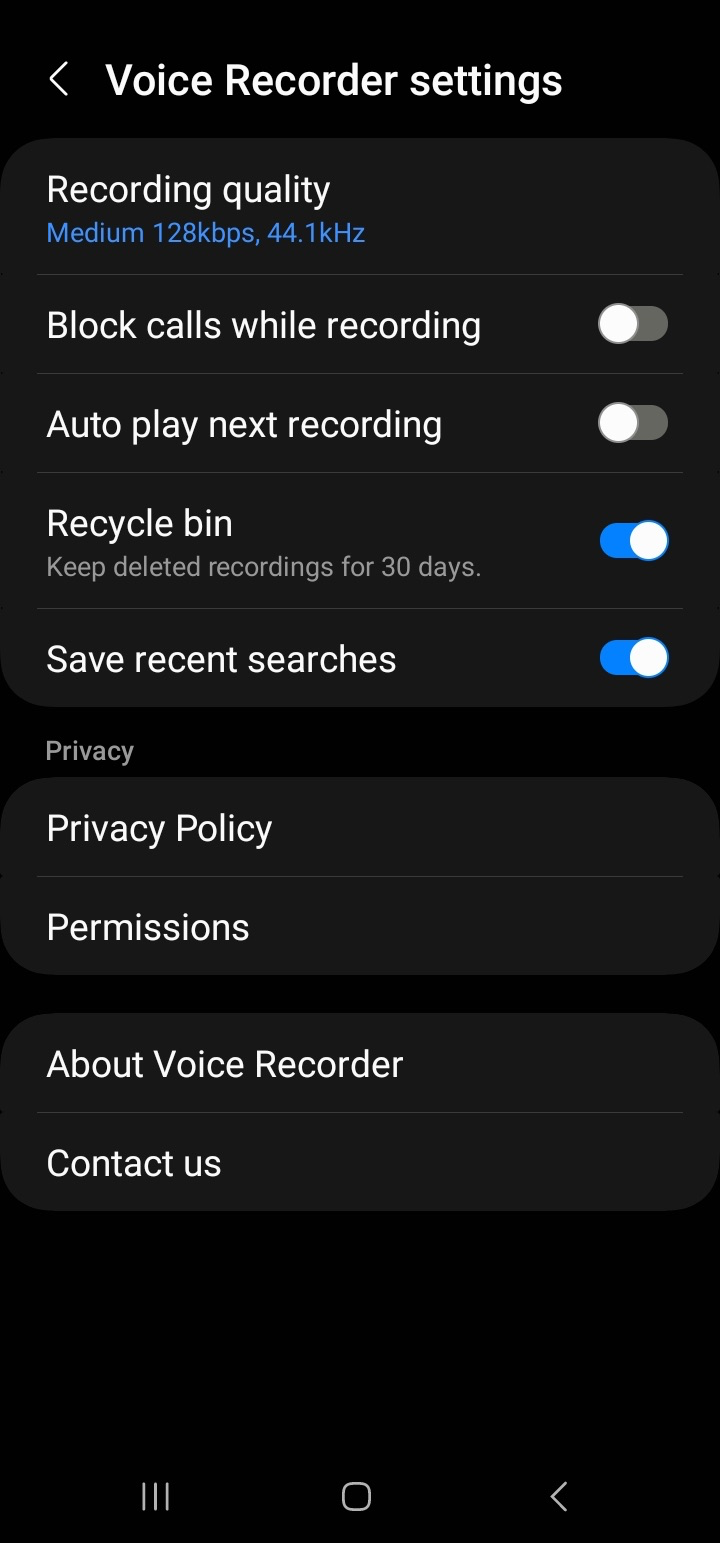
Ways to activate voice recorder on Android
There are a few common ways to start recording. Pick the one that fits your routine.
- Use the built-in Recorder app. Most phones include an app named Recorder, Voice Recorder, or Sound Recorder.
- Use Google Assistant. Say a quick command to start hands-free recording.
- Use a widget or quick settings tile. Add the Recorder tile for one-tap access.
- Use third-party apps for advanced features like noise reduction or cloud backup.
These options cover most needs and answer how to activate voice recorder on android across devices. Try the fastest method first and keep a fallback app ready.

Common quick questions
How do I add a Recorder tile to quick settings?
Drag down the notification shade, tap edit, then drag the Recorder tile into your active tiles. Tapping it opens the recorder immediately.
Can Google Assistant record calls or private audio?
Google Assistant can start voice recordings but cannot record calls directly on most devices due to privacy and legal limits.
Step-by-step: Activate built-in Voice Recorder
Follow these clear steps to activate the default recorder app on most Android phones.
- Open your app drawer and find Recorder, Voice Recorder, or Sound Recorder.
- Tap the app to open it. Grant Microphone permission if prompted.
- Press the big Record button to start. Speak clearly and keep the mic unobstructed.
- Press Stop to finish. Save or rename the file for easy lookup.
If you cannot find a built-in app, search the Play Store for Recorder or Voice Recorder. Remember that how to activate voice recorder on android may vary slightly by brand and Android version. Always check permissions first to avoid failed recordings.
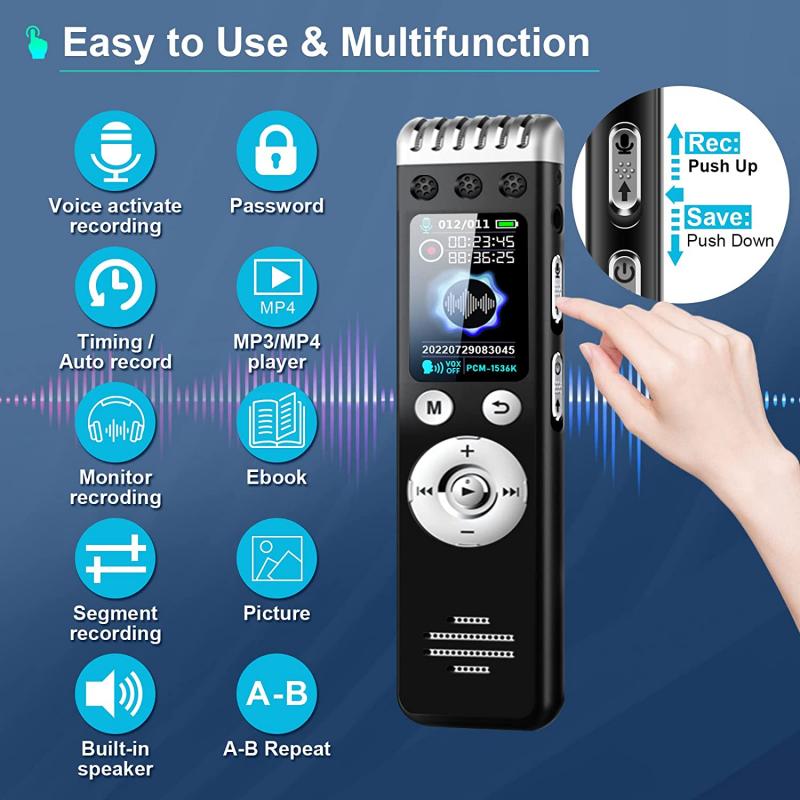
Activate voice recorder using Google Assistant
Google Assistant offers a fast, hands-free way to record audio.
- Say “Hey Google, record audio” or “Hey Google, start recording.”
- The Assistant opens your default recorder or launches a supported app.
- Speak naturally and say “Hey Google, stop recording” to end.
This method is handy when your hands are busy. Note that how to activate voice recorder on android with Assistant depends on whether your phone’s recorder app integrates with Assistant. Grant Assistant microphone access if it asks.

Use third-party voice recorder apps
Third-party apps add features like high-quality formats, noise reduction, and cloud sync. Popular choices give control over bitrate, file format, and folder location.
When choosing an app:
- Check ratings and recent updates.
- Review permission requests; avoid apps asking for unnecessary access.
- Test one short recording to confirm quality and file location.
To activate a third-party recorder, install it, open it, grant Microphone and Storage permissions, and tap Record. Using a trusted app is a strong option if your phone lacks a solid built-in recorder or if you need extra features for podcasts or interviews. This is another answer to how to activate voice recorder on android when you need more control.
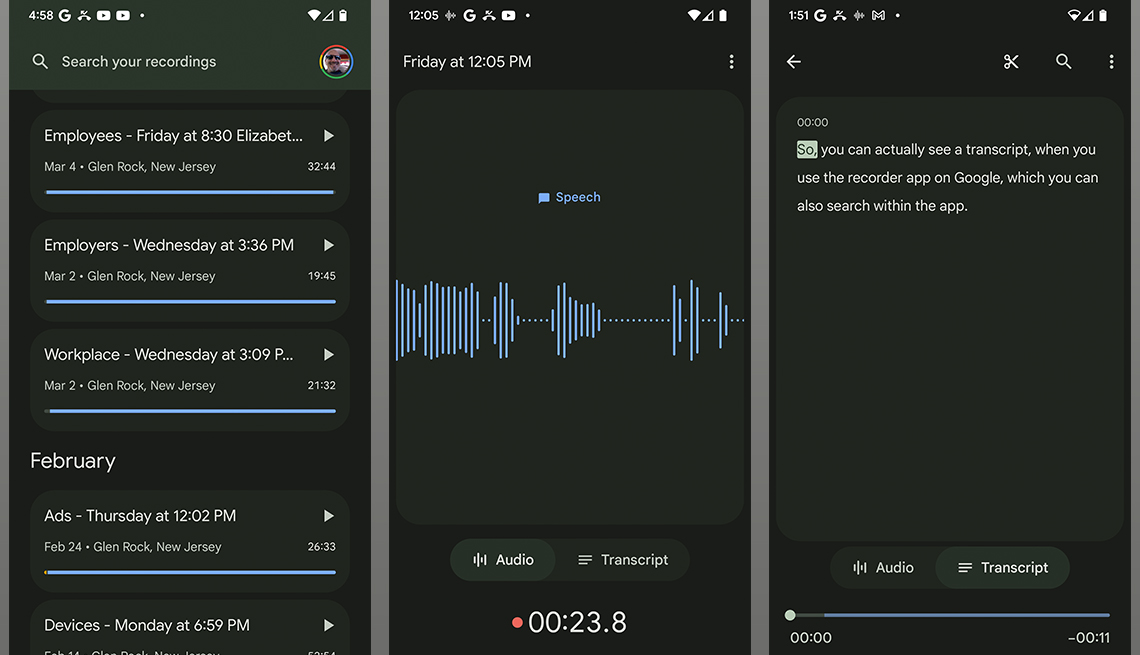
Tips for better recordings and permissions
Good audio starts with small choices. These quick tips will improve clarity and reliability.
- Grant Microphone permission before you need it. Apps fail silently without it.
- Move to a quiet spot and face the microphone.
- Use a wired or Bluetooth mic for interviews or long recordings.
- Monitor storage space; long recordings need plenty of free space.
- Use a stable filename system so you can find files later.
From my experience recording lectures, a headset mic beats the phone mic in noisy rooms. Also, always test a short clip before a long session so you don’t lose important audio. These habits make how to activate voice recorder on android feel effortless and professional.

Frequently Asked Questions of how to activate voice recorder on android
How do I enable microphone access for the recorder app?
Go to Settings > Apps > Recorder (or your chosen app) > Permissions, then allow Microphone. Without this, the app can’t capture sound.
Why won’t my phone record audio?
Common causes are denied microphone permissions, full storage, or another app using the mic. Restart the phone and check permissions to fix most issues.
Can I record phone calls on Android?
Most recent Android versions and app stores restrict call recording due to privacy laws. Use built-in call-record features only if your phone and local laws allow it.
Where are my recorded files saved?
Recordings save to the app’s folder in internal storage or a Recordings folder. Third-party apps may offer custom folders or cloud sync options.
How do I improve recording quality on Android?
Record in a quiet place, use a dedicated microphone, keep the mic close to the sound source, and choose higher bitrate settings if available.
Conclusion
You now know multiple ways to activate voice recorder on android: using the built-in app, Google Assistant, quick settings, or third-party apps. Start with simple steps like granting microphone permission and testing short clips. Practice these habits and you’ll capture clear, reliable audio every time.
Try one method right now: open your recorder or say “Hey Google, record,” and save a 10-second test. Share your experience or questions below, subscribe for more tips, or leave a comment about what you record most.