Most phones already include a voice recorder app; install or enable it in settings or download one.
I have helped dozens of friends and clients set up audio recording on their phones. This guide explains how do I get voice recorder on my phone in clear, simple steps. I cover built-in options for Android and iPhone, trusted third-party apps, tips for better audio, storage and privacy concerns, and how to fix common problems. Read on to get a voice recorder working fast and reliably on your phone.

Why you might want a voice recorder on your phone
A voice recorder turns your phone into a pocket studio. It helps capture interviews, lectures, ideas, and reminders. Many people use voice recording to save time and reduce note-taking errors. Knowing how do I get voice recorder on my phone puts this useful tool in your hands quickly.
How to get voice recorder on Android phones
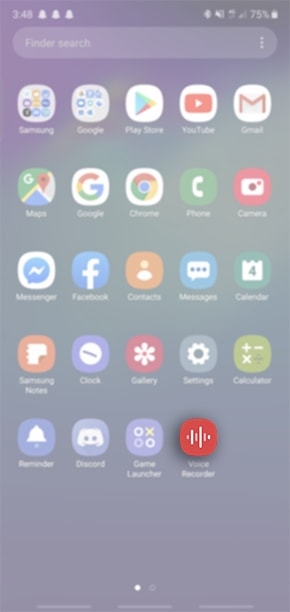
Most Android phones include a built-in recorder app. The name can be Voice Recorder, Recorder, or Voice Memos depending on the brand.
-
Check your app drawer
-
Open the app drawer and look for Recorder, Voice Recorder, or Voice Memos.
-
If found, tap to open and test recording.
-
Find it in settings or tools folder
-
Some phones place it in a Tools or Utilities folder.
-
Use the search bar on your home screen and type recorder.
-
Install from the Play Store
-
If no built-in app exists, open Google Play Store.
-
Search how do i get voice recorder on my phone or search for “voice recorder”.
-
Choose an app with good ratings and clear permissions, then install.
-
Grant permissions and test
-
Open the app and allow microphone access when prompted.
-
Record a short clip and play it back to check quality.
I personally prefer the stock recorder on Pixel and Samsung phones for simplicity. When I tested third-party apps, I looked for clear UI and easy file export. That saved me time and reduced friction.

How to get voice recorder on iPhone
iPhone includes a native Voice Memos app. It is simple and effective for most needs.
-
Find Voice Memos
-
Swipe down on the home screen and type Voice Memos in search.
-
If present, tap to open.
-
Add to home screen if needed
-
If you use it often, press and hold the app then choose Add to Home Screen.
-
Use Control Center shortcut
-
You can add a Voice Memos shortcut in Settings > Control Center.
-
Open Control Center and tap the recording icon to start fast.
-
Install third-party apps from the App Store
-
If you need advanced features, search the App Store for “voice recorder”.
-
Pick apps with good reviews and clear privacy policies.
On iPhone I often use Voice Memos for quick notes. For interviews, I switch to apps with higher bitrate and file export options. This approach kept my recordings organized and easy to share.

Best third-party voice recorder apps and features to look for
Not every app is equal. Choose apps with the features you need.
Key features to look for
- High audio quality options such as WAV or FLAC and adjustable bitrate.
- Easy file sharing to email, cloud, or messaging apps.
- Edit tools to trim and label clips.
- Noise reduction and gain control for cleaner recordings.
- Automatic transcription if you need text output.
Recommended app types
- Simple recorders for quick memos and reminders.
- Interview recorders with remote recording and dual-channel capture.
- Meeting recorders that integrate with calendars and cloud storage.
When I tested apps, I prioritized apps that saved files locally and also offered cloud backups. That prevented accidental data loss and made sharing smoother.

Tips for recording clear audio and managing files
Good technique matters more than gear. A few simple steps make recordings much better.
Recording tips
- Hold the phone steady and point the microphone to the sound source.
- Record in a quiet place or use a directional mic.
- Keep the microphone 6 to 12 inches from the speaker for voice.
- Use a pop filter or foam cover for external mics to reduce plosives.
File and storage tips
- Choose compressed formats like MP3 for small files and WAV for high quality.
- Move long recordings to cloud storage to free device space.
- Name files clearly with date and topic for easy retrieval.
From experience, labeling files immediately saves time. I once lost hours of search because files had default names. Simple organization avoids that hassle.
Privacy, legal, and storage considerations
Recording has rules and limits. Know them before you press record.
Privacy and law basics
- Laws vary by place: some areas require consent of one party; others require all parties.
- Always ask permission when recording private conversations or interviews.
- Store sensitive recordings securely with encryption or password-protected cloud folders.
Storage and backup
- Back up important files to cloud services or a computer.
- Keep a copy in long-term formats like WAV if you need best quality.
- Regularly purge old recordings to keep storage healthy.
I once recorded a meeting without asking. It was a lesson. Always inform people and get consent. That builds trust and keeps you legal.
Troubleshooting common issues when setting up a voice recorder
Problems are common. Most have simple fixes.
Problem: No microphone access
- Check app permissions in Settings and enable Microphone access.
- Restart the phone and test again.
Problem: Low audio or muffled sound
- Clean the microphone opening.
- Move closer to the sound source and reduce background noise.
Problem: App crashes or recordings fail
- Update the app or reinstall it.
- Clear app cache or free up storage space.
Problem: Can't find the recorder app
- Search the app drawer or use the system search feature.
- Install a trusted recorder from your app store.
When troubleshooting, start with the simplest step like restarting the phone. It solved many issues for me quickly.

Frequently Asked Questions of how do i get voice recorder on my phone
How do I enable a voice recorder on my Android phone?
Open your app drawer and search for Recorder or Voice Recorder. If it is missing, download a trusted app from Google Play Store and grant microphone permission.
How do I get voice recorder on my iPhone if I deleted Voice Memos?
Open the App Store, search for Voice Memos, and reinstall it. You can also restore it from your App Library if it is hidden.
Can I record calls with the phone’s voice recorder?
Most built-in recorders do not record calls due to privacy and legal reasons. Use dedicated call-recording apps that show clear consent prompts and follow local laws.
What audio format should I choose for best quality?
Choose WAV or FLAC for best quality and MP3 for smaller files. WAV and FLAC keep more detail for editing or archiving.
How do I free space used by recorded files?
Delete unneeded clips, export important files to cloud storage, and change the app default to save to external or cloud locations when possible.
Conclusion
You can get a voice recorder on your phone in minutes. Use the built-in app on Android or iPhone, or install a trusted third-party app for more features. Test permissions, record a short clip, and organize files with clear names. Be mindful of privacy and laws, and back up important recordings.
Now try it: open your phone, find or install a recorder, and make a five-second test recording right away. Share your experience below or subscribe for more practical phone tips.