A TV can work as a monitor, but its size, input lag, pixels, and eye comfort may limit daily computer use.
The question of why not use a TV as a monitor has no single answer. A modern 4K TV can be excellent for games, films, and casual work, but it may not match a monitor for text clarity, desk comfort, color accuracy, or long work sessions. After testing large screens in home offices and gaming setups, I have found that the best choice depends on how you use your computer.
Why Not Use a TV as a Monitor?
The main reason not to use a TV as a monitor is that televisions and computer monitors serve different needs. A TV is built for viewing video from several feet away. A monitor is made for close-up work, sharp text, fast input, and long hours at a desk.
The biggest problems often include:
• Lower pixel density on large screens
• More input lag in some picture modes
• Blurry text caused by chroma subsampling
• Limited ergonomic adjustment
• Aggressive image processing
• Higher power use
• Screen glare in bright rooms
• Risk of image retention on some OLED models
A TV may look impressive when you watch a movie from across the room. At a desk, however, its weaknesses can become clear within minutes. Large text may look soft, menus may feel slow, and the screen may force you to move your head more than usual.
That does not mean every TV is bad as a computer display. A 32-inch or 42-inch 4K TV with a proper PC mode can work well. Still, you need to understand the trade-offs before replacing your monitor.

TVs Usually Have Lower Pixel Density
Pixel density means the number of pixels packed into each inch of a screen. It is measured in pixels per inch, or PPI. Higher pixel density usually produces sharper text, cleaner lines, and more detailed images.
For example, a 27-inch 4K monitor has about 163 PPI. A 55-inch 4K TV has about 80 PPI. Both screens have the same number of pixels, but the TV spreads them across a much larger area.
This difference matters when you sit close to the display. Fonts can look less crisp, especially in Windows apps, web pages, spreadsheets, and code editors. Images may still look good, but small text can appear slightly rough or soft.
A 4K TV becomes more practical when you sit farther away. If your desk is deep enough to place the screen 3 to 4 feet away, the lower pixel density may bother you less. At a normal desk distance, a large TV can feel like looking at a billboard from a few feet away.
Screen size and viewing distance
A large display is not always more useful. Your eyes must scan a wider area, and your neck may move more when reading documents or checking a chat window.
A TV can be a good fit if you:
• Sit at least 3 feet away
• Use large text and interface scaling
• Watch videos often
• Play games with a controller
• Need several windows on one screen
A monitor is often better if you:
• Sit within arm’s reach
• Read small text all day
• Write code
• Edit photos or documents
• Use spreadsheets with many columns
TV Input Lag Can Affect Work and Gaming
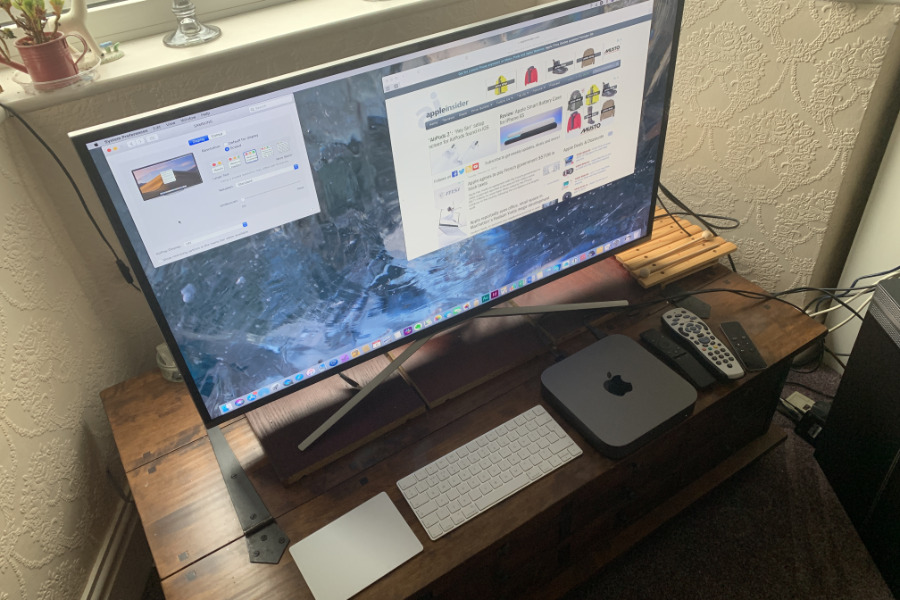
Input lag is the delay between an action and the result on screen. It can happen when you move a mouse, press a keyboard key, or use a game controller.
Many TVs add image processing to improve movies and shows. Features such as motion smoothing, noise reduction, dynamic contrast, and sharpness enhancement can increase delay. The result may feel slow, even when the computer itself is fast.
Game Mode can reduce this delay. It turns off or limits some processing and often makes a TV feel much more responsive. Still, input lag varies by model, resolution, refresh rate, and connection type.
Competitive gamers may notice small delays more than casual players. A few milliseconds will not matter to everyone, but fast shooters, racing games, and rhythm games can feel better on a low-latency monitor.
Before buying a TV for a computer, check these details:
• Input lag at the resolution you plan to use
• Support for 60 Hz, 120 Hz, or higher refresh rates
• HDMI 2.1 support for 4K at 120 Hz
• Variable refresh rate support
• Game Mode performance
• Compatibility with your graphics card
A TV may perform well for console gaming but less well with a computer. Test both before assuming the experience will be the same.
Text Can Look Blurry on Some TVs
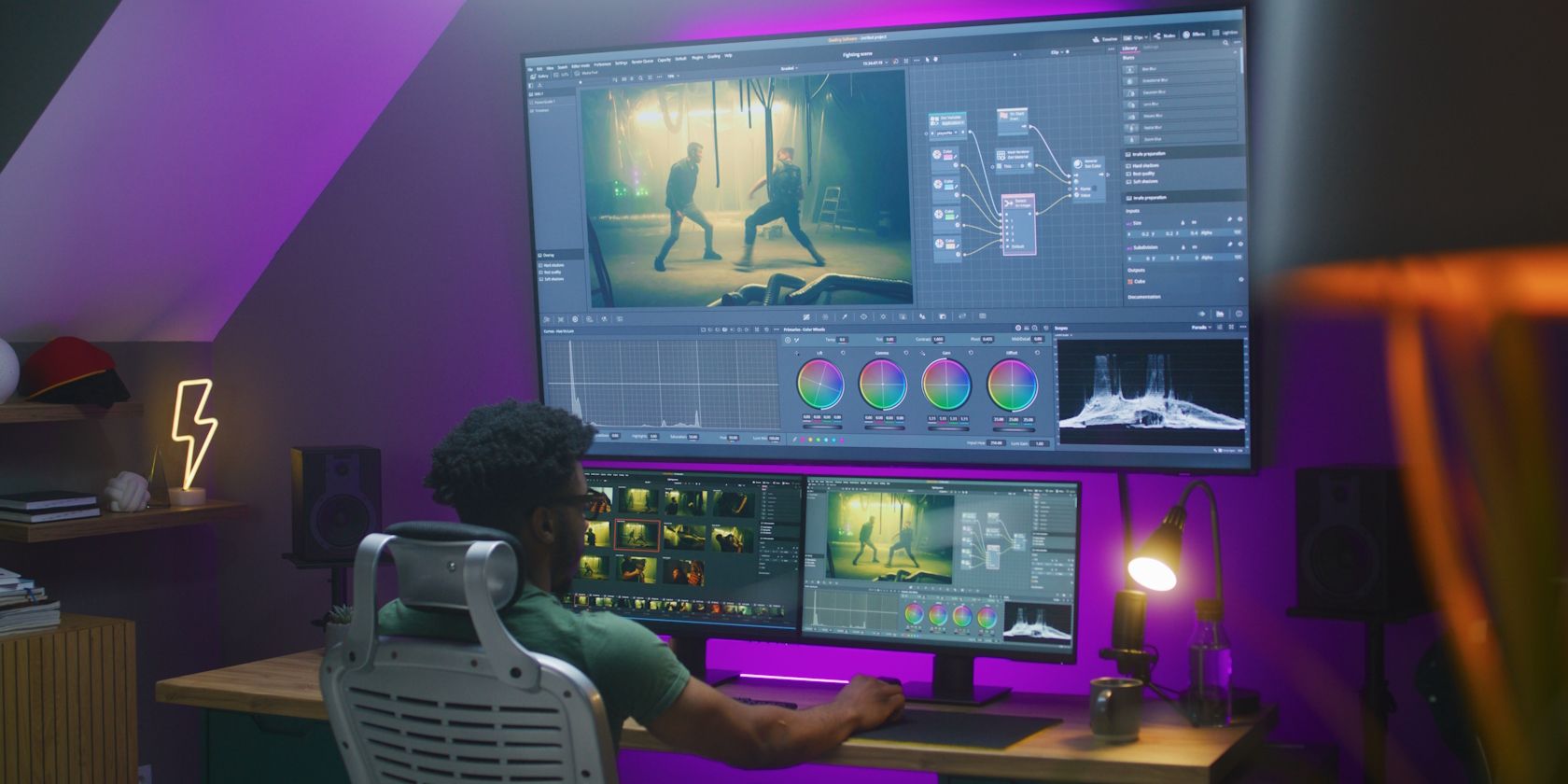
One major reason not to use a TV as a monitor is poor text rendering. Computer text needs clear red, green, and blue color data for each pixel. Some TVs use a format called chroma subsampling to reduce video bandwidth.
Chroma subsampling is common in video because human vision is less sensitive to color detail than brightness detail. It can work well for movies. It is less suitable for small text, where colored edges may look fuzzy.
A TV may display computer text poorly when:
• The HDMI input is not set to PC mode
• The TV uses 4:2:0 chroma subsampling
• The computer sends the wrong color format
• Overscan is enabled
• The image is scaled twice
• Sharpness processing creates halos
To improve text quality, try these steps:
- Set the TV input label to PC if that option exists.
- Turn on Game Mode or a similar low-processing mode.
- Disable overscan and choose “Just Scan,” “Screen Fit,” or “1:1” sizing.
- Set the computer to the TV’s native resolution.
- Use RGB or 4:4:4 output when available.
- Adjust Windows display scaling instead of lowering resolution.
- Turn off artificial sharpness and motion smoothing.
These settings can make a large difference. In my own testing, changing the input label to PC often improved text more than changing the TV’s sharpness setting.

A TV May Be Uncomfortable for Long Work Sessions
Ergonomics is another key part of the answer to why not use a TV as a monitor. Most TVs come with a basic stand. They rarely offer the height, tilt, swivel, and rotation adjustments found on a good monitor arm.
A large screen placed too high can cause neck strain. A screen that sits too close can make your eyes work harder as they move from one edge to the other. Glare can also lead to squinting, dry eyes, and headaches.
For a comfortable setup:
• Place the top of the screen near eye level
• Keep the display about an arm’s length away
• Reduce glare from windows and lamps
• Use a sturdy wall mount or monitor arm
• Increase text size instead of leaning forward
• Take regular breaks and look at distant objects
A common rule is the 20-20-20 method. Every 20 minutes, look at something about 20 feet away for 20 seconds. This does not solve every comfort issue, but it can help reduce eye fatigue.
The issue is not that TVs automatically damage your eyes. There is no simple evidence that normal TV use causes permanent eye harm in healthy adults. The real concern is comfort, posture, glare, and long periods without breaks.

TVs Can Have Too Much Image Processing
Televisions often enhance content because their main job is to make video look attractive. They may smooth movement, boost contrast, sharpen edges, and change brightness from scene to scene.
These features can make a film look vivid. They can make a desktop look unnatural.
For computer use, turn off or reduce features such as:
• Motion interpolation
• Dynamic contrast
• Noise reduction
• Live color
• Super resolution
• Edge enhancement
• Automatic brightness changes
Use a picture mode such as PC, Game, Standard, or Filmmaker Mode, depending on the TV. The best mode varies by brand, so check the on-screen result rather than trusting the label alone.
Some TVs also apply automatic dimming. This may be useful for reducing power use, but it can become distracting when a web page has large white areas. OLED televisions may dim bright static content to protect the panel.
OLED TVs Need Special Care With Static Images
OLED TVs offer deep black levels, fast response times, and strong contrast. They can look fantastic as gaming displays. However, OLED panels can develop image retention or burn-in after repeated exposure to static elements over long periods.
Burn-in is a form of permanent uneven wear. Static items such as taskbars, browser bars, game HUDs, and news logos may contribute to the risk. The chance depends on brightness, usage time, content variety, panel design, and built-in protection features.
This does not mean you must avoid OLED. Many people use OLED screens for years without a serious issue. It means you should understand the risk before using one for eight hours of office work every day.
Helpful habits include:
• Use moderate brightness
• Hide the taskbar when practical
• Set the screen to turn off during breaks
• Use dark mode if it feels comfortable
• Avoid leaving a static window open all day
• Allow the TV to run its panel maintenance cycle
• Vary your content and window layout
An IPS or mini-LED monitor may be a safer choice for heavy office work. Mini-LED can offer strong contrast without the same OLED burn-in concern, although it may show blooming around bright objects.

TVs May Use More Power and Desk Space
A TV can consume more electricity than a monitor, especially at a high brightness level. The exact cost depends on screen size, panel type, brightness, refresh rate, and local electricity prices.
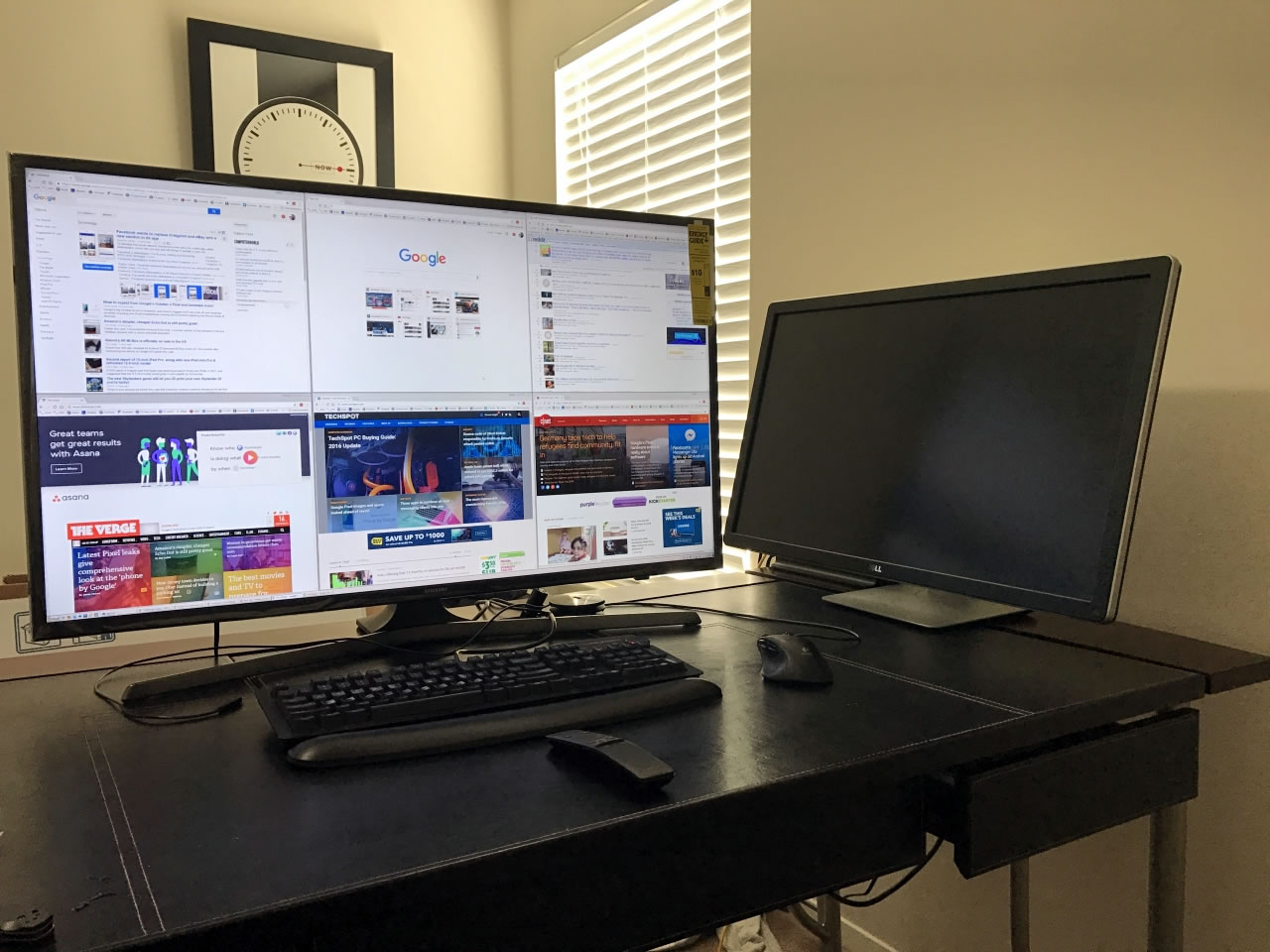
A 55-inch TV also takes up much more visual and physical space than a 27-inch monitor. It may dominate a small desk and leave less room for speakers, notebooks, or other equipment. Wall mounting can solve some space issues, but it makes adjustments less convenient.
Large TVs may also need stronger cables and newer ports. A 4K display at 120 Hz can require HDMI 2.1 and a suitable graphics card. Older HDMI cables or computer ports may limit the screen to 4K at 60 Hz.
Check these items before using a TV as a monitor:
• The TV’s power rating
• Available HDMI ports
• Cable length and certification
• Graphics card output
• Desk depth and viewing distance
• Wall mount compatibility
• Stand stability and ventilation
The purchase price is not the only cost. You may also need a longer cable, wall mount, sound system, better lighting, or a larger desk.

When a TV Is Better Than a Monitor
The answer to why not use a TV as a monitor should remain balanced. A TV can be the better choice in the right room and for the right task.
A TV works well when you want:
• A large screen for single-player games
• Couch-based PC gaming
• Movies and streaming
• Split-screen games
• A home theater computer
• A presentation display
• A budget-friendly large 4K screen
For example, a 42-inch 4K OLED TV can be an excellent gaming display when placed several feet away. It can provide a wide view, fast response, strong contrast, and a high refresh rate.
A TV can also make sense for a home office that doubles as a media room. You can connect a computer during the day and stream content at night. Just make sure the screen has a usable PC mode and that the seating position is comfortable.
When a monitor is the better choice
Choose a monitor when you need:
• Sharp text at close range
• Long hours of office work
• Accurate color for design
• Easy height and tilt adjustment
• High refresh rates for competitive games
• A compact desk setup
• Reduced risk of static-image wear
Ultrawide monitors can also provide a wide workspace without the extreme height of a large TV. A dual-monitor setup may offer better organization for email, research, and documents.

How to Use a TV as a Monitor Correctly
If you decide to use a TV, a few setup changes can improve the experience. Start by using the TV’s native resolution. For a 4K TV, select 3840 × 2160 in your computer’s display settings.
Next, enable the best input mode. The name may be PC Mode, Computer Mode, Game Mode, or something similar. These modes often reduce processing and improve chroma handling.
Use this setup checklist:
- Connect the computer to the best HDMI port.
- Turn on PC or Game Mode.
- Set the native resolution.
- Choose the highest stable refresh rate.
- Disable overscan.
- Set the TV to RGB or 4:4:4 when supported.
- Turn off motion smoothing.
- Reduce sharpness to a neutral level.
- Set comfortable brightness.
- Adjust Windows or macOS scaling for readable text.
- Position the screen at a safe viewing distance.
- Set an automatic sleep timer to reduce static-image exposure.
Test the display with small text, gray backgrounds, fast motion, and dark scenes. A screen can look excellent in a movie trailer and still perform poorly with a spreadsheet.
Common Mistakes to Avoid
Many people decide why not use a TV as a monitor after a disappointing setup. Often, the problem is not the TV itself but an incorrect setting or poor placement.
Avoid these mistakes:
• Buying the largest screen that fits the room
• Sitting too close to a 55-inch or 65-inch TV
• Using vivid picture mode for desktop work
• Leaving overscan enabled
• Ignoring input lag measurements
• Using an old HDMI cable for high refresh rates
• Placing the screen above eye level
• Running an OLED at maximum brightness all day
• Assuming every HDMI port supports the same features
• Forgetting to test text before buying
When I first used a large TV at a desk, I focused on its impressive size and contrast. After a few work sessions, I noticed that text felt less comfortable and the screen sat too high. Moving the TV farther away and using PC mode helped, but a smaller monitor was still better for daily writing.
That experience taught me a useful lesson: measure your viewing distance before you measure the screen size. Bigger is not always better when the display is used for close-up work.
Is a TV Worth Using as a Monitor?
A TV is worth using as a monitor when its strengths match your needs. It can be a smart choice for gaming, entertainment, and flexible room setups. It can also save money if you already own a suitable 4K model.
It may not be worth it for full-time office work, photo editing, programming, or competitive gaming. In those cases, a monitor usually offers better text clarity, ergonomics, response, and desk comfort.
Use this simple decision guide:
• Choose a TV for movies, console gaming, and couch use.
• Choose a monitor for close-up work and daily productivity.
• Choose a 4K TV with PC mode for a mixed-use setup.
• Choose an OLED TV only if you accept image-retention precautions.
• Choose a high-refresh monitor for competitive gaming.
The best display is not the one with the biggest screen. It is the one that feels clear, comfortable, and responsive after several hours.
Frequently Asked Questions About Why Not Use a TV as a Monitor
Can I use any TV as a computer monitor?
You can connect most modern TVs to a computer, but the results vary. For the best experience, choose a model with 4K resolution, PC mode, low input lag, 4:4:4 chroma support, and a refresh rate that suits your work or games.
Is using a TV as a monitor bad for your eyes?
Using a TV as a monitor is not automatically bad for your eyes. Eye strain usually relates to glare, brightness, poor viewing distance, small text, and long sessions without breaks.
Is a TV worse than a monitor for gaming?
A TV is not always worse for gaming. Many new TVs offer low input lag, 120 Hz refresh rates, variable refresh rate support, and excellent contrast, but a gaming monitor may still be better for competitive play and close desk use.
Why does text look blurry on my TV?
Text may look blurry because of chroma subsampling, overscan, image processing, incorrect scaling, or a non-PC input mode. Set the TV to PC mode, use its native resolution, disable overscan, and select RGB or 4:4:4 output if available.
Can a 4K TV replace a 4K monitor?
A 4K TV can replace a 4K monitor in some setups, especially when you sit farther away or use the display for games and media. For close-up office work, a monitor often provides sharper text and better ergonomic control.
Is OLED safe to use as a computer monitor?
OLED can work well as a computer monitor, but static images may increase the risk of image retention or burn-in over time. Use moderate brightness, screen-saving features, varied content, and the panel-care tools provided by the manufacturer.
What size TV is best for use as a monitor?
A 32-inch to 42-inch 4K TV is often easier to use at a desk than a 55-inch model. The right size depends on your viewing distance, desk depth, eyesight, and need for large windows.
Conclusion
The main reason why not use a TV as a monitor is that TVs are designed for video viewing, while monitors are designed for close, interactive work. Large size, lower pixel density, input lag, blurry text, limited adjustment, glare, and OLED image-retention concerns can reduce comfort.
Still, a good 4K TV with PC mode can be excellent for gaming and entertainment. Check the viewing distance, input lag, chroma support, refresh rate, ports, and ergonomics before buying. Choose the display that fits your daily habits, then share your setup or explore more display guides to make your next upgrade a smart one.