Connect via USB, TRRS cable, Bluetooth, or Wi‑Fi—then use an app or adapter to pair.
I’ve helped dozens of podcasters, students, and field reporters link dedicated voice recorders to phones. This guide explains how to connect voice recorder to phone step by step, covers wired and wireless options, lists safe adapters and apps, and shares real-world tips I learned from testing different recorders and phones. Read on to find the simplest, most reliable method for your device and situation.
Why connect a voice recorder to your phone?
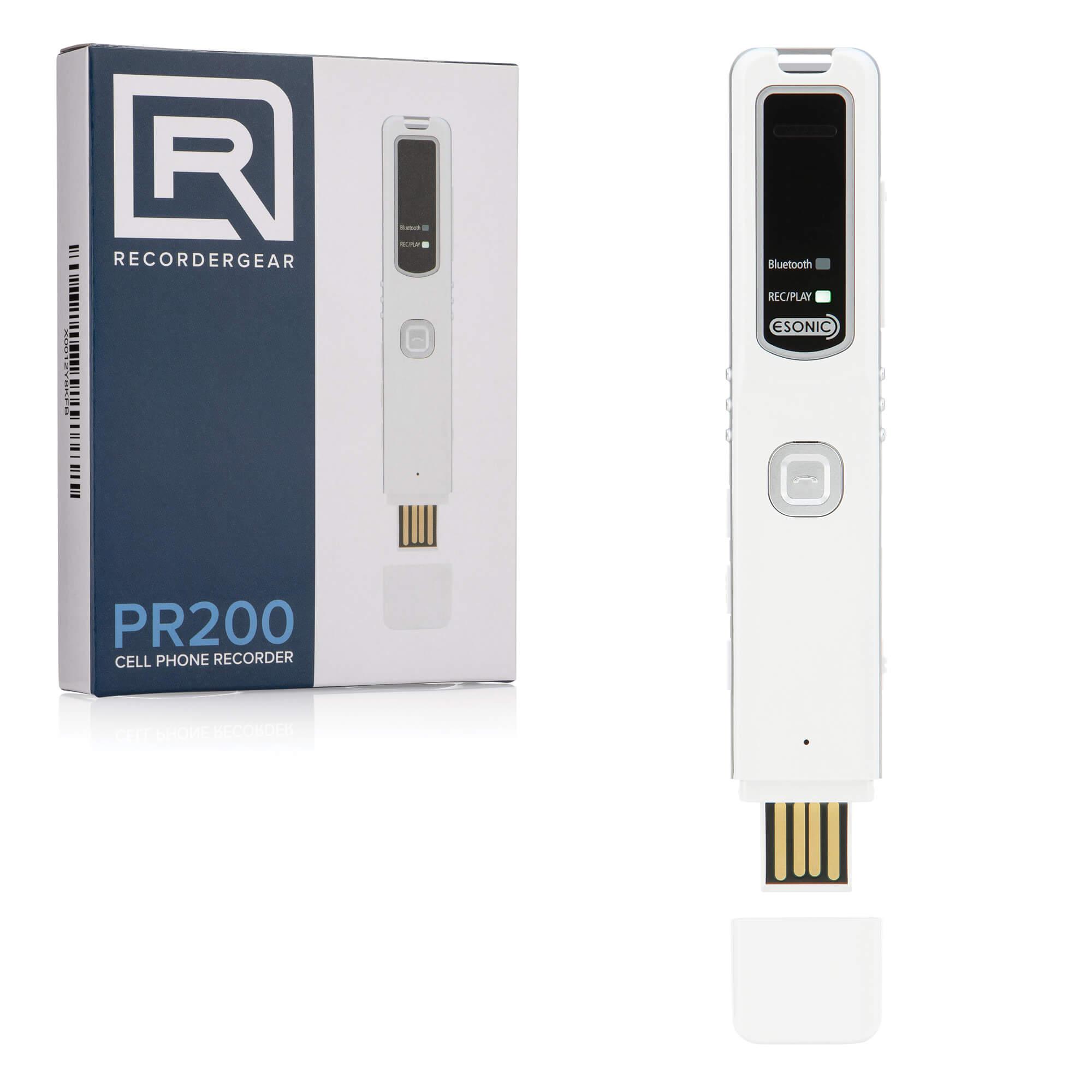
Connecting a voice recorder to your phone brings better audio quality, convenience, and easier file management. A dedicated recorder often has superior microphones, manual controls, and longer battery life than a phone. Using your phone as the transfer or streaming device makes sharing, editing, and uploading fast and simple.
I use this setup when I record interviews with compact recorders and then transfer files to my phone for immediate editing and upload. It saves time and reduces the risk of losing files on separate devices.
Types of recorders and connection methods
Understanding the recorder and phone ports helps you pick the right connection. Below are common recorder types and how they typically connect to phones.
- Portable digital recorders with USB-C or micro-USB
- Usually act as mass storage devices for file transfer.
- Recorders with 3.5mm line out or headphone jack (TRS)
- Can output audio to phones with the correct cable or adapter.
- Recorders with TRRS mic output
- Designed to plug directly into smartphones that accept TRRS mic input.
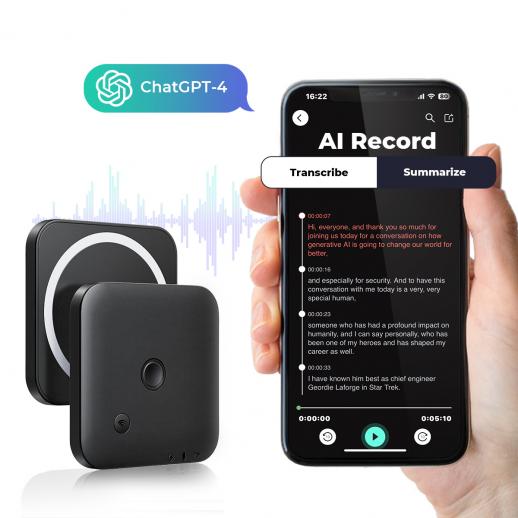
- Bluetooth-enabled recorders
- Pair wirelessly as an external mic or transfer files over Bluetooth.
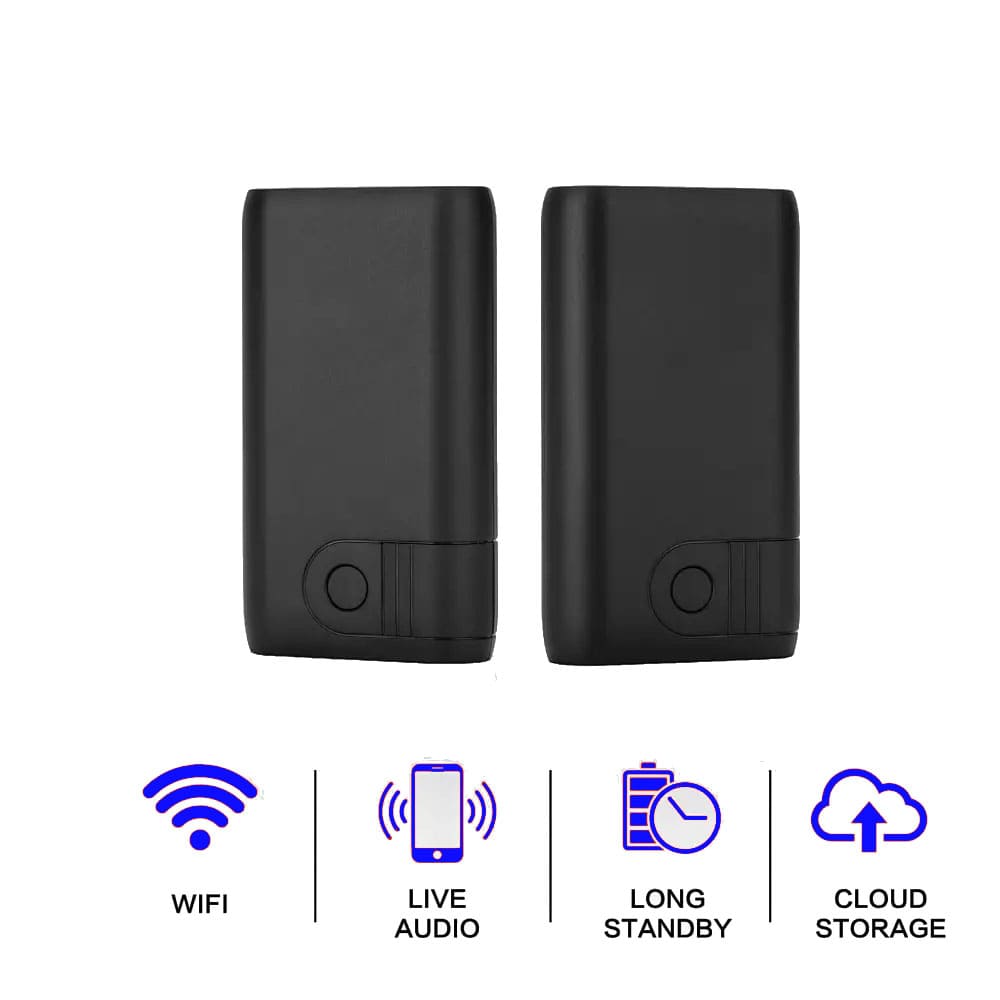
- Wi‑Fi recorders and recorders with companion apps
- Stream or transfer audio over the local network or via the recorder maker’s app.
Key connector terms to know:
- TRS versus TRRS — TRS has two rings for stereo out; TRRS has three rings and supports microphone signals for phones.
- USB OTG (On-The-Go) — lets Android phones act as hosts to read connected USB devices like recorders.
- Lightning to USB adapter — required for many iPhones to connect USB-based recorders.
How to connect voice recorder to phone — Android (wired and wireless)
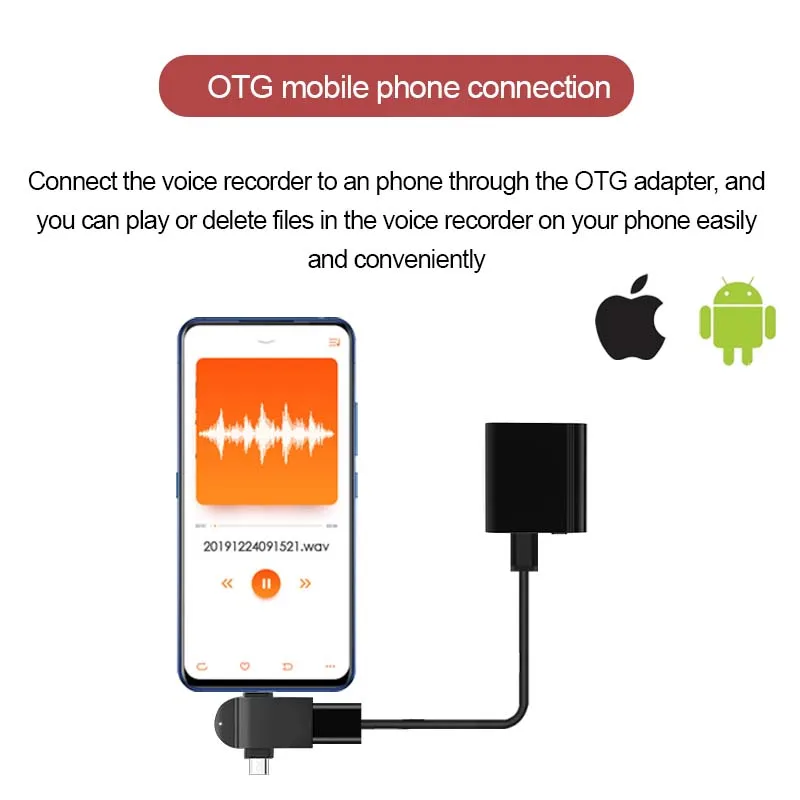
Wired transfer using USB OTG
- Check that your Android phone supports USB OTG in settings or specs.
- Use the recorder’s USB cable and a USB OTG adapter (USB-C or micro-USB to full-size USB-A).
- Turn on the recorder and set it to USB storage or PC mode.
- Open your phone’s file manager or recording app to access or import files.
Using a 3.5mm TRRS cable (direct audio input)
- Confirm your recorder outputs mic-level TRRS or use a TRS-to-TRRS adapter.
- Plug the cable into the recorder line/headphone out and the phone headset jack.
- In your phone’s recording app, choose external mic if the app supports it.
- Test levels and monitor with headphones if possible.
Bluetooth pairing for live input or file transfer
- Turn on Bluetooth on both devices.
- Put the recorder in Bluetooth pairing mode.
- Pair from Settings > Bluetooth on Android.
- If the recorder supports Bluetooth mic mode, select it in your recording app.
Wi‑Fi or companion app transfer
- Install the recorder’s companion app on your phone.
- Enable Wi‑Fi on the recorder to create a hotspot or join your local network.
- Use the app to browse, download, or stream recordings directly.
Common pitfalls
- Not all Android phones supply power or support every USB accessory.
- Some apps ignore external mics and use the phone mic; pick apps that support external input.

How to connect voice recorder to phone — iPhone (wired and wireless)
Wired USB connections with iPhone
- Get a Lightning to USB Camera Adapter (Apple or certified third party).
- Connect the recorder’s USB cable to the adapter, then to the iPhone.
- Power the recorder and set it to USB mode; the iPhone should detect it as a storage device or audio input.
- Use the Files app to import or an app like GarageBand to capture input.
Lightning and TRRS options
- If your recorder outputs TRRS, use a TRRS-to-Lightning adapter designed for mics.
- Plug the adapter into the iPhone and the cable into the recorder.
- Select the external mic in your recording app if required.
Bluetooth and Wi‑Fi
- For Bluetooth, pair in Settings > Bluetooth after putting the recorder in pairing mode.
- For Wi‑Fi recorders, install the manufacturer’s iOS app and follow in-app connection steps.
- Note that iOS may have stricter app rules for external mic input, so test apps beforehand.
Tips for iPhone users
- Some USB recorders need external power or a powered hub.
- Use Apple‑certified adapters to avoid compatibility issues.
Best apps, settings, and file management
Apps to consider
- Native Files, Voice Memos, and Voice Recorder apps for quick imports.
- Mobile DAWs like GarageBand or WaveEditor for editing.
- Manufacturer apps for direct transfer from Wi‑Fi or Bluetooth recorders.
Suggested recording settings
- Use WAV or high-bitrate MP3 for interviews; 44.1 or 48 kHz sample rate is standard.
- Record in mono for interviews to save space; stereo for music or ambient sound.
- Monitor levels by doing a test recording and checking peaks to avoid clipping.
File transfer workflow
- Record on the recorder.
- Connect to your phone via USB OTG, adapter, Bluetooth, or Wi‑Fi.
- Import files to a dedicated folder in Files or your preferred cloud service.
- Edit and export as needed on the phone or transfer to a computer for heavy editing.
PAA-style questions
What if the phone won’t recognize the recorder over USB?
- Check OTG support, use a powered hub if needed, and ensure the recorder is in the correct USB mode.
Can most recorders stream audio directly to a phone?
- Many modern recorders can stream via Bluetooth or Wi‑Fi, but features vary by model and app support.
Do I need special cables to use a recorder as a microphone?
- Often yes—TRRS adapters, Lightning adapters, or USB OTG cables are commonly required depending on your phone.

Troubleshooting and practical tips from experience
From testing various setups, here are common issues and fixes.
No detection or files not visible
- Ensure the recorder is set to the correct USB mode (mass storage vs audio interface).
- Try a different cable and adapter; cheap cables can fail.
- Reboot both devices and reconnect.
Poor audio quality or noise
- Use line-level out rather than headphone out to reduce hiss.
- Keep cables short and avoid cheap adapters that add interference.
- Record at proper gain levels and use a windscreen outdoors.
App ignores external mic
- Test with a different app that supports external mics.
- On Android, clear app cache or check app permissions for microphone and storage.
- On iPhone, try apps known to accept external audio inputs.
Battery and power issues
- Some USB recorders draw more power than phones can supply; use powered hubs or external battery packs.
- For long sessions, run the recorder on its own battery and transfer later if live streaming drains power.
My mistakes and lessons learned
- I once assumed TRS and TRRS were interchangeable and recorded silent interviews—test before important sessions.
- Always pack at least two adapter types and a spare cable for field work.
- Label files immediately after transfer to avoid confusion later.
Legal and privacy considerations
Recording laws vary by country and state. Most places require consent from at least one party, while some require all-party consent. Always:
- Inform participants you’re recording and get permission.
- Store recordings securely and delete them when no longer needed.
- Follow workplace or institutional rules about recordings.
Respect privacy and use recordings ethically. If you’re unsure about local law, seek legal guidance.

Frequently Asked Questions of how to connect voice recorder to phone
How do I connect a digital voice recorder to my phone using USB?
Most Android phones support USB OTG; use a USB OTG adapter and set the recorder to USB storage mode. iPhones need a Lightning to USB Camera Adapter and may require external power for some recorders.
Can I use a voice recorder as an external mic for my phone?
Yes, many recorders support mic or line output to phones using TRRS cables, Bluetooth mic mode, or USB audio interfaces, but compatibility depends on the recorder and phone model.
What adapter do I need to connect a recorder to an iPhone?
Typically a Lightning to USB Camera Adapter or a TRRS-to-Lightning mic adapter. Use Apple‑certified adapters to reduce compatibility issues.
Why does my phone not detect the recorder over USB?
Check that your phone supports OTG, the recorder is in the correct mode, cables are functional, and power requirements are met. Try a different cable or a powered hub.
How do I transfer recordings wirelessly from recorder to phone?
Use Bluetooth pairing or the recorder’s Wi‑Fi companion app to browse and download files, or set up the recorder as a Wi‑Fi hotspot and connect the phone through the app.
Conclusion
Connecting a voice recorder to your phone unlocks better sound, faster sharing, and more flexible editing. Whether you use USB OTG, TRRS adapters, Bluetooth, or Wi‑Fi, pick the method that matches your recorder and phone. Test your setup before important recordings, carry spare cables and adapters, and always get consent when recording others. Try one connection method today and notice how much simpler handling audio becomes—then refine your workflow from there. If this guide helped, subscribe for more tips, share your setup in the comments, or ask a specific question about your recorder and phone model.