Two monitors give you more screen space, making multitasking, research, communication, and creative work much easier.
If you often switch between apps, windows, or browser tabs, understanding why two monitors can help you work with less friction. A dual-monitor setup is not useful for everyone, but the right layout can improve focus, save time, and make daily computer tasks feel far more comfortable.
Why Two Monitors Improve Your Workflow
The main reason to use two monitors is simple: you can see more information at once. One screen can show your main task while the second displays the tools, notes, messages, or data you need.
Instead of pressing Alt+Tab again and again, you can keep related windows open side by side. This reduces small interruptions. Those interruptions may seem harmless, but they can break your focus and slow down simple work.
For example, you might use:
• The left monitor for writing an article
• The right monitor for research and source notes
• The left monitor for a video call
• The right monitor for a shared document
• The left monitor for a spreadsheet
• The right monitor for email or a calculator
This setup turns your desk into a small command center. It does not make you productive by magic, but it removes many common barriers.

Key Benefits of a Dual-Monitor Setup
More space for multitasking
A single monitor often forces you to hide one window to view another. Two monitors let you keep several tasks visible without making every window tiny.
This is especially helpful for people who compare documents, manage projects, monitor dashboards, or work with large spreadsheets. You can place the main task in front of you and keep support information nearby.
Less window switching
Frequent window switching creates mental friction. You must remember where each window is, move the cursor, and return to the right place.
With two monitors, your email, chat app, calendar, or reference page can stay open on the second display. This does not remove all distractions, but it can make necessary switching much faster.
Better research and writing
Writers, students, and researchers often need to read information while taking notes. Two monitors make this process smoother.
You can view a source on one screen and write on the other. This helps you compare facts, copy short quotes, review instructions, and organize ideas without constantly changing tabs.
Easier video meetings
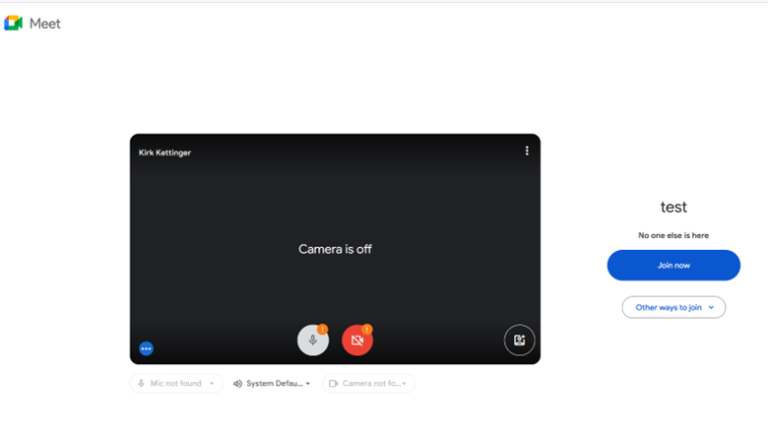
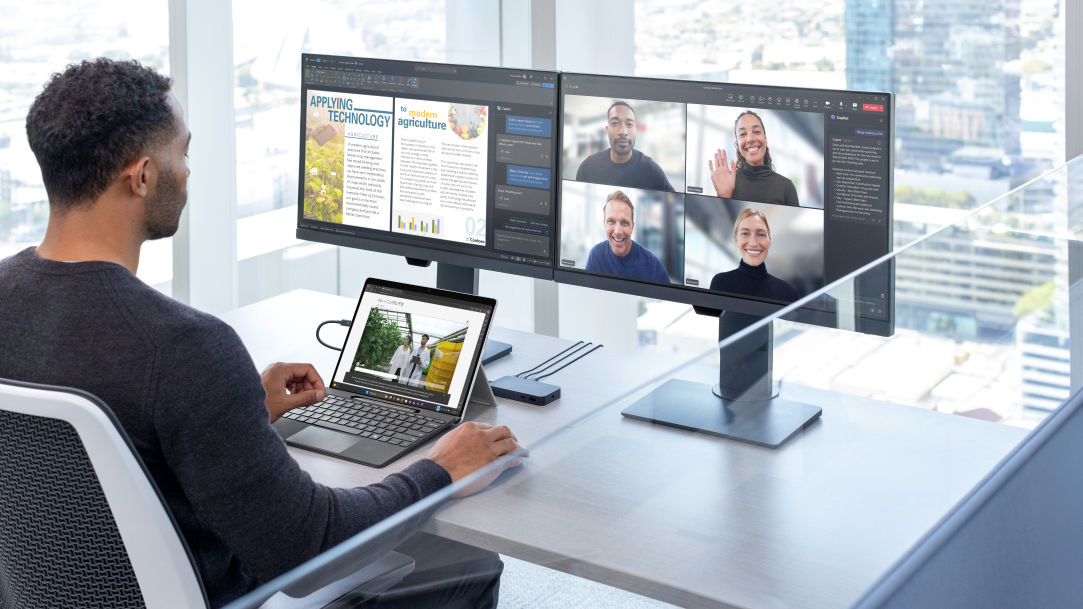
Remote work has made video meetings part of everyday life. A second monitor can keep the meeting, notes, chat, and work file visible at the same time.
You can place the video call on one display and the shared document on the other. This is often less stressful than shrinking everything into small windows on one screen.
Improved creative work
Two monitors are useful for photo editing, video production, music work, and design. The main canvas can stay on one display while timelines, tool panels, color controls, or file folders remain on the other.
Many creative apps support this layout. It gives the work area more room and keeps control panels from covering the project.
Better visibility for technical tasks
Programmers and technical users often keep code on one monitor and documentation, testing tools, or a terminal on the other.
This is one of the clearest examples of why two monitors are popular among developers. You can write code while checking instructions or viewing output without leaving the editor.
Why Two Monitors Can Increase Productivity
Productivity depends on the type of work you do. Two monitors may help when your tasks require frequent comparisons or access to several sources.
A large workplace study found that screen size and display space can affect task performance, especially for office work. However, more screen space does not automatically lead to better results. Poor layouts, constant alerts, and distracting apps can cancel out the benefit.
The best dual-monitor setup supports a clear workflow:
- Put your most important task on the primary monitor.
- Place reference material or support tools on the second monitor.
- Keep notifications limited.
- Use full-screen mode when deep focus matters.
- Group related windows by purpose.
- Take regular eye and movement breaks.
In my own use of two monitors, the biggest benefit was not speed alone. It was reduced frustration. I spent less time searching for hidden windows and more time thinking about the task itself.
That said, two monitors can become a problem if the second display is filled with social media, news, or chat alerts. A second screen should act like a helpful assistant, not a noisy coworker.
Why Two Monitors Help Different Types of Users
The value of two monitors changes based on your work. Here are common examples.
Office workers
Office users can place email, project tools, spreadsheets, and documents across both screens. This is useful for customer support, administration, finance, sales, and project management.
A second monitor can also help when entering information from one system into another. You can view the source file while typing into the target application.
Students
Students can read online material on one display and write notes on the other. This may help with online classes, research papers, coding lessons, and study guides.
A second monitor can also show a lecture while the student views slides or takes notes. Still, students should avoid using the extra screen for distractions during study time.
Programmers
Developers often use one monitor for an integrated development environment and another for documentation, code output, testing, or a terminal.
Two monitors are especially helpful when debugging. You can compare the code with the error message without repeatedly opening and closing panels.
Designers and editors
Graphic designers can keep a large canvas open while placing layers, tools, and color controls on the second screen. Video editors can use the second display for a timeline, preview window, or media library.
A second screen is not a replacement for skill or good software. It simply gives creative tools more room to breathe.
Traders and data analysts
People who monitor live data may use several displays for charts, reports, news, and communication. In this case, more screens can improve visibility.
However, financial decisions should never depend only on seeing more charts. Multiple monitors may increase information overload and encourage rushed decisions.
Gamers and streamers
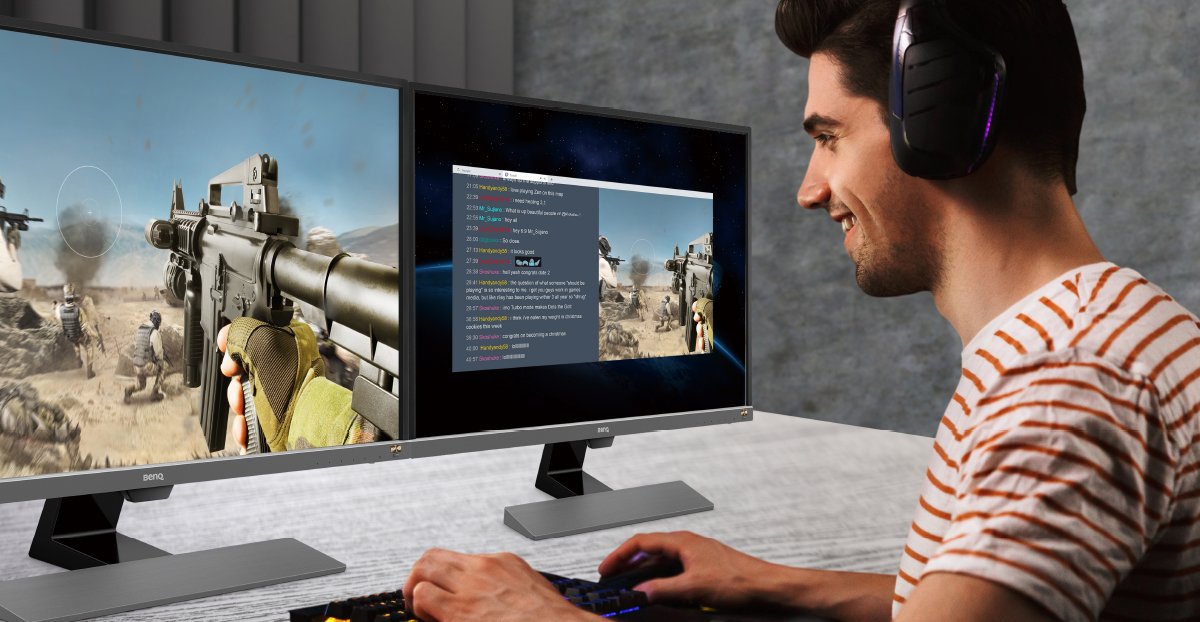
Gamers often use one monitor for the game and another for chat, streaming controls, guides, or music. Streamers may also monitor comments and broadcasting software without covering the game window.
For gaming alone, one high-quality monitor may be better than two average displays. The choice depends on the game, computer hardware, desk space, and budget.
The Best Two-Monitor Layouts
The right layout depends on your tasks, desk, and posture.
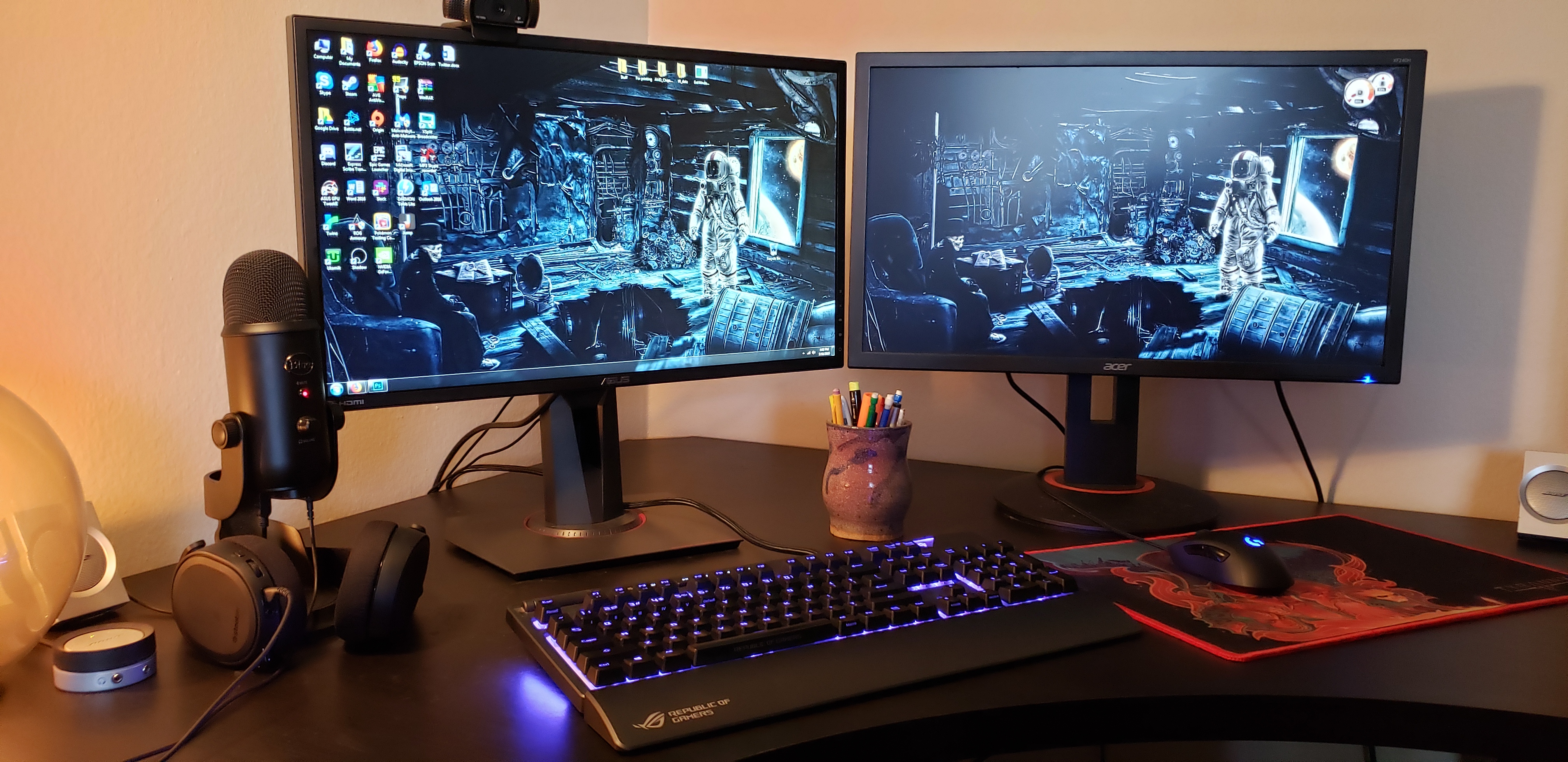
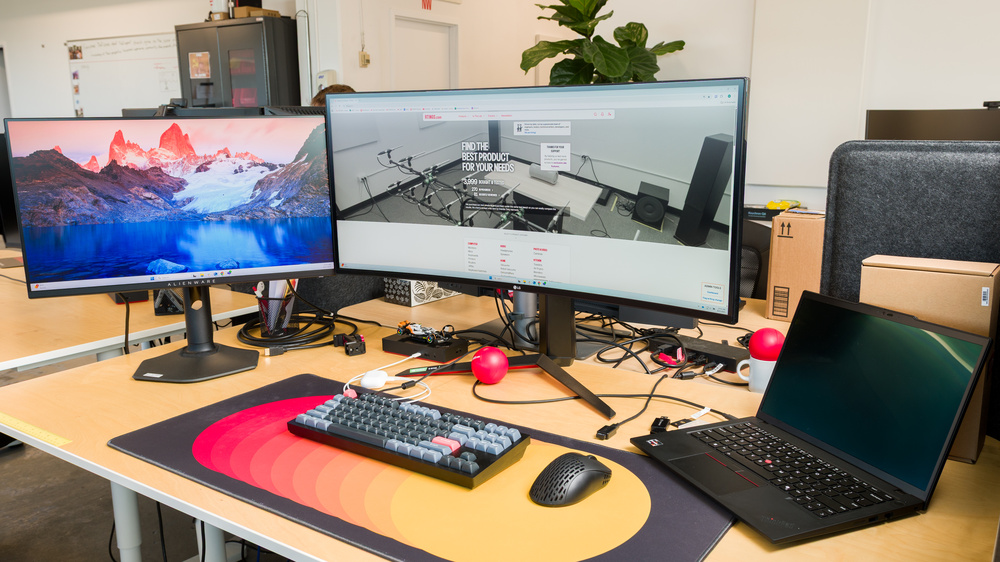
Side-by-side horizontal layout
This is the most common arrangement. Place both monitors next to each other at the same height.
It works well for writing, office work, coding, editing, and general multitasking. Keep the primary display directly in front of you if you use it most often.
One monitor in portrait mode
A vertical monitor is useful for long documents, web pages, chat messages, code, and social media management.
Many monitors can rotate into portrait mode. Before buying, check whether the stand supports rotation or use a compatible monitor arm.
Stacked monitors
One monitor can sit above the other. This can save desk width, but it may require more head and neck movement.
Stacked displays work well in compact spaces or for monitoring information. They may be less comfortable for tasks that require constant movement between screens.
Curved or angled layout
You can angle both displays slightly toward your face. This keeps the edges within a more natural viewing area.
If the monitors have different sizes or bezels, a small angle can make the setup feel more balanced. Avoid placing the screens too far apart.

How to Choose Monitors for a Dual-Screen Setup
You do not always need two identical monitors. Matching displays look neat, but function matters more than appearance.
Consider these features before buying:
• Screen size: A 24-inch or 27-inch monitor suits many desks. Larger screens need more viewing distance.
• Resolution: Full HD works for basic tasks, while 1440p gives sharper text on larger displays.
• Refresh rate: A higher refresh rate matters more for gaming than office work.
• Panel type: IPS panels usually offer good viewing angles and color quality.
• Ports: Check for HDMI, DisplayPort, USB-C, or other connections your computer supports.
• Stand adjustment: Height, tilt, and rotation can improve comfort.
• Bezel width: Thin bezels make the gap between displays less noticeable.
• Color consistency: Matching color settings help when editing images or video.
• VESA support: This allows you to use a monitor arm or wall mount.
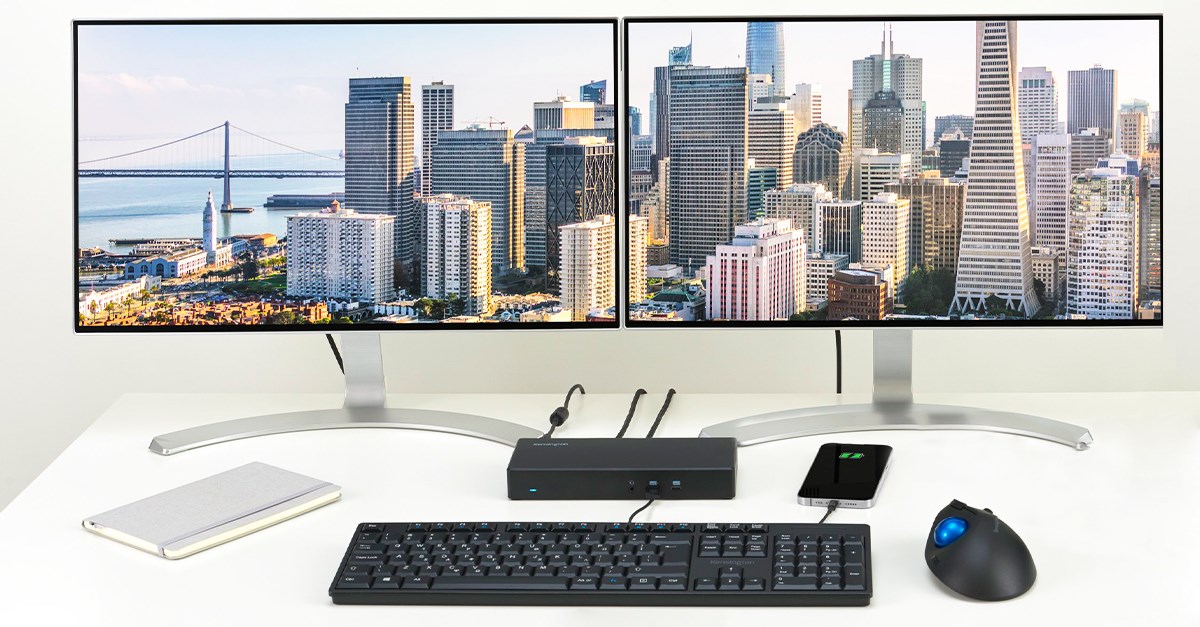
A laptop can also power two monitors, but this depends on its graphics hardware, ports, dock, and operating system. Check the computer’s specifications before purchasing displays.
Many modern laptops work well with a USB-C or Thunderbolt dock. Some basic USB adapters use software to create an extra display, but they may have limits for gaming, video editing, or high-resolution work.
Potential Drawbacks of Using Two Monitors
A balanced guide to why two monitors should include the disadvantages. More screen space can bring extra cost, clutter, power use, and distraction.
Higher cost
You pay for the monitor, cables, stand, dock, and possibly a stronger graphics card. If your computer cannot support the needed resolution, you may also need an upgrade.
More desk space
Two monitors need a wide and stable desk. A monitor arm can save space, but it adds cost and must support the weight of both displays.
More distractions
Email, messaging apps, videos, and social feeds are easy to keep open. The second screen may reduce productivity if it becomes a source of constant alerts.
Neck and eye strain
Poor placement can make you turn your head often. Screens that are too bright, too close, or at different heights may also cause discomfort.
The American Academy of Ophthalmology explains that screen use is commonly linked with temporary digital eye strain, including dry eyes and tired eyes. The condition is usually not permanent, but good habits still matter.
Try the 20-20-20 habit: every 20 minutes, look at something about 20 feet away for 20 seconds. Adjust brightness to match the room, keep text large enough to read, and blink often.
More technical problems
Two monitors create more chances for connection issues. You may need to troubleshoot display settings, refresh rates, scaling, or sleep behavior.
My early mistake was using different scaling settings on two screens. Text looked different when I moved windows between them, which made the setup feel less smooth. Matching scaling and refresh settings solved most of the problem.

How to Set Up Two Monitors Correctly
A good setup is more than plugging in a second cable. Use these steps to create a comfortable workspace.
- Place the primary monitor directly in front of you.
- Put the second monitor beside it or at a slight angle.
- Align the top edges of both screens.
- Keep the displays about an arm’s length away.
- Set the main display as the primary screen in your computer settings.
- Choose “Extend these displays” instead of duplicating them.
- Match the resolution and scaling where possible.
- Set similar brightness and color levels.
- Move your most-used apps into clear zones.
- Test the setup for a full work session before buying accessories.
The top of the main screen should be near eye level. You should not need to bend your neck down or tilt your head up for long periods.
Use keyboard shortcuts to move windows quickly. On Windows, shortcuts such as Windows plus the arrow keys can snap windows into place. On macOS, built-in window management tools and third-party utilities can help organize displays.
Cable management also matters. Loose cables can make a desk feel crowded and may cause accidental disconnections. Labeling cables is a small step that saves time later.
When One Monitor Is Better
Two monitors are not always the best choice. One large monitor may provide a cleaner and simpler experience.
A single ultrawide monitor can offer broad workspace without a central bezel. It may also reduce cable clutter and use fewer ports. For video editing, gaming, and wide spreadsheets, an ultrawide display can be a strong alternative.
One monitor may be better if:
• Your work rarely requires more than one window
• You have limited desk space
• You prefer a simple workspace
• Your computer has limited display support
• You are sensitive to visual distractions
• Your budget is limited
• You use a laptop mainly for short tasks
The question is not only why two monitors. It is also whether two monitors match your habits. A monitor upgrade should solve a real problem rather than add equipment for its own sake.
Practical Tips to Get More From Two Monitors
Use the second display with a clear purpose. For example, reserve it for reference material, communication, monitoring, or tools.
Turn off unnecessary alerts. If every message appears on the second screen, your attention may jump between tasks all day.
Create simple zones:
• Primary screen: focused work
• Second screen: reference files and support tools
• Portrait screen: documents, code, or long messages
• Shared screen: meetings or collaboration
Use matching wallpapers or a plain background if visual clutter bothers you. A clean desktop makes it easier to find open windows.
You can also create separate workspaces for different activities. One workspace might support writing, while another supports meetings or project planning.
Finally, measure the result. Ask yourself whether you finish tasks faster, feel less stressed, or switch windows less often. If the setup does not help after a few weeks, change the layout or return to one screen.
Frequently Asked Questions About Why Two Monitors
Why do people use two monitors?
People use two monitors to view more information at once and reduce window switching. The setup is common for office work, research, coding, creative tasks, gaming, and video meetings.
Are two monitors better than one large monitor?
It depends on your needs. Two monitors offer flexible window placement, while one large or ultrawide monitor provides a seamless viewing area with fewer cables and no center bezel.
Do two monitors improve productivity?
Two monitors can improve productivity for tasks that involve comparing information or using several apps. They may reduce productivity if the second screen creates distractions or encourages constant multitasking.
Can a laptop run two monitors?
Many laptops can run two monitors through built-in ports, USB-C, Thunderbolt, or a docking station. Always check the laptop’s graphics support, available ports, and maximum resolution before buying displays.
Should both monitors be the same size?
They do not have to be the same size, but matching displays can make alignment and color settings easier. Different sizes can work well when one monitor is used for a specific purpose, such as reading code in portrait mode.
Is using two monitors bad for your eyes?
Two monitors do not automatically damage your eyes, but long screen sessions can cause temporary digital eye strain. Good lighting, proper distance, suitable brightness, readable text, and regular breaks can improve comfort.
Is a second monitor worth it for gaming?
A second monitor can be useful for chat, streaming controls, guides, or music while gaming. If gaming performance is your main goal, investing in one high-quality monitor may provide more value.
Conclusion
Two monitors can make work feel smoother by giving you more space for research, communication, documents, tools, and creative projects. They can reduce window switching and support many workflows, but they also bring extra cost, clutter, and possible distractions.
The best setup starts with your actual needs. Choose a clear role for each screen, place the monitors at a comfortable height, manage notifications, and test the arrangement before spending more money.
If you are still asking why two monitors might help you, track how often you switch windows during a normal day. That simple test can show whether a second display would solve a real problem. Explore suitable monitor options, improve your desk layout, and share your experience with a dual-monitor setup.