Your laptop says “cleaning up” because Windows is removing temporary files and completing system updates.
Seeing “cleaning up” on your laptop can feel worrying, especially when the message stays on the screen for a long time. In most cases, it is a normal Windows process that removes old update files, clears temporary data, and finishes maintenance. This guide explains why does my laptop say cleaning up, how long the process should take, and what to do if it appears stuck.
Why Does My Laptop Say Cleaning Up?
Your laptop usually says “cleaning up” after Windows installs updates. During this step, Windows removes files that it no longer needs and prepares the system for normal use.
Windows updates often create backup files, temporary installation files, and older system components. These files help the update run safely, but they can take up a large amount of storage. After the update finishes, Windows starts cleaning them.
Common reasons include:
• Windows has finished installing an update.
• Windows is removing old update files.
• The system is clearing temporary files.
• Windows is reducing the size of the software distribution folder.
• A failed or interrupted update needs repair.
• Your laptop is running automatic storage maintenance.
Think of the process as cleaning a room after a large delivery. The new system files are already in place, but Windows still needs to remove the boxes and packing material.

What Does “Cleaning Up” Mean in Windows?
The “cleaning up” message is usually part of Windows Update or Windows servicing. Servicing is the process Windows uses to install, repair, replace, and remove system components.
During this process, Windows may:
• Delete temporary update packages.
• Remove outdated Windows files.
• Clean the component store.
• Finish pending system changes.
• Restore usable storage space.
• Check that important system files are consistent.
You may see messages such as “Cleaning up,” “Getting Windows ready,” or “Working on updates.” These messages can look different depending on your Windows version, laptop brand, and update type.
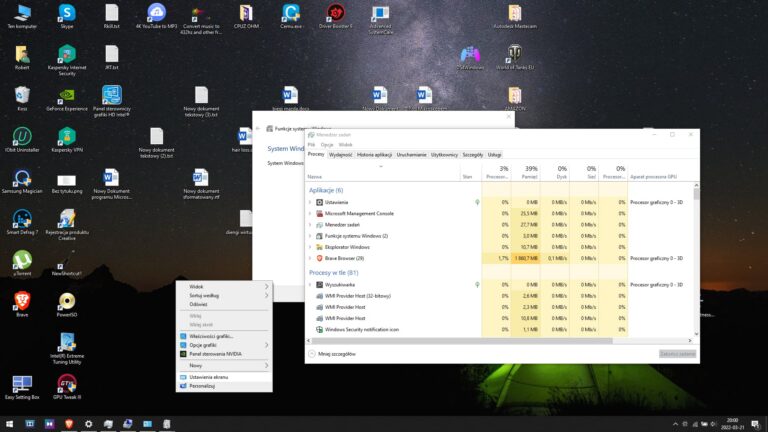
The process may use the processor, memory, and storage drive. As a result, the laptop can become slow or seem unresponsive for a while. That does not always mean the system has frozen.
Microsoft designed Windows Update to perform much of this work automatically. However, the time needed depends on the update size, the speed of your storage drive, and the amount of cleanup required.

How Long Should Laptop Cleanup Take?
For many laptops, cleanup takes between 5 and 30 minutes. A large update, an older hard disk drive, or a system with many unused files may take much longer.
The following factors can affect the time:
• Storage type: Solid-state drives are usually much faster than traditional hard disk drives.
• Update size: Major feature updates need more time than small security updates.
• Free storage: Windows may work slowly when the drive is nearly full.
• Laptop age: Older processors and hard drives can extend the process.
• Previous update problems: Windows may need extra time to repair or remove damaged files.
• Power settings: A laptop may work more slowly on a weak battery or in a low-power mode.
If the screen shows movement, the fan runs, or the storage light flashes, Windows may still be working. It is best to wait and keep the laptop connected to its charger.
A common mistake I have seen during laptop troubleshooting is shutting down the device after only a few minutes. That can interrupt an update and create a larger problem. Patience is often the safest first step.

Is It Safe to Turn Off a Laptop During Cleanup?
You should not turn off your laptop while it says “cleaning up” unless it has clearly frozen for a long time. Interrupting Windows while it changes system files can lead to update errors, startup problems, or a repeated cleanup loop.
Before taking action, check these signs:
• The message has appeared for less than one hour.
• The laptop fan turns on from time to time.
• The storage activity light is flashing.
• The screen changes occasionally.
• The keyboard responds slowly.
• The laptop feels warm because the system is still working.
If the laptop has shown the same screen for several hours with no visible activity, the process may be stuck. In that case, a forced shutdown may be necessary, but it should be the last resort.
Hold the power button for about 10 seconds until the laptop turns off. Wait a few seconds, then turn it on again. Windows may display “Preparing automatic repair” or “Undoing changes.” Let those processes finish without interruption.
Do not repeatedly force the laptop off. Several forced shutdowns can damage files and make Windows recovery more difficult.
What to Do If Windows Cleanup Is Stuck
If your laptop says “cleaning up” for an unusually long time, follow these steps in order.
1. Wait and check the power
Connect the laptop to its charger. Place it on a hard surface so air can flow around it. Give the process at least 30 to 60 minutes if it is completing a large update.
2. Look for signs of activity
Check whether the fan runs, the storage light flashes, or the screen changes. These signs suggest that Windows is still active.
3. Restart only when necessary
If there has been no activity for several hours, hold the power button until the laptop turns off. Start it again and allow Windows to repair or undo the update.
4. Run Windows Update Troubleshooter
After Windows starts:
-
Open Settings.
-
Select System.
-
Choose Troubleshoot.
-
Open Other troubleshooters.
-
Find Windows Update.
-
Select Run.
The exact menu names can vary by Windows version. The troubleshooter can detect common update service and configuration problems.
5. Check for updates again
Open Settings, select Windows Update, and choose Check for updates. Install available updates one at a time if Windows offers several large updates.
6. Repair system files
Open Command Prompt as an administrator and run:
DISM /Online /Cleanup-Image /RestoreHealth
After it finishes, run:
sfc /scannow
The Deployment Image Servicing and Management tool repairs the Windows image. System File Checker then checks and repairs protected system files. These tools are built into Windows and are widely used for update-related problems.
How to Free Space After Windows Cleans Up
Low disk space can make Windows updates slow or unreliable. Keeping some free space helps the operating system work more smoothly.
You can use Windows storage tools to remove unnecessary files:
-
Open Settings.
-
Select System.
-
Choose Storage.
-
Open Temporary files.
-
Review the file categories.
-
Select Remove files.
Be careful with the Downloads folder. It may contain personal files that you still need.
You can also turn on Storage Sense. This feature can automatically remove temporary files and recycle bin items based on your settings.
Other safe ways to free space include:
• Uninstalling apps you no longer use.
• Moving videos and photos to an external drive.
• Emptying the Recycle Bin.
• Removing old installation files after checking that Windows works correctly.
• Deleting temporary browser files.
• Storing large files in a trusted cloud service.
Avoid random “PC cleaner” programs. Some provide little value, show aggressive advertisements, or remove files without explaining the risk. Windows built-in cleanup tools are usually enough for normal maintenance.
Why Does My Laptop Say Cleaning Up After Every Restart?
If your laptop says “cleaning up” after every restart, Windows may be stuck in an update loop. This can happen when an update fails, system files are damaged, or Windows cannot complete a pending change.
Possible causes include:
• Not enough free storage.
• A damaged Windows Update cache.
• An interrupted update.
• A driver conflict.
• Corrupted system files.
• Security software interfering with the update.
Start by checking free storage and running Windows Update Troubleshooter. Then use DISM and SFC to repair Windows components.
If the loop continues, start Windows in Safe Mode. Safe Mode loads only essential drivers and services. From there, you can remove a recent update, uninstall a troublesome driver, or restore the system.
To access recovery options, restart the laptop while holding the Shift key, or use Windows Settings to open Advanced startup. The steps can vary, so read each recovery option carefully before choosing it.
If the laptop contains important files, back them up before major repair work. A repair process often works well, but no troubleshooting method is completely risk-free.
Why Does My Laptop Say Cleaning Up When It Is Not Updating?
Sometimes the message appears even when you did not manually start an update. Windows can download and install updates automatically in the background.
The cleanup may also start after:
• A security update installed overnight.
• Windows completed a feature update.
• The laptop restarted after losing power.
• Storage Sense began its scheduled work.
• Windows removed temporary installation files.
• A previous update finished several hours after download.
Open Windows Update history to see recent activity. Go to Settings, select Windows Update, and open Update history. This can help you connect the cleanup message with a recent update.
On some laptops, the manufacturer may also run maintenance tools. Dell, HP, Lenovo, ASUS, and Acer devices can include software that checks drivers, firmware, or recovery files. These tools may use different messages, so note the exact wording on the screen.
How to Prevent Windows Cleanup Problems
You cannot prevent every cleanup message, but good maintenance can reduce delays and errors.
Use these habits:
• Keep at least 15 to 20 percent of the main drive free when possible.
• Install updates while the laptop is connected to power.
• Avoid shutting down during updates.
• Restart the laptop regularly.
• Keep important files backed up.
• Use current device drivers from Windows Update or the laptop maker.
• Remove unused apps and large files.
• Avoid interrupting updates by closing the lid during critical installation steps.
• Use a reliable antivirus program.
Windows updates are important because they often include security fixes. Delaying every update can leave known weaknesses unpatched. A better approach is to choose a convenient time for updates and keep a recent backup.
In my experience, the biggest improvement often comes from clearing storage space. A laptop with a nearly full drive has little room for update files, temporary data, and system backups. Giving Windows breathing room can prevent many “cleaning up” delays.
Windows Cleanup Compared With Mac Cleanup
The exact phrase “cleaning up” is most closely linked with Windows update and system maintenance. Mac laptops may show different messages, such as “Installing,” “Optimizing your Mac,” or a progress bar during an update.
The basic idea is similar. Both Windows and macOS may remove temporary files, update system components, and optimize storage after software changes.
For a Mac, useful steps include:
• Keep the Mac connected to power during updates.
• Check available storage in System Settings.
• Restart only if the screen clearly stops responding.
• Use macOS Recovery if the system cannot start normally.
• Keep a current Time Machine backup.
Do not assume that advice for Windows applies exactly to macOS. The operating systems use different update tools and recovery systems.
Mistakes to Avoid When Your Laptop Says Cleaning Up
A few rushed decisions can turn a normal cleanup into a repair problem.
Avoid these mistakes:
• Do not unplug the charger during the cleanup process.
• Do not press the power button repeatedly.
• Do not delete Windows system folders manually.
• Do not use registry cleaners to fix an update message.
• Do not install several repair programs at once.
• Do not ignore low-storage warnings.
• Do not reset Windows before backing up personal files.
One especially risky action is deleting the Windows folder or the SoftwareDistribution folder without understanding the repair steps. Those folders can be reset safely in some situations, but the process should be done carefully.
If your laptop contains work files, family photos, or school projects, backup comes first. Troubleshooting is much less stressful when your important data exists in another safe location.
When to Contact a Professional
Most cleanup messages resolve on their own or respond to basic Windows repair tools. Professional help is sensible when the laptop cannot start, repeatedly crashes, or shows signs of storage failure.
Seek help if:
• Windows cannot reach the login screen.
• The cleanup loop continues after several repair attempts.
• You hear clicking from a traditional hard drive.
• The laptop shows a blue screen repeatedly.
• Important files are missing.
• The device becomes unusually hot.
• The screen remains unchanged for many hours.
A technician can test the drive, inspect system logs, repair the Windows installation, or recover files. If the laptop uses an older hard disk drive, replacing it with a solid-state drive may improve both speed and reliability, although it does not fix every software problem.
Frequently Asked Questions About Why Does My Laptop Say Cleaning Up
Why does my laptop say cleaning up after an update?
Windows is removing temporary files and older system components left behind by the update. This step helps recover storage and complete the installation safely.
How long should the cleaning up screen stay on?
It often takes 5 to 30 minutes, but large updates and older laptops may need much longer. Keep the laptop connected to power and wait if you see signs of activity.
Can I turn off my laptop when it says cleaning up?
Avoid turning it off unless the screen has been unchanged for several hours and there are no signs of activity. Interrupting system changes can cause startup or update problems.
Why does my laptop keep saying cleaning up?
A repeated message may indicate a failed update, low storage, damaged system files, or an update loop. Run the Windows Update Troubleshooter, check storage, and use DISM and SFC if needed.
Does cleaning up delete my personal files?
Normal Windows cleanup removes temporary and outdated system files, not your personal documents, photos, or videos. Still, review cleanup categories carefully before deleting files manually.
Should I use a PC cleaner program?
Usually, you do not need one. Windows Storage settings, Storage Sense, and Disk Cleanup can handle routine maintenance with less risk.
Conclusion
When your laptop says “cleaning up,” it is usually completing Windows maintenance after an update. The message often means that temporary files and older system components are being removed, not that your personal files are being erased.
Wait patiently, keep the charger connected, and avoid forced shutdowns unless the laptop is clearly frozen for several hours. If the message repeats, check storage, run Windows repair tools, and back up important files before deeper troubleshooting.
Use these steps the next time the message appears, and share your experience or questions in the comments.