Tap the microphone in a chat or attach a saved audio file to send a voice recording on Messenger.
I’ve walked thousands of people through Messenger features and helped teams share clear audio fast. This guide explains how to send voice recorder on Messenger across phones and the web. You’ll get step-by-step instructions, tips for using recorded files, fixes for common problems, and real-life tips I learned while helping friends and clients. Read on to master voice messaging and share audio like a pro.
Why send voice messages on Messenger?
Voice messages feel personal. They carry tone and speed that text can’t. Knowing how to send voice recorder on Messenger helps you save time. It also improves clarity for short instructions and emotional messages.

Devices and app versions to consider
Messenger behaves a bit differently on Android, iPhone, and the web. Keep the app updated to access the latest voice features. Older app versions may lack the one-tap recorder or the ability to attach files. Check device permissions for microphone access before you try to send audio.
How to send voice recorder on Messenger — step-by-step (mobile)
Below are clear steps for both Android and iPhone. Follow them to record and send voice messages instantly.
- Open Messenger and pick a chat
- Tap the conversation to open it.
- Ensure the person or group is ready to receive audio.
- Use the built-in voice recorder
- Locate the microphone icon at the message bar.
- Press and hold the microphone to record a short message.
- Release to send automatically on most devices.
- Lock to record longer messages
- Press and slide up (or into a lock icon) to keep recording hands-free.
- Tap the send button when finished.
- Cancel or delete a draft
- Slide away from the mic icon before releasing to cancel.
- Some versions show a delete or cancel option after recording.
- Add a caption or emoji
- Tap the message to add reactions or tap the three-dot menu for options.
I say this from experience: the lock-to-record feature is a lifesaver for longer voice notes. It avoids accidental stops. If your version doesn’t show a mic, update the app or check permissions.

How to send voice recorder on Messenger from desktop or web
Messenger on desktop lets you record or upload audio. Here’s how to use both options.
- Record directly in the web app
- Open Messenger in your browser or the desktop app.
- Open a chat and click the microphone icon near the text box.
- Allow the browser to use your microphone if prompted.
- Click to start and click again to stop and send.
- Upload a pre-recorded file
- Click the + or the file-attach icon.
- Select the audio file from your computer.
- Press send once the file uploads.
Desktop recording is often quieter than phone recording. Using a small external mic helps. If the mic button is missing, check browser permissions or try a different browser.

How to send voice recorder on Messenger as a saved audio file
Sometimes you want to send audio recorded with another app. Here’s how to attach saved voice files.
- Save or export the audio
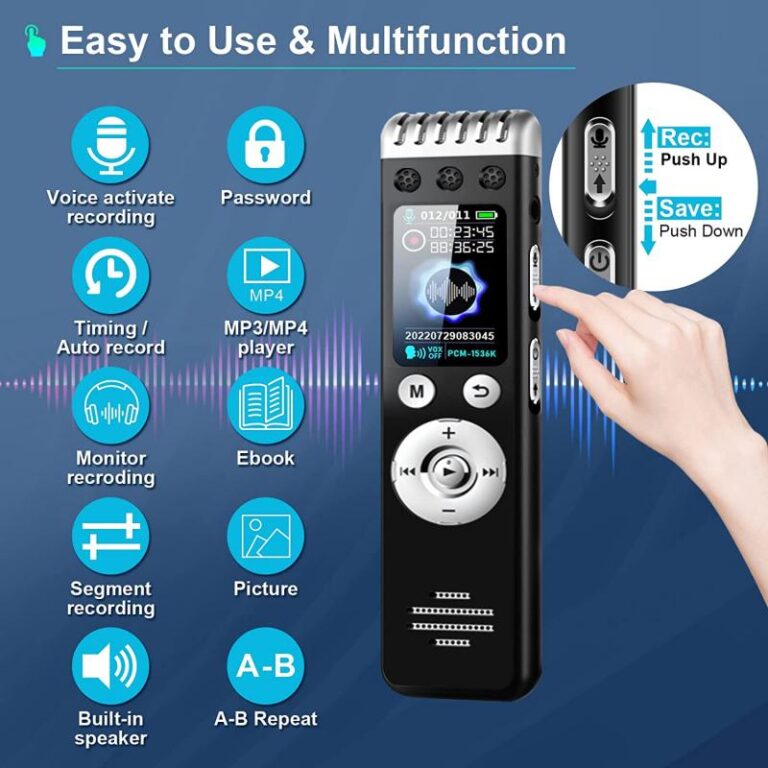
- Use your phone’s voice recorder app to save as .m4a or .mp3.
- Confirm the file is in your phone’s Files or Voice Memos.
- Attach on Android
- In Messenger, tap the + or the paperclip icon.
- Choose Files or Audio and pick your saved file.
- Upload and send.
- Attach on iPhone
- Tap the plus icon and choose Files.
- Navigate to the voice memo or exported file.
- Select the file and send.
- Send from desktop
- Click the attach icon in web Messenger.
- Browse to the file on your PC or Mac.
- Upload and send.
I’ve sent interview clips this way. Exporting from your recorder to a common format reduces playback issues. If a file fails to upload, compress it or convert it to a smaller format.

Troubleshooting common issues
If you can’t send audio, try these quick fixes.
- Microphone permission denied
- Go to your phone settings and allow Messenger to access the microphone.
- Microphone icon missing
- Update the Messenger app. Restart your device if needed.
- Audio won’t upload
- Check internet connection and file size limits. Compress large files.
- Recipient can’t play audio
- Send a common format like MP3 or M4A. Suggest they update their app.
- Low-quality sound
- Move to a quiet place. Use an external mic or headset.
Most problems come down to permissions, app updates, or file formats. Fixing those clears 90% of issues I see.
Tips and best practices for sending voice messages
Use these tips to make your voice messages clear and professional.
- Keep messages short
- Short messages are easier to digest and replay.
- Speak clearly and at a normal pace
- Pause between ideas to improve clarity.
- Use captions when needed
- Add a short text to summarize the message.
- Test audio quality first
- Record a quick test message to check volume and clarity.
- Consider privacy and timing
- Don’t send long private details in group chats.
- Name your files before sending
- Clear file names help recipients find clips later.
- Use headphones or an external mic
- They reduce background noise and echo.
I once sent a 10-minute voice message that no one finished. Since then, I split long thoughts into short clips. That made responses faster and clearer.

Frequently Asked Questions of how to send voice recorder on messenger
How do I enable the microphone for Messenger?
Go to your device settings, find Messenger, and toggle microphone access on. Restart the app to apply changes.
Can I send voice messages to a group chat?
Yes. Open the group chat and use the same microphone icon to record. All members will receive the audio.
How long can a voice message be on Messenger?
Voice lengths vary with app updates, but typical limits allow several minutes per note. For longer audio, attach a file created in a recorder app.
What file types does Messenger accept for uploaded audio?
Messenger commonly accepts MP3, M4A, and WAV files. If a file fails, convert it to MP3 or M4A for broad compatibility.
Why won’t my recipient hear the voice message?
They may need to update Messenger or their device may block autoplay. Ask them to update the app and check playback settings.
Can I edit a voice message after sending?
No, you can’t edit after sending. You must delete and resend a corrected version. Record a short test before sending long audio.
Is voice messaging secure on Messenger?
Voice messages travel via Messenger’s platform protections. For very sensitive audio, use encrypted services or secure file transfer methods.
Conclusion
You now have clear steps for how to send voice recorder on Messenger across phones and the web. Use the built-in mic for quick notes and attach saved files for longer clips. Test permissions and file formats to avoid hiccups. Try these steps today and send a short voice note to practice. If this guide helped, leave a comment, subscribe for more tips, or share a voice message with someone now.