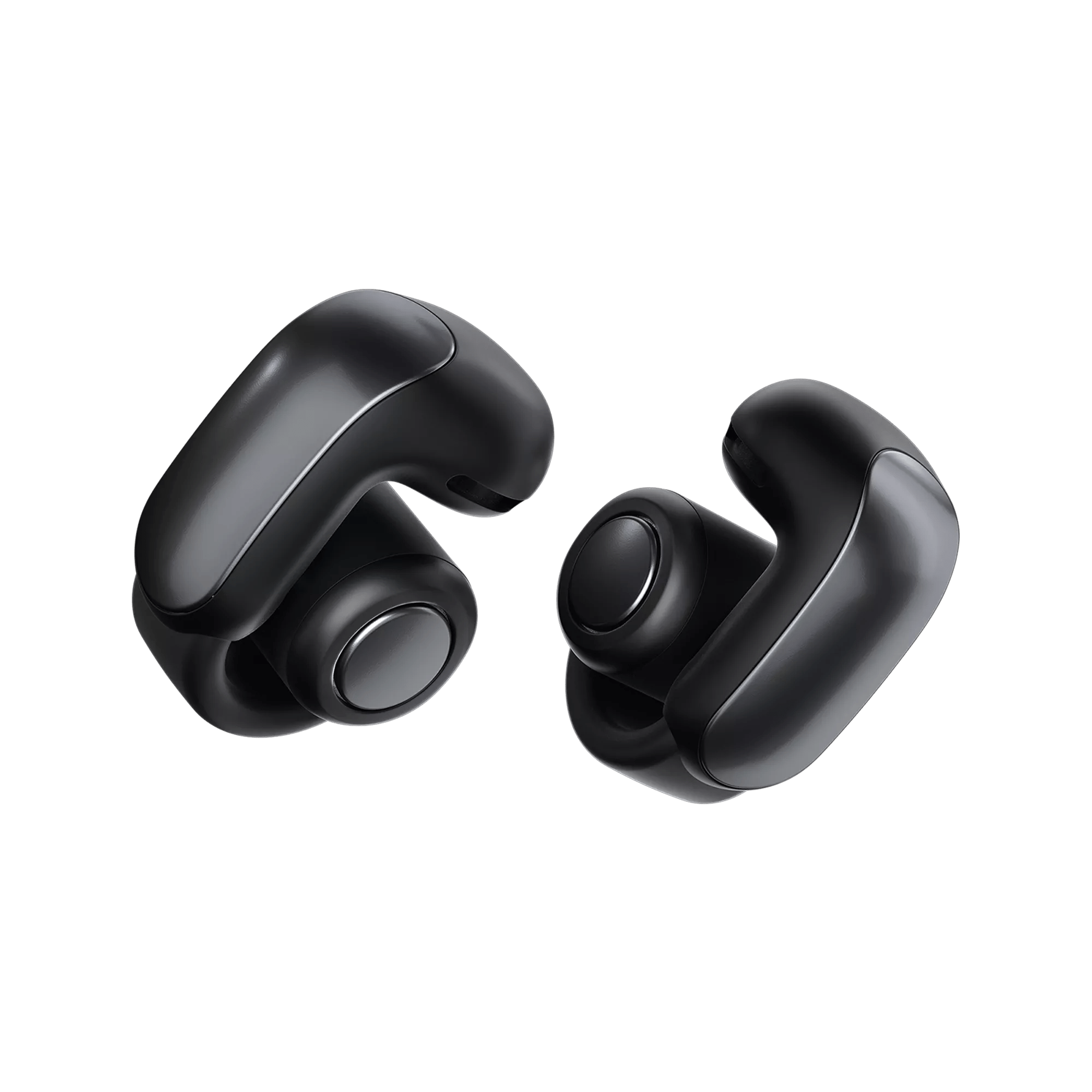
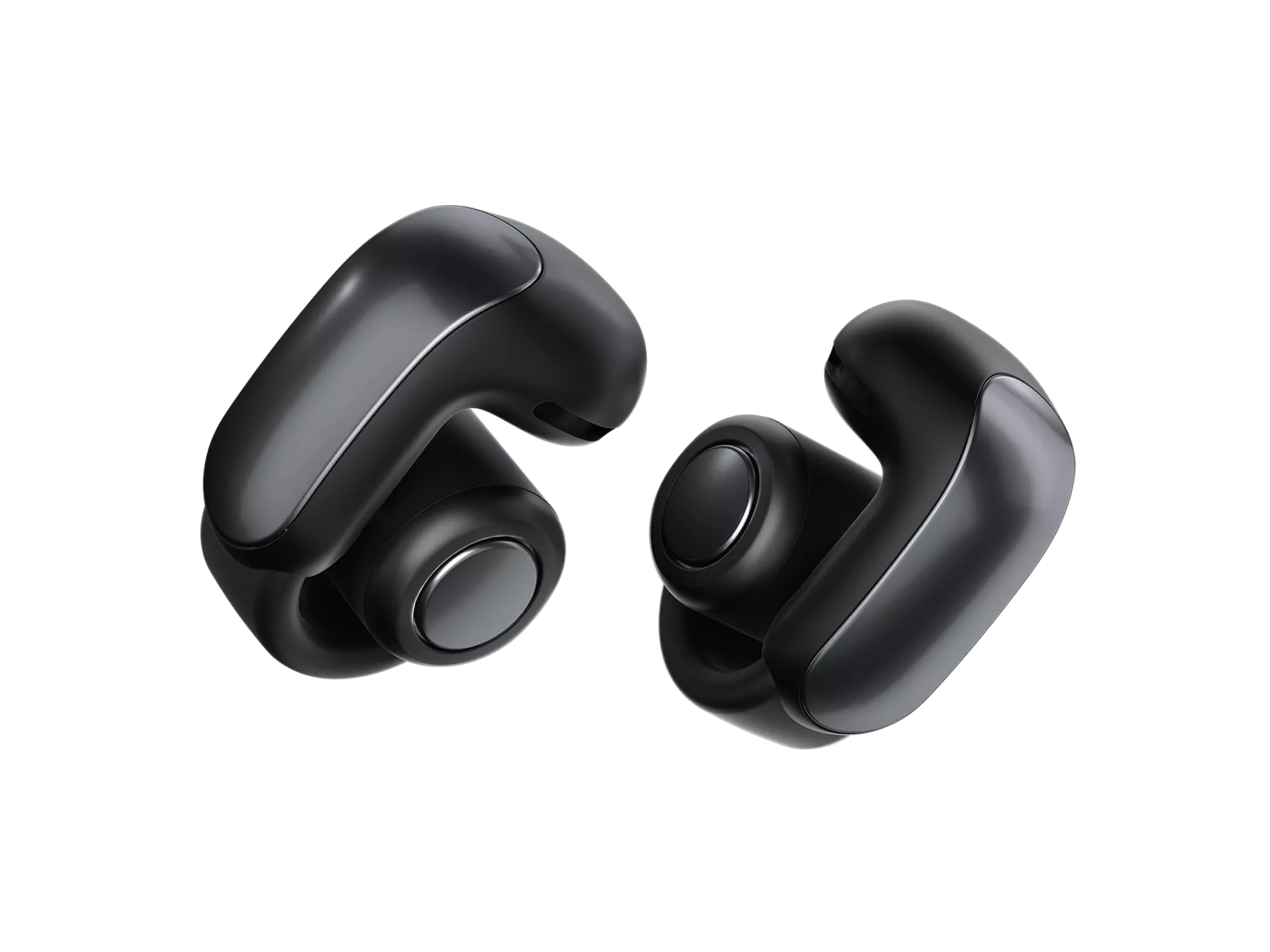
Pair your Bose Ultra Open Earbuds via Bluetooth: enable pairing mode, then choose them in your device settings.
I have tested Bose earbuds and helped many people connect them. This guide explains how to connect Bose Ultra Open Earbuds step-by-step. You will learn simple setup, pairing tips for phones and computers, troubleshooting fixes, and quick ways to keep the earbuds working well. Read on for clear, tested steps that make pairing fast and reliable.

Why pairing matters and what to know before you start
Pairing is the link between your device and the earbuds. Good pairing gives stable sound, low lag, and reliable controls. The process for how to connect Bose Ultra Open Earbuds is mostly Bluetooth. Some devices may need extra steps. Knowing the basics saves time and frustration.
- The earbuds use Bluetooth Low Energy for quick pairing.
- They support common codecs for good audio quality.
- Battery level and software updates affect pairing success.

Prepare your earbuds and device
Prepare both sides before pairing. This cuts wasted time. Follow these short checks.
- Charge the earbuds and the case for at least 15 minutes.
- Make sure Bluetooth is on in your phone, tablet, or computer.
- Close other active Bluetooth connections to avoid conflicts.
- Update your device OS if Bluetooth hasn't worked recently.
If you are unsure whether the earbuds are charged, put them back in the case and check the LED. Low battery is a common cause of pairing trouble.

Step-by-step: how to connect Bose Ultra Open Earbuds to a phone
These steps walk you through the usual phone pairing process. They work for iPhone and Android.
- Open Bluetooth on your phone.
- Take the earbuds out of the case. Wait five seconds.
- If the earbuds do not enter pairing mode automatically, press and hold the earbuds' touch control for about 3–5 seconds until the LED blinks white.
- On your phone, look for Bose Ultra Open Earbuds in the Bluetooth list.
- Tap the name to pair. Accept any prompts that appear.
- Confirm successful connection by playing audio.
If pairing fails, turn Bluetooth off and on again. Retry steps 2–5. I have done this often; a quick toggle fixes many issues.
How to connect Bose Ultra Open Earbuds to a Windows PC or Mac
Pairing to a computer is similar but with a few extra clicks.
Windows PC
- Open Settings > Bluetooth & devices.
- Turn Bluetooth on.
- Click Add device > Bluetooth.
- Put the earbuds into pairing mode (LED blinking white).
- Select Bose Ultra Open Earbuds from the list.
Mac
- Open System Settings > Bluetooth.
- Turn Bluetooth on.
- Put the earbuds into pairing mode.
- Click Connect next to Bose Ultra Open Earbuds.
If audio does not route correctly, pick the earbuds in your sound output settings. I once had to reselect the device in the sound control panel after a Windows update.

Pairing with multiple devices and switching between them
These earbuds can save multiple pairings. Here’s how to manage them.
- Pair each device once using the standard steps.
- To switch, disconnect on one device and connect on the other using Bluetooth settings.
- Some devices auto-reconnect. If not, tap the earbuds in the device list.
- Clear old pairings if you hit connection limits by resetting the earbuds.
Tip: If you use a laptop and phone frequently, disable Bluetooth on the idle device to avoid automatic reconnect conflicts.
Troubleshooting common pairing problems
Trouble pairing is usually small. Try these fixes in order.
- Restart both the earbuds and your device. A reboot often clears Bluetooth bugs.
- Forget the earbuds in your device Bluetooth list, then re-pair.
- Move closer. Keep devices within 3 feet while pairing.
- Turn off other Bluetooth devices to avoid interference.
- Update device firmware or the Bose app if available.
If none of these work, reset the earbuds to factory defaults. This clears pairing memory and often restores normal pairing.

Resetting and updating firmware
A reset solves stubborn problems. Updating ensures best performance.
Reset steps (general):
- Place earbuds in the case.
- Close and open the lid.
- Press and hold the case button (if present) or use the earbud touch controls per manual until LEDs flash amber or white.
- Re-pair with your device.
Update firmware:
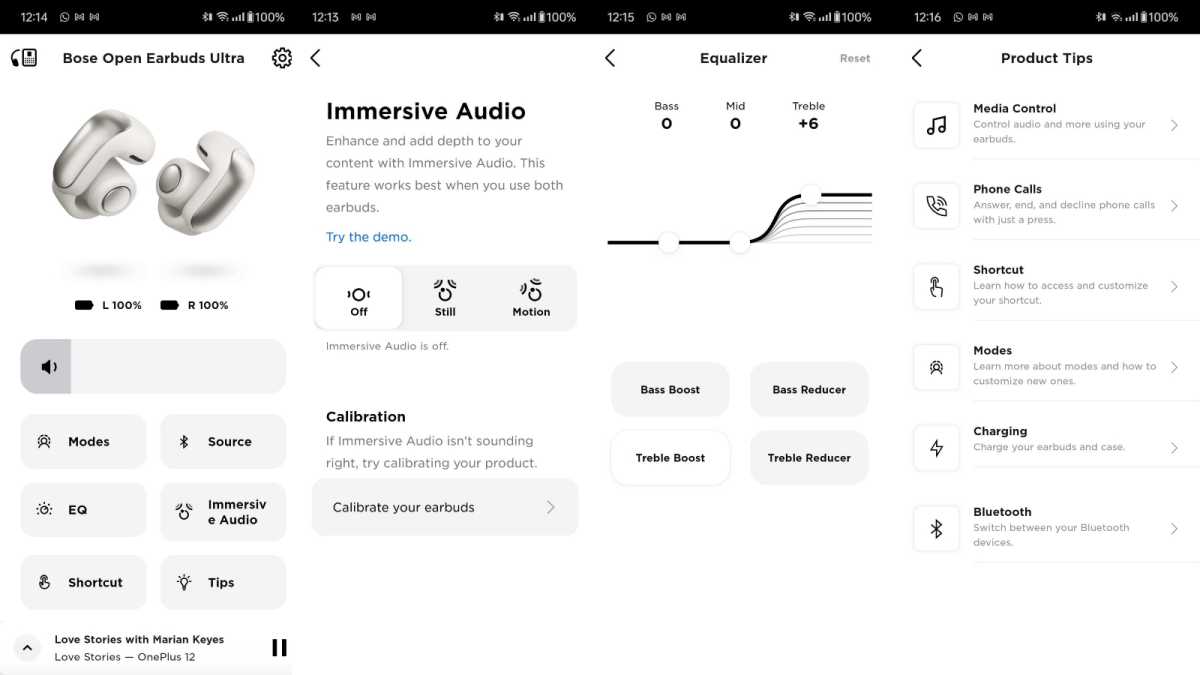
- Use the Bose Music app or the device’s updater where available.
- Keep a stable Wi-Fi connection during updates.
- Firmware updates can improve Bluetooth stability and add features.
I once delayed an update and had frequent dropouts. Updating fixed it instantly.
Tips for better audio, battery, and reliability
Small habits improve daily use. Try these tips.
- Keep firmware updated on earbuds and phone.
- Charge routinely. Avoid letting battery drain fully often.
- Clean contacts on earbuds and case to maintain charging.
- Use the Bose Music app to manage settings and checks.
- Reduce interference by moving away from routers or microwaves during pairing.
For travel, store earbuds in the case and disable Bluetooth on unused devices to prevent accidental pairing.
Personal experience, lessons learned, and practical tips
I have paired Bose earbuds with many phones, tablets, and laptops. These simple lessons helped me and others.
- Always check battery first. Low battery looks like a deeper problem.
- Close the case and open it again if pairing stalls.
- If a device won’t forget the earbuds, toggle airplane mode and try again.
- Keep the Bose account and app set up for firmware and features.
One real example: A friend’s phone would not find the earbuds. Resetting the earbuds and restarting the phone fixed it. Small resets save big headaches.
PAA-style quick questions
What should I do if my device says pairing failed?
- Try restarting both devices, forgetting the earbuds in Bluetooth settings, and re-pairing. Keep devices close together during the attempt.
Will the earbuds auto-reconnect after turning them on?
- They usually reconnect to the last paired device automatically. If not, select them manually in Bluetooth settings.
Can I connect the earbuds to two devices at once?
- Some devices support multi-point, but functionality varies. If both are connected, audio may default to one active device.
Frequently Asked Questions of how to connect bose ultra open earbuds
How do I enter pairing mode on Bose Ultra Open Earbuds?
Press and hold the earbuds' touch control for 3–5 seconds until the LED blinks white. Then select the earbuds in your device Bluetooth menu.
Why won’t my phone find Bose Ultra Open Earbuds?
Common causes are low battery, earbuds already connected to another device, or Bluetooth issues on the phone. Charge, disconnect other devices, and restart Bluetooth to try again.
How do I reset Bose Ultra Open Earbuds?
Place the earbuds in the case, close it, then follow the reset procedure in the manual — usually holding a button until LEDs change. After reset, re-pair your devices.
Do I need the Bose app to connect the earbuds?
No. You can pair via device Bluetooth settings. The Bose app adds firmware updates and extra controls but is optional.
How can I fix audio dropouts after pairing?
Move closer to the device, remove interference sources, update firmware, and ensure both earbuds are fully charged. If dropouts persist, retry pairing or reset the earbuds.
Conclusion
You now have clear steps to connect, troubleshoot, and optimize your Bose Ultra Open Earbuds. Follow the simple prep, use the pairing steps for phones or computers, and apply quick fixes when needed. Small habits like keeping firmware updated and charging regularly will keep connections smooth. Try the steps today, and leave a comment if you hit a snag — I’ll help troubleshoot with practical tips.