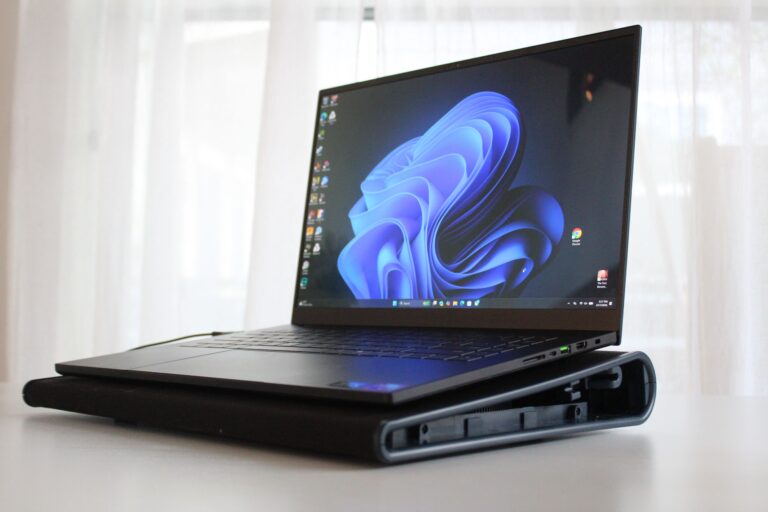
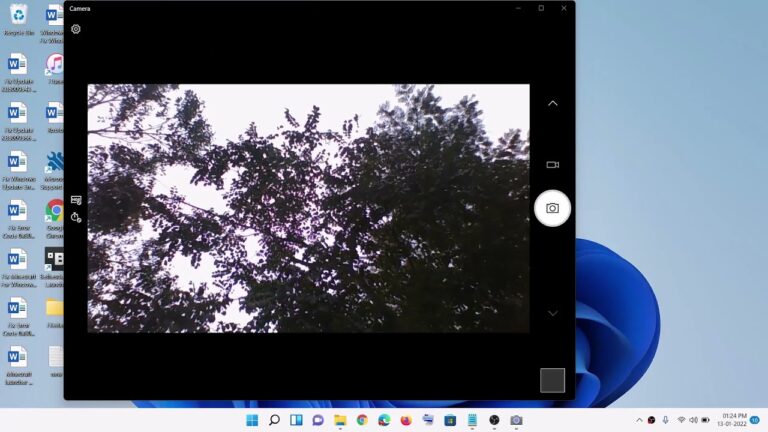
A red laptop camera light usually means the webcam is active, blocked, or using infrared.
If you are wondering why is there a red light on my laptop camera, you are not alone. The light may be a normal privacy signal, a sign that an app is using the webcam, or an infrared light used for face recognition. This guide explains the most likely causes, how to check them safely, and what to do if the light stays on.
Why Is There a Red Light on My Laptop Camera?
The main reason why is there a red light on my laptop camera is that the camera hardware is active. Many laptops use a small LED beside the webcam to show when the camera is recording or ready to send video.
However, the color and meaning can vary by laptop brand and model. A red, orange, amber, or white light may indicate camera use. Some devices also have a separate infrared sensor that helps Windows Hello or another face login system recognize you.
Common causes include:
• A video call app is using the camera.
• A web browser has camera permission.
• A face recognition feature is active.
• A camera privacy switch is partly closed.
• A system process is checking the camera.
• An app or browser tab is frozen.
• A rare software or security problem is controlling the webcam.
A camera light is like a small traffic signal. It does not always tell you exactly which app is using the camera, but it warns you that the camera system is active.

What the Red Camera Light Usually Means
In most cases, the red light is a privacy indicator. It is designed to reassure you that the webcam is not secretly recording without showing a visible sign.
The light often turns on when you:
• Join a Zoom, Google Meet, Microsoft Teams, or FaceTime call.
• Open the built-in Camera app.
• Use a website that has webcam access.
• Log in with facial recognition.
• Record a video or take a picture.
On some laptops, the light may turn on for only a second during startup. This can happen when the operating system checks the camera driver.
The red light does not always mean that someone is watching you. It usually means that the camera device is receiving power or that software has requested access.
Camera light colors are not universal
Laptop makers use different indicator designs. One model may use red for a working camera, while another may use red for infrared activity or a privacy warning.
The best way to confirm the meaning is to check your laptop manual or the support page for its exact model. Search for the model number printed under the laptop or in the system settings.

Is the Red Light From the Webcam or an Infrared Sensor?
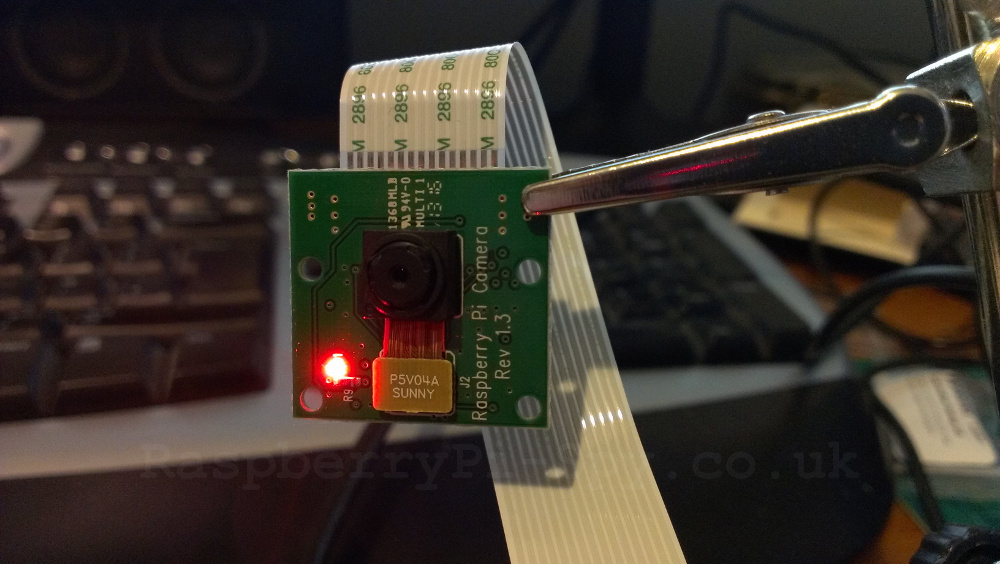
Some modern laptops have two camera systems. One is a normal RGB webcam for video. The other is an infrared camera for facial recognition.
The infrared sensor can help Windows Hello recognize your face in low light. You may see a red or faint glow when you unlock the laptop. Infrared light can be hard to see, but some infrared LEDs appear as a dim red light to the human eye.
This is one reason why is there a red light on my laptop camera may have more than one answer. The light may not come from the regular webcam at all.
You can test this by turning off facial recognition:
-
Open Settings in Windows.
-
Select Accounts.
-
Choose Sign-in options.
-
Select Facial recognition or Windows Hello Face.
-
Turn off or remove the feature for a short test.
On a Mac, the camera light usually appears beside the built-in camera when the camera is active. Face ID on newer iPhones and iPads uses infrared technology, but Mac models do not all use the same face scanning system.
How to Find Which App Is Using Your Camera
Finding the app can quickly explain why is there a red light on my laptop camera. Start with the programs you recently opened, then check camera permissions.
On Windows
Try these steps:
-
Close Zoom, Teams, Skype, Discord, and other calling apps.
-
Close the Camera app.
-
Check the taskbar for a video call window.
-
Open Settings.
-
Select Privacy & security.
-
Choose Camera.
-
Review which apps have camera access.
Windows may show recent camera activity in the camera privacy settings. The exact wording can differ by Windows version.
On macOS
Follow these steps:
-
Close FaceTime, Photo Booth, Zoom, Teams, and browser windows.
-
Open System Settings.
-
Select Privacy & Security.
-
Choose Camera.
-
Review the apps that can access the camera.
You can turn off access for apps that do not need it. A trusted app may still request permission the next time you use its video feature.
Check your browser
A browser tab may use the webcam even when no obvious app is open. Look for a camera icon near the address bar. You can also review camera permissions in Chrome, Edge, Firefox, or Safari.
Close sites that use video chat, online testing, telehealth, or identity checks. If the light turns off, you have likely found the cause.
Why the Red Light Stays On After You Close the Camera App
Sometimes the camera light remains on because an app did not shut down correctly. This can happen after a video meeting ends or when a browser tab stops responding.
If you are still asking why is there a red light on my laptop camera after closing every app, try these simple fixes:
• Quit the camera app completely.
• Close all browser windows.
• End the app in Task Manager on Windows.
• Use Force Quit on macOS.
• Restart the laptop.
• Disconnect external webcams.
• Install pending system updates.
A restart often clears a camera process that is stuck in the background. It is a simple step, but it solves many ordinary webcam problems.
In my own device troubleshooting, I have seen video meeting apps keep a camera process active after a call ended. The screen looked normal, but the camera indicator stayed lit until the app was fully closed. The lesson is simple: closing a window is not always the same as quitting the app.
Could Malware Turn On Your Laptop Camera?
Malware can attempt to access a webcam, but this is less common than a normal app or browser permission issue. Modern laptops often include a hardware indicator to warn you when the camera is active.
Still, you should take an unusual camera light seriously if:
• The light turns on when no camera app is open.
• An unknown app appears in camera permissions.
• Your laptop becomes slow or unusually warm.
• New browser extensions appear without your approval.
• The camera activates after visiting a strange website.
• Your security software reports suspicious activity.
Run a full scan with your trusted security software. Remove unknown browser extensions and uninstall apps you do not recognize. Also update Windows, macOS, your browser, and your laptop’s camera drivers.
A camera light alone does not prove that your laptop has malware. Avoid panic, but do not ignore repeated activity that you cannot explain.
How to Turn Off or Block the Camera Safely
If you want more privacy, use a built-in camera shutter or privacy switch whenever possible. A physical cover blocks the lens, but it does not always disable the microphone or camera hardware.
You can also block camera access through system settings.
Windows camera controls
-
Open Settings.
-
Select Privacy & security.
-
Choose Camera.
-
Turn off camera access for selected apps.
-
Turn off access for desktop apps if you want a stricter limit.
Windows may still require camera access for certain sign-in or security tools. If a feature stops working, you can restore permission later.
Mac camera controls
-
Open System Settings.
-
Select Privacy & Security.
-
Choose Camera.
-
Disable access for apps that do not need it.
-
Review Microphone permissions separately.
Remember that blocking the camera does not block the microphone. If privacy is your goal, review both permissions.
Avoid thick, hard camera covers on some laptops. They may press against the screen when the lid closes and cause damage. A thin sliding cover made for laptops is a safer option.

What to Do If the Camera Light Is Red but the Camera Does Not Work
A red indicator with a blank or black video feed may point to a blocked lens, disabled permission, driver trouble, or hardware failure.
Try this order:
-
Open the camera privacy shutter.
-
Clean the lens with a soft, dry microfiber cloth.
-
Confirm that the correct camera is selected in the app.
-
Check camera permissions.
-
Restart the laptop.
-
Update the camera driver or operating system.
-
Test the camera in another trusted app.
-
Run the laptop maker’s hardware test.
On Windows, you can check the camera in Device Manager. Look under Cameras or Imaging devices. If the device has a warning symbol, update or reinstall its driver.
On a Mac, install available macOS updates and test the camera in Photo Booth or FaceTime. If the camera fails in every app, contact Apple Support or the laptop manufacturer.
A light that works while the video stays black may mean the camera has power but cannot send a usable image. That is different from a camera that is completely inactive.

Laptop Brands and Their Camera Light Differences
The answer to why is there a red light on my laptop camera can depend on the manufacturer.
Dell, HP, Lenovo, ASUS, Acer, Microsoft, Apple, and other brands may use different LED colors and privacy systems. Some models show a bright white light. Others use amber or red. Business laptops may include a physical camera shutter or a keyboard key that disables the webcam.
Brand differences can include:
• A red light for camera activity.
• An amber light for a disabled or blocked camera.
• An infrared light for facial recognition.
• A blinking light during startup or hardware checks.
• A light that remains on when a privacy shutter is closed.
Check your exact model guide before deciding that the light signals a problem. Generic advice can help, but the manufacturer’s documentation is the most accurate source for your device.
Mistakes to Avoid When Troubleshooting the Camera Light
Many people make the problem harder by changing several settings at once. A slow, clear process makes it easier to find the real cause.
Avoid these mistakes:
• Do not assume the red light proves hacking.
• Do not install random driver tools from unknown websites.
• Do not cover the camera with thick tape while closing the laptop.
• Do not remove security software without a replacement plan.
• Do not grant camera access to every website.
• Do not ignore a physical privacy switch.
• Do not open the laptop if it is still under warranty.
I once helped troubleshoot a laptop where the camera light seemed mysterious. The cause was a browser tab left open in the background. The user had already reset several privacy settings, which created more confusion. Checking active apps first would have solved the issue in less than a minute.
How to Improve Laptop Camera Privacy
Good webcam privacy is not difficult. A few habits can reduce unwanted access and make camera activity easier to understand.
Use these practical habits:
• Keep your operating system updated.
• Install apps only from trusted sources.
• Review camera permissions every few months.
• Remove browser extensions you no longer use.
• Use a physical shutter when available.
• Avoid clicking unknown video links.
• Use strong account passwords.
• Turn on multifactor authentication.
• Lock your laptop when you step away.
• Keep trusted security software active.
The best privacy plan uses several layers. A software permission blocks many unwanted requests, while a physical shutter blocks the lens itself. Neither method replaces careful browsing habits.
When to Contact Technical Support
Contact the laptop maker or a qualified technician if the camera light behaves strangely after basic checks. This is especially important when the light stays on after a restart, the camera fails in every app, or the laptop shows a hardware error.
Ask for support when:
• The camera is missing from system settings.
• The camera driver will not install.
• The indicator stays on with all camera permissions disabled.
• The laptop suffered liquid or impact damage.
• The webcam turns on without an identifiable app.
• Your security scan finds a serious threat.
Before contacting support, note your laptop model, operating system, camera behavior, and the steps you already tried. Clear details help the technician avoid repeating basic tests.
Frequently Asked Questions
Why is there a red light on my laptop camera when I am not using it?
An app, browser tab, face recognition feature, or background process may still be using the camera. Close camera-enabled apps, check privacy settings, and restart the laptop.
Does a red camera light mean someone is watching me?
Usually, no. The light normally means that the camera or infrared sensor is active, but you should check permissions if you cannot identify the cause.
How do I turn off the red light on my laptop camera?
Close the app using the camera or disable camera access in Windows or macOS privacy settings. A hardware privacy switch can also disable the webcam on supported laptops.
Can a laptop camera light turn on because of a virus?
It is possible but not the most common cause. Run a full security scan, remove unknown apps and extensions, update your system, and seek expert help if the light keeps activating without explanation.
Why is there a red light on my laptop camera during Windows Hello?
Windows Hello may be using an infrared sensor to scan your face. This can create a faint red glow on some laptops and is usually normal.
Why is the camera light on but the video is black?
The lens may be covered, the camera may be disabled, or the driver may have a problem. Check the privacy shutter, permissions, selected camera, updates, and another trusted camera app.
Conclusion
A red laptop camera light usually shows that the webcam or infrared sensor is active. The most common causes are video calls, camera permissions, browser tabs, facial recognition, or a stuck background process. A red light does not automatically mean that your laptop has been hacked.
Start by closing camera apps, checking privacy settings, restarting the computer, and scanning for threats if the activity seems unusual. If the issue continues, review your laptop model guide or contact technical support. Share your laptop model and what you discovered in the comments, and explore more practical device privacy tips to keep your camera under your control.