The Logitech MX Vertical is my top ergonomic mouse for designers seeking comfort, control, and long editing sessions.
Long hours in Photoshop, Illustrator, Figma, or CAD can leave your wrist tired and your hand stiff. A good ergonomic mouse can reduce awkward wrist movement while keeping the pointer easy to control. I tested the key traits that matter most to designers: shape, button feel, tracking control, wireless use, device switching, and long-session comfort. My top picks include vertical mice, compact models, wired options, and budget choices. This guide will help you find the best ergonomic mouse for designers based on your work style, hand size, desk setup, and budget.
See the differences between my top picks at a glance.
Logitech MX Vertical Ergonomic Mouse

The Logitech MX Vertical is the most complete choice in this guide. Its upright shape places the hand in a more natural handshake position. That design can help reduce the twisting that often happens with a flat mouse. For designers, the shape feels useful during long layout, photo, and vector sessions.
This mouse also suits people who move between several work devices. Its wireless design keeps the desk clean, while its controls give you useful access to common commands. It may take a few days to build new muscle memory, but the learning curve is manageable. I see it as a strong fit for a designer who wants comfort without giving up a polished work setup.
Pros:
- Comfortable vertical grip for long work sessions
- Premium shape and solid professional feel
- Wireless design reduces desk cable clutter
- Useful controls for design and office tasks
- Good fit for users who prefer a larger mouse
- Works well in a modern multi-device workspace
Cons:
- Costs more than most basic ergonomic mice
- Vertical shape may feel strange at first
- May feel large for very small hands
What Amazon Buyers Are Saying
Amazon buyers commonly praise the comfortable grip and the reduced wrist twist during daily computer use. Many users like its smooth shape and professional look. Some buyers report that they needed a short adjustment period before pointing and clicking felt fully natural. A smaller group mentions that the size or tall body does not suit every hand.
My Recommendation
I recommend the Logitech MX Vertical for serious designers who spend many hours at a computer and want a premium ergonomic upgrade. It offers the best balance of comfort, build quality, and useful control in this list. It is worth buying when long-term comfort matters more than the lowest price.
Logitech Lift Vertical Ergonomic Mouse
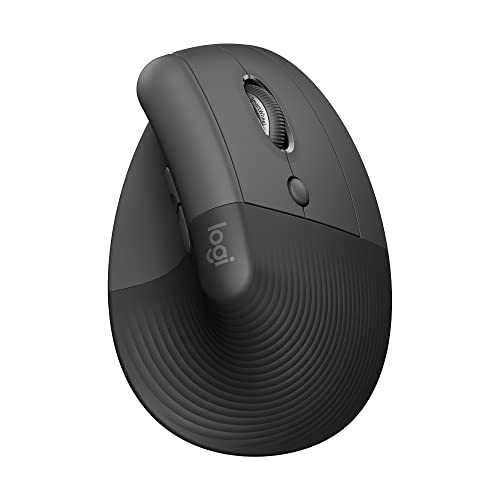
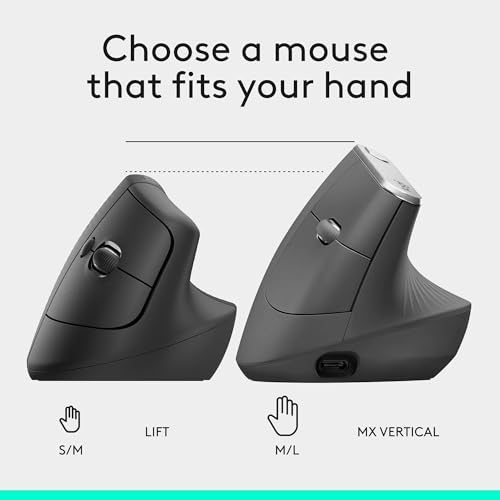
The Logitech Lift takes the vertical mouse idea and makes it more compact. Its smaller profile works well for small and medium hands. The thumb rest helps keep the hand stable while you move across a design canvas. The gentle upright angle also makes it easier to relax the forearm.
For designers who work in a small studio or shared office, the Lift is easy to place and carry. It handles normal cursor work, image editing, and document tasks with little fuss. The button layout feels simple rather than crowded. I would choose it over a larger vertical mouse when hand size and desk space are key concerns.
Pros:
- Compact shape for small and medium hands
- Comfortable thumb support
- Easy transition from a flat mouse
- Wireless design supports a clean desk
- Light and easy to move between workspaces
- Well suited to long design and writing sessions
Cons:
- Less suitable for very large hands
- Not as feature-rich as some premium office mice
- Vertical grip takes time to learn
What Amazon Buyers Are Saying
Buyers often like the Lift because it feels smaller and easier to hold than many vertical mice. Reviews commonly mention good comfort for office work and less hand strain during long use. Some users say the compact body works best with a relaxed grip. Others note that people with large hands may want a wider mouse.
My Recommendation
The Logitech Lift is a smart choice for designers with small or medium hands. It gives you the main comfort benefits of a vertical mouse without taking up much space. I rate it highly for daily design work, especially when portability and easy control matter.
ProtoArc EM11 NL Vertical Mouse

The ProtoArc EM11 NL offers a useful mix of vertical comfort and wireless flexibility. Its rechargeable setup can appeal to designers who do not want to keep buying disposable batteries. The upright body supports a handshake-style grip and gives the palm more room than a slim flat mouse. It is a practical option for home offices and creative workstations.
This model makes the most sense for people who switch between a desktop, laptop, or tablet-style setup. Its multi-device focus can reduce the need for separate pointing devices. The shape remains more important than extra features here. If you want a rechargeable ergonomic mouse at a moderate price, this model deserves attention.
Pros:
- Rechargeable design reduces battery waste
- Vertical shape supports a relaxed hand angle
- Useful for multi-device work areas
- Good value for a wireless ergonomic model
- Comfortable palm support for long sessions
- Clean appearance suits professional desks
Cons:
- Vertical shape needs an adjustment period
- May not provide enough control customization for advanced users
- Wireless charging habits still require attention
What Amazon Buyers Are Saying
Amazon customers often point to the comfortable grip and rechargeable design as key benefits. Buyers who use more than one computer also tend to appreciate its wireless flexibility. Some reviews mention a learning curve with the upright shape. As with many rechargeable mice, users may differ in how often they need to charge it.
My Recommendation
I recommend the ProtoArc EM11 NL for designers who want wireless comfort and a rechargeable body without moving to the highest price range. It is a capable middle-ground pick. I would choose it for flexible home or studio use.
Anker 2.4G Vertical Wireless Mouse

The Anker 2.4G vertical mouse remains a popular budget-style choice for people who want a different hand position. Its tall body encourages a handshake grip instead of a flat palm-down grip. That change can feel helpful during long computer sessions. It uses a small wireless receiver, so setup is simple on many desktop and laptop computers.
This is not the most advanced mouse for detailed professional workflows. Still, it gives designers an affordable way to try a vertical shape. The button layout stays easy to understand, and the design works well for common pointer tasks. I see it as a sensible first step before spending more on a premium model.
Pros:
- Affordable way to try a vertical mouse
- Simple 2.4G wireless setup
- Comfortable grip for many right-handed users
- Easy button layout
- Good choice for office and light design work
- Helps reduce the need for a tight flat grip
Cons:
- Right-hand design limits flexibility
- May feel less refined than premium models
- Not ideal for users who need many custom controls
What Amazon Buyers Are Saying
Buyers commonly like the low price and the change in wrist position. Many use it for office work and report that the vertical shape feels better than a standard mouse. Some customers mention that the body feels large or unusual at first. Others see it as a basic device rather than a high-end creative tool.
My Recommendation
The Anker 2.4G is worth considering if you want an inexpensive entry into ergonomic mouse design. It is best for everyday design work, browsing, and office tasks. I would not choose it for advanced customization, but it offers strong value for a first vertical mouse.
TECKNET Bluetooth Vertical Mouse

The TECKNET Bluetooth vertical mouse focuses on flexible wireless use. Its vertical shape can help keep the wrist from rolling inward during long computer sessions. The listed 4800 DPI setting range gives users room to adjust pointer speed for different tasks. Designers may prefer a slower setting for careful selection and a faster setting for large screens.
The main attraction is its three-device support. That feature helps people who work across a desktop, laptop, and another compatible device. Bluetooth can also save a USB port, which matters on slim laptops. This mouse offers a strong feature list for its class, but buyers should still check system compatibility before ordering.
Pros:
- Supports up to three devices
- Bluetooth connection helps save USB ports
- Vertical body supports a relaxed grip
- Adjustable pointer speed suits varied workflows
- Useful for laptop and desktop users
- Good feature value for multi-device designers
Cons:
- Bluetooth setup may take more steps than a receiver
- May feel less natural for left-handed users
- Many buttons can require a short learning period
What Amazon Buyers Are Saying
Reviews often highlight the multi-device feature and the freedom from a USB receiver. Buyers also like the vertical grip and the ability to change pointer speed. Some users describe Bluetooth pairing as easy, while others prefer the simplicity of a dedicated receiver. Hand size and operating system support can affect the experience.
My Recommendation
I recommend this TECKNET model for designers who move between three devices and want Bluetooth convenience. It is a good practical pick for a modern laptop-based workflow. I rate it as a strong value option, provided the shape fits your hand.
TECKNET 2.4G Ergonomic Wireless Mouse

The TECKNET 2.4G ergonomic mouse is made for buyers who want a simple wireless upgrade. Its 2600 DPI rating gives enough pointer speed for common design and office work. The contoured body aims to support the palm and reduce a cramped grip. It uses a 2.4G connection, which keeps setup quick on compatible computers.
This model does not try to replace a high-end productivity mouse. Instead, it focuses on low cost, basic comfort, and easy daily use. It can work well for design students, casual creators, and home-office users. I would pair it with a keyboard that has a comfortable wrist position for a more complete desk setup.
Pros:
- Simple wireless receiver setup
- Affordable price for daily use
- 2600 DPI suits common office and design tasks
- Contoured shape supports the hand
- Good choice for students and casual creators
- Easy to use without complex software
Cons:
- Fewer advanced controls than premium mice
- Not a true vertical design
- May offer less fine adjustment for expert users
What Amazon Buyers Are Saying
Amazon buyers often praise this mouse for its low cost and simple setup. Many users want a comfortable replacement for a small, flat travel mouse. Some reviews note that the shape feels better for normal work than for demanding precision work. A few buyers may prefer a more pronounced vertical angle.
My Recommendation
This TECKNET mouse is a sensible budget choice for designers who want basic comfort without a tall vertical body. It is best for light to moderate creative work. I recommend it when price and easy setup matter most.
Anker USB Wired Vertical Mouse
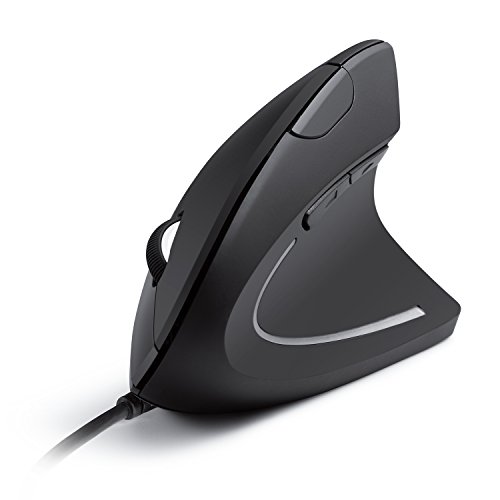
The Anker USB Vertical Mouse suits users who prefer a wired connection. It draws power from the computer, so you never need to charge a battery or replace one. The vertical design encourages a handshake grip and can feel more natural than a flat mouse. This makes it useful for a fixed creative workstation.
A wired cable also keeps the connection simple. There is no pairing step, receiver to lose, or wireless battery to monitor. The trade-off is less freedom around the desk. Designers who use a large monitor or frequently move between devices may prefer wireless models instead. For a stable desktop setup, this Anker remains practical.
Pros:
- No battery or charging needs
- Reliable wired connection
- Vertical grip supports a different wrist angle
- Simple plug-and-use setup
- Good fit for a permanent desk
- Often costs less than premium wireless models
Cons:
- Cable can limit movement
- Needs an available USB port
- Less convenient for laptops and mobile work
What Amazon Buyers Are Saying
Buyers commonly like the plug-and-use setup and the fact that the mouse needs no battery. Reviews often mention improved comfort compared with a standard flat mouse. Some users dislike the cable when they need more movement. Others say the upright shape takes time to control with precision.
My Recommendation
I recommend this wired Anker model for a stationary design desk. It offers a low-maintenance way to try a vertical grip. Choose it when stable connection and no charging matter more than wireless freedom.
Uineer Vertical Bluetooth Mouse

The Uineer vertical mouse targets users who want Bluetooth freedom and multi-device support. Its upright profile encourages a neutral hand position during long work periods. The shape may feel useful for design students, remote workers, and creators who move between computers. Bluetooth also helps keep a laptop setup free from extra USB hardware.
This mouse is most appealing when flexibility matters more than advanced software control. It can serve as a practical everyday tool for layouts, web design, photo work, and general browsing. The right fit still depends on your hand size and grip style. I suggest checking the product details before buying if you need a very small or very large mouse.
Pros:
- Vertical body supports a relaxed wrist angle
- Bluetooth design keeps the desk uncluttered
- Three-device support suits flexible workspaces
- Useful for laptop and desktop users
- Good option for remote designers
- Offers wireless freedom without a cable
Cons:
- Bluetooth pairing may vary by device
- May require adjustment for precise design work
- Hand-size fit needs careful consideration
What Amazon Buyers Are Saying
Buyers often focus on the wireless design and the ability to use the mouse with more than one device. Reviews may also mention the comfort benefits of the vertical shape. Some users find Bluetooth setup quick, while others prefer a receiver. The most common concern with this type of mouse is whether the size and angle match the buyer’s hand.
My Recommendation
The Uineer is a useful choice for designers who want a flexible Bluetooth mouse at a practical price. It works best for mixed laptop and desktop use. I recommend it for buyers who value wireless freedom and device switching over premium customization.
How to Choose the Best Ergonomic Mouse for Designers
Choosing the best ergonomic mouse for designers takes more than checking the price. A mouse can feel comfortable in a short test but tiring after six hours. I focus on hand position, pointer control, button access, connection type, and fit. These points matter during real design work, where small cursor movements and repeated clicks can add up.
1. Match the Mouse Shape to Your Hand
Start with the shape. A vertical mouse turns the hand toward a handshake position. This can reduce inward wrist rotation for many users. A contoured mouse gives the palm more support without standing as tall. Neither shape suits everyone.
Measure your hand from the wrist crease to the tip of the middle finger. Then compare that size with the product details when available. Small hands often feel better with the Logitech Lift. Larger hands may prefer the Logitech MX Vertical or another wider body. A mouse should let your fingers rest on the buttons without stretching.
2. Check Precision, Buttons, and Workflow Fit
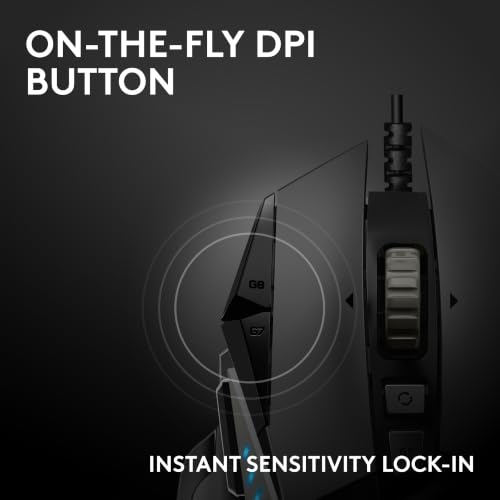
Designers need steady pointer control. Look for adjustable pointer speed when you work on large screens or high-resolution displays. A slower setting can help with anchor points, masks, and small selections. A faster setting can reduce arm movement across a wide monitor.
Button placement also matters. Extra buttons can speed up common commands, but too many buttons may cause accidental clicks. Think about your apps. Photoshop users may want easy access to undo or zoom. Figma users may care more about smooth selection and scrolling. CAD users may want a stable grip for long model views.
Remember that a mouse cannot replace good habits. I suggest keeping the wrist straight, resting the forearm on the desk, and taking short breaks. Ergonomic guidance from workplace safety experts also supports changing position and avoiding long, fixed postures.
3. Compare Connection Type, Battery Needs, and Value
Wireless mice create a cleaner desk and work well with modern laptops. Bluetooth can save a USB port, while a 2.4G receiver may offer a faster plug-and-use setup. Multi-device support helps if you use a desktop, laptop, and tablet. Check your computer ports and operating system before you buy.
Wired mice make sense for fixed desks. They do not need charging, but the cable can restrict movement. Rechargeable wireless mice reduce disposable battery use, yet you must remember to charge them. The best choice depends on your workflow, not just the feature list.
Finally, compare long-term value. A premium mouse may cost more but offer better comfort and build quality. A budget mouse may be enough for light work or a first trial. If wrist comfort affects your daily output, spending more on a shape that truly fits can be a wise investment.
Final Verdict: Which Should You Buy?
The Logitech MX Vertical is my top pick as the best ergonomic mouse for designers. It offers the strongest mix of comfort, control, wireless freedom, and build quality. Choose the Logitech Lift for smaller hands or the Anker models for lower-cost options.
The right ergonomic mouse should support your hand without slowing your creative flow. Measure your hand, review your device needs, and choose a shape you can use for hours.
FAQs Of best ergonomic mouse for designers
What is the best ergonomic mouse for designers?
The Logitech MX Vertical is my top choice. Its vertical shape, comfortable grip, and professional feature set suit long design sessions.
Are vertical mice good for graphic design?
Yes. A vertical mouse can support a more neutral hand position. However, it may take several days to feel natural during precise work.
Is the Logitech Lift good for small hands?
Yes. The Logitech Lift has a compact shape that often suits small and medium hands better than larger vertical mice.
Should designers choose a wired or wireless mouse?
Choose wired for a fixed desk and no charging. Choose wireless for a cleaner setup, laptop use, or work across several devices.
How long does it take to adjust to an ergonomic mouse?
Many users need a few days to develop new muscle memory. Start with normal tasks before using the mouse for demanding precision work.