You optimize gaming mouse settings by matching DPI, sensitivity, polling rate, and grip style to your game and hand control.
If you want smoother aim, faster tracking, and fewer missed shots, learning how to optimize gaming mouse settings is one of the best upgrades you can make. I’ve tuned dozens of gaming mice over the years, and the biggest difference usually comes from small, careful changes, not flashy gear. The right setup can make your mouse feel like part of your hand instead of a tool you fight against.

What gaming mouse settings actually control
Gaming mouse settings shape how your cursor or crosshair responds to your hand. They affect speed, precision, and consistency. When those settings are dialed in, your aim feels natural instead of random.
The main settings to understand are:
- DPI or CPI: This controls how far the cursor moves when you move the mouse. Higher numbers mean faster movement, but not always better control.
- In-game sensitivity: This is the game’s own speed setting. It works with DPI to create your final aiming feel.
- Polling rate: This controls how often the mouse reports its position to the PC. Higher rates can make movement feel smoother.
- Lift-off distance: This affects how high you can lift the mouse before tracking stops.
- Acceleration and smoothing: These can change how raw or filtered your movement feels.
I learned early on that many players blame aim issues on reflexes when the real problem is bad settings. A mouse that is too fast can make fine tracking feel shaky. A mouse that is too slow can make turning and flicking feel like dragging a brick.
Start with the right DPI and sensitivity balance
DPI is one of the most misunderstood parts of how to optimize gaming mouse settings. It does not directly make you a better aimer. It simply changes how sensitive your mouse is to movement.
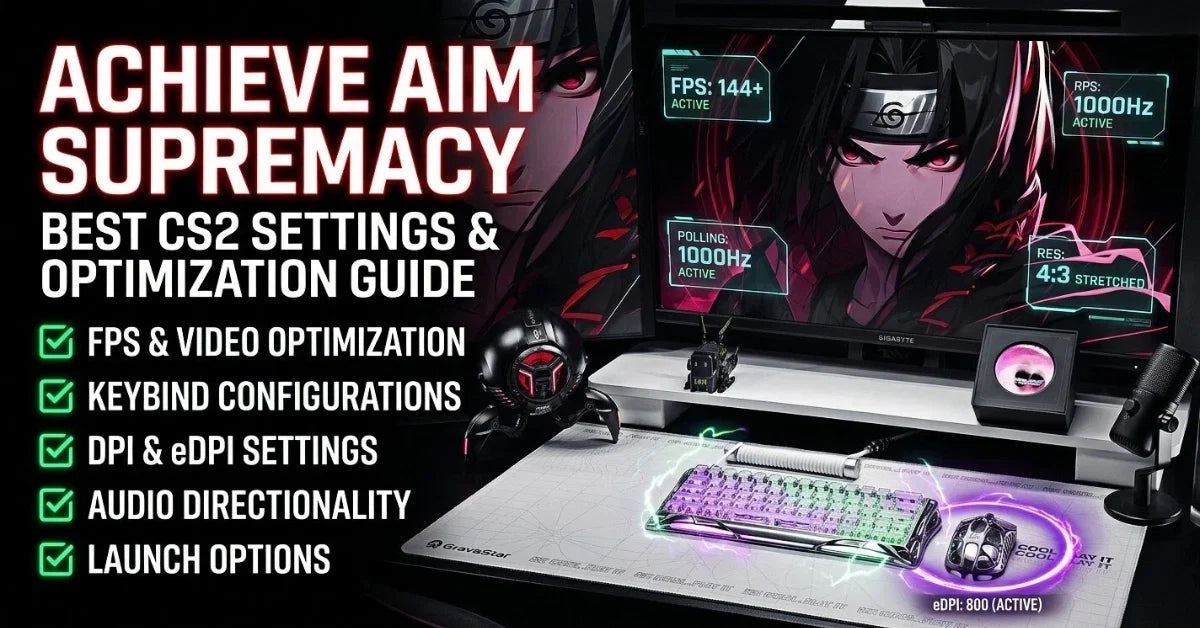
Most players do best somewhere between 400 and 1600 DPI, with many competitive players staying around 800 DPI. What matters most is the combo of DPI and in-game sensitivity, not DPI alone. A good starting point is to keep DPI stable and adjust the game’s sensitivity until aiming feels controlled.
A simple way to test this is:
- Open a practice range or aim trainer.
- Move your mouse slowly across a target.
- If it feels twitchy, lower sensitivity.
- If large turns feel hard, raise it a little.
For years, I made the mistake of chasing very high DPI because it sounded more advanced. In real use, it only made my crosshair harder to steady. Once I lowered it and used a more balanced sensitivity, my tracking improved almost immediately.

Find the best polling rate for smooth control
Polling rate is measured in hertz. It tells you how often the mouse sends updates to the computer. A 1000 Hz polling rate means the mouse reports its position 1000 times per second.
For most gamers, 1000 Hz is the best default. It offers a strong mix of smooth feel and stable performance. Some newer mice support even higher polling rates, but those settings can use more system resources and may not feel better for everyone.
Use this simple rule:
- 125 Hz: Too low for most gaming today
- 500 Hz: Fine for casual play
- 1000 Hz: Best all-around choice for most players
- 2000 Hz and above: Try only if your mouse and PC handle it well
If your system feels inconsistent or you notice stutter, do not assume higher is better. In my own testing, 1000 Hz often felt just as reliable as faster modes, especially in real matches where consistency matters more than theory.
Adjust acceleration and pointer precision
Mouse acceleration changes cursor speed based on how fast you move the mouse. That can be useful for office work, but it often hurts muscle memory in games. Most competitive players turn it off.
You should also check pointer precision in your operating system. On Windows, “Enhance pointer precision” adds acceleration. That means the same hand movement can create different results depending on speed, which makes aim less predictable.
What to do:
- Turn off mouse acceleration in Windows
- Disable extra smoothing or filtering in mouse software
- Keep your movement raw and repeatable
This is one of the most important parts of how to optimize gaming mouse settings because repeatability is what builds good aim. If your mouse behaves differently every time you move faster or slower, your brain has to keep relearning the motion.
Match settings to your game genre
Not every game needs the same setup. A settings profile for a fast shooter will not always work well in a strategy game or MMO. The best way to optimize gaming mouse settings is to match them to the game’s pace and camera demands.
First-person shooters
For FPS games, prioritize precision and consistency. Lower to medium sensitivity often works best because it helps with tracking, recoil control, and headshot aiming.
Good starting points:
- 400 to 800 DPI
- Low to medium in-game sensitivity
- 1000 Hz polling rate
- Acceleration off
Battle royale games
Battle royale games often mix close combat with long-range fights. A balanced setup works well here. You want enough speed to turn quickly, but not so much that your aim becomes unstable.
Good starting points:
- 800 DPI
- Medium sensitivity
- Stable polling rate
- Minimal filtering
MOBA and RTS games
These games are more about speed across the screen than tiny aim corrections. Slightly higher DPI can help with map movement and interface use.
Good starting points:
- 800 to 1600 DPI
- Moderate sensitivity
- Comfortable button mapping
MMO games
In MMOs, comfort and button access matter more than raw aim. Focus on button layout, macros if allowed, and a mouse shape that supports long sessions.
I’ve found that players often copy FPS settings into every game, then wonder why menus and map movement feel awkward. That is like wearing running shoes to a formal dinner. It can work, but it is not the best fit.

Tune lift-off distance and surface tracking
Lift-off distance is how far you can raise the mouse before it stops tracking. A lower lift-off distance is helpful for low-sensitivity players who pick up and reset the mouse often. It helps prevent unwanted cursor movement during lifts.
Surface tracking also matters. Some mice perform better on certain mousepads than others. Cloth pads often feel smoother and more controlled. Hard pads can feel faster and more slippery.
A few useful tips:
- Use a clean mousepad with no dust buildup
- Check whether your mouse supports lift-off distance control
- Test the mouse on your main pad, not just a desk
- Replace worn mouse skates if tracking feels rough
I once spent days changing sensitivity when the real issue was a dirty pad and worn feet. That is a good reminder: sometimes the best way to optimize gaming mouse settings is to fix the surface under the mouse first.

Choose the right mouse grip and shape
Your grip style changes how settings feel. A palm grip usually favors smoother, broader motions. A claw grip can handle quicker corrections. A fingertip grip often feels best with lighter mice and lower resistance.
Try to match your settings to your grip:
- Palm grip: Use stable, slightly lower sensitivity for broad control
- Claw grip: Use balanced sensitivity for fast corrections
- Fingertip grip: Use precise settings with a light mouse
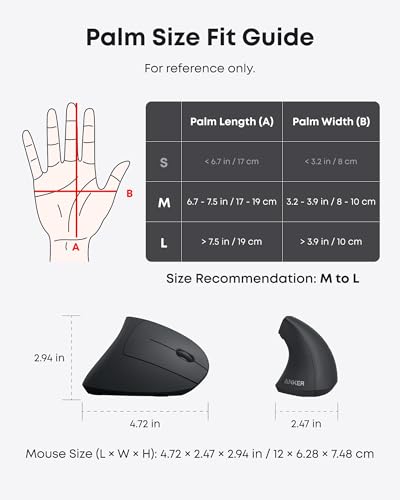
Mouse shape matters too. A mouse that fits your hand can make a medium sensitivity feel more accurate than a perfect spec sheet ever will. This is why two players can use the same DPI and still have completely different results.
If your hand cramps or your aim drifts after long play, the problem may not be your settings. It may be the shape. That is a lesson many players learn after buying a mouse that looked great online but felt wrong in real use.
Test changes one at a time
This is where many players go wrong. They change DPI, sensitivity, polling rate, acceleration, and button settings all at once. Then they have no idea what actually helped.
A better process is simple:
- Pick one setting to change.
- Test it in a practice range for at least 10 to 15 minutes.
- Play a few matches with it.
- Keep it only if it feels better in both controlled and live play.
Use a short test list:
- Can you track a moving target smoothly?
- Can you flick without overshooting?
- Can you turn quickly without losing control?
- Does the setup still feel good after one hour?
This step-by-step method saves time and reduces guesswork. In my experience, the most reliable setups come from patience, not from constant tinkering.
Build a simple profile for practice and ranked play
If your mouse software supports profiles, use them. A practice profile and a ranked profile can keep things clean. You may want a slightly different setup for aim drills than for high-pressure matches.
A practical profile setup might look like this:
- Profile 1: Training mode, slightly higher sensitivity for fast reps
- Profile 2: Ranked play, stable low to medium sensitivity
- Profile 3: Casual or non-gaming use, more comfortable desktop settings
This approach helps you avoid mental friction. When you launch a game, the mouse behaves the way you expect. That kind of consistency builds confidence, and confidence helps aim more than most people admit.
Common mistakes to avoid
Even a good mouse can feel bad if the settings are off. Some mistakes are very common, especially when players try to improve too fast.
Avoid these traps:
- Using extreme DPI because it sounds advanced
- Copying a pro player’s settings without testing them
- Leaving mouse acceleration on
- Changing settings every day
- Ignoring mousepad wear and grip comfort
A lot of players also forget that skill takes time to adapt. If you change settings today, your aim may feel worse for a few sessions before it gets better. That does not mean the settings are bad. It often means your muscle memory is adjusting.
How to know when your mouse settings are truly optimized
You know your settings are close when the mouse stops distracting you. You stop thinking about the cursor and start thinking about the game. That is the real goal of how to optimize gaming mouse settings.
Signs your setup is working:
- Small aim corrections feel easy
- Large turns do not feel rushed
- Your aim stays steady during long sessions
- You can play multiple matches without discomfort
- Your performance feels consistent, not random
Optimization is not about finding one magical number. It is about building a setup that feels predictable, comfortable, and repeatable. That is what serious players rely on.
Frequently Asked Questions of how to optimize gaming mouse settings
What is the best DPI for gaming?
There is no single best DPI, but 800 DPI is a solid starting point for many players. It gives a good balance of control and speed, especially when paired with a proper in-game sensitivity.
Should I turn off mouse acceleration for gaming?
Yes, in most games you should turn it off. Mouse acceleration makes movement less predictable, which can hurt muscle memory and aiming consistency.
Is a higher polling rate always better?
Not always. A 1000 Hz polling rate is enough for most players and usually offers the best balance of smoothness and stability. Higher settings may help some users, but they are not necessary for everyone.
Why does my mouse feel different in every game?
Different games use different sensitivity systems and may handle mouse input in different ways. You may need separate sensitivity settings for each title to get the same feel.
How do I know if my mouse sensitivity is too high?
If you often overshoot targets, struggle with small adjustments, or feel shaky during tracking, your sensitivity may be too high. Lower it a little and test again in practice mode.
Do mousepads really affect gaming mouse settings?
Yes, they can affect glide, tracking, and comfort. A clean, consistent mousepad helps your settings feel more accurate and stable.
Conclusion
Optimizing gaming mouse settings is one of the easiest ways to improve control without buying a new setup. Start with a stable DPI, use a sensible polling rate, turn off acceleration, and match your settings to your game and grip style. Then test one change at a time until the mouse feels like an extension of your hand.
The best setup is not the fanciest one. It is the one that helps you aim with confidence, consistency, and less effort. Try the steps in this guide, make small adjustments, and pay attention to how your aim feels over a few sessions. If you want better performance, start tuning today and keep refining until it clicks.